May 2026 Updates: Resizing Product Images in Checkout
Changes & Current Status:
Previously, modifying the product thumbnail size inside the checkout or product list required relying on community-shared CSS snippets.
Funnelish has since expanded its native styling controls, allowing you to visually adjust many elements directly within the drag-and-drop builder, reducing the need for custom code.
Up-to-Date Information for Adjusting Image Sizes: If you need to make the product images larger on your checkout step, here are the best ways to do it today:
1. Using Native Builder Settings:
Click on the Product List or Checkout form element inside the Funnelish builder.
Navigate to the left-hand settings panel and check the Layout or Style settings. Depending on the checkout template you selected, you can often adjust the image size and proportions visually.
2. Using Custom CSS (For Exact Overrides): If you want complete control or if the template restricts the size, you can easily force the size using a CSS snippet. Go to your Step Settings > Custom CSS and paste the following code:
CSS
/* Increase product image size in checkout */
.pl-item-image img, .product-image img {
    width: 100px !important; /* Adjust the 100px value to your preferred size */
    max-width: 100% !important;
    height: auto !important;
}
(Tip: Adjust the
100pxvalue until it looks perfect on both desktop and mobile views.)Related Articles & Resources:
Guide to customizing checkout elements: Funnelish Order Forms & Checkouts
How to safely add Custom CSS: Funnelish Custom Tracking & Codes
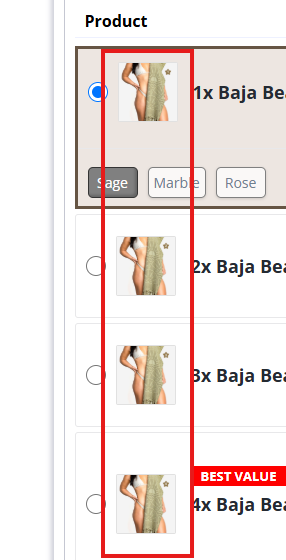
Hi @Muhammad_Talha_Khan , please see this thread for how to do this: Change image size on that product list - #2 by fathx