This quick guide walks you through the exact steps to create a new Funnelish funnel and add an Advertorial page. Advertorial steps are ideal for warming up visitors with story-driven content before sending them to your checkout or next funnel step.
Follow the steps below to create a new Funnelish funnel and add an Advertorial step.
Step 1: Go to Funnelish Funnels
Navigate to:
 https://app.funnelish.com/funnels
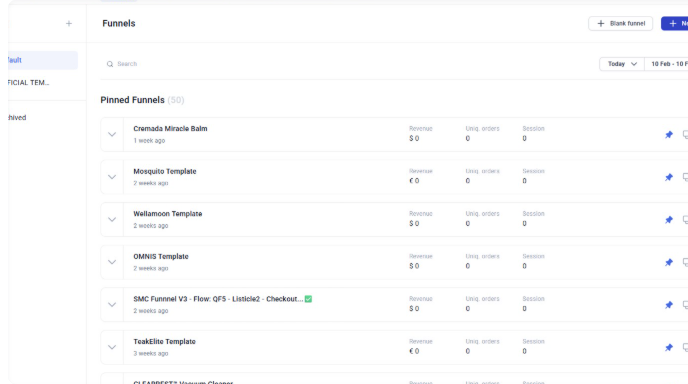
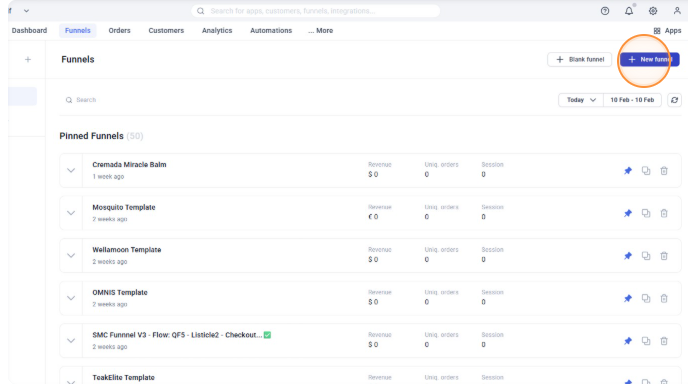
Step 2: Create a New Funnel
Click on “New Funnel”.
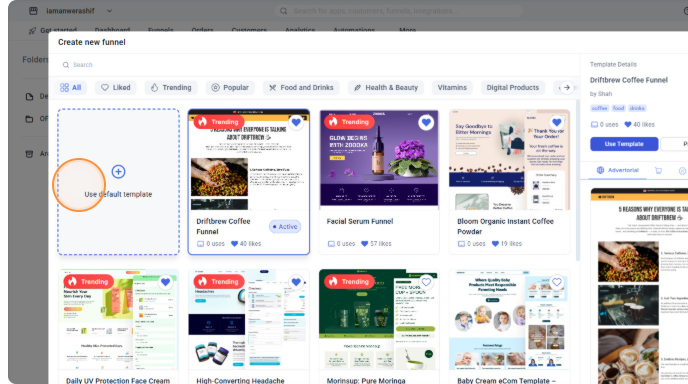
Step 3: Use the Default Template
Select “Use default template”.
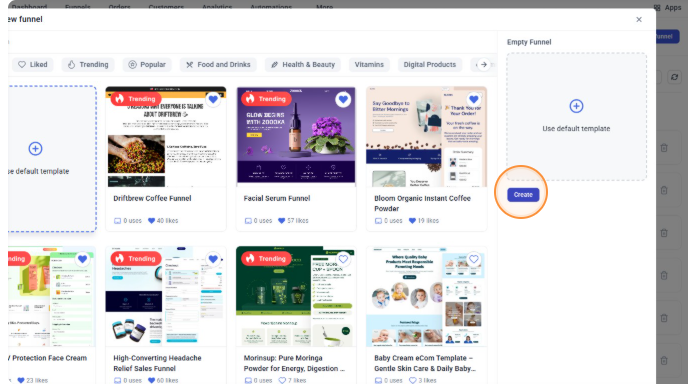
Step 4: Create the Funnel
Click “Create”.
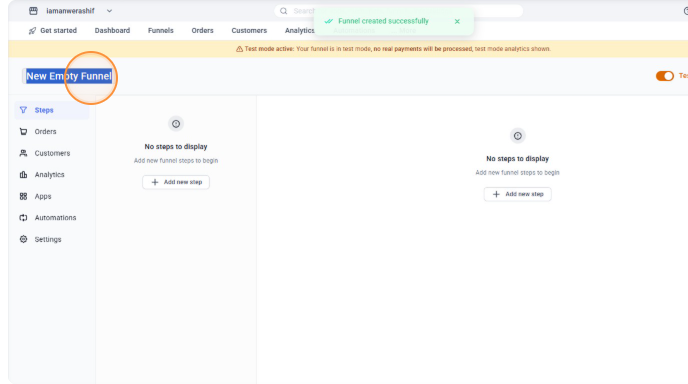
Step 5: Name Your Funnel
Double-click “New Empty Funnel” to rename your funnel.
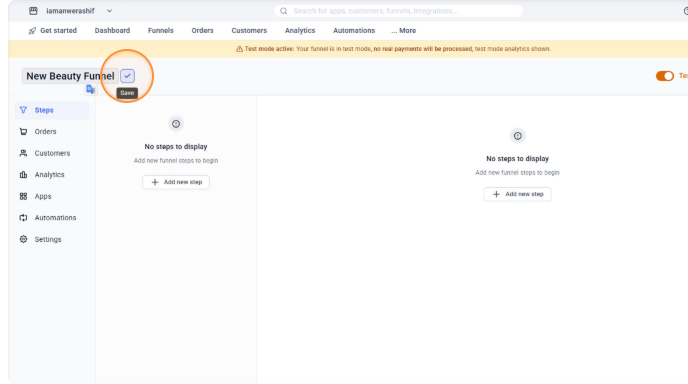
Step 6: Save the Funnel Name
Click the save icon to confirm the funnel name.
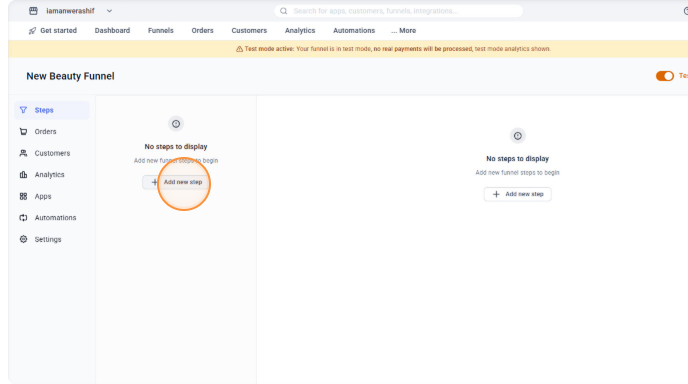
Step 7: Add a New Step
Click “Add new step”.
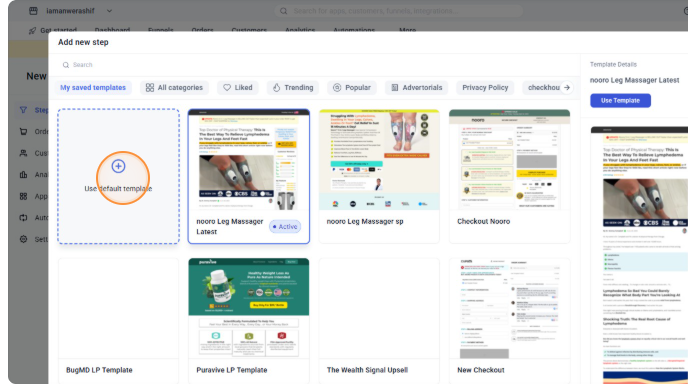
Step 8: Use Default Step Template
Choose “Use default template” again.
Step 9: Create the Step
Click “Create”.
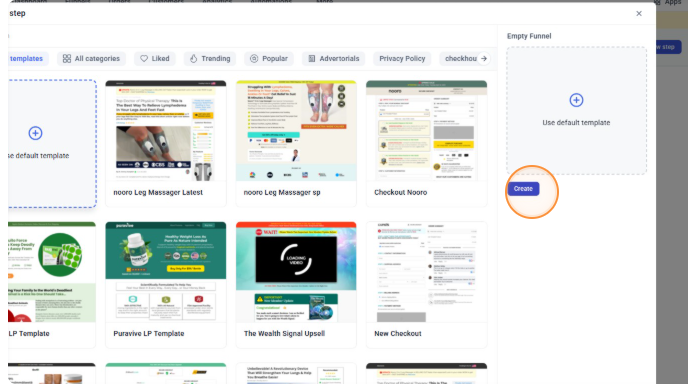
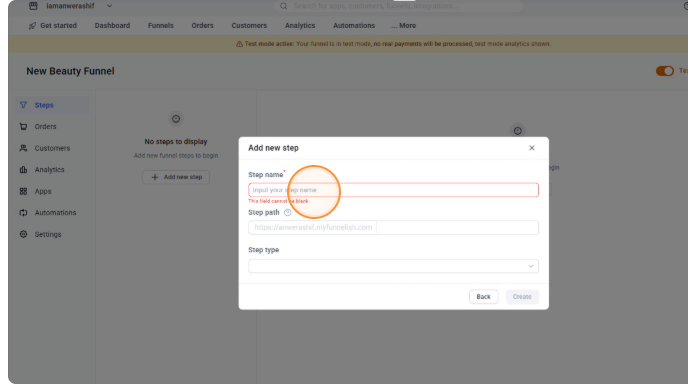
Step 10: Name the Step
In the “Input your step name” field, type:
Advertorial
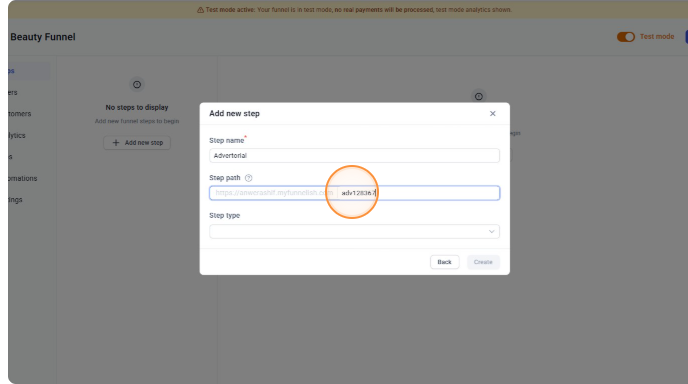
Step 11: Set the Step Path
Click the “Step path” field and enter a unique URL slug.
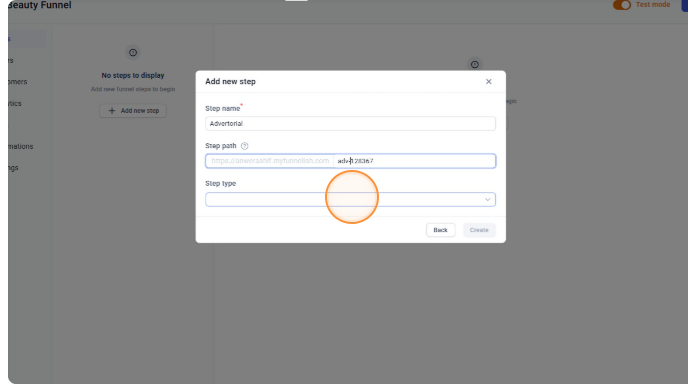
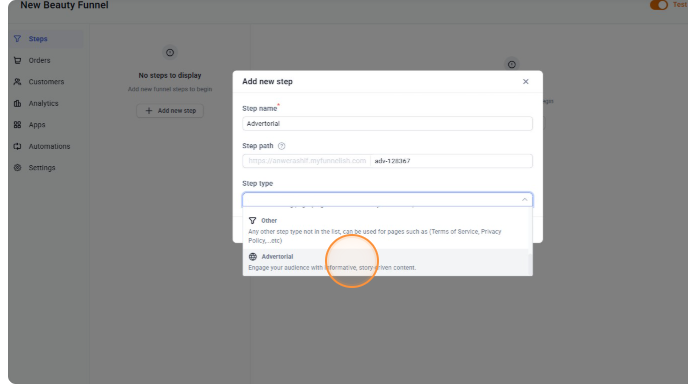
Step 12: Choose Step Type
Open the “Step type” dropdown.
Step 13: Select Advertorial
Scroll and select “Advertorial” from the list.
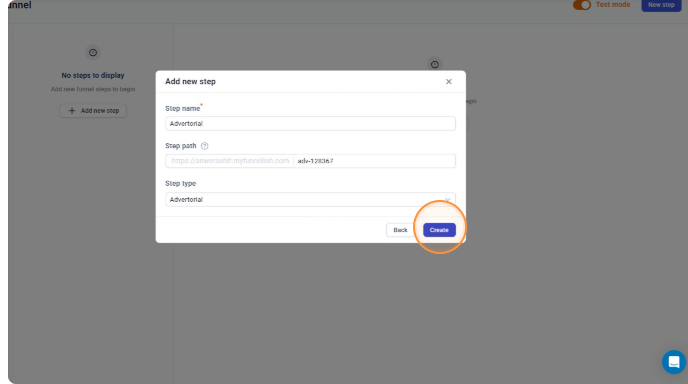
Step 14: Finalize
Click “Create” 
Your funnel with an Advertorial step is now ready.
Here’s a short, clean intro and conclusion you can paste directly above and below the steps 
That’s it! You’ve successfully created a Funnelish funnel with an Advertorial step. You can now customize the page content, design, and flow to match your offer and improve conversions.