Hi @Nicola_Morri !
What we suggest in this case is the following:
1. Add the Inter Font (Thin Included)
-
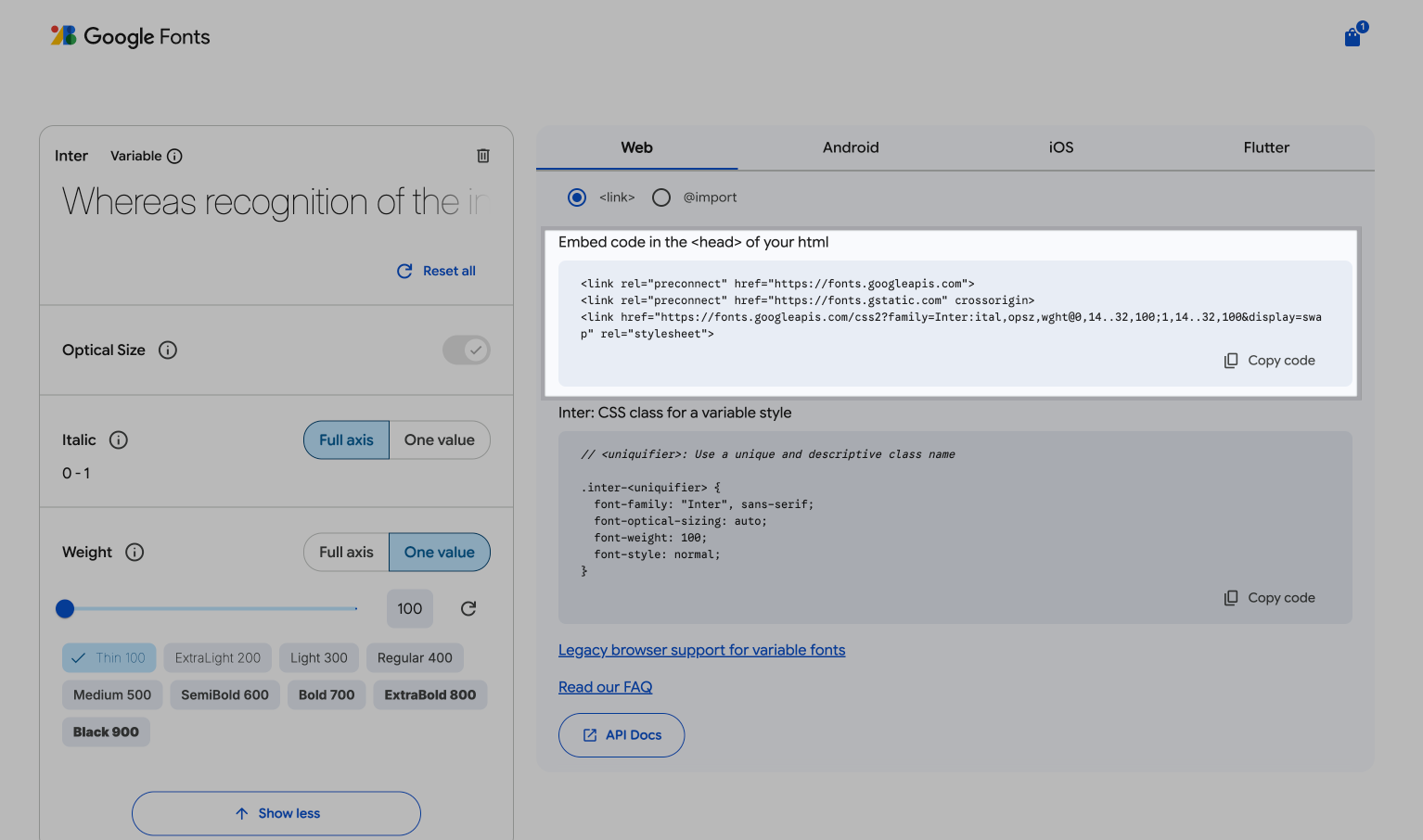
Go to Google Fonts and search for Inter.
-
When selecting styles, make sure Thin (100) is included
(optionally also select 200 / 300 if you plan to use them).
-
Copy the embed <link> code.
Example embed (recommended):
<link rel="stylesheet" href="https://fonts.googleapis.com/css2?family=Inter:ital,wght@0,100;0,200;0,300;0,400;0,500;0,600;0,700;0,800;0,900&display=swap">
2. Paste the Embed Code
Paste the Google Fonts <link> into one of the following locations:
- Inside the page head section - HEAD HTML

3. Apply Inter Thin Using Custom CSS
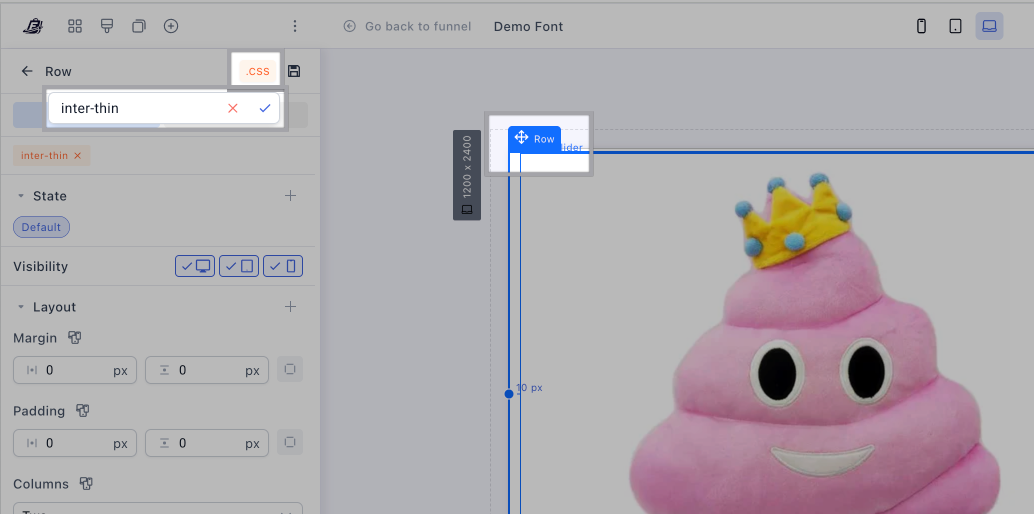
Custom CSS can be found as shown above
- To apply Inter Thin to all paragraph elements
p {
  font-family: "Inter", sans-serif;
  font-weight: 100;
}
- To apply Inter Thin to headings + paragraphs
p,
h1, h2, h3, h4, h5, h6 {
  font-family: "Inter", sans-serif;
  font-weight: 100;
}
- To apply Inter globally (recommended base setup)
body {
  font-family: "Inter", sans-serif;
}
Then control Thin only where needed:
p {
  font-weight: 100;
}
4. To apply Inter Thin to Specific Elements Only
- Create a custom CSS class:
.inter-thin {
  font-family: "Inter", sans-serif;
  font-weight: 100;
}
- Assign the class (
inter-thin) to wherever you want it
- Sections
- Rows
- Text elements
- Buttons
This allows precise control without affecting the whole page.
Lastly, preview changes: Save and preview the page to ensure the font displays correctly.
Keep in mind that if applying custom fonts it can slow down page loading significantly so we’d suggest preferably using their equivalent font from the options we currently have.
In order for the script to load you’ll need to make sure your page has your custom domain assigned