Want to hear a “cha-ching” in your team’s Slack channel every time a new Funnelish order rolls in?
Setting up real-time order notifications is a great way to keep your team motivated and on top of fulfillment. Because Funnelish and Slack speak slightly different data languages, we will use Make.com (a free automation tool) to act as the translator between them.
Here is exactly how to set it up from scratch in about 10 minutes.
What You Need Before You Start
-
A Funnelish account.
-
A Slack workspace (and a channel ready for the notifications, e.g.,
#new-orders). -
A free Make.com account.
Step 1: Create the Webhook in Make (The Listener)
First, we need to create a unique URL that will “catch” the order data coming from Funnelish.
-
Log into Make.com and click Create a new scenario in the top right corner.
-
You will see a giant + icon in the middle of a blank screen. Click it!
-
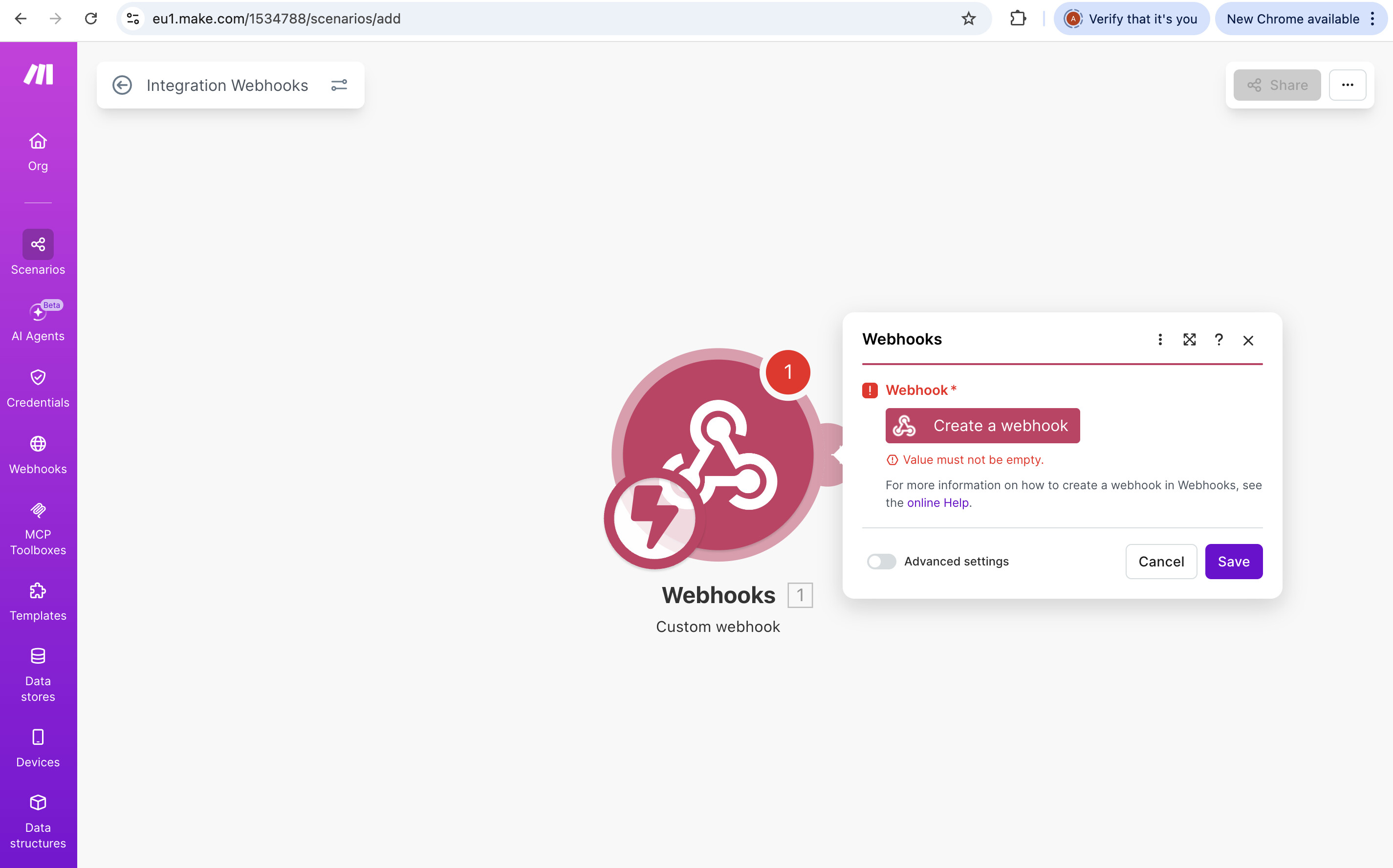
Search for the app called Webhooks (look for the pink/red icon) and select Custom webhook.
-
A box will pop up. Click Add, name your webhook something like “Funnelish Orders”, and click Save.
-
Make will immediately generate a URL that starts with
https://hook.make.com/... -
Copy that URL.
Step 2: Paste the URL into Funnelish > Automations
Now we tell Funnelish where to send the data.
-
Open a new tab and go to your Funnelish account.
-
Open the specific Funnel where you want to track sales.
-
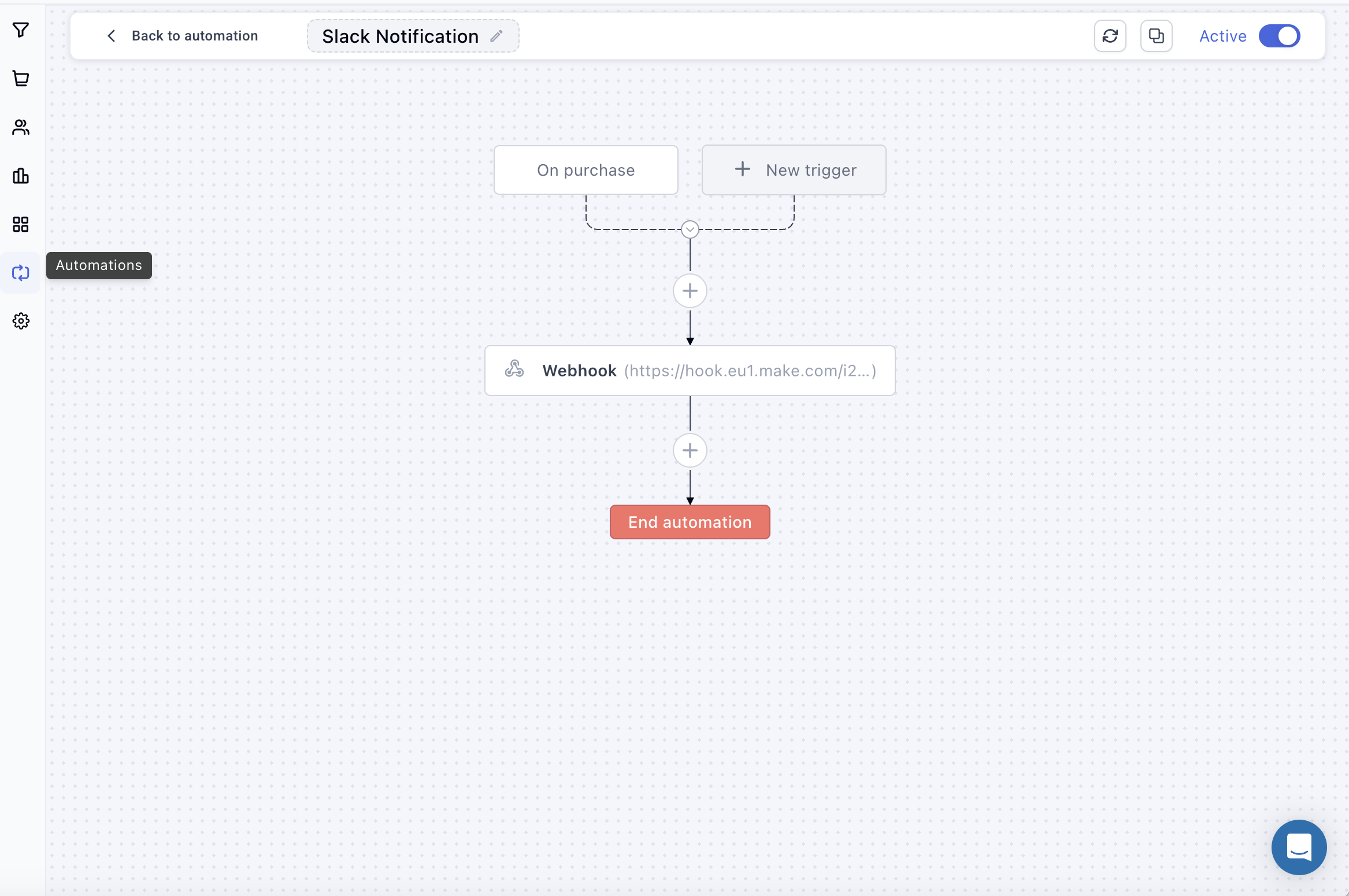
Navigate to your Funnel Automations where you can add a Webhook or Postback Endpoint for purchases.
-
Paste the Make.com URL you just copied and hit Save in Funnelish.
Step 3: The Crucial “Listening” Test
Before we can build the Slack message, Make needs to see what a Funnelish order looks like.
-
Go back to Make.com. Click the big purple Run once button at the bottom left.
-
You will see a spinning circle and a “Waiting for data…” message. Leave this tab open!
-
Go back to your Funnelish checkout page and complete a test purchase.
-
Jump back to Make.com. The spinning should have stopped, and you will see a green checkmark or a little “1” bubble above your Webhook module. Make caught the order!
Note: If you don’t do this test purchase, you won’t be able to map the specific buyer data (like name and price) in the next step!
Step 4: Build Your Slack Message
Now we tell Make to forward that data to your Slack channel in a readable format.
-
In Make.com, hover over the right side of your red Webhook circle until you see a little half-circle with a + sign. Click it!
-
Search for Slack and select Create a Message.
-
Connect your Slack account (it will ask you to authorize Make and select your workspace).
-
Choose the specific Slack Channel where you want the alerts to go (e.g.,
#orders). -
Click into the Text box. Because you just did a test purchase, a menu will pop up showing all the Funnelish data variables!
-
Click the variables to design your message. It should look something like this:
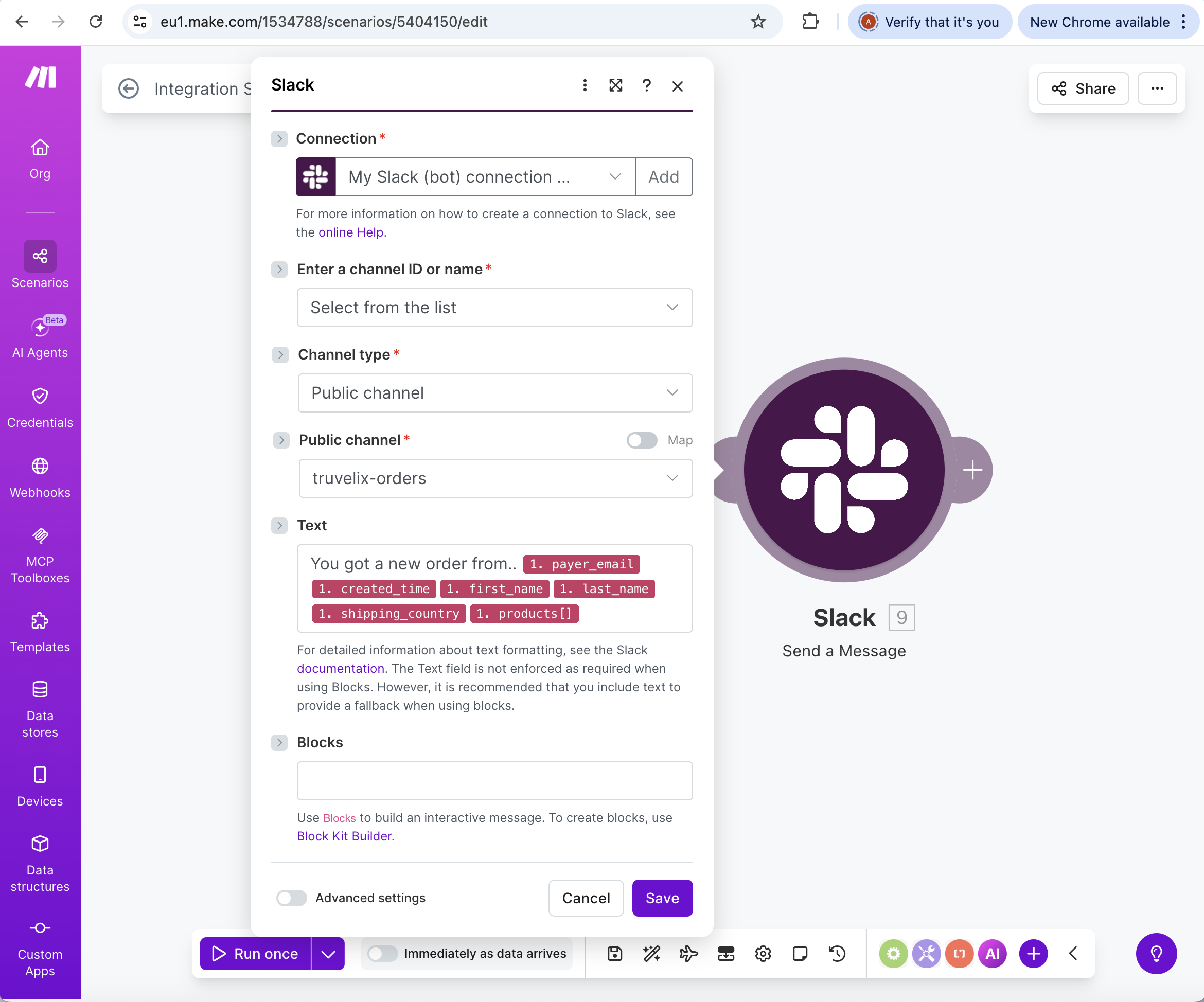
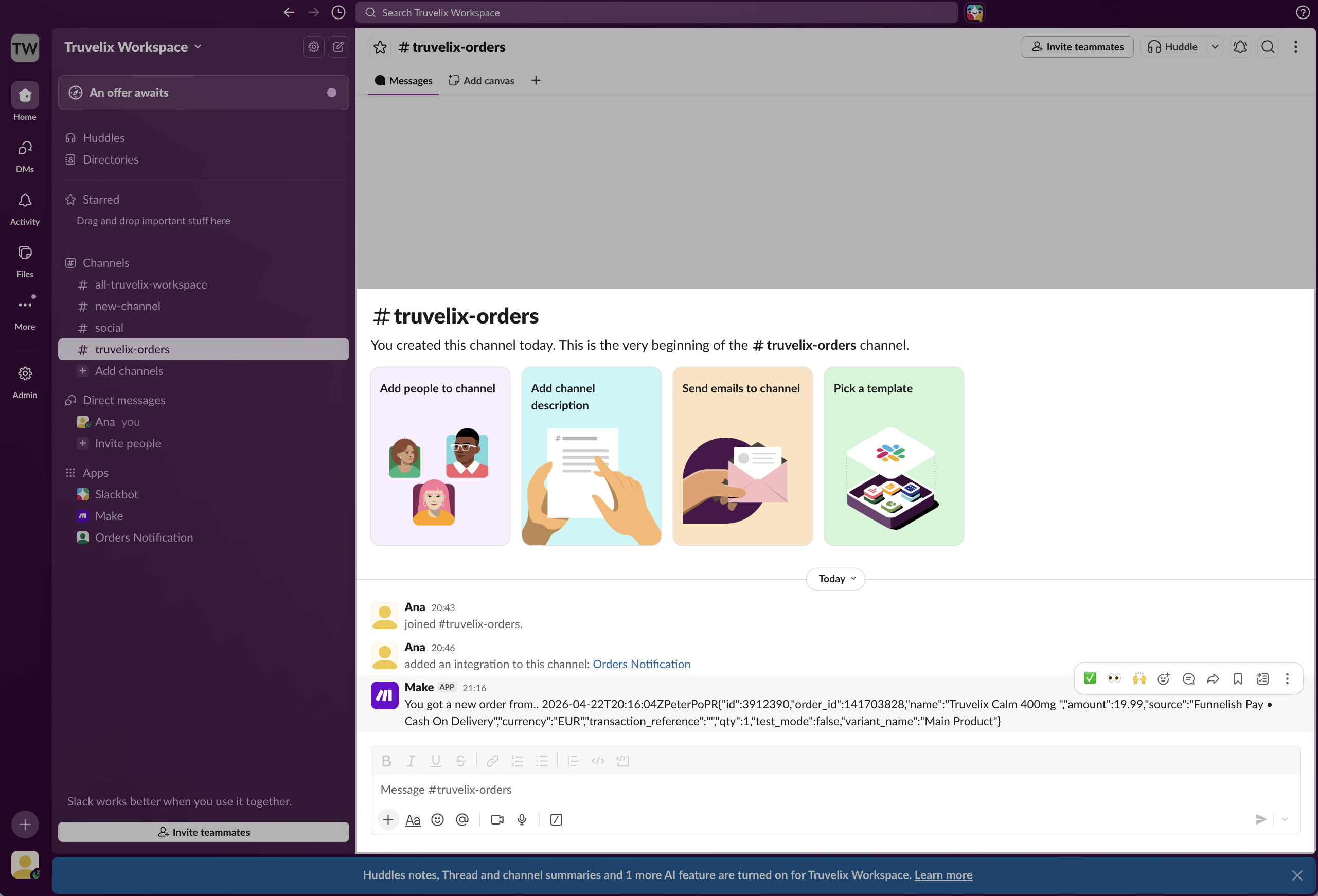
You got a new order from..
[email]Total:$ [total_price]Product:[product_name]
- Click OK to save the Slack module.
Step 5: Final Test and Activate!
-
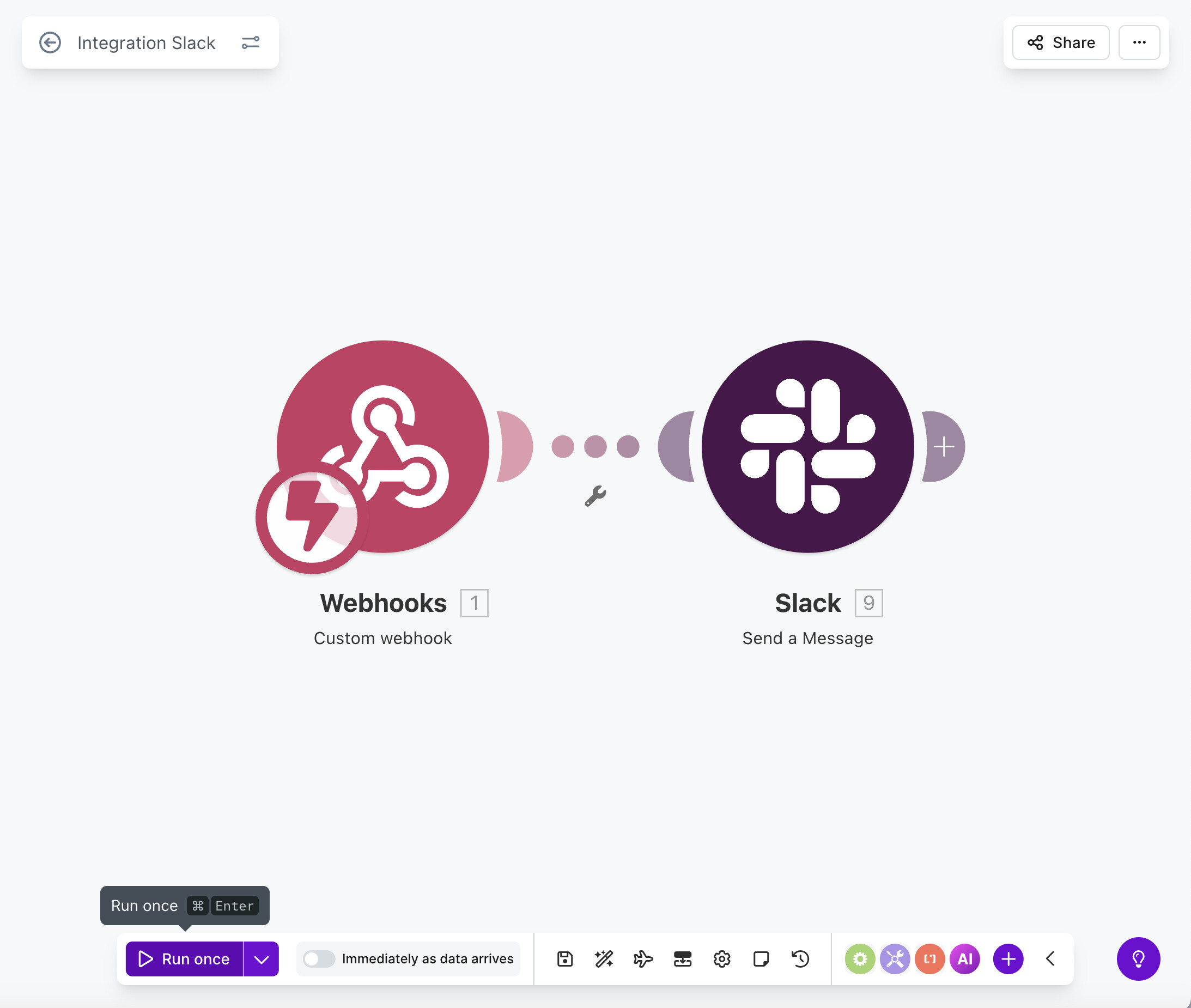
Let’s make sure it flows perfectly. Click Run once at the bottom left of Make again.
-
Go do one more test purchase in Funnelish.
-
Check your Slack channel… you should see your beautifully formatted message pop up instantly!
-
Finally, go back to Make.com, save your scenario (the floppy disk icon), and flip the toggle switch at the bottom left to ON.
You are done! Make will now silently run in the background, pinging your Slack channel every time you make a sale.
 Common Troubleshooting
-
Error: “A trigger must be the first module in a scenario.” If Make gives you this warning, it means it doesn’t know where to start. Right-click your red Webhooks module and click Choose as Trigger. You will see a little clock icon attach to it. Save and try again!
-
The Slack message never arrived: Make sure you updated Funnelish with the correct webhook URL. If you delete and recreate modules in Make, the
hook.make.comURL changes. Always ensure Funnelish has the most up-to-date link.
 Got a question? If you run into any issues getting your Make.com webhook to fire, feel free to drop a reply below or start a new thread in the Ask the community section.
 Explore more integrations: If your team uses Discord, Google Sheets, or a different app instead of Slack, you can find more setup guides, share your own custom workflows, or request a specific tutorial in our Documentation >
  7. Automations & Integrations category.