This guide explains how to configure your checkout so the shipping address syncs correctly to PayPal.
Why Shipping Addresses Don’t Sync to PayPal
Shipping addresses may fail to sync if:
- The State/Province field is set to Dynamic
When a buyer selects a country where state is not required (for example, France or Germany), the field becomes hidden. When this happens, PayPal rejects the entire address. - The checkout uses Billing details only
PayPal does not store addresses when only Billing fields are used.
PayPal Shipping Address Requirements
To sync a shipping address, PayPal requires:
- A complete Shipping address, including:
- Shipping Address
- Shipping City
- Shipping State/Province
- Shipping ZIP/Postal code
- Shipping Country
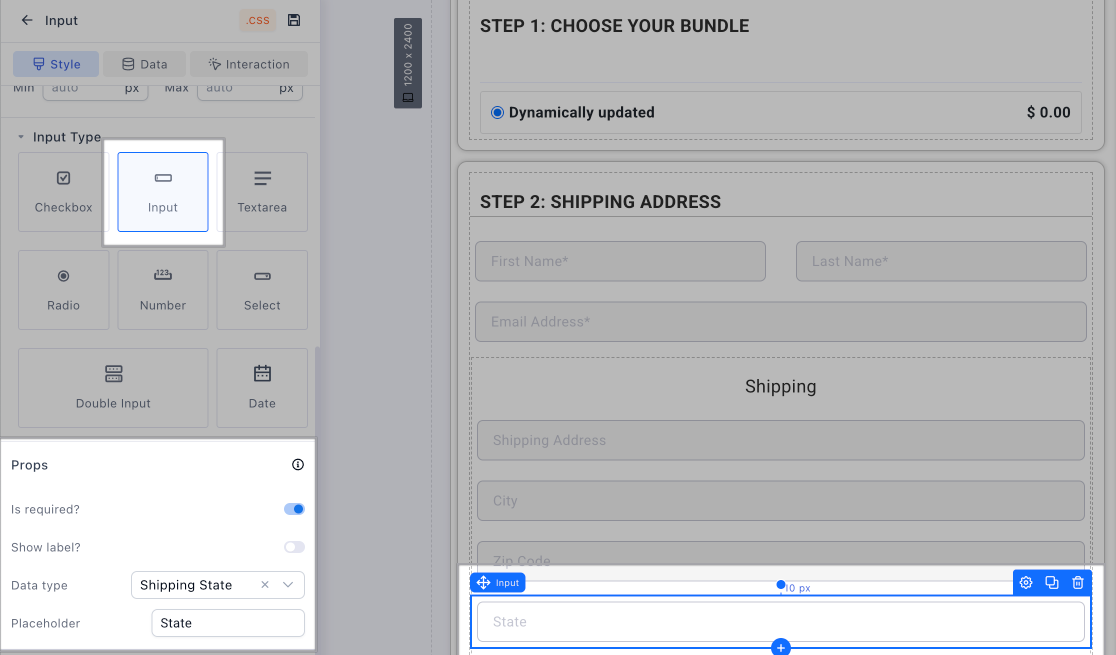
- The State/Province field must always be present, even for countries where it’s normally optional
- The State/Province field type must be set to INPUT (not SELECT)
Supported Checkout Setups
Supported
- Billing + Shipping (As long as the Shipping fields is using “input” type for states)
- Shipping only
Not Supported
- Billing only
PayPal will not sync the address if only using the billing data type.
Required Checkout Setup
To make the shipping details sync make sure to include the following details in the checkout form:
- All Shipping fields ( Shipping Address, Shipping City, Shipping State/Province, Shipping ZIP/Postal code, Shipping Country)
- Set State/Province to INPUT
Pre-Configured Template
To get started quickly, use the funnel below which includes the Billing + Shipping checkout template and Shipping checkout template: