If you sell physical products through Funnelish, eCommerce shipping just got a lot simpler.
The new Shipping & Delivery feature lets you charge the right shipping at checkout, show customers when their order will arrive, and send every paid order to whoever ships it. All from one place: Settings → Shipping & delivery.
It’s built for brands selling physical goods through funnels: a hero product with one-click upsells, a subscription box that renews, or a small catalog shipped from one or two warehouses.
What you can do now
1. Charge shipping properly
- Set prices by country, state or postcode
- Offer free shipping over an amount, like “free over £50”
- Keep Express for light parcels with a weight limit
- Add a handling fee for fragile goods
- Use flat rate shipping, free rates, or rates based on order total, weight or item count
2. Promise a delivery date
- Every option shows an estimate, as “3–5 business days” or as real dates like “Nov 25 – Nov 27”
- Estimates count your processing time and your daily dispatch cut-off, and skip weekends
3. Ship without copy-pasting
- Paid orders go to ShipStation, ShipBob or Shopify by themselves, routed by country and product
- Tracking comes back to the order, and your “Shipped” and “Delivered” automations and emails fire
- Ship it yourself? Orders wait for you under Orders, and you add tracking by hand
How it fits together
Shipping & Delivery answers two questions separately:
What does the customer pay, and when does it arrive? That’s the Rates tab.
Who ships the parcel? That’s the Fulfillment tab.
You can set up one without the other. Behind them are four building blocks:
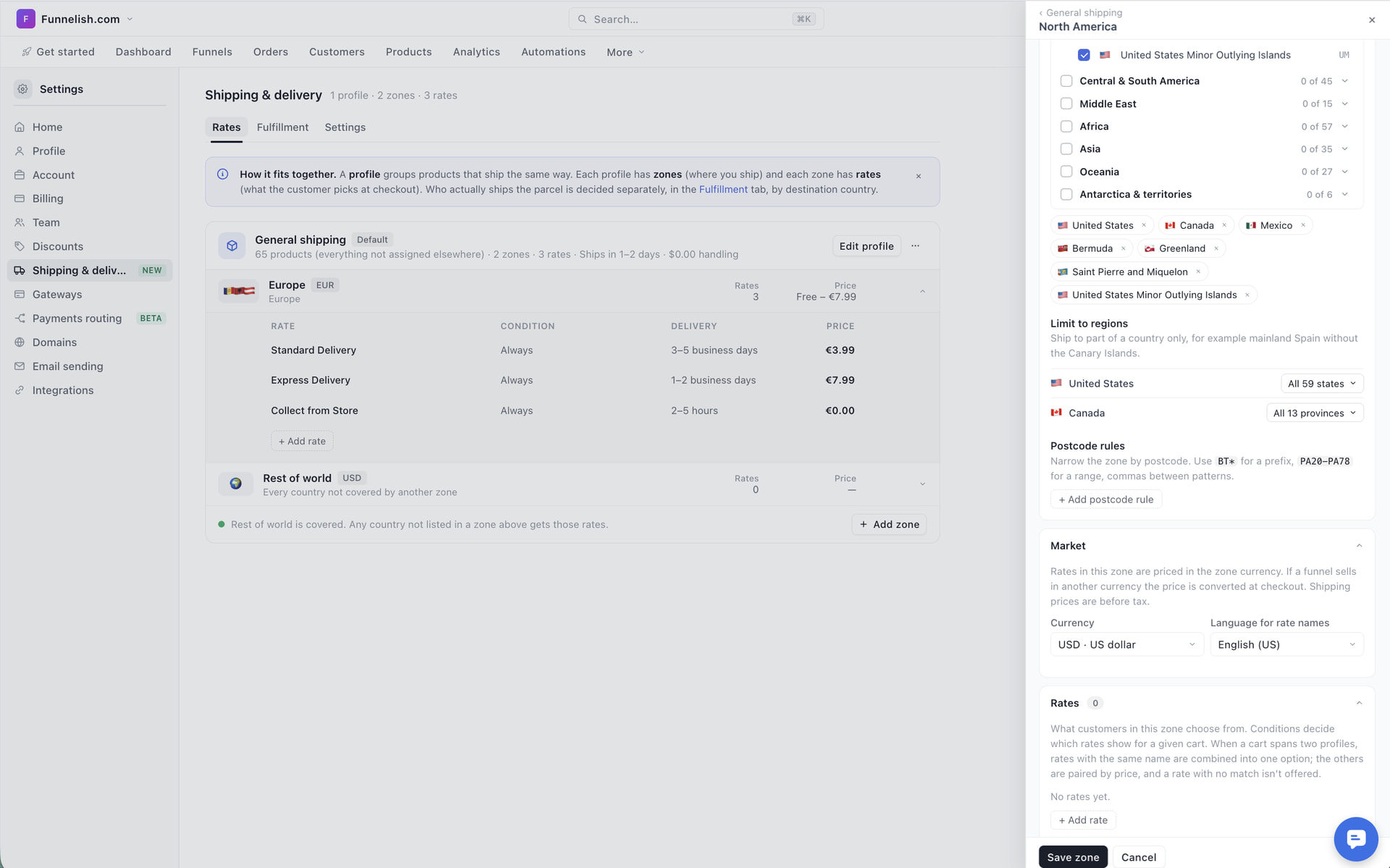
- Profile: a group of products that ship the same way, like “General” or “Fragile”. Products you don’t assign sit in your default profile, “General shipping”.
- Zone: where a profile ships. A set of countries, narrowed to states or postcodes if you like, priced in one currency. A “Rest of world” zone catches everything you didn’t list.
- Rate: one option your customer can pick in that zone. For example “Standard £3.99, 3–5 business days”.
- Fulfillment rule: “Orders to these countries (for these products) go to this provider.” Rules are checked top to bottom, and the first match wins.
Most brands start with one profile, one or two shipping zones and two or three rates. Add a second profile only when some products really ship differently.
What your customers see
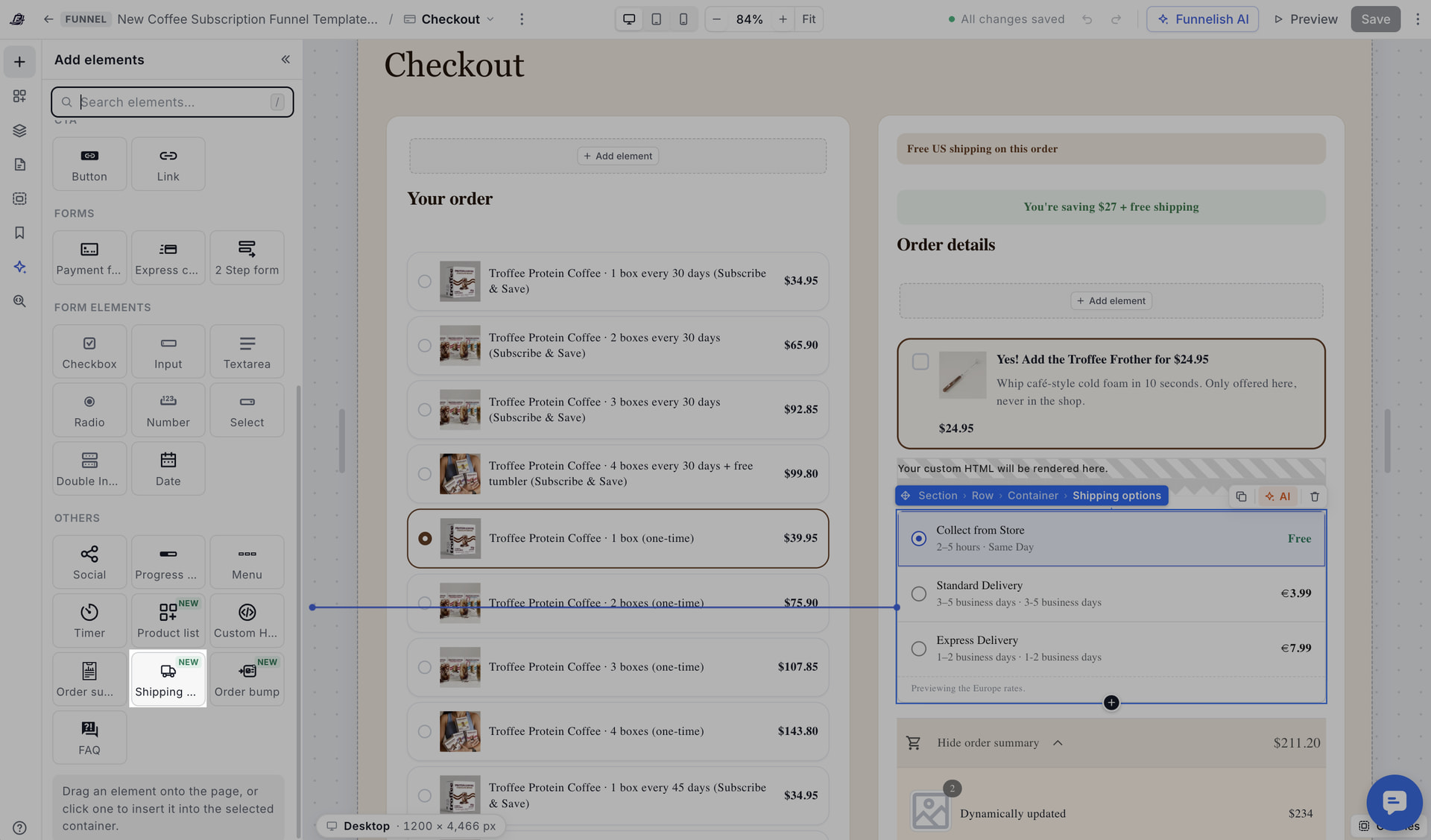
Add the new Shipping options element to your checkout page.
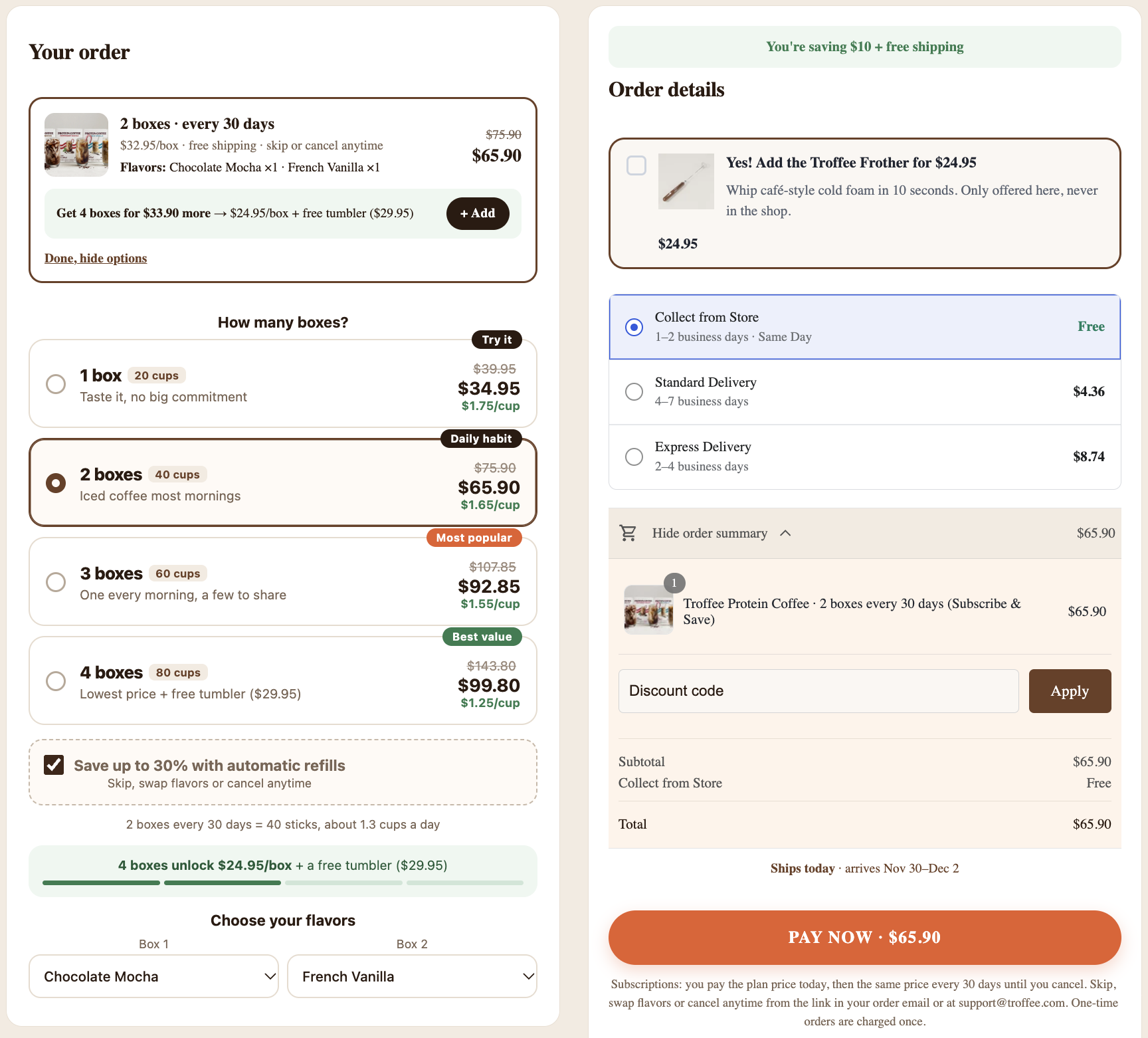
As soon as the customer enters their country on the live page, they see a short list like this:
Upsells, subscriptions and tracking
- Upsells ship in the same box. Each order waits a short bundling window (15 minutes by default, shorter once the customer reaches the thank-you page), so one-click upsells join the checkout order in one parcel. With ShipStation, a late upsell can even be added to an order already sent, until a label exists.
- Upsells reuse the checkout’s shipping option. By default, an upsell uses the shipping rate the customer picked at checkout, as long as it still applies. To let customers change it, add the Shipping options element to your upsell pages too. Want add-ons to ship free? Mark them as free-shipping products.
- Show the shipping fee on upsell pages. For now, the fee only shows in the order summary. Add the order summary or the Shipping options element to your upsell pages so customers know what they’ll pay before they accept.
- Renewals price their own shipping. Each subscription renewal is priced on the subscription’s items alone, at their renewal price, and ships to the customer’s current address. If they paid for Express at checkout, renewals keep it while it still covers them.
- Tracking comes back. The carrier and tracking number are also passed to your payment gateway as evidence for disputes. Here’s how each provider handles it:
| Provider | Best for | Tracking back |
|---|---|---|
| ShipStation | Your own warehouse, or a 3PL that prints labels there | Each label, as printed |
| ShipBob | Outsourced US and EU fulfillment | Every status change |
| Shopify | Keeping Shopify as your system of record | None, add it by hand |
| Manual | You pack and ship yourself | What you type in Fulfill order |
Get started in 5 steps
- Check your products. Open each product you ship and turn on Physical product, requires shipping. Add a weight if you’ll price by weight. You can also set a product to ship free, or to carry a surcharge per unit (handy for oversized items).
- Add a zone and its rates. Go to Settings → Shipping & delivery → Rates, open your default profile and add a zone: countries, currency and language. Then add rates with a name, price, conditions and delivery estimate. Add a Rest of world zone too, and use Preview rates to test a cart and address.
- Add more profiles, only if you need them. For example, a “Fragile” profile with longer processing and a £2 handling fee. Use the same rate names in every profile (“Standard”, “Express”) so they merge into one option at checkout.
- Say who ships. In the Fulfillment tab, connect ShipStation, ShipBob or Shopify from Integrations. Link your products (auto-match by SKU or name, or import a CSV), then add rules by country and product. Shipping it yourself? Skip this step.
- Set checkout details and add the shipping element. In the Settings tab, choose how estimates read, your dispatch cut-off time, your units and whether to ask for a phone number. Then add the Shipping options element to your checkout page, near the address fields.
Tip: without the shipping element, checkout still charges the cheapest option, but customers can’t choose.
Good to know
- Free shipping thresholds count per profile. Items in different profiles don’t add up, free-shipping products don’t count, and discounts lower the total the threshold sees.
- Add a Rest of the world zone. Without it, an address no zone covers gets “no options available”. The order still goes through, unshipped and flagged for you.
- Estimates skip weekends, not public holidays. Widen your estimate around holidays.
- Only catalog products get shipping. Legacy funnel products and digital products are never charged shipping.
- Shipping tax is decided by your tax provider (Stripe Tax, Zamp or TaxJar), based on the destination.
- Coming soon: live carrier rates at checkout and more 3PL integrations. Both show as “Soon” in the app. Until then, use flat and free rates with weight conditions.
Try it today
Shipping & Delivery is live now under Settings → Shipping & delivery.
Questions or feedback? Drop them in the comments below 