Hiiiiii,
I am here again to say Hiiii 
Just checking up on this feature because I think it will increase conversion rates by like 5% minimum !!!
It doesn’t seem to work at the moment 
Thanks, love u guys !!!
Hiiiiii,
I am here again to say Hiiii
Just checking up on this feature because I think it will increase conversion rates by like 5% minimum !!!
It doesn’t seem to work at the moment
Thanks, love u guys !!!
Hello @mfilev,
It took few days to do, but your wish has been fulfilled 
Now both Apps (PayPal v1 & v2) have a wokring Default PayPal option at the funnel level…
Hope that improves your conversion rates, we’ll also be working on gathering more data for analysis that you guys can use for better understanding your conversions soon,
Best,
How is it going @mfilev, I see you removed your post hopefully that new update didn’t crash something and made you mad at us Keep us updated on your stats
Has this step changed? I cannot find the settings to make Paypal be the default payment?
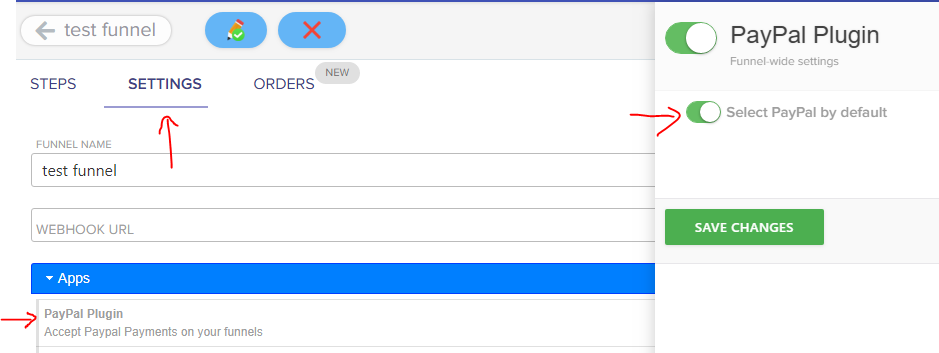
Nop it didn’t change that option is still there Just click your funnel (in Funnelish) then go under Settings > Apps click on “PayPal Plugin” and that option will be shown.
That option, will only select PayPal by default as the preferred payment option and won’t remove the Credit Card option.
Hi there!
I’m letting those who come here know that in Funnelish V2 the Paypal plugin is not necessary at all. All you have to do to set up Paypal is add it via Funnelish Pay 
 Funnelish Pay is our app which allows you to connect your gateway for processing payments.
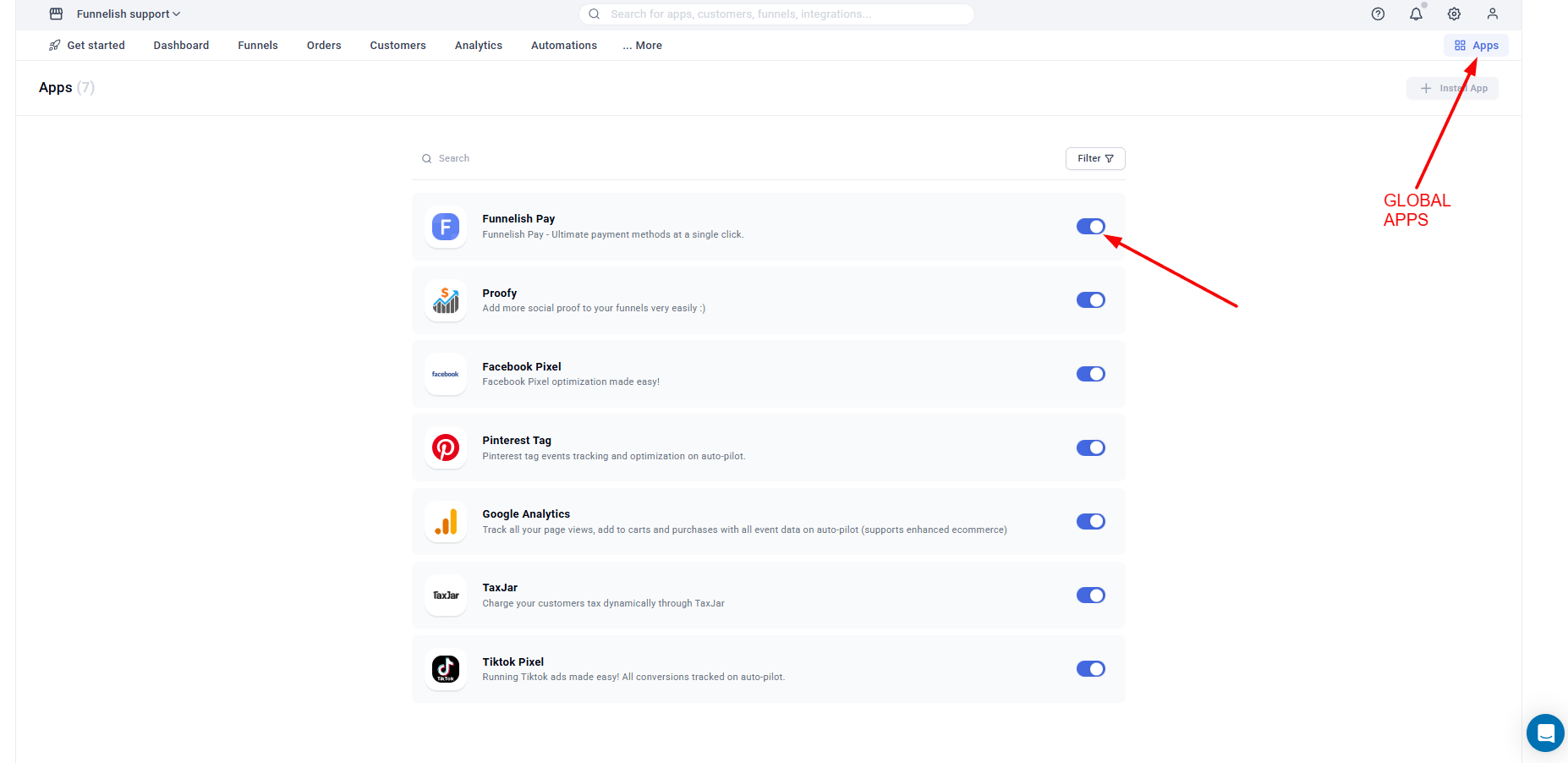
To set up the payment gateway you must first enable FUNNELISH PAY in GLOBAL APPS:
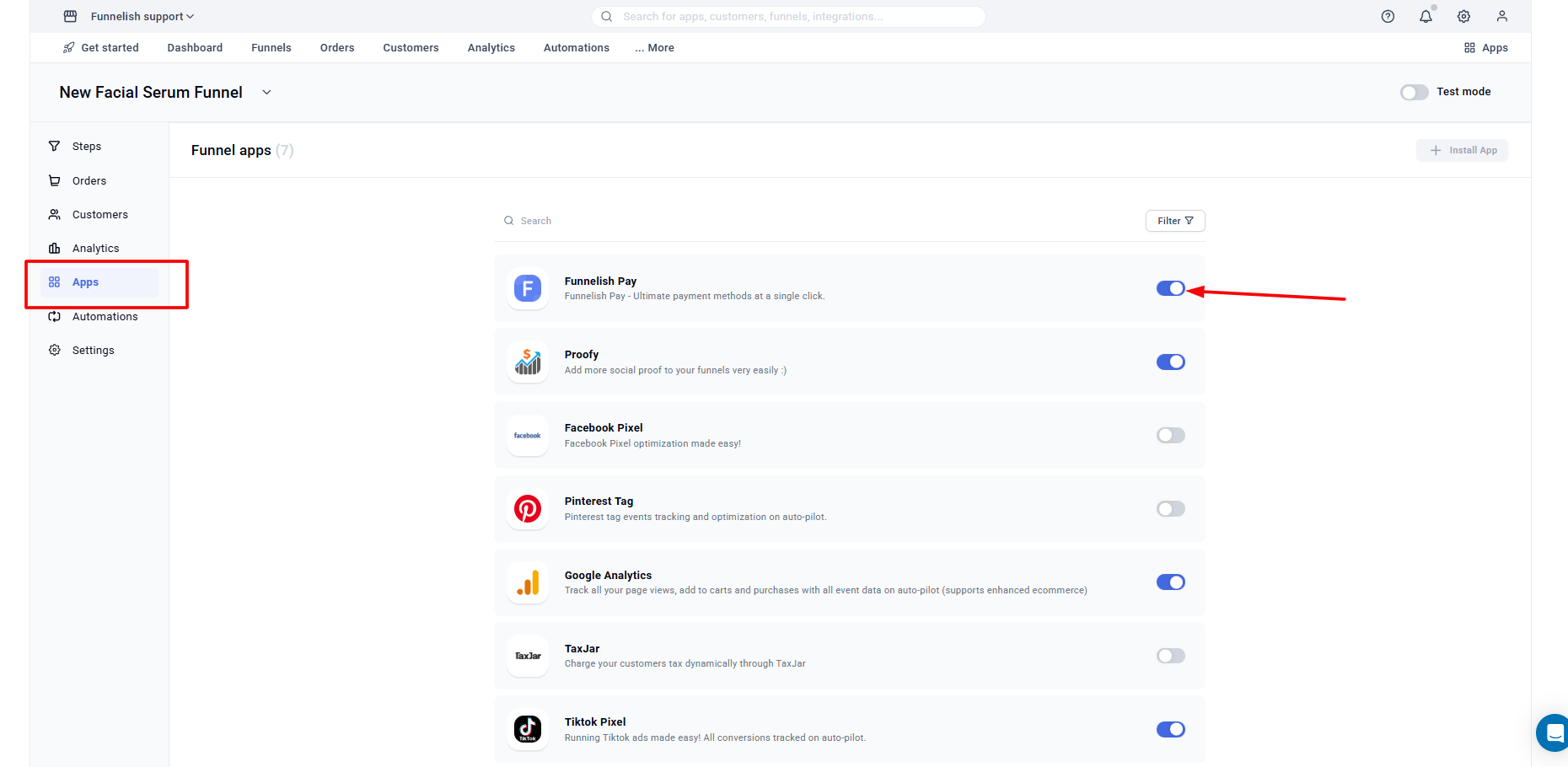
And also within each funnel in FUNNEL APPS:
Open the cheackout step.
Click the payment form field.
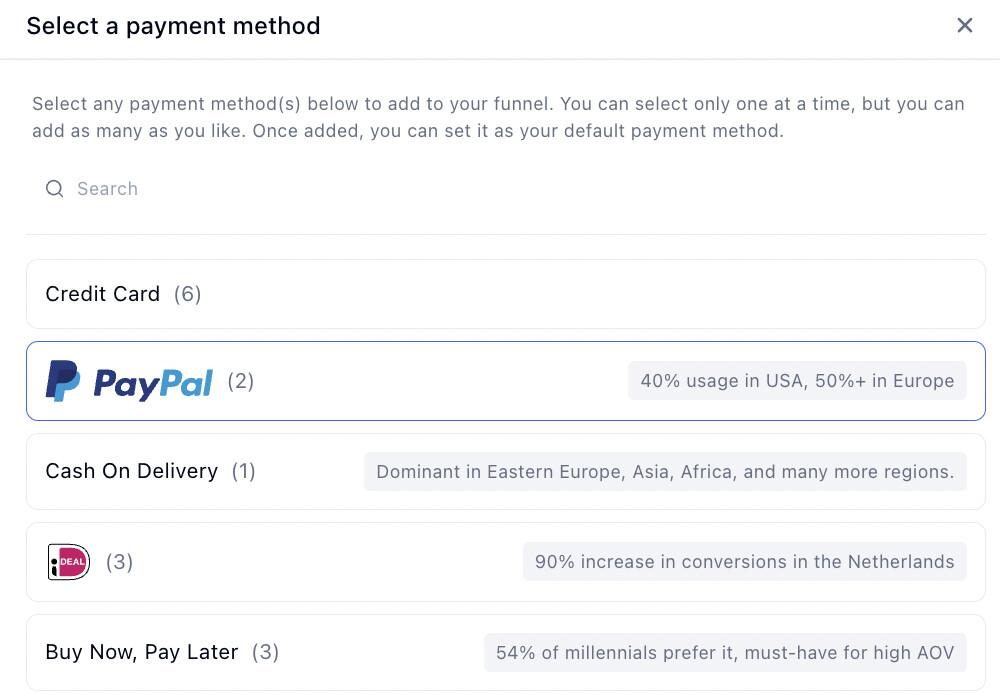
In the left settings panel, click on Edit payment options.
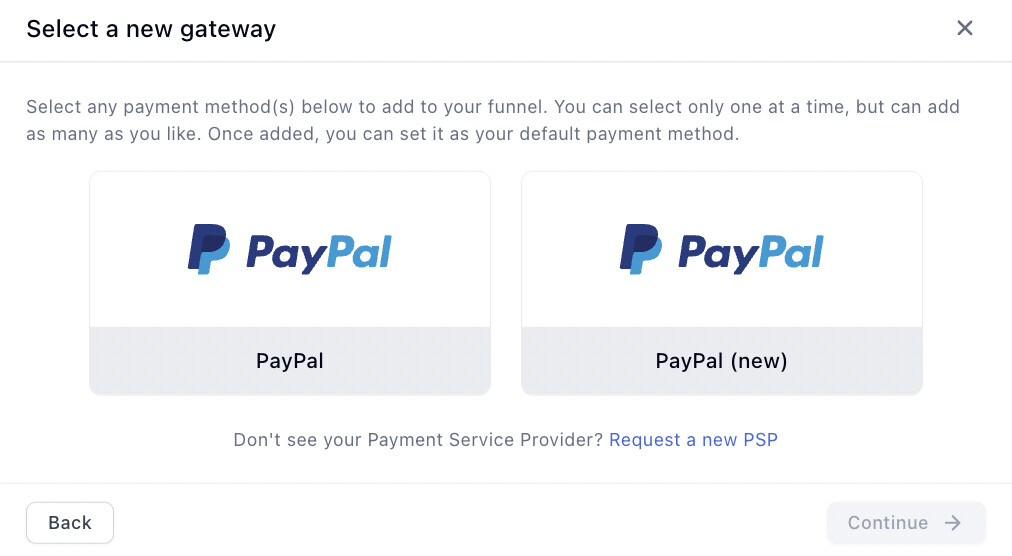
Click Connect a new gateway.
In the pop-up window, click PayPal.
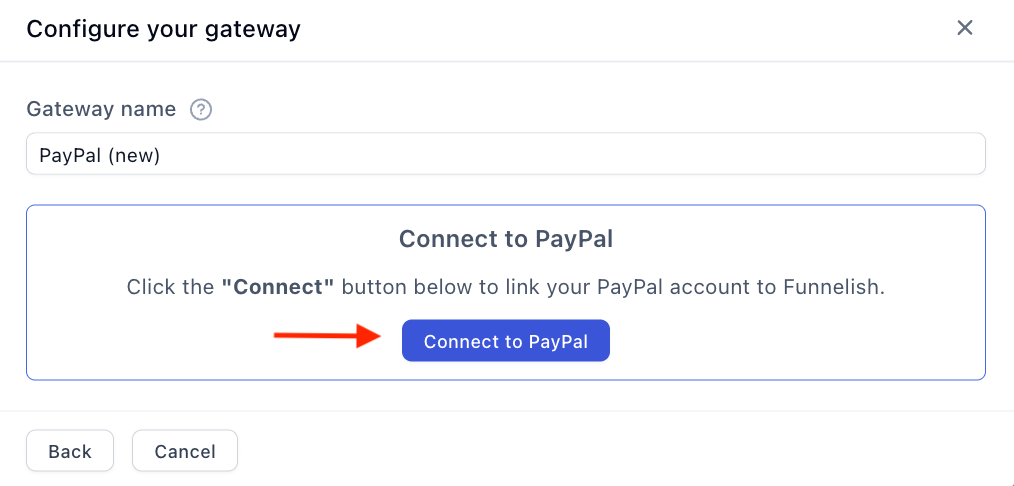
You can enter your unique gateway name. This name is for internal use only.
Click Connect to PayPal and finalise the process on PayPal’s end.
Create gateway and save changes.
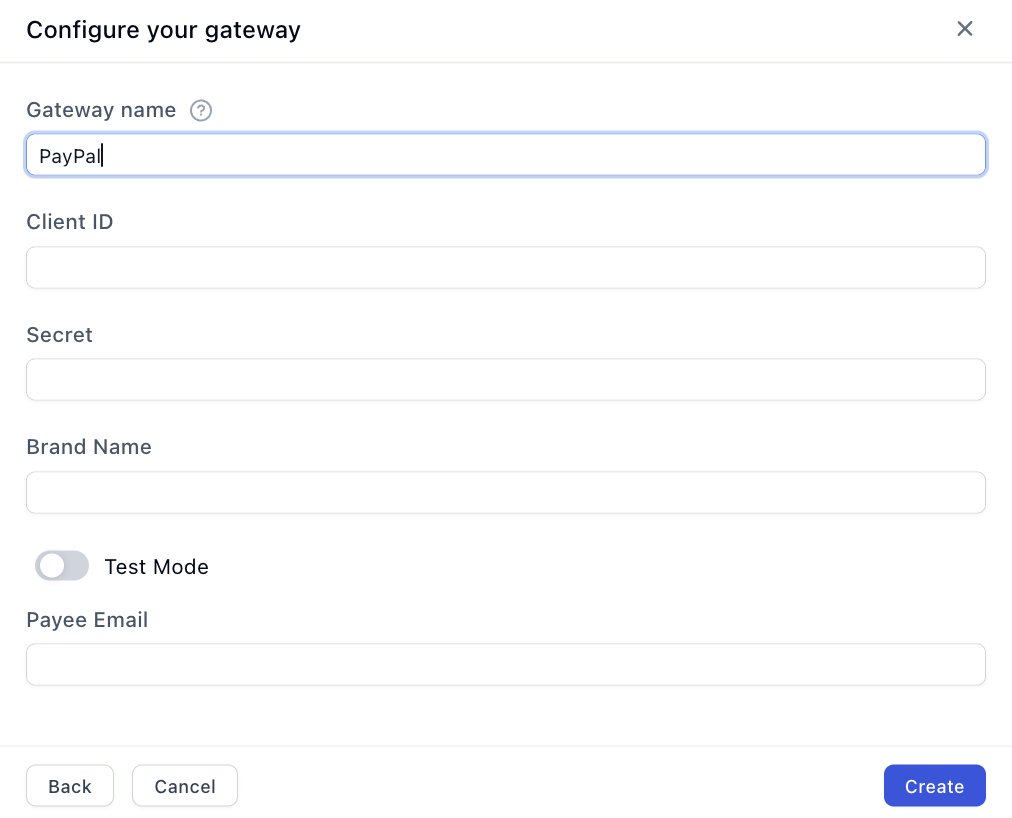
On the New gateway window:
 You need to collect two keys from your PayPal account. To find that information, click the link below and log in to your PayPal account.
2. Go to: https://developer.paypal.com/dashboard/applications/live
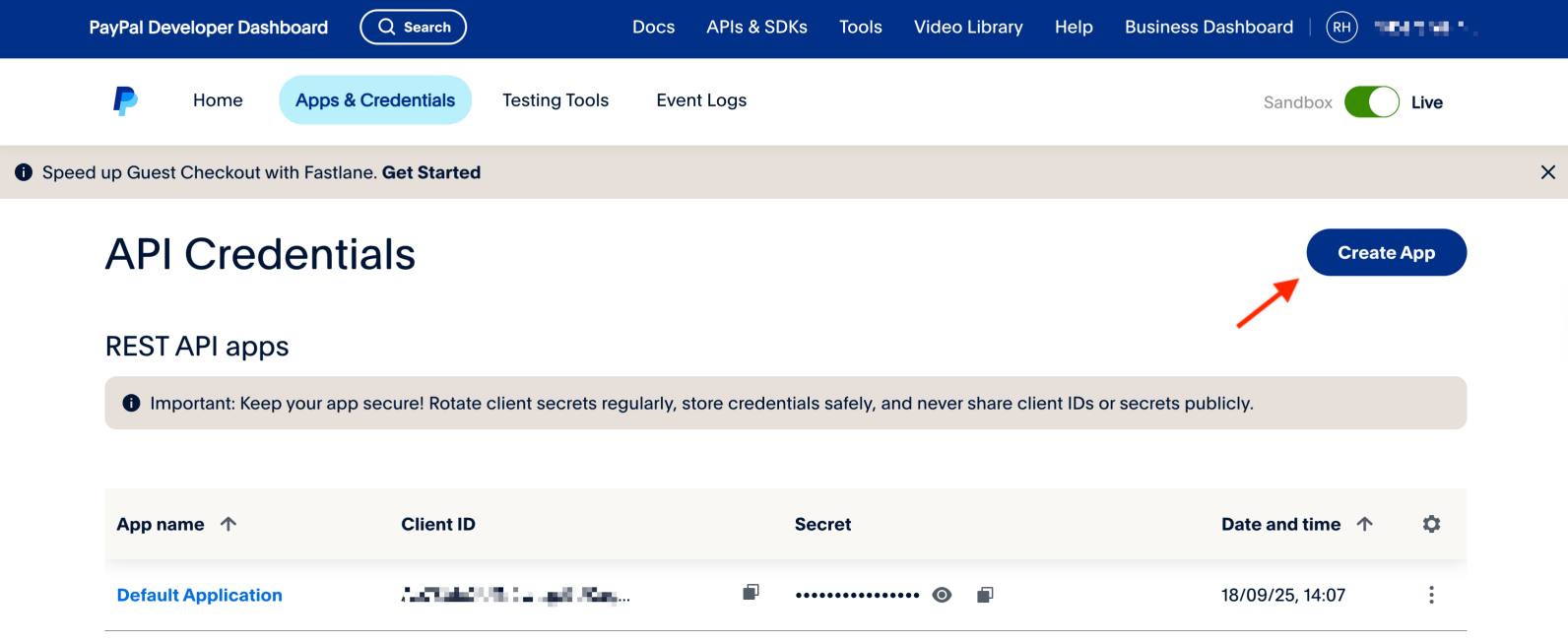
If you see an API called Default Application:
Click that link to display the API credentials page.
Come back to this article and scroll down to the API Credentials section.
If you don’t see a default application, click the Create App button. A new page will display.
Enter a unique name for the new API (e.g., Funnelish).
Click Create App. The API credentials page will display.
Come back to this article and scroll down to the this section.
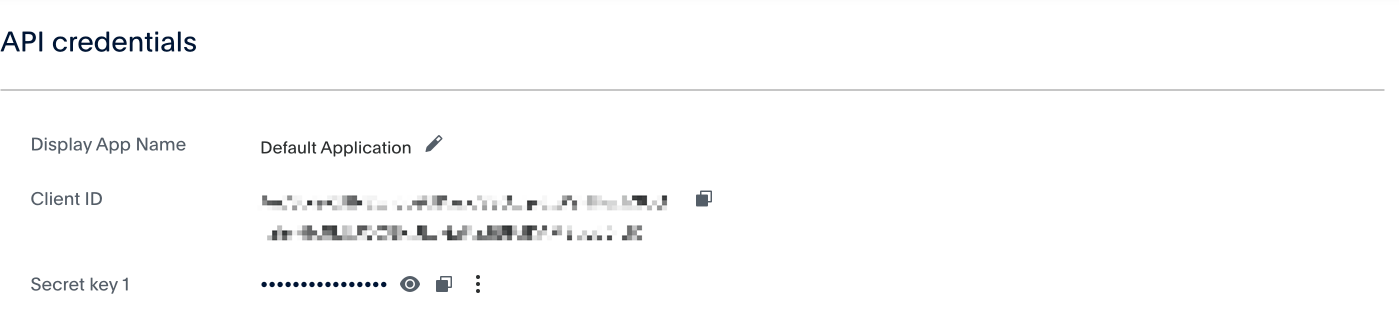
On the PayPal API credentials page:
Click the Client ID field to copy the key.
Paste the key into the Client ID field.
Go back to the PayPal page.
Click the Show link (under the Secret heading) to expand the Secret folder.
Copy the key and paste it into the Secret field.
Click create gateway and save your changes!
Check that you added your PayPal credentials correctly:
If doing test purchases: use your sandbox credentials and enable test mode.
If doing live purchases: use your real credentials.
In both cases, make sure that you copied the whole client id and secret key and pasted it without pressing the tab key or adding extra spaces.
UNCLAIMED PAYMENTS - If you get a notification about unclaimed payments, please make sure your account is verified and you have a valid business account with a verified email.
Please let us know if you have any questions!