Until today, team access in Funnelish was a handful of fixed roles. A team member either got a whole bundle of capabilities or nothing, and letting a freelancer edit a single landing page meant giving them every funnel in the account.
That changes now. Team access is policy-based: three roles, per-area access for members, and a Share button on every funnel, funnel page, blog, customer portal and portal page. You can hand someone exactly one page and nothing else. It is live for everyone, on every plan.
In short
- Three roles. Admin has everything. Member gets access per area. Guest sees only what is shared with them.
- Fifteen areas. Funnels, orders, analytics, automations, blogs, portals, payment methods and the rest, each set to No access, Can read or Can edit.
- Direct sharing. One funnel, one page, one blog or one portal, shared from the item itself.
- Nothing to do for existing teams. Everyone was migrated with the access they already had.
If you already have a team: nothing to do. Every existing team member was moved to the new model with the same access they had before. See section 6, What changed for existing teams, below.
1. Three roles: Admin, Member, Guest
Open Settings → Team. Admins and members are listed together with a summary of what they can reach. Guests sit in their own group below, with the resources shared with them.
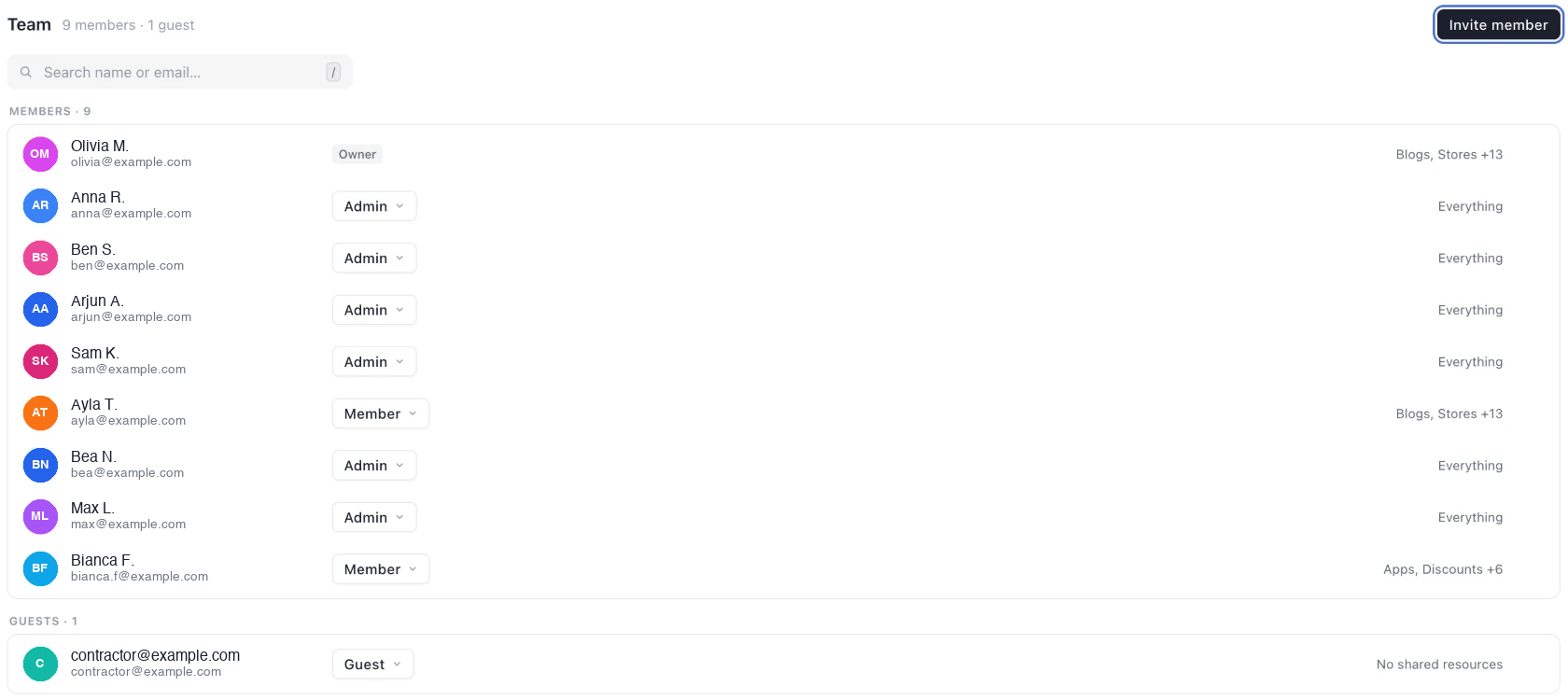
Settings → Team. The right column summarises each person’s access: “Everything” for admins, the areas a member has, or the shared resources of a guest.
| Role | What it means |
|---|---|
| Admin | Full access to everything, including team management and payment methods. |
| Member | Access is set per area from ready-made policies such as Funnels: Can edit or Orders: Can read, plus direct access to specific funnels or pages on top. A new member starts with no access. |
| Guest | No access at all until you share a specific funnel, page, blog or portal with them. Guests never get area-wide access, which makes them the safe choice for a temporary contractor who only needs one thing. |
This is built for how DTC teams actually work: a founder, a media buyer, and an agency or freelancer on the same account, each seeing only their part. Team member limits per plan are on the pricing page; Enterprise has no limit.
You pick the role when you invite someone, and you can change it later from the member’s row.
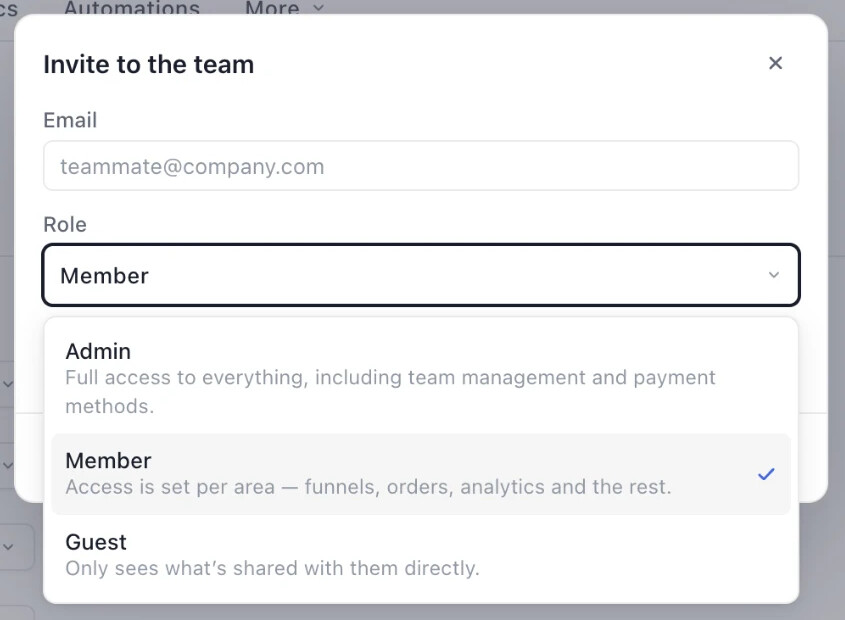
Invite member → Role. Members start with no access; Guests only see what is shared with them.
Changing a role is one click on the member’s row. Promoting to Admin asks you to confirm. Demoting a Member to Guest asks too, because it revokes every area the member had. Members cannot remove themselves, and the account owner’s role cannot be changed.
2. Members: pick an access level per area
Click a Member to open their permissions sheet. It lists every area of your account, each set to No access, Can read or Can edit.
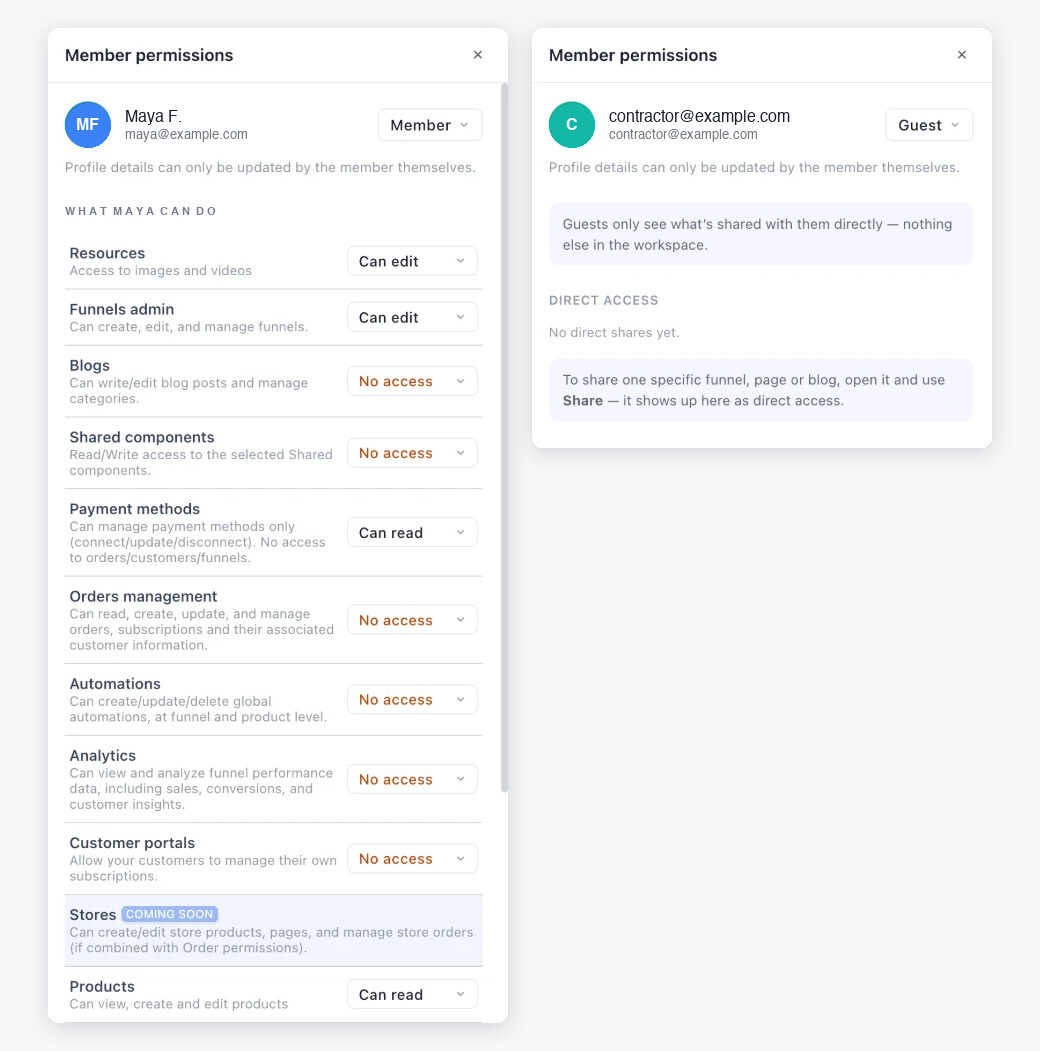
Left: a member with edit access to Resources and Funnels, read access to Payment methods and Products, and nothing else. Right: a guest, who has no areas to configure, only the list of what was shared with them.
| Area | Covers |
|---|---|
| Resources | The media library: images, videos, animations and custom fonts. Any future file upload or listing capability lands here too. |
| Funnels | Create and manage funnels end to end: steps, pages and split variants, settings, tracking codes and publishing. Pages themselves are edited in the page builder. |
| Blogs | Everything inside a blog: blog pages, posts and categories |
| Shared components | Reusable sections shared across funnels |
| Payment methods | Connect, update and disconnect payment methods and payment routing. No access to orders, customers or funnels. |
| Orders management | Orders, subscriptions and their customer information |
| Automations | Global, funnel and product automations |
| Analytics | Funnel performance, sales, conversions and customer insights in Analytics |
| Customer portals | Portals where customers manage their subscriptions |
| Products | View, create and edit products |
| Domains | The Domains page |
| Integrations | The Integrations page |
| Apps | The Apps page |
| Discounts | The Discounts page |
| Stores | Stores, coming soon |
Reading an area never leaks what the member cannot edit. A member with Can read on Integrations or Payment methods sees the page, but not the connection credentials. API keys are only shown to Admins.
Tip: the safest setup for a media buyer is Analytics: Can read and Funnels: Can read. They see every number and every page and can change nothing.
3. Share one funnel, one page, one blog
Area access is for people who work across your account. For everyone else there is Share, on the item itself.
Open a funnel and click Share next to the Live and Test toggles. The same share icon sits on every row of the funnel list.
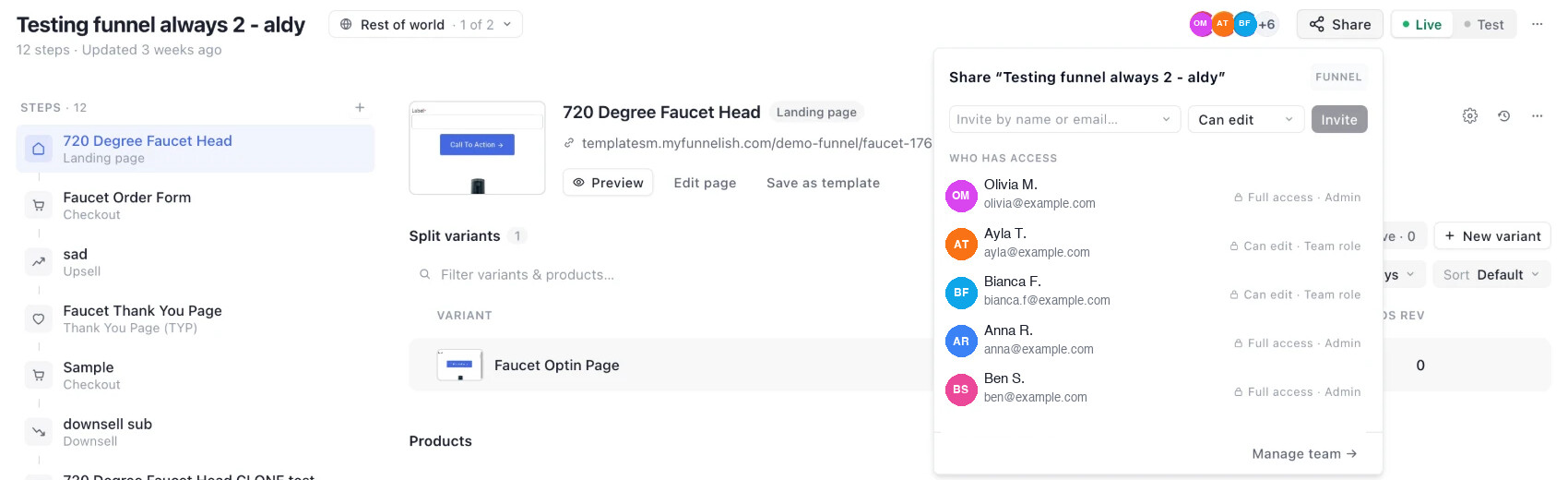
The Share button sits next to the Live and Test toggles. Type a name or email, choose Can view or Can edit, and click Invite. Someone not yet on your team is invited as a Guest with only this funnel. The list shows who already has access and why: “Full access · Admin” for admins, “Can edit · Team role” for access that comes from a member’s area settings.
To share a single page, open the step, click More actions on the variant and choose Share access.
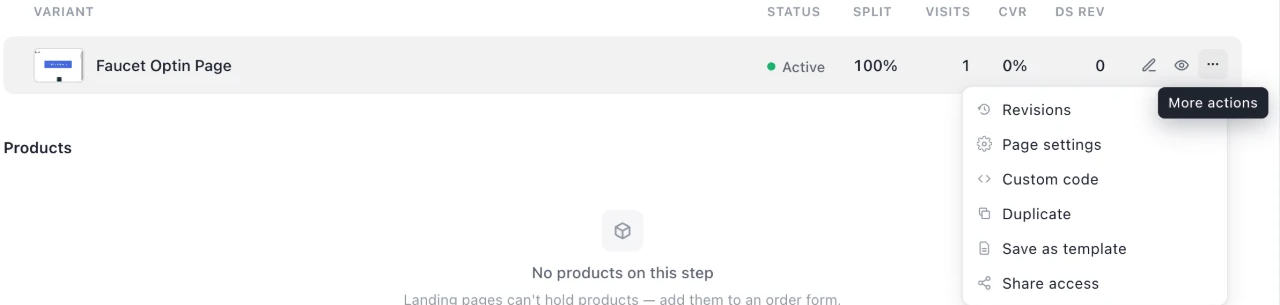
Share access, alongside Revisions, Page settings, Custom code, Duplicate and Save as template.
A page share also lets the member open the funnel it belongs to, read-only, so they can find it. Nothing else in the funnel is editable.
Blogs and customer portals have the same Share button, both on the whole blog or portal and on each of their pages.
Shares add up with area access. A narrower share never reduces a broader grant. Every direct share appears under Direct access on the person’s sheet, so you always know exactly what someone can reach.
Direct shares work for both roles. A Member keeps their area access and gets the shared item on top. A Guest has nothing but the shares, which is what makes them safe for a temporary contractor: a guest with one shared funnel
- sees only that funnel in their funnel list,
- can open it in the editor and edit it, if you chose Can edit,
- cannot see orders, customers, analytics, other funnels or any settings.
When the contract ends, remove the share or remove the guest from the team. Nothing else to clean up.
4. Settings pages respect access too
Every settings page now checks the member’s access before loading:
- Pages the member cannot read are hidden from the settings navigation.
- Pages the member can read but not edit open read-only. Buttons that would change something are disabled, not hidden, so the member knows what they are looking at.
- Account, Billing, Email sending and Team are admin-only.
5. Quick start
- Go to Settings → Team and click Invite member.
- Enter the email and pick Member or Guest. Members start with no access.
- For a Member, open their sheet and set each area to No access, Can read or Can edit. Click Done.
- For a Guest, open the funnel, page, blog or portal you want them to work on and use Share.
- Access applies on their next page load.
6. What changed for existing teams
Every existing team member was migrated automatically. The old roles were a set of on/off flags on each member: Admin, Funnels, Editor, Automations, Orders and Read only. Each flag became the policies that give the same access, and nothing more. Here is what each old role is now.
Admin → Admin. Unchanged. Full access to everything, including team management, billing and payment methods.
Funnels → Member with Funnels: Can edit, Products: Can edit, Resources: Can edit. The old Funnels role let a member build and publish funnels, which in practice also meant editing products and uploading media. The three areas it touched are now explicit.
Editor → the same as Funnels. The two old roles opened the same screens, so they map to the same three areas.
Automations → Member with Automations: Can edit. Global, funnel and product automations, as before.
Orders → Member with Orders management: Can edit. Orders, subscriptions and the customers behind them, as before.
Read only → Member with every area: Can read. The member can open everything and change nothing. This is the mapping to double-check, because “every area” now includes Domains, Integrations, Apps, Discounts and Payment methods, read-only and with credentials hidden.
Several flags → the union. A member who had Funnels and Orders now has Funnels, Products, Resources and Orders management on Can edit.
| Old role | New access |
|---|---|
| Admin | Admin |
| Funnels or Editor | Member with Funnels, Products and Resources: Can edit |
| Automations | Member with Automations: Can edit |
| Orders | Member with Orders management: Can edit |
| Read only | Member with every area: Can read |
Every non-admin member also received Can read on Blogs, Stores, Customer portals, Shared components and Analytics. These areas had no role protecting them before, so a member could already open them. If you would rather close any of them, set the area to No access on the member’s sheet.
A member who had none of the old flags has no areas now either. They can sign in and see nothing until you grant something, which is the same as before.
Two things are stricter than before, on purpose:
- Credentials: API keys are only shown to Admins, and integration and payment method configuration only to members with Can edit on that area.
- Funnel list: a member sees only the funnels they can read, instead of every funnel in the account.
We recommend every account owner opens Settings → Team once this week and reads the summary next to each member.
Note: inviting team members and changing permissions were paused for about 45 minutes earlier today while the migration ran. Everything else kept running.
7. Also in this release
- Partial refunds. Refund any amount from the order page, including on NMI. Refunds issued from your gateway dashboard are synced back to Funnelish.
- Run once per customer automations are fixed for both global and funnel workflow automations.
- Subscription items carry their product media in the API and in exports.
Questions you may have
Can I give an agency access to one funnel only?
Yes. Invite them as a Guest, open the funnel and use Share. They will see that funnel and nothing else, not even the funnel list beyond it.
Can a Member also get a specific page?
Yes. Area access and direct shares add up. A member with no Funnels access can still be given one page through Share.
Do I need to redo my team’s permissions?
No. Existing members kept what they had, mapped onto the new areas. Open Settings → Team to review the summary next to each name.
Does this cost extra?
No. Roles and sharing are included on every Funnelish plan. Plans differ only in how many team members they include.
What’s next
Stores join the area list as soon as they leave beta. If there is an access pattern your team needs and cannot set up today, tell us in Feature requests. New to Funnelish? Start at funnelish.com.


