If an order fails to reach Shopify and nobody notices, the first person to find out is usually the customer, asking where their package is. By then you’re looking at a refund, or worse, a chargeback. At thousands of orders, even a handful of silent failures is real money and real trust lost.
So we rebuilt order syncing from the ground up. Funnelish now gives you full transparency into every order’s lifecycle across all your integrations: queued, bundled, sent, confirmed. Late orders get flagged. Failed orders get flagged. And you can resync or dismiss them in bulk, in a few clicks.
This was one of our most requested features, and it’s live for everyone now.
Problems surface on your Dashboard, not in support tickets
Your Dashboard now has a Needs attention card. It groups unsynced orders by app and shows how many failed and how many are taking too long. No digging, no exports, no spot-checking Shopify against Funnelish.
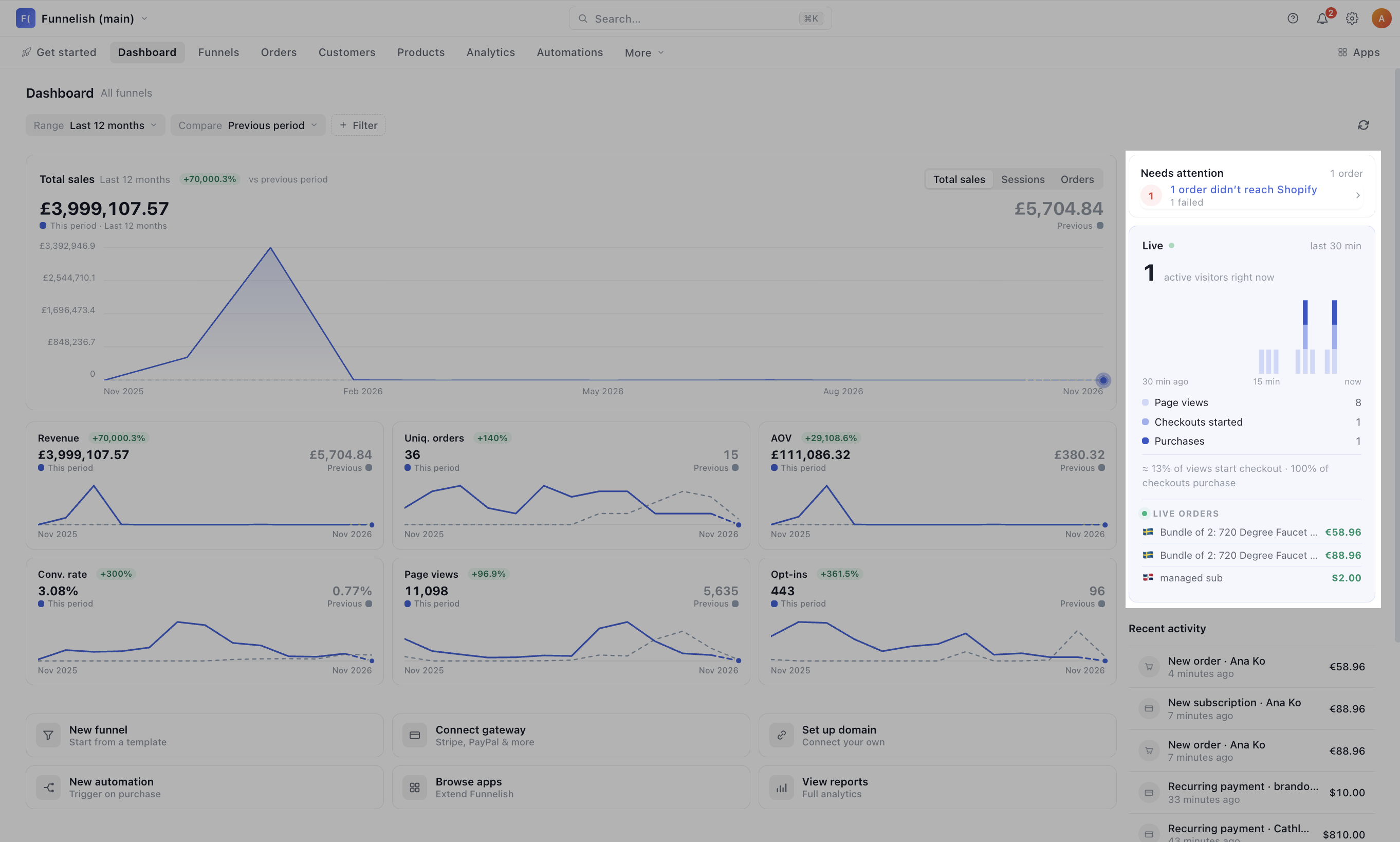
One click on any line takes you to those exact orders, already filtered.
When everything is fine, the card simply says All synced. Nothing needs attention.
Filter orders by sync status
The Orders page now has a + Sync filter and a Sync column that shows each order’s app with a coloured dot. Issues stand out while you scroll.
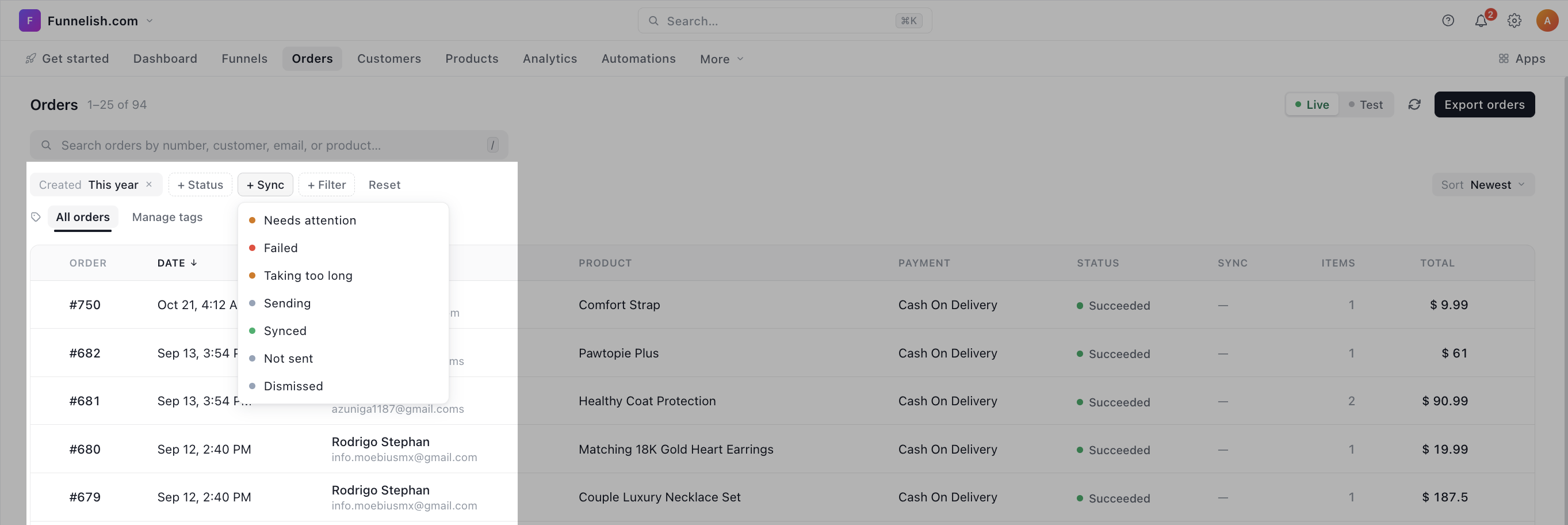
| Sync status | What it means |
|---|---|
| Needs attention | Failed or taking too long. Start here. |
| Failed | The order couldn’t be sent to the app. Open it to see why. |
| Taking too long | The order was queued but wasn’t processed within about 12 minutes of when it was due. Example: with order bundling set to 10 minutes, the order is due after 10 minutes. If it still hasn’t reached Shopify after 22 minutes (10 + 12), it’s marked as taking too long. |
| Sending | The order is on its way to the app right now. |
| Synced | Every app that should have the order has it. |
| Not sent | The order wasn’t sent to any app. |
| Dismissed | You reviewed the issue and dismissed it, so it no longer needs attention. |
Tip: combine filters. Status: Succeeded plus Sync: Needs attention finds paid orders that never reached your store.
Filter customers too, not just orders
Sync visibility carries over to your Customers page. Customers who had any order run into a sync issue, with any integration, are flagged, and you can filter your customer list down to just them.
Useful before that customer emails you, not after.
Every failure explained in plain text
Open any order with a problem and you’ll see a Sync failed badge, plus a Sync section listing each app, its status, the number of attempts, and when the last one happened. History shows every attempt.
No error codes to decode. The reason is spelled out:
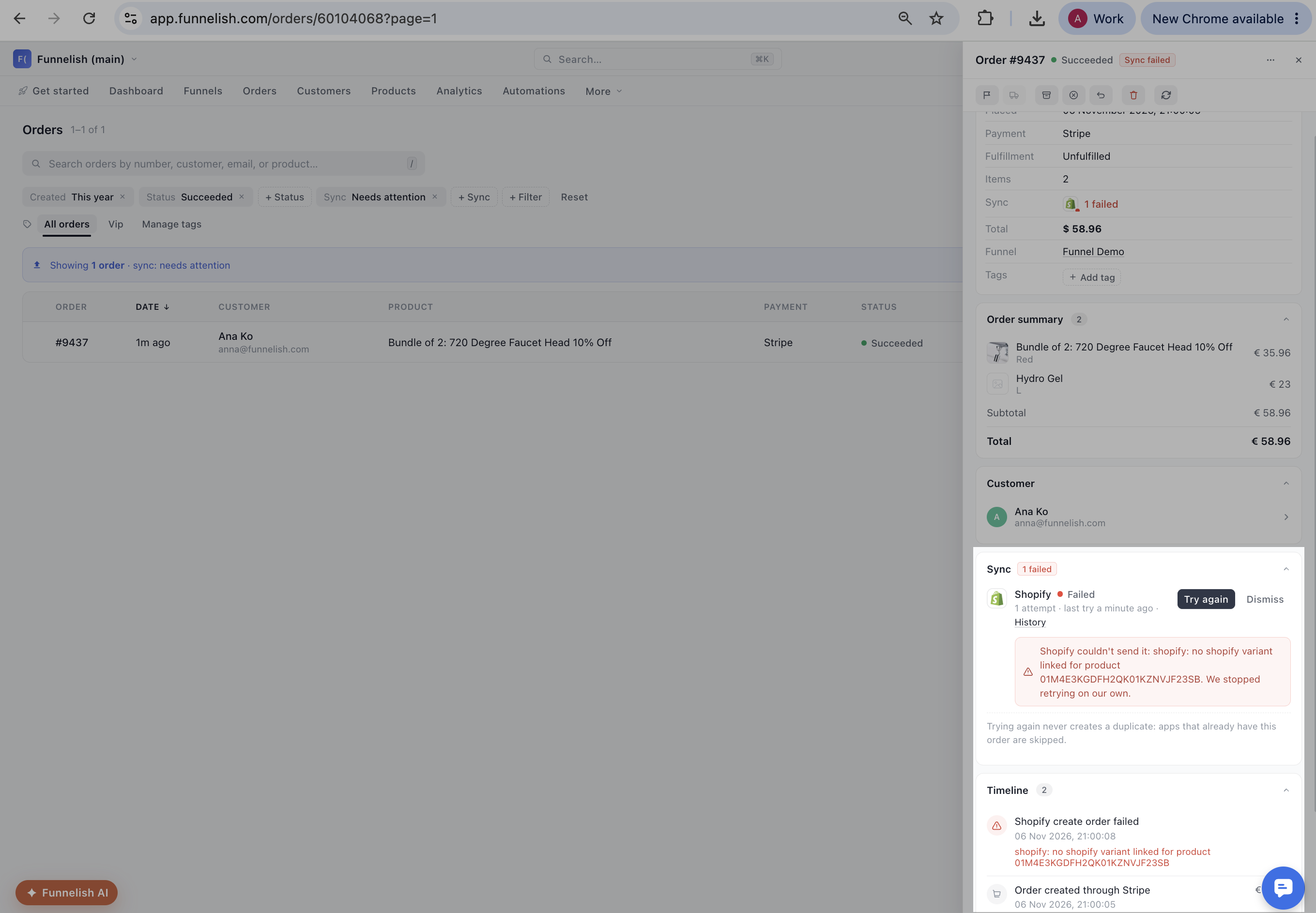
Shopify couldn’t send it: no Shopify variant linked for product … We stopped retrying on our own.
When an error needs your input, like a product missing its Shopify variant link, Funnelish stops retrying automatically and waits for you. Fix the cause, then either:
-
Try again: sends the order again. This never creates a duplicate. Apps that already have the order are skipped.
-
Dismiss: for orders you’ve handled another way, or that don’t need to sync.
Every failure is also recorded in the order’s Timeline, so there’s always a full record.
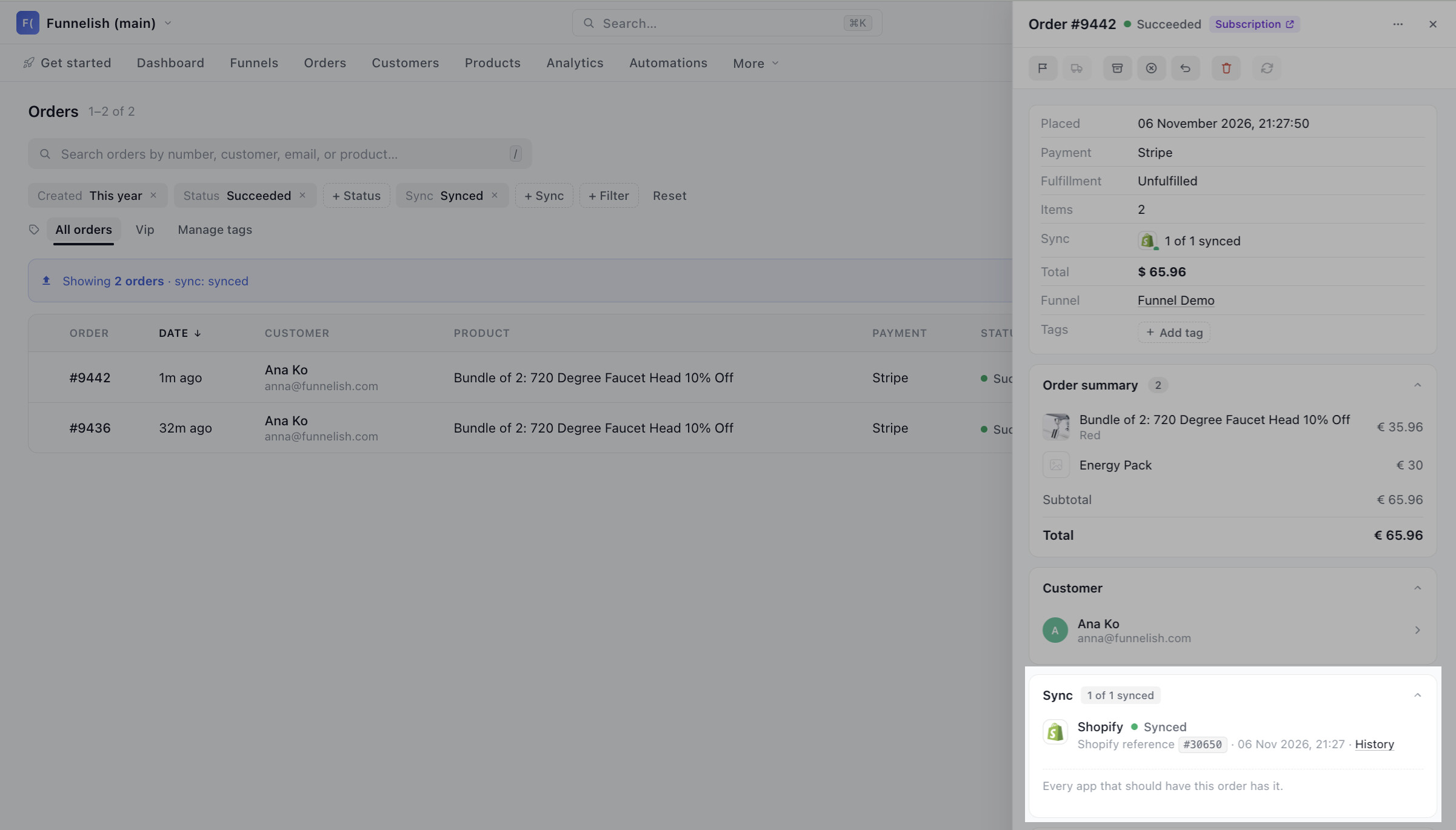
Synced orders show the Shopify order reference and the time it was created, with the note “Every app that should have this order has it.”
Fix hundreds of orders in one go
Failures usually share one cause. So fix the cause once, filter by Sync: Failed, select all, and hit Resync from the bar at the bottom. Done. Dismiss works in bulk the same way.
What used to be an afternoon of manual re-entry is now about a minute.
Built for every integration, not just Shopify
Shopify is the most common case, and the most troublesome one, but sync tracking covers every single product automation: Shopify, Klaviyo, Hyros, Zapier, and the rest. Same statuses, same filters, same one-click fixes. See the full list of integrations.
Quick start
-
Open your Dashboard and check the Needs attention card.
-
Click a line, or go to Orders and choose + Sync > Needs attention.
-
Open an order to see why it didn’t sync, and fix the cause.
-
Try again, or select several orders and Resync them in bulk.
No more guessing which orders made it to your store.
House number field
You can now set an address field’s data type to House number.
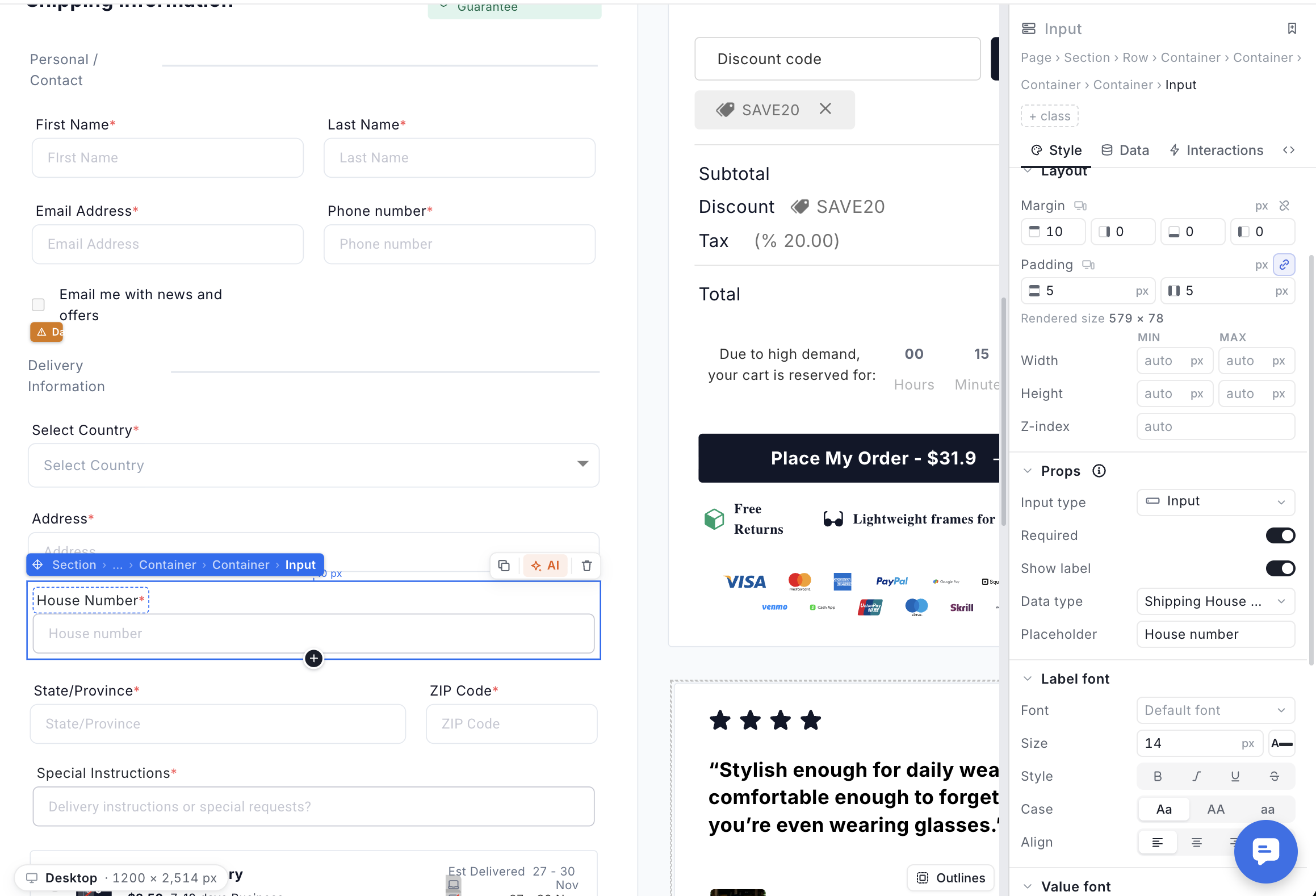
It accepts values like “12A” or “7 bis”. The house number is added to the street address on the order and syncs to Shopify’s address fields.
Other updates
Move step products into your product catalog
You can now move products from a funnel step into your shared product catalog, one by one or in bulk. A progress window shows how it’s going and keeps running in the background while you work.
When you replace an old product list or order bump in the editor, its products are moved to your catalog automatically.
Subscription type filter in customer portal analytics
You can now view customer portal subscription metrics separately for regular and managed subscriptions. Trials are now shown on the chart too.
Export products to CSV
Select products in your product list and export them as a CSV file.
Create products from the product picker
You can now create new products directly from the product picker, without leaving what you’re working on.
Better AI cloning for long pages
AI can now clone much longer pages from screenshots, including lengthy advertorials.
What’s next
We ship new features and improvements every week. Keep an eye on Updates so you don’t miss anything.
Got an idea or something you’d like to see in Funnelish? Post it in Feature requests. Many of our updates, including this one, started as requests from you.