Shopify’s recent upgrade now allows for up to 2,048 variants. While this sounds like a dream for customization-heavy brands, there is a massive technical irony at play: Shopify’s “upgrade” is actually a downgrade for mobile speed.
Standard Shopify themes are simply not architectively designed to handle hundreds of variants without sacrificing performance. When you push the limits of the platform, your ROAS is usually the first thing to suffer.
The “30/100” Performance Trap
Take a look at this real-world example of a high-volume phone case store on Shopify:
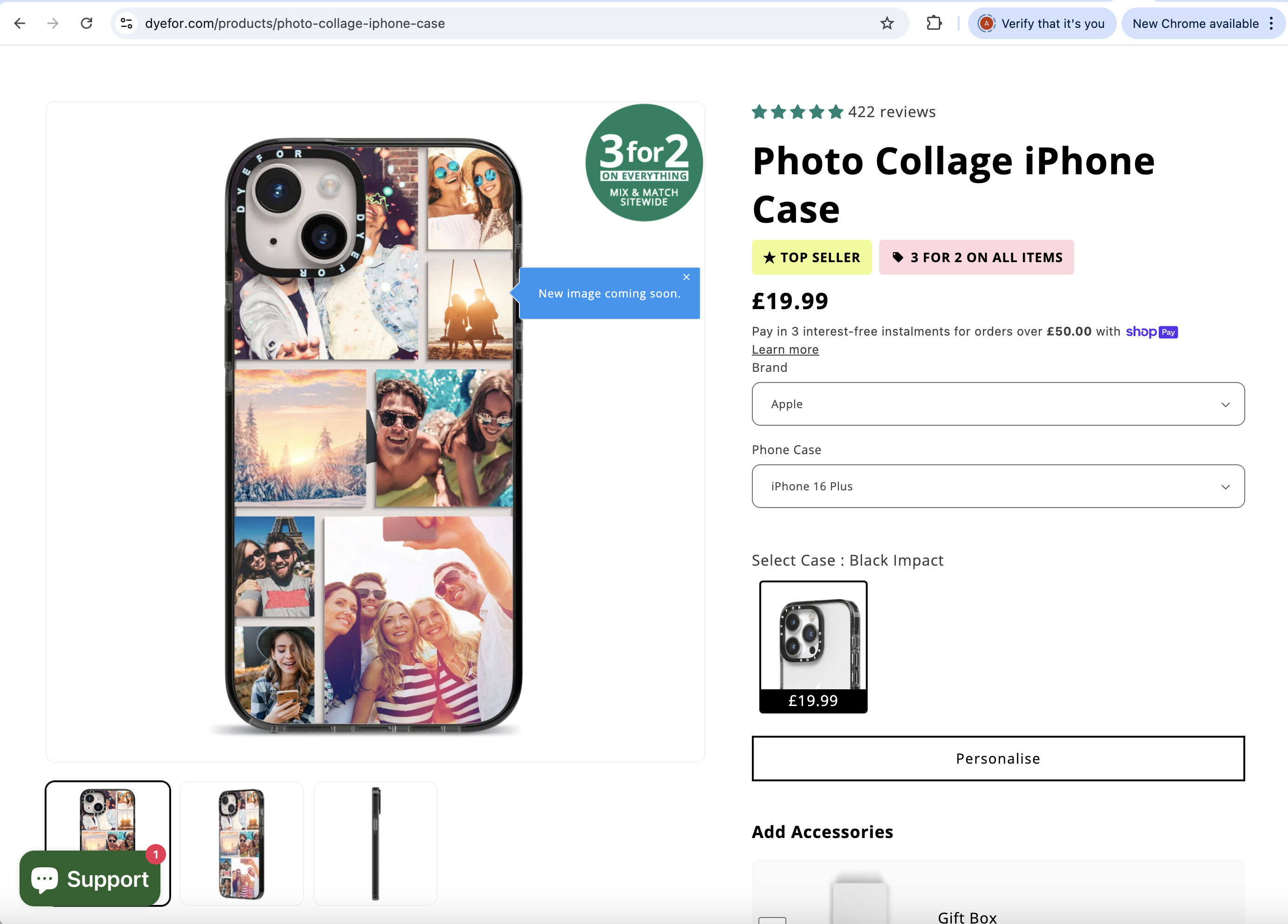
Despite having great branding and products, the mobile performance score is sitting at 30.
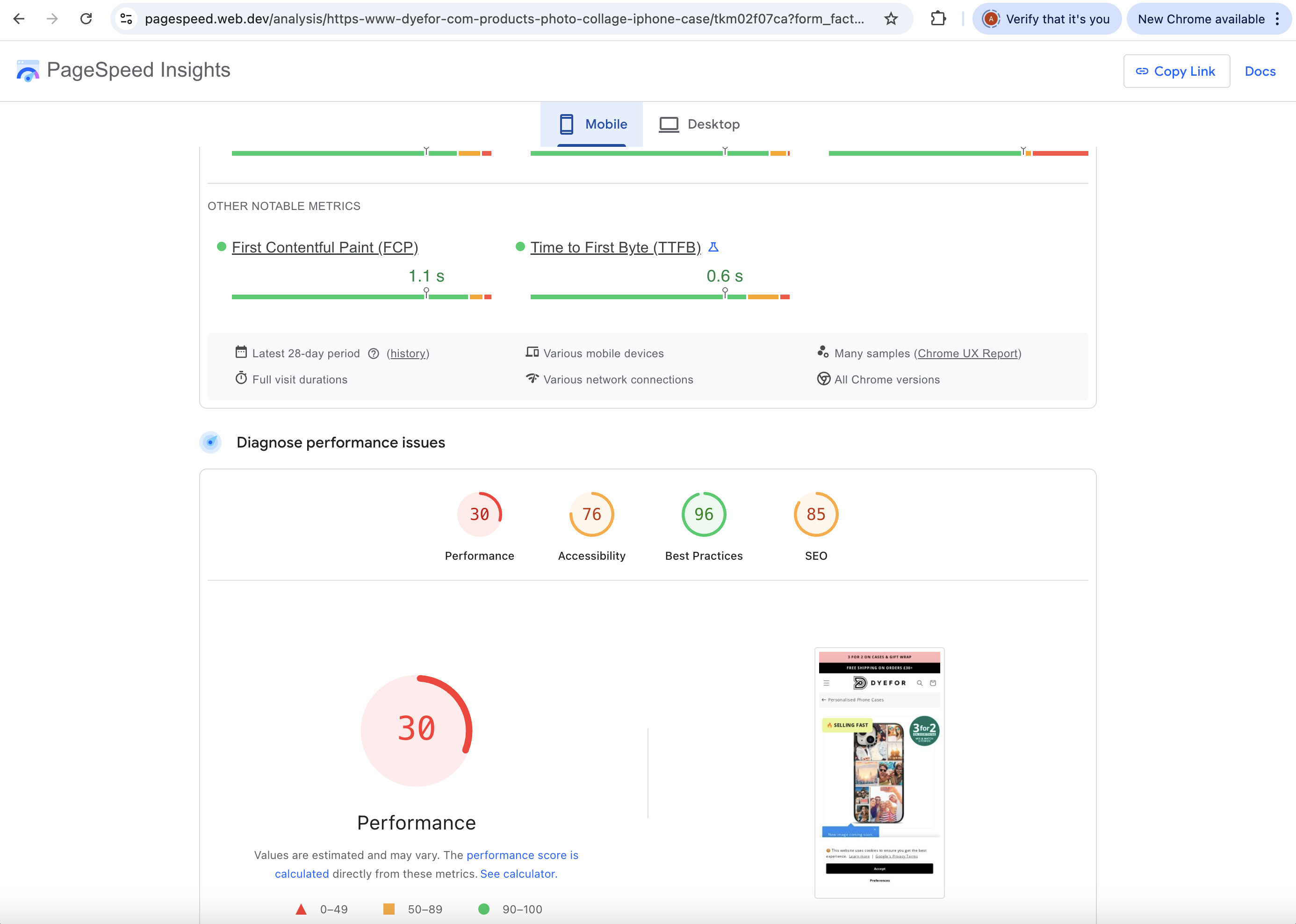
Why does this happen?
To make a dropdown menu (like the one above) work, the theme has to pre-load a massive JSON data object. It’s carrying the SKU, price, and image logic for every single iPhone model from the iPhone 7 to the iPhone 16 Pro Max—all before the customer even clicks a button.
 This creates Excessive DOM Size and high Total Blocking Time. On a mobile device, the browser “freezes” while trying to process all those options, leading to high bounce rates and wasted ad spend.
The Solution: Dynamic Mapping (Externalized Selection)
To get a sub-1s load time, you need to stop forcing the browser to carry your entire product database. The fix is to use a funnel builder that allows for a seamless Shopify sync without the theme overhead.
Instead of pre-loading 100+ variants, we use Dynamic Mapping. This allows the page to stay “light” because it only treats your options as simple text until the moment of purchase.
How do we create these “Dynamic Variants”?
By moving the selection process to a dedicated funnel page, you can map custom form data directly to your Shopify backend.
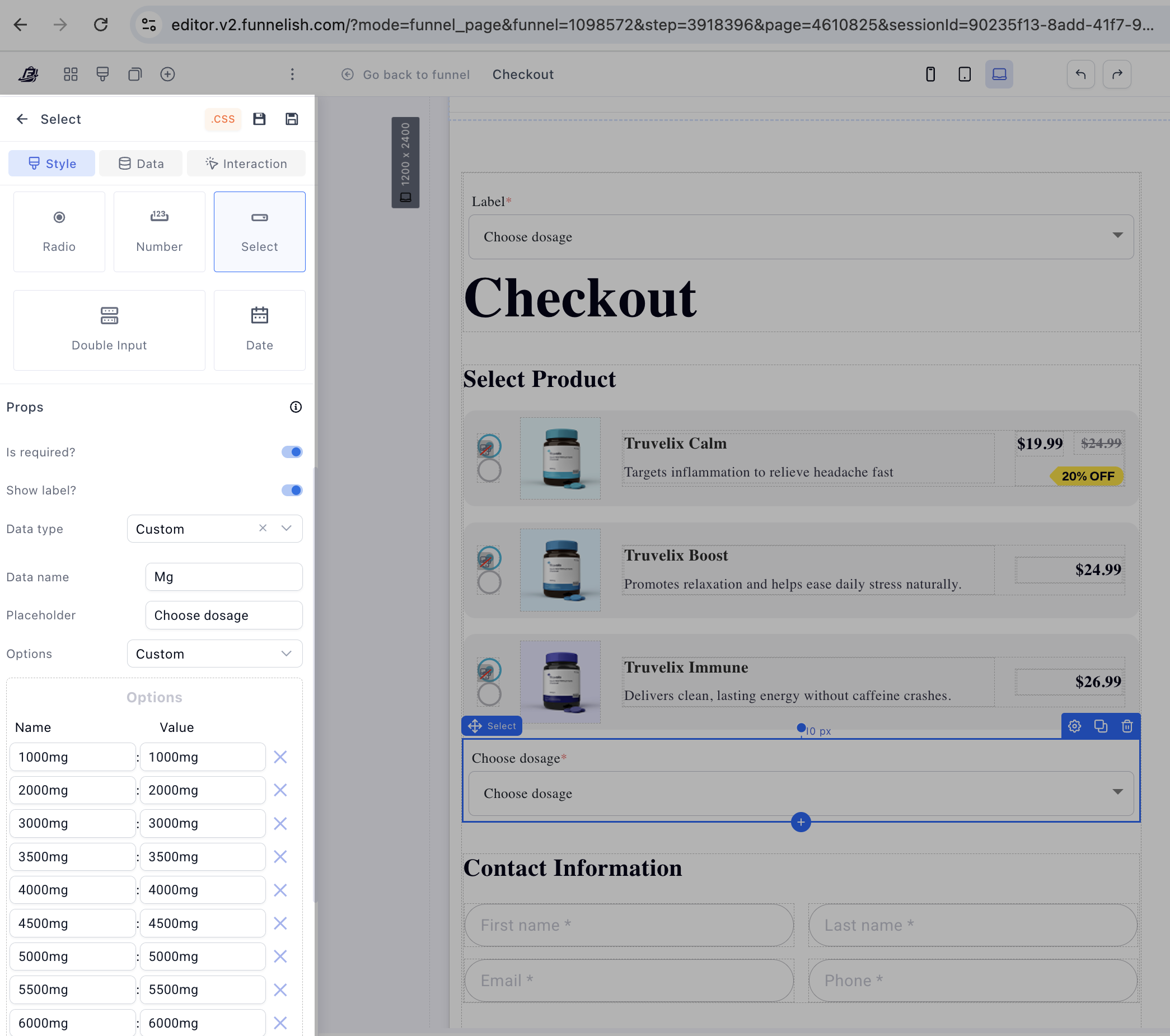
Step 1: The Zero-Weight Dropdown:
In your page builder, create a custom Select form element.
Note: Ensure your “Data type” is set to Custom and your “Data name” has no spaces (e.g., Phone_Model).
 Because this is a standard HTML element and not a “Shopify Product Block,” the browser treats 100 options as just a few kilobytes of text. It doesn’t load images or SKUs in the background.
Step 2: The Bracket Sync
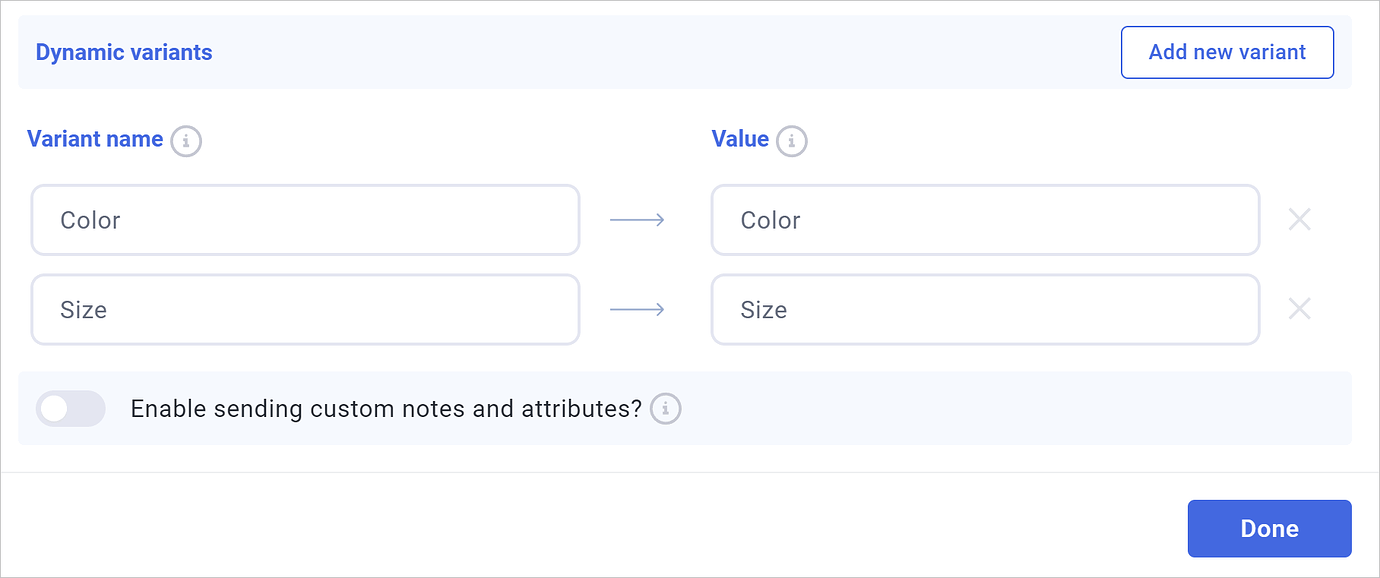
This is the “bridge” to your Shopify fulfillment. You tell the system to take whatever the user picks and “inject” it into the order.
-
Inside your Shopify automation settings, enable Dynamic Variants.
-
In the mapping field, use brackets to call your data:
[Phone_Model].
Step 3: The Order Result
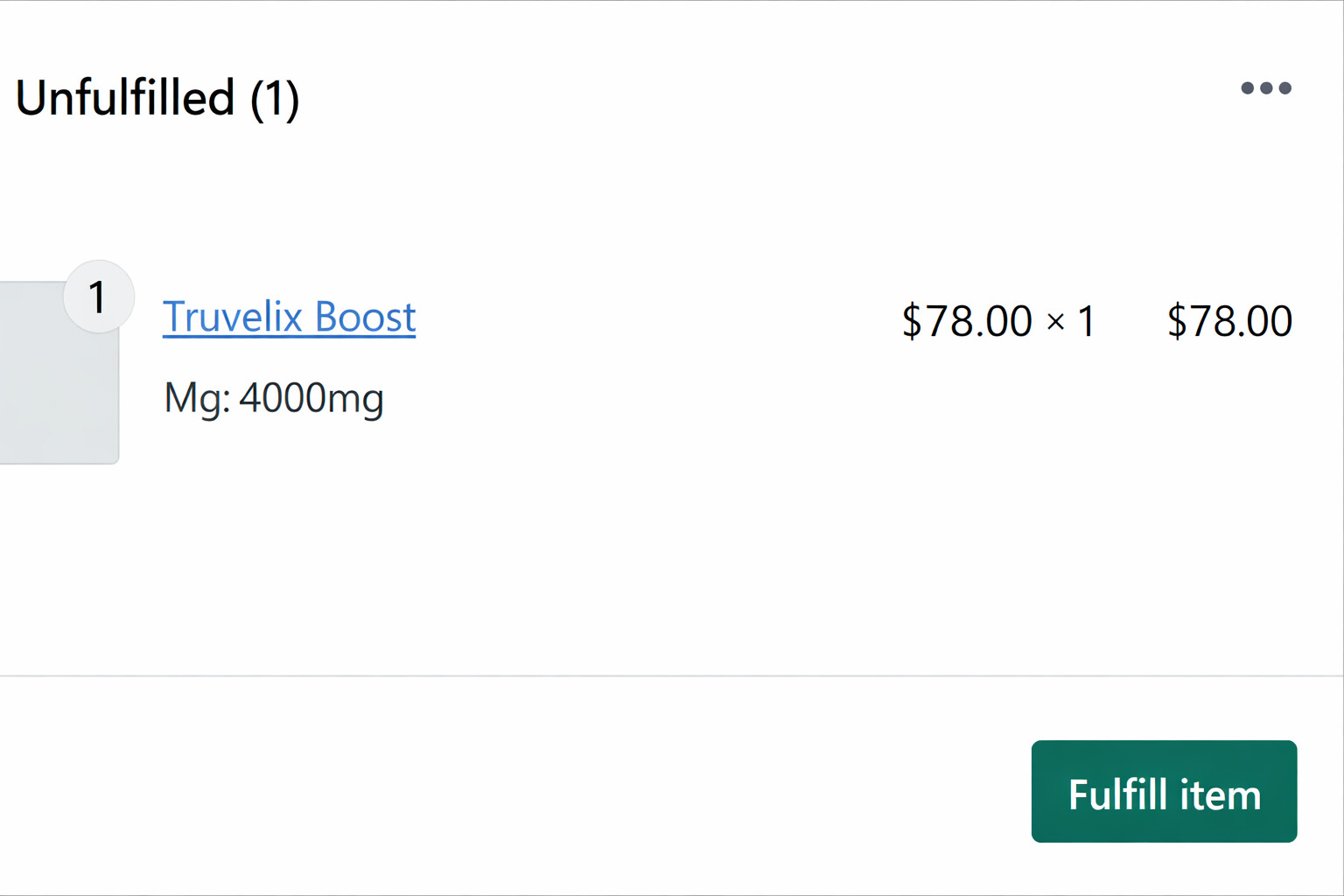
Shopify receives the order perfectly for fulfillment, but your customer never had to wait for a 5MB data file to load on their phone.
Advanced: Handling Bundles?
If you are selling bundles (e.g., “Buy 2 Candles, Pick 2 Scents”), you can even use custom code to show/hide the right amount of dropdowns based on the quantity selected.
For the full technical setup and code snippets, check out these deep dives by our team: