Want to automatically segment your customers and trigger hyper-targeted email sequences?
By seamlessly integrating Funnelish with ActiveCampaign, you can automatically add, remove, and tag contacts in your email lists based on their exact funnel behavior (like opting in, purchasing a specific product, or requesting a refund).
Watch the quick setup overview here:
Getting this set up takes just two steps: linking your ActiveCampaign account to Funnelish, and creating a simple funnel automation to dictate when contacts get synced.
Step 1: Link Your ActiveCampaign Account
To connect the platforms, you’ll need to copy your API credentials from ActiveCampaign and paste them into Funnelish.
Pro Tip: It’s easiest to do this with two browser tabs open side-by-side—one for ActiveCampaign and one for Funnelish.
Find Your API Credentials
- Log in to your ActiveCampaign account.
- Click Settings on the left-hand menu.
- Click on the Developer tab.
- Keep this page open; you will need the URL and Key found under the API section.
Connect the Integration in Funnelish
- Open your Funnelish dashboard in a new tab.
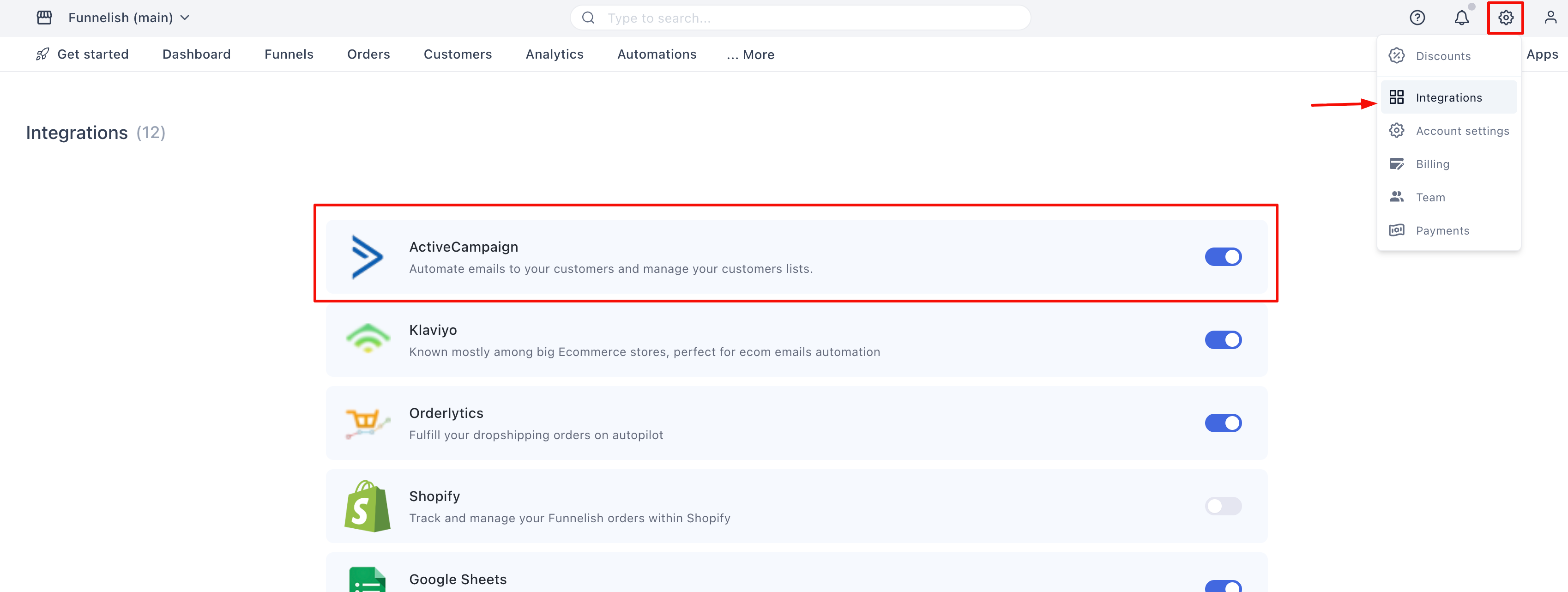
- Click the Settings icon in the top right corner.
- Select Integrations from the drop-down menu.
- Scroll down and click ActiveCampaign to open the setup panel.
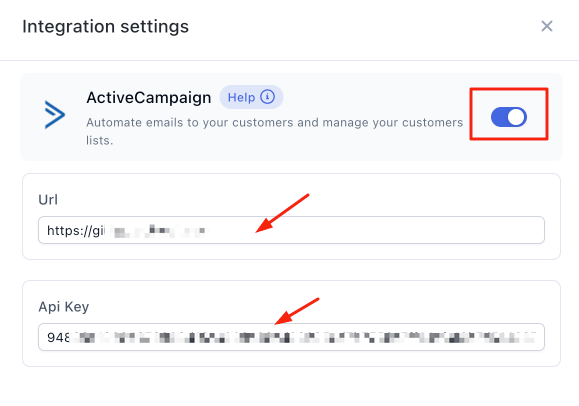
- Toggle the switch to turn the integration On.
- Go back to your ActiveCampaign tab, copy the API URL, and paste it into the URL field in Funnelish.
- Go back to ActiveCampaign one more time, copy the API Key, and paste it into the Key field in Funnelish.
- Click Save changes.
You are now fully integrated! Now, let’s build the automation to start syncing your contacts.
Step 2: Build Your Funnel Automation
With your account connected, you need to tell Funnelish which funnel actions should trigger an update in ActiveCampaign.
Create the Trigger
- Open the specific funnel you want to automate.
- Click on Automations in the left-side panel.
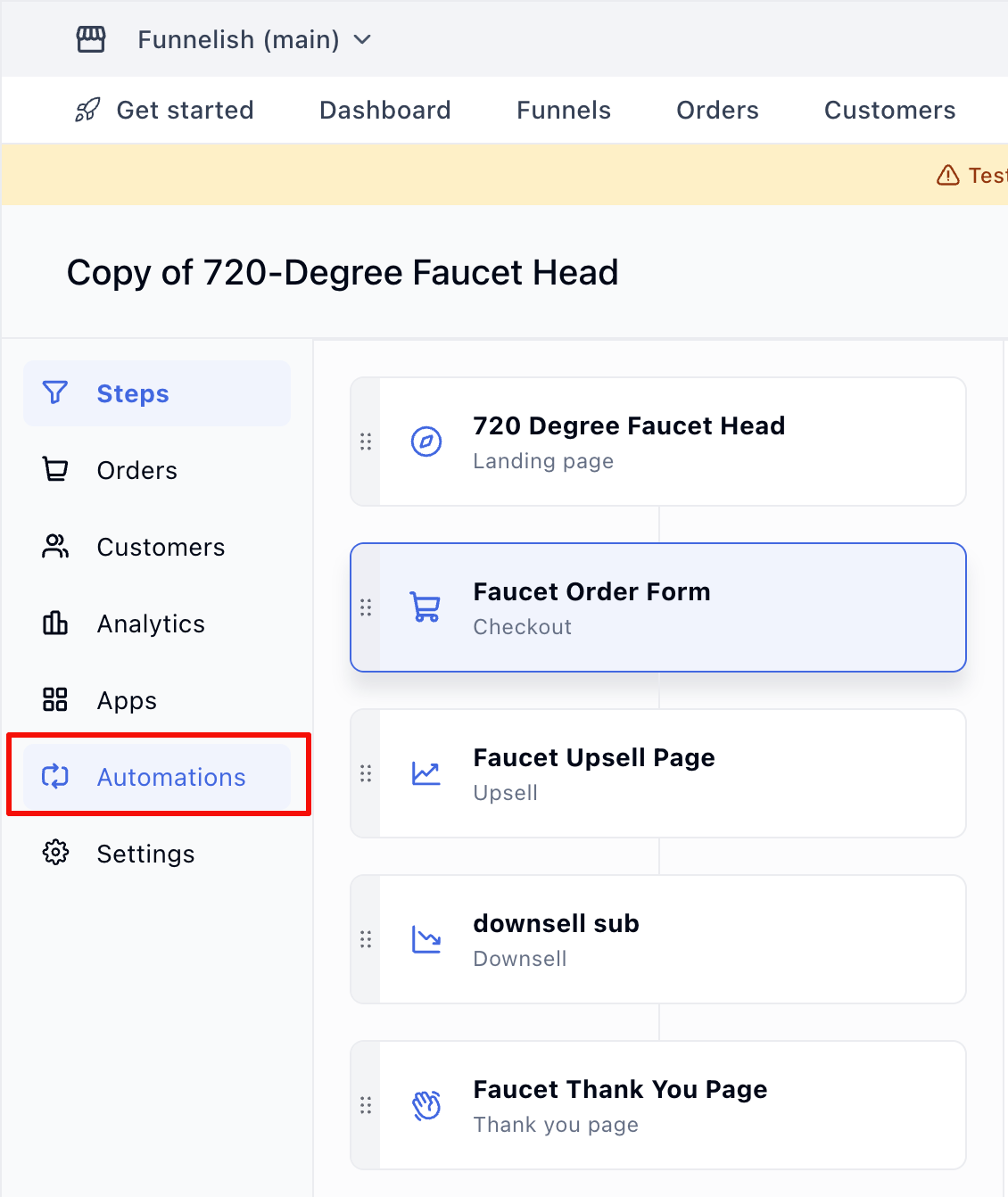
- Click Create a new automation, select Start from scratch, and hit Create.
- Click Add a new trigger.
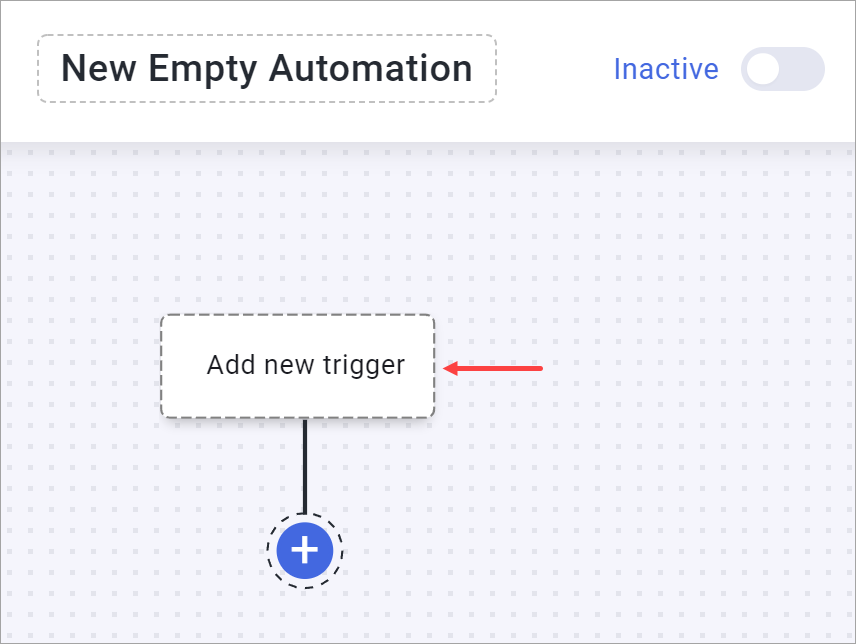
- Choose the event that will start the automation (e.g., select On Optin to track leads, or On Purchase to track buyers). Click Create.
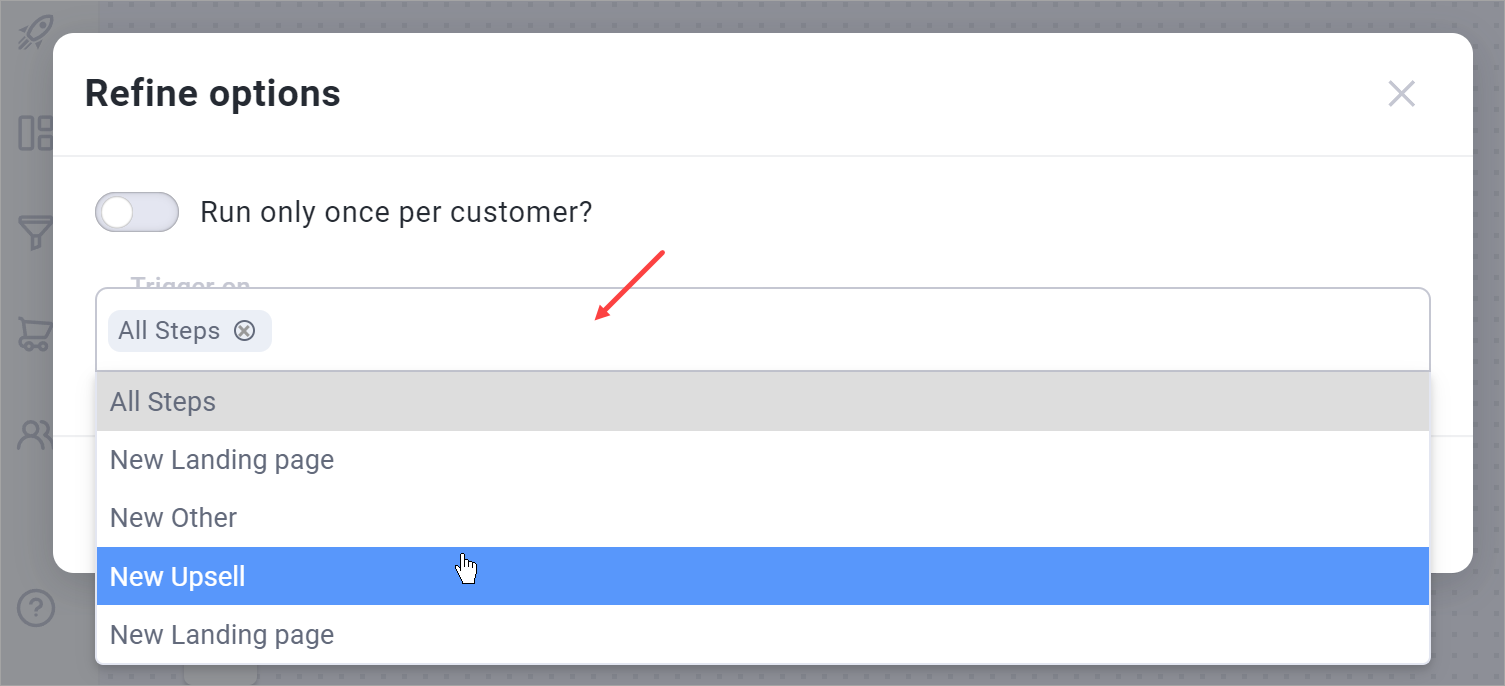
- Under the Trigger on field, select the specific funnel step(s) where this action occurs (e.g., your Optin page or your Checkout step).
- Click Create.
Configure the ActiveCampaign Action
Now, tell Funnelish what to do with the contact when that trigger fires.
- Click the plus (+) icon below your newly created trigger.
- Go to Integration > ActiveCampaign.
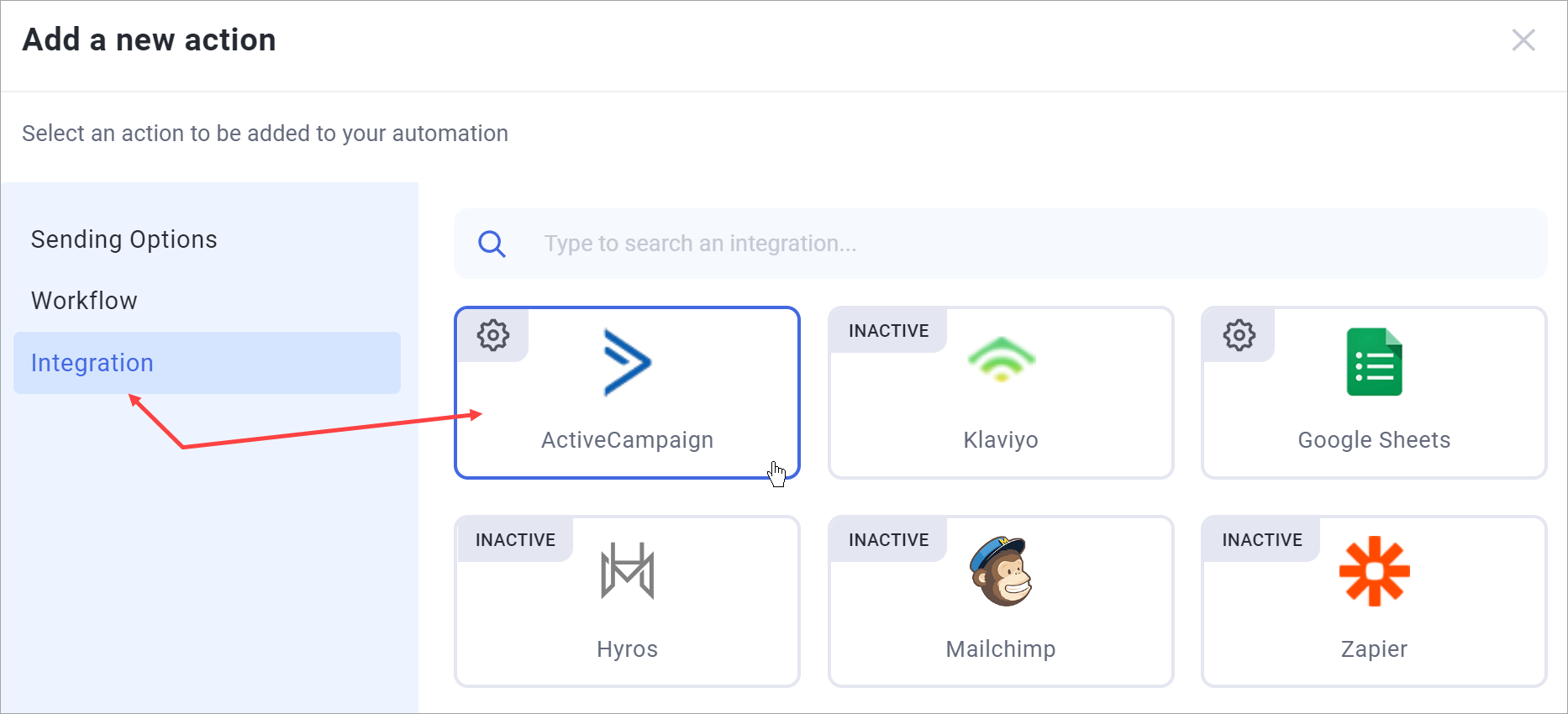
- Click the Action drop-down field and choose what you want to happen: Add to list, Remove from list, Add tag, or Remove tag.
- Click the List field and select your desired ActiveCampaign list.
- (Optional) Click the Tag field to type in any specific tags you want applied to the contact (e.g.,
purchased-ebookorlead). - Click Add to save the action.
Don’t Forget: Make sure to switch the Active toggle in the top right corner to turn your new automation on!
That’s it! Your funnel is now automatically syncing contacts and data directly to your ActiveCampaign lists.