If you’ve ever tried selling a physical product bundled with a digital download on Shopify, you already know it’s a massive headache.
The platforms that do physical fulfillment well usually fall short at digital delivery, and vice versa. You either end up breaking your shipping profiles (accidentally charging a customer $5 to ship a PDF  ), or you end up stacking third-party apps like SendOwl or FetchApp that confuse your customers with separate, clunky delivery emails.
Here is exactly how to set up a mixed digital/physical offer using Shopify’s native “duct-tape” method, and then how to do it cleanly if you want to keep your checkout flow seamless.
 The “Duct-Tape” Method: Doing it Natively in Shopify
If you are trying to keep everything inside Shopify without using a funnel builder, you have two options: sell them as two separate SKUs in the cart, or sell them as one bundled SKU.
Here is how to execute both without breaking your shipping rates:
Option A: Selling as Separate SKUs (The Mixed Cart Approach)
Example: They buy a physical supplement, and you offer a digital meal plan as an upsell.
Shopify actually handles mixed carts decently, provided you classify the digital product correctly.
-
Go to Products and open your digital item.
-
Scroll to the Shipping section.
-
CRITICAL: Uncheck “This is a physical product” (or select “Digital product or service” in the new UI).
-
Save the product.
-
Install Shopify’s free Digital Downloads app and attach your PDF/file to this specific SKU.
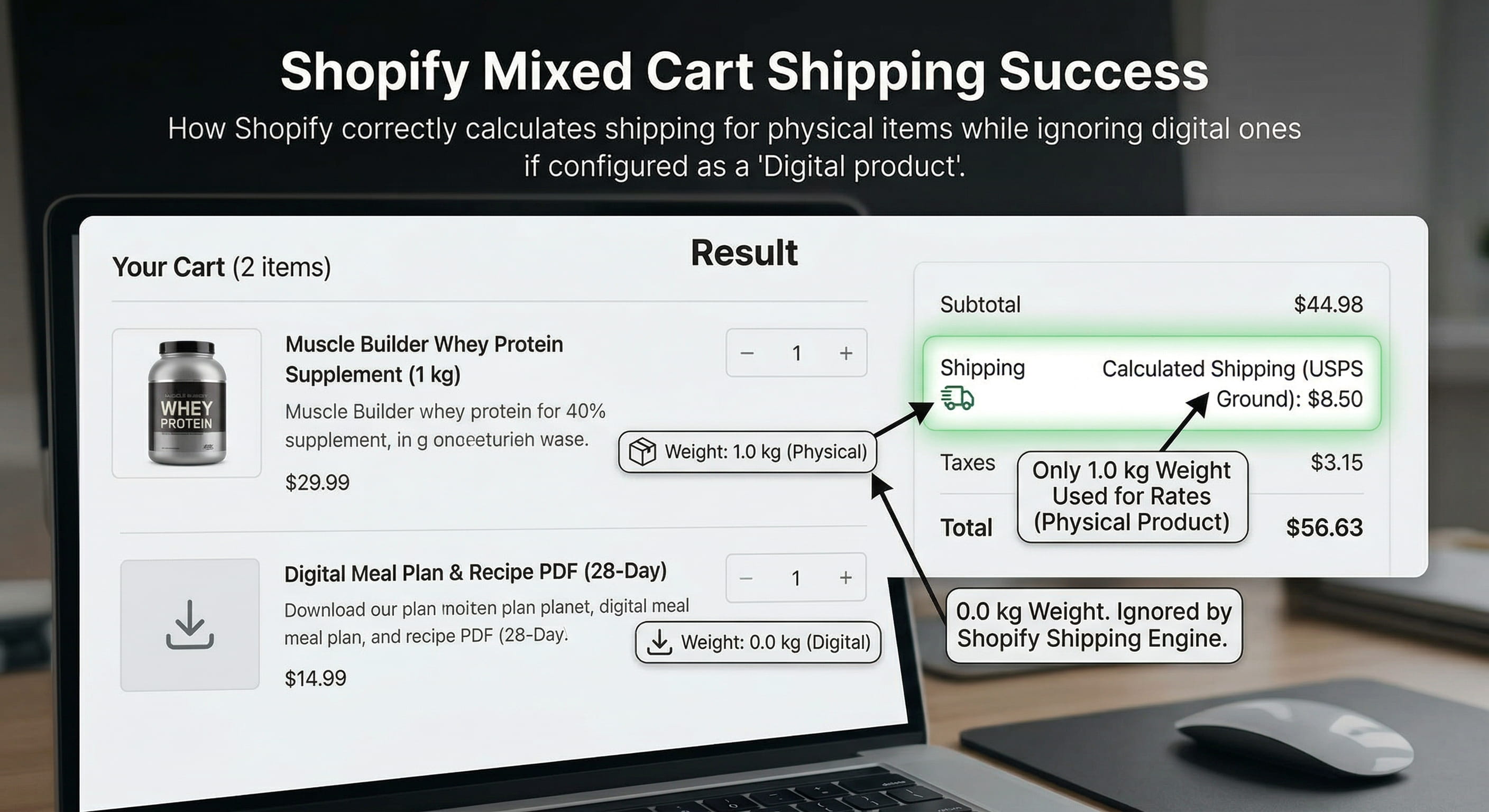
The Result: When both items are in the cart, Shopify’s checkout engine will ignore the digital item for shipping calculations and only charge based on the physical supplement’s weight.
Option B: Selling as a Single Bundled SKU
Example: “The Keto Starter Kit (Physical Supplements + Free Recipe PDF included)”
Since there is a physical component, Shopify must treat the entire bundle as a physical product so it triggers your fulfillment network.
-
Create your bundle product in Shopify.
-
In the Shipping section, make sure “This is a physical product” is CHECKED. Set the weight to reflect only the physical item.
-
Add a tag to the product, like
Digital_Bundle. -
The Delivery Workaround: Since you can’t use the Digital Downloads app cleanly on a physical product, you need to use an email flow. Go into Klaviyo (or Shopify Email) and create an automated flow triggered by a purchase. Set the condition: If Order contains product tag
Digital_Bundle→ Send “Here is your digital download” email.
 Why these methods break at scale
While the above methods technically work, they introduce massive friction:
-
Customer Confusion: Customers get one email from Shopify for their receipt, another for shipping, and a completely separate email (often from a different app or hitting the spam folder) for their digital download.
-
Support Nightmares: “Where is my PDF?” will become your #1 customer support ticket.
-
App Bloat: You are relying on third-party apps to trigger the delivery, which can misfire or slow down your backend & add up to your monthly costs.
 The Clean Method: Using a Dedicated 3rd-Party Checkout
If you want to treat your digital and physical products like a true direct-response offer, you need to detach the front-end checkout experience from Shopify’s rigid backend.
Instead of fighting Shopify’s inventory types or relying on delayed email delivery, you can use a 3rd-party checkout that seamlessly syncs orders with Shopify to handle the mixed cart perfectly, giving you complete control over how the offer is presented.
How it works:
1. The Physical Core Offer Add your physical product to your custom checkout step.
2. Adding the Digital Product (Complete Flexibility) Because the funnel builder controls the front-end checkout, it separates the billing logic without confusing Shopify’s shipping profiles.
You can position your digital product in three different ways:
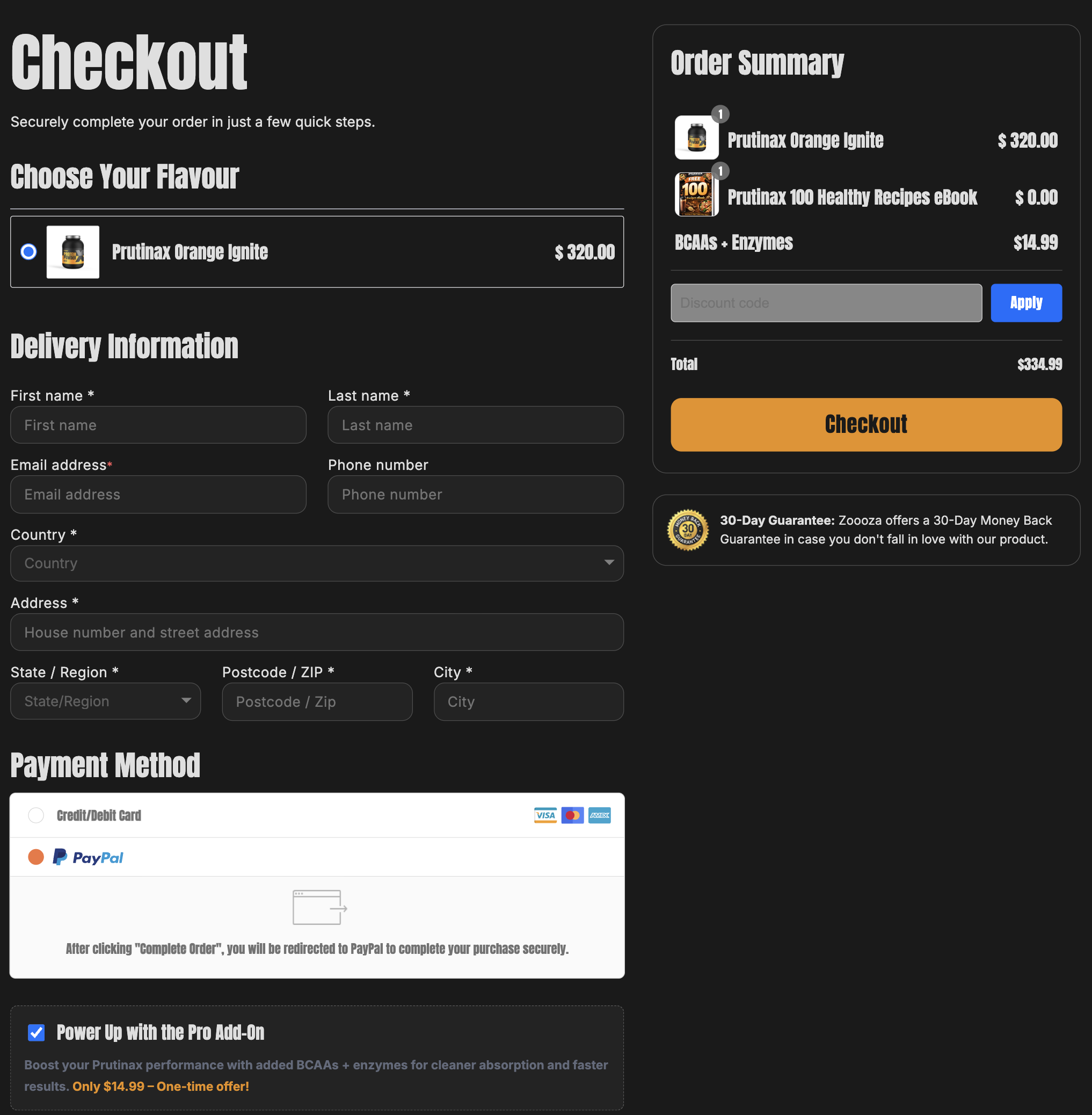
- The Free Bundle (Hidden Product): If the PDF is a free bonus included with every physical purchase, set it up as a “Hidden Product” selected by default. The customer gets the bonus, but Shopify’s shipping engine doesn’t get tripped up.
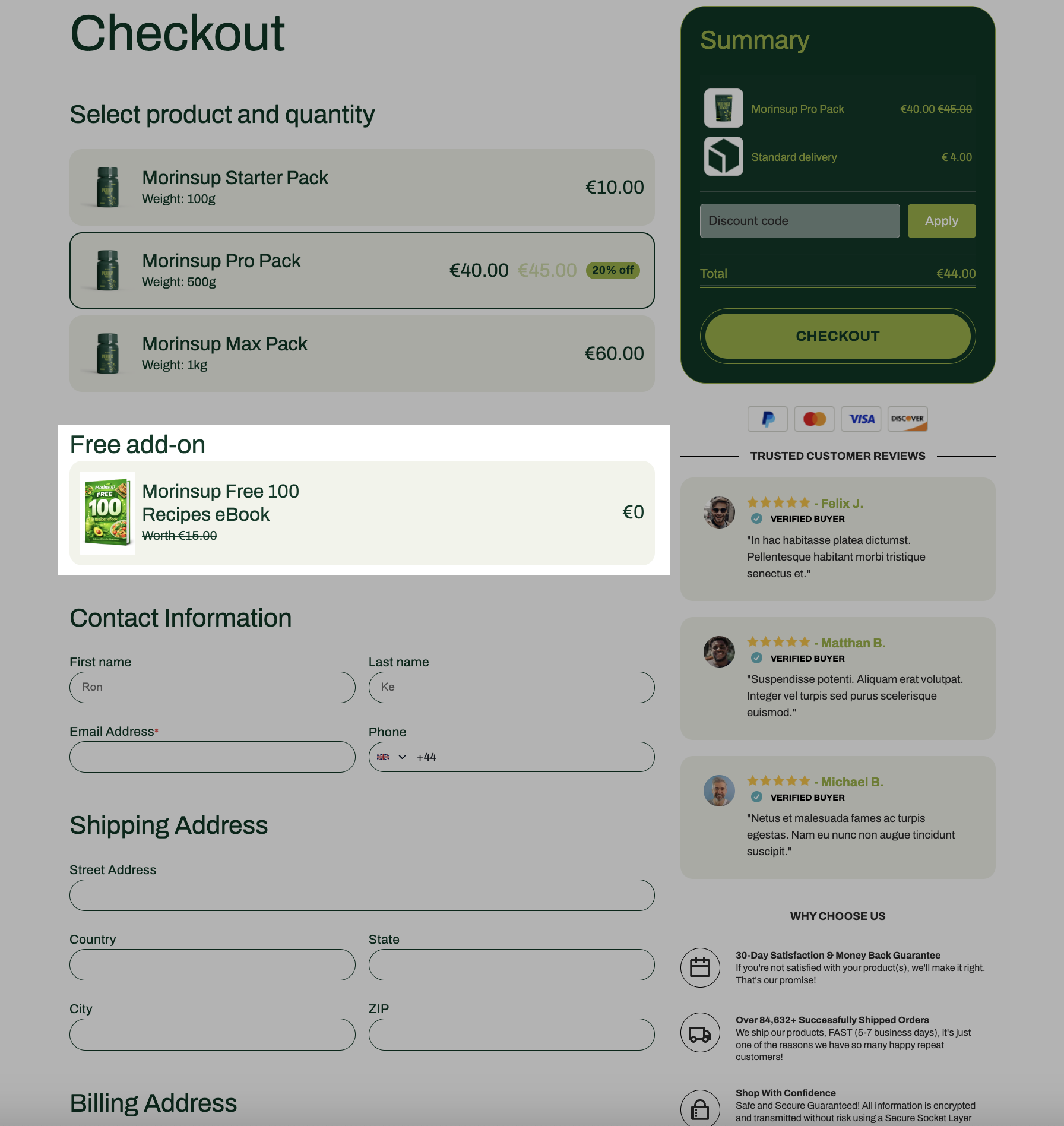
- The Order Bump: Add it as a classic order bump. The customer simply ticks a box on the checkout form to add the digital meal plan to their physical supplement order.
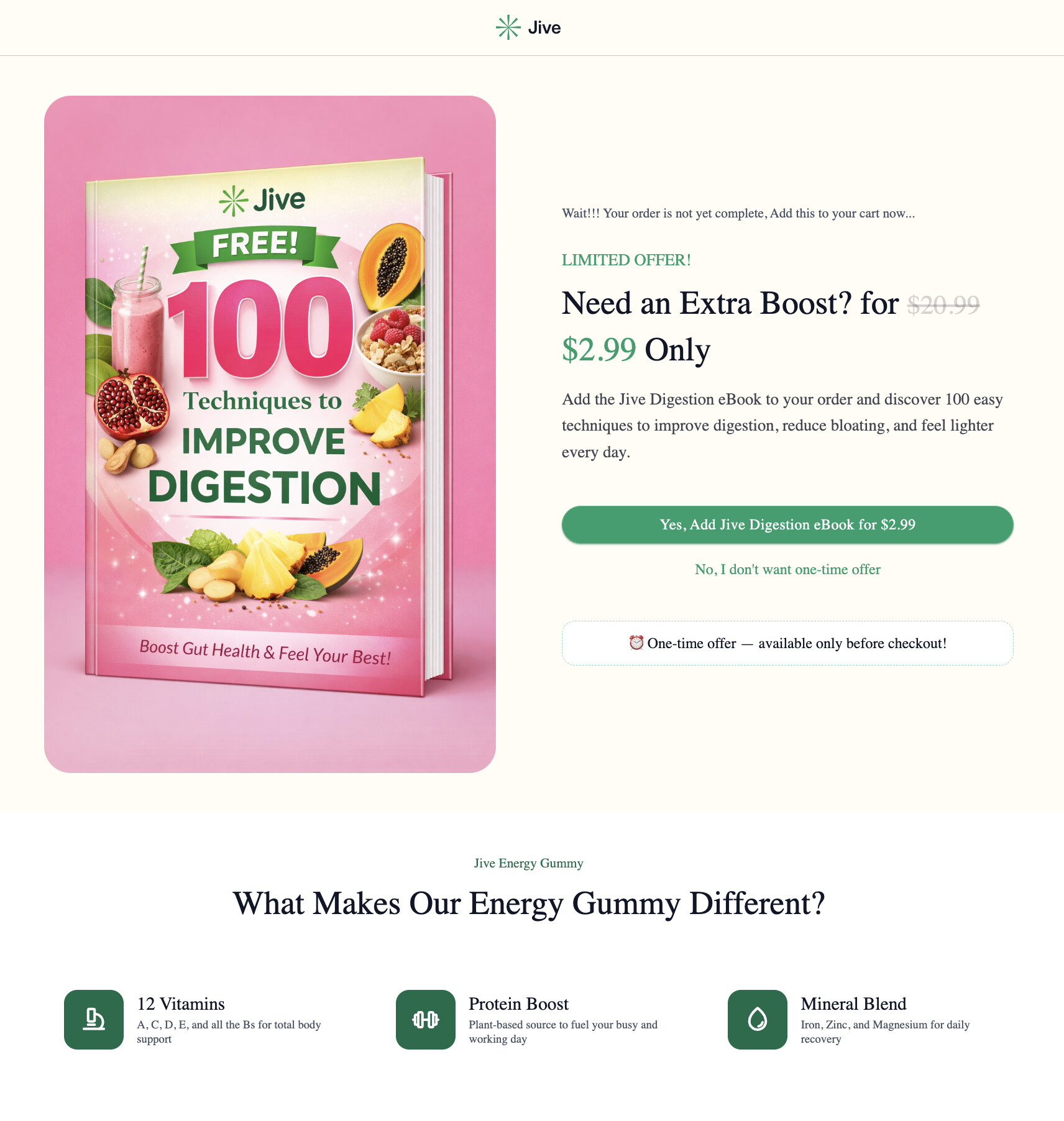
- The One-Click Upsell (OTO): If you want to charge a premium for the digital product, sell it as a dedicated upsell page immediately after they purchase the physical item.
The Setup: Instant Delivery via Direct Download (from Google Drive)
To make this a truly frictionless experience, you want the digital file to download immediately as a clean PDF when the customer clicks the button on your Thank You page, rather than opening up a messy preview window.
Here is exactly how to set up an instant download link with Google Docs for free:
1. Set Permissions (Crucial Step)
Open your guide or meal plan in Google Docs. Click the blue Share button in the top right corner, and change the General Access from “Restricted” to “Anyone with the link” (set role to Viewer).
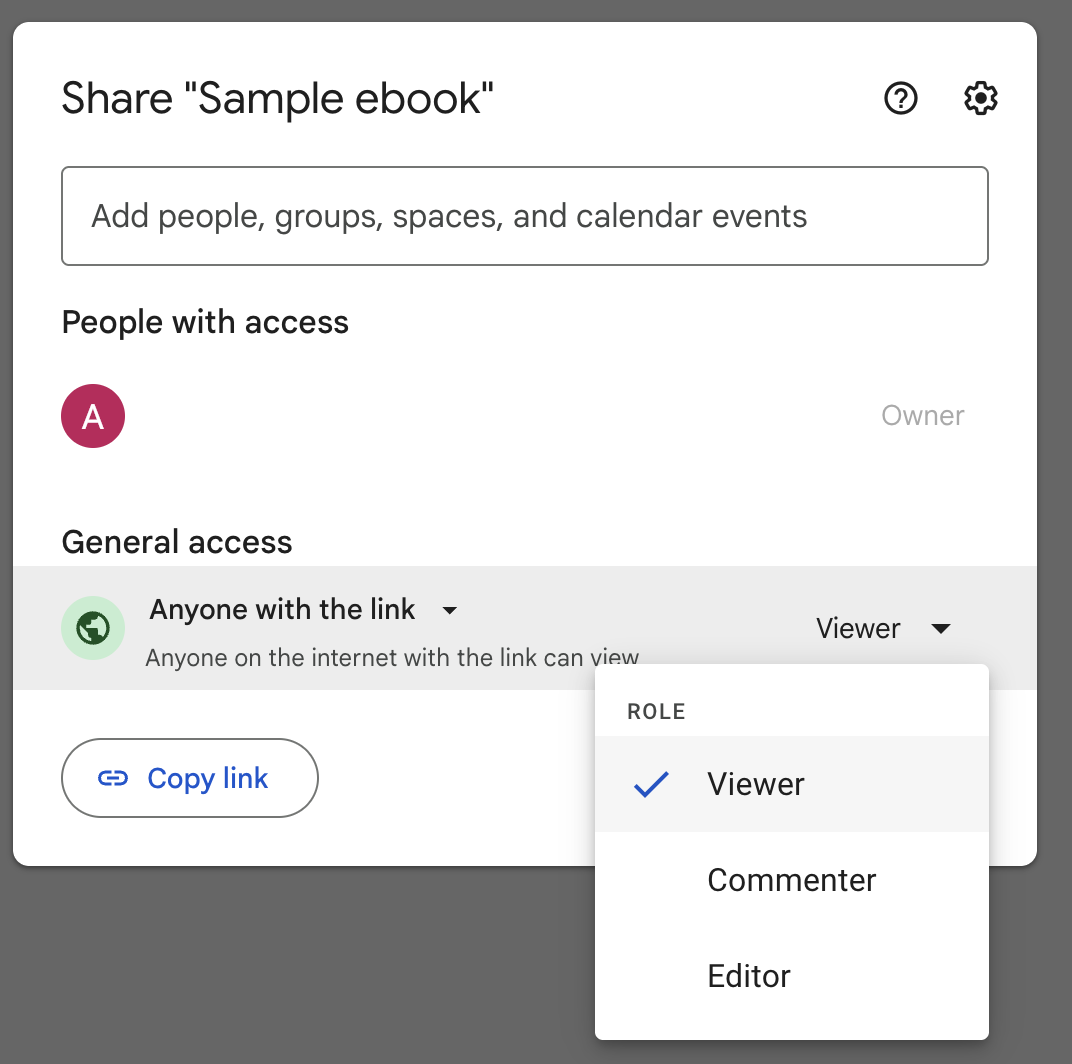
If you skip this step, your customers will hit a “Request Access” login screen, which will flood your support inbox.
2. Create the “Auto-Download” Link
Google Doc links default to a web preview. To force it to automatically download as a locked PDF (so customers can’t edit it), you need to extract your File ID and tweak the URL structure.
Your standard sharing link looks like this:
https://docs.google.com/document/d/1Rzv1yw_aJ6FlTLN8bqFZG1696Tsxw6NZfPY5QVi9Lgw/edit?usp=sharingFind your File ID: It is the long string of random characters right after
/d/and before/edit:1Rzv1yw_aJ6FlTLN8bqFZG1696Tsxw6NZfPY5QVi9LgwYour Final Auto-Download Link: Replace everything after the File ID with
/export?format=pdf. Your final link will look exactly like this:https://docs.google.com/document/d/1Rzv1yw_aJ6FlTLN8bqFZG1696Tsxw6NZfPY5QVi9Lgw/export?format=pdf
3. Add the Button to Your Funnel
Inside your 3rd-party checkout’s Thank You page, simply drag in a standard Button element. Set the button action to “Go to URL” (or “Open Link”) and paste your newly created auto-download link.
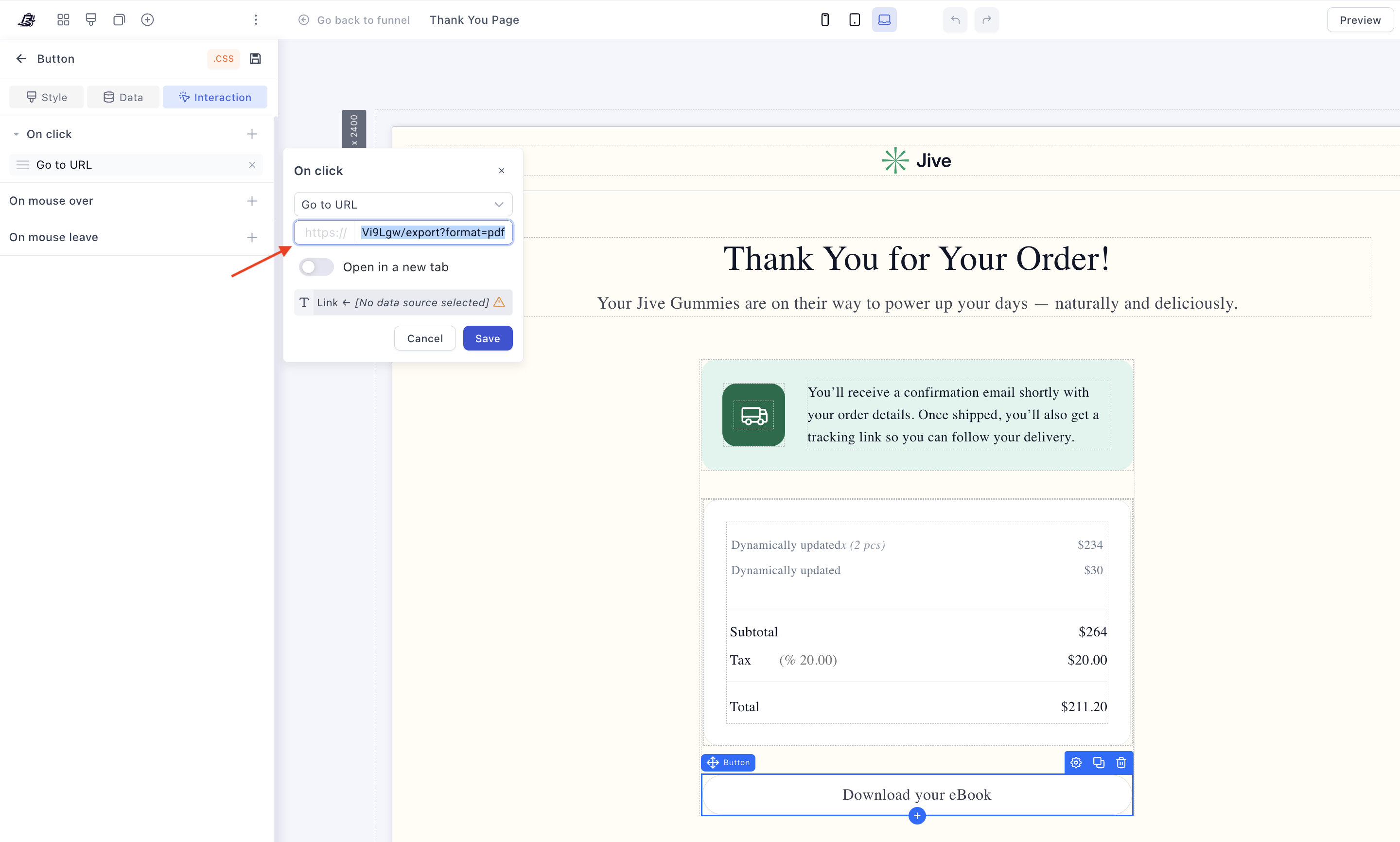
The Result: A Frictionless Experience
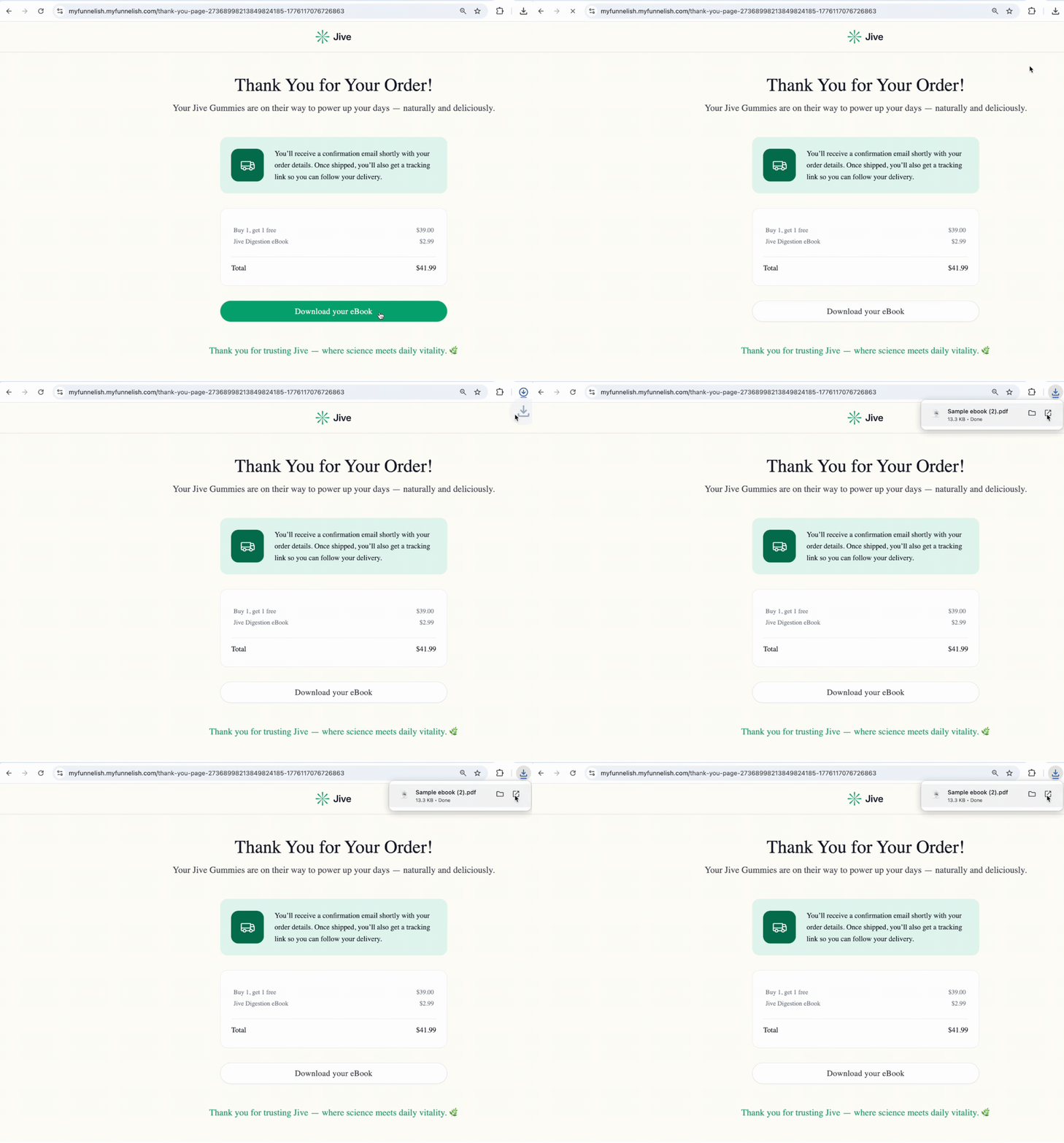
By using a dedicated checkout flow, the customer gets a hyper-optimized, one-page experience. They buy the physical item, grab the digital add-on however you choose to present it, and click a single button to download their file instantly upon completing the purchase.
Meanwhile, your 3rd-party checkout quietly pushes the physical order data directly to your Shopify backend so your warehouse can fulfill it - zero duct tape, zero app stacking, and zero “where is my file?” support tickets.
Want to skip the setup? If you’re interested in testing this out and want the exact checkout or thank-you pages showcased above, just drop a comment below and I’ll send you a Sharelink so you can import them right into your account! 