Calculate, collect, and file sales tax automatically with Zamp. Works with any payment gateway on your funnel.
How it works
The Zamp app connects your funnel to Zamp’s tax engine. When a customer reaches your checkout, Funnelish sends the order details and the customer’s address to Zamp. Zamp returns the correct tax amount, and it’s added to the order total automatically.
Because the calculation happens on the Funnelish side, it works with every payment method on your funnel: PayPal, credit card gateways, and everything else.
Zamp is a fully managed, done-for-you sales tax service focused on US sales tax (with Canada support). Their tax engine uses rooftop-accurate calculations — tax is determined from the customer’s exact building address using geospatial data, not just their ZIP code. Their team handles registrations, filings, and state notices for you, so once you’re set up, there’s very little to manage.
Legacy pages are not supported
This app does not work properly on pages built with the legacy (v1) page builder. You must upgrade those pages to the new editor first. The legacy builder reaches end of life on October 31st, and upgrading will not be possible after that date. Upgrading is free, automatic, and takes one click. See the Upgrading legacy pages section below.
Zamp vs. Stripe Tax: which one?
Both apps do the same job on your funnel. The difference is the service behind them:
-
Zamp is a managed service: one all-inclusive subscription covers calculations, registrations, filings, notices, and support, with no per-transaction fees. Their team (including former state auditors) sets up and monitors your account. Best if you sell mainly to the US and want sales tax fully off your plate.
-
Stripe Tax is self-serve with pay-as-you-go pricing and broader international coverage (VAT, GST, 100+ countries). Best if you sell globally or want to start small. See the Stripe Tax docs.
Use one or the other — never enable both tax apps on the same funnel.
Pricing
Funnelish does not charge anything extra for this app. Zamp charges for its service directly.
Zamp uses one all-inclusive subscription price — calculations, registrations, filings, notices, and support are all bundled, with no per-transaction fees, no per-filing fees, and no overage charges. Pricing is scoped to your business (number of states, transaction volume), so you’ll get a quote from their team.
Check zamp.com/pricing or contact their team for a quote. They also offer a free sales tax assessment to figure out where you actually have tax obligations.
What you need
1. A Zamp account. Zamp is a managed service, so you start by contacting their team at zamp.com. They’ll assess your tax obligations, set up your account, and handle your state registrations.
2. Your Zamp API key. Your Zamp onboarding manager provides your API token during onboarding. If you’re already a Zamp customer, contact your account manager or [email protected] to get it.
3. Funnel pages built on the new (v2) page builder.
That’s it — unlike self-serve tools, Zamp’s team configures your registrations and product taxability on their side. Zamp only calculates tax in states where your account has an active registration, and their team manages those for you.
Connect Zamp to your funnel
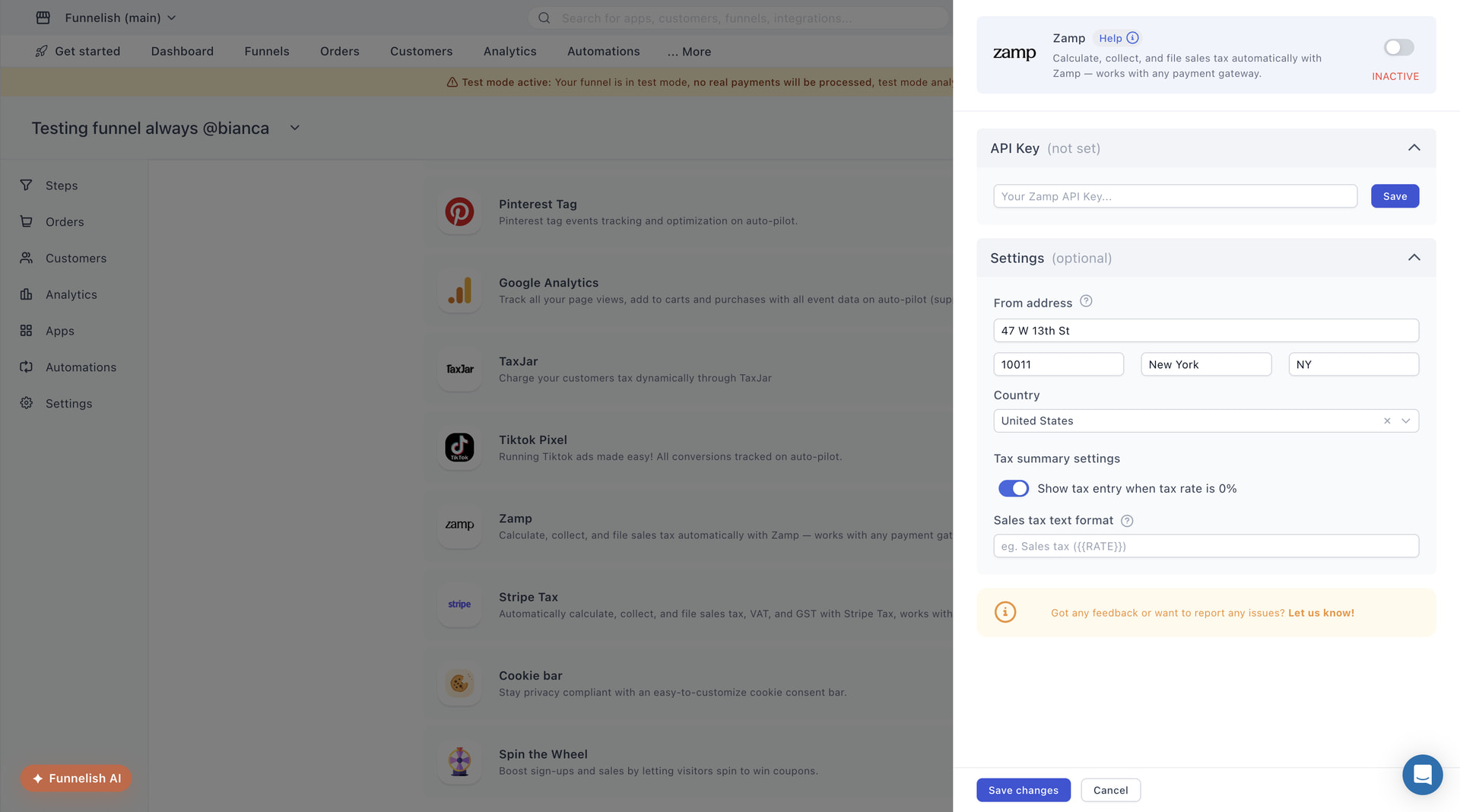
Step 1: Open the app
In your funnel, go to Apps and click Zamp.

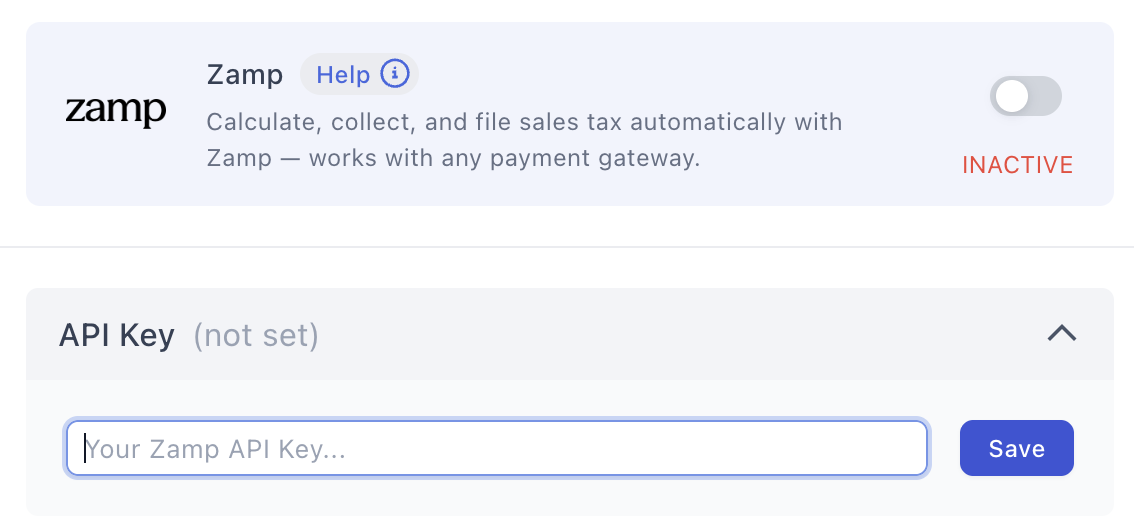
Step 2: Enter your API key
Paste your Zamp API key in the API Key field and click Save. The key is validated on save, so you’ll know right away if something’s wrong.
Step 3: Activate the app
Turn on the toggle at the top of the panel. The status changes from Inactive to Active.
Step 4: Save
Click Save changes. That’s it — tax is now calculated automatically at your checkout.
Assign tax codes to your products
A tax code (product tax category) tells the tax engine what kind of product you’re selling, so it applies the right tax treatment. Clothing, food, digital goods, and services all have different rules depending on the state.
To set a tax code, open your product’s settings in the funnel and use the Sales tax code dropdown. You can search by name (e.g. “Clothing”) or paste a code directly (e.g. txcd_30011000).
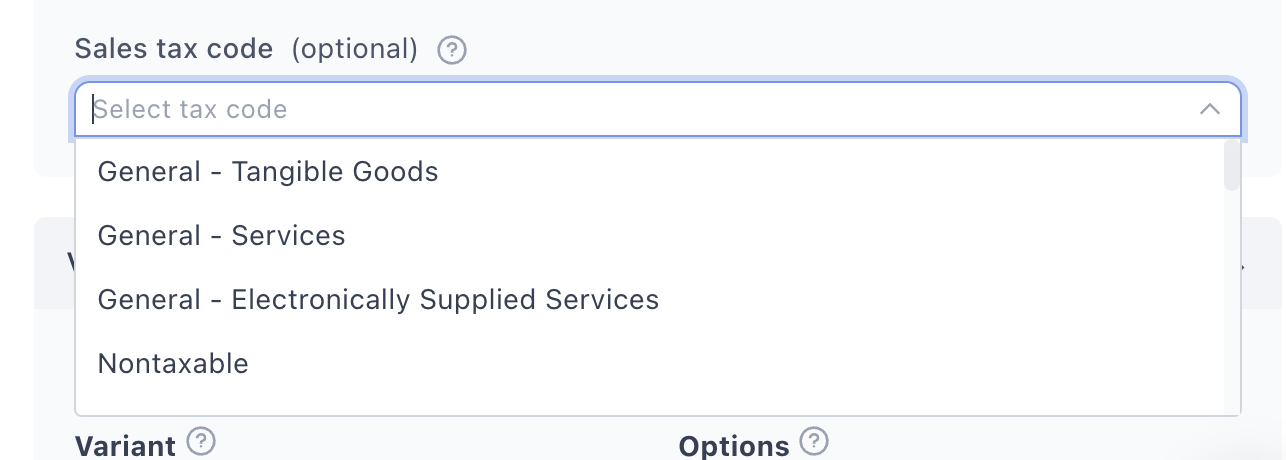
If no tax code is set on a product, your Zamp account’s default configuration is used. That’s fine if everything you sell is the same kind of product. If you sell a mix — say physical goods plus a digital course — set the code per product, or some orders may be taxed under the wrong category. Zamp’s team also researches and maps product taxability as part of onboarding, so tell them what you sell.
See the full searchable list of codes in our Product Tax Codes reference.
Optional settings
From address
The address you sell or ship from. Zamp uses this as the origin of the transaction when calculating tax.
Show tax entry when tax rate is 0%
When on, the order summary shows a tax line even when the calculated tax is 0%. Useful if you want customers to always see that tax was checked.
Sales tax text format
Controls how the tax line is labeled in the order summary. Use the {{RATE}} variable to show the rate. Example: Sales tax ({{RATE}}) displays as Sales tax (8.5%).
Upgrading legacy pages
The legacy (v1) page builder is being deprecated and reaches its end of life on October 31st. After that date, pages can no longer be upgraded, so we strongly recommend doing it now.
Upgrading takes one click:
- Open your funnel and find the page.
- Click the edit (pencil) icon.
- Choose Upgrade to new editor (recommended).

The upgrade is free and automatic. Your page is converted to the new page builder, and you get access to all the latest features, including this app.
FAQ
Do I need to use a specific payment gateway?
No. Zamp works with every payment method on your funnel — PayPal, card gateways, anything. Zamp only handles the tax side.
How do I get an API key?
From Zamp’s team. Your onboarding manager provides it when your account is set up. Existing customers can ask their account manager or email [email protected].
Why is tax showing as 0%?
Usually because your Zamp account has no active registration for the customer’s state. Zamp only calculates tax where you’re registered. Reach out to your Zamp account manager to review your registrations. Tax-exempt products can also return 0%.
Do I need to set a tax code on every product?
It’s recommended, especially if you sell different kinds of products. Without one, your Zamp account’s default is used. See the Product Tax Codes reference.
Does Zamp handle tax filing too?
Yes — that’s Zamp’s core offering. Registrations, filings, remittance, and state notices are all handled by their team as part of your subscription. Nothing extra to set up on the Funnelish side.
Which countries are supported?
Zamp focuses on US sales tax (all states and territories), with Canada support as well. If you sell mainly outside North America, Stripe Tax is likely the better fit.
Does it work with test mode?
Yes. If your funnel is in test mode, no real payments are processed while you verify tax calculation at checkout.
Can I use Zamp and Stripe Tax together?
No. Enable only one tax app per funnel, otherwise tax may be calculated twice.
Troubleshooting
Tax isn’t showing at checkout
- Check the app toggle is Active and you clicked Save changes.
- Check your API key was saved and validated.
- Check your Zamp account has an active registration for the customer’s state (ask your Zamp account manager).
- Check the page is built on the new page builder, not the legacy editor.
Wrong tax amount
- Review your From address in the app settings.
- Check the product has the correct Sales tax code assigned in its settings.
- Ask your Zamp account manager to review the product taxability mapping on your account.
API key errors
- Make sure you copied the full key with no extra spaces.
- If the key still fails to validate, it may have been reset — contact Zamp support for a new one.
Related topics
Got feedback or found an issue with this app? Use the Let us know link inside the app panel, or reply below if it’s related to this topic. For anything else, post your question in the Ask the community category and we’ll help you out.