The Order Bump is a native element in the Funnelish editor. You can drop it onto any checkout page, pick a product from your catalog, and style it in minutes.
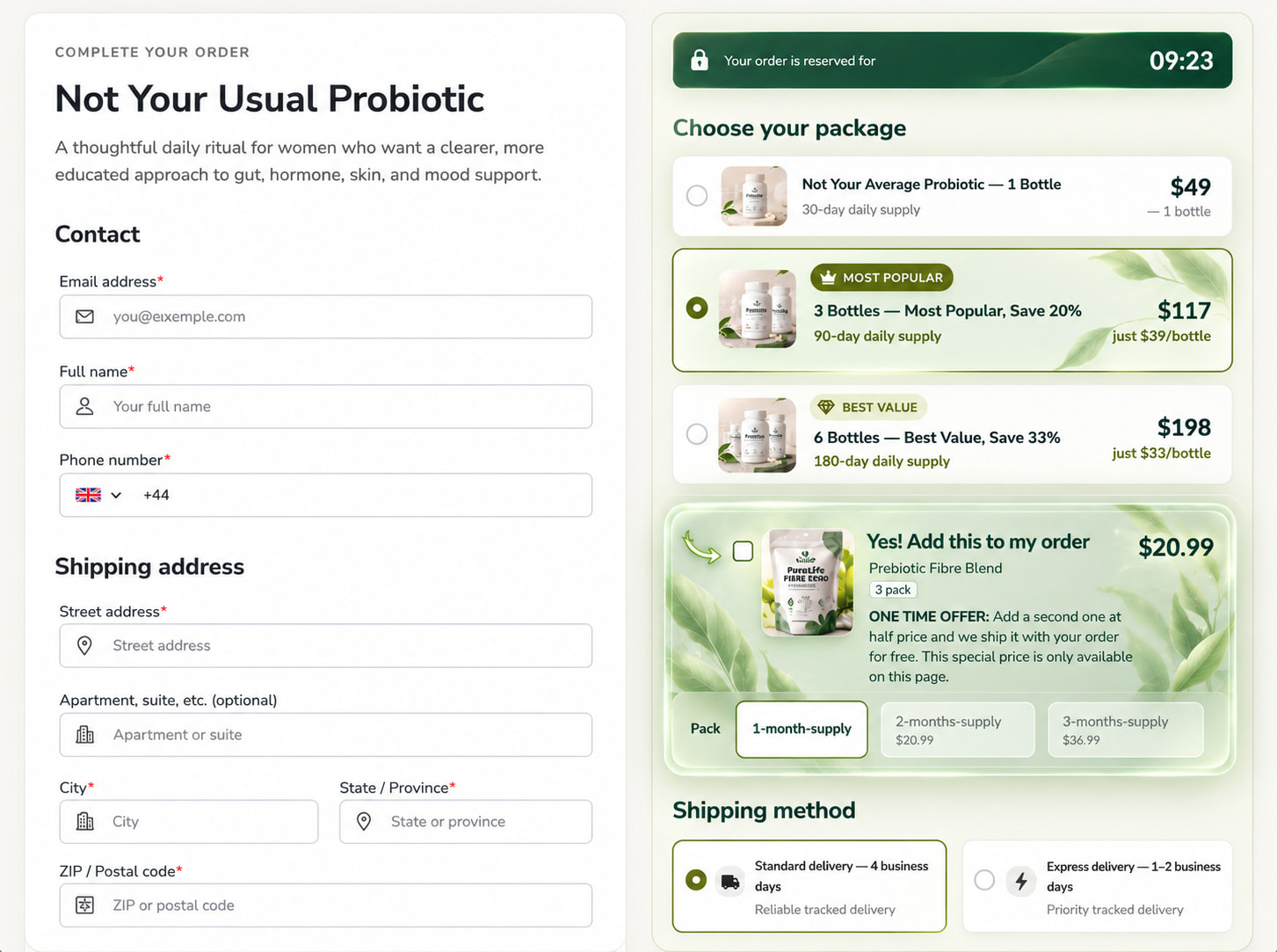
Order bumps are one of the simplest ways to lift average order value. A customer ticks one box and adds a relevant product before paying. No extra page, no extra step.
Out of 12,000 brands we analysed, order bumps increased average order value by 15–30%.
Until now, building a good-looking bump took manual work. The new element gives you ready-made themes, layouts, attention effects and a pointer, all from one settings panel.
What is the Order Bump element?
It is a catalog product offered as a ticked add-on on your checkout page. When the customer ticks the box, the product is added to their order.
Here is what you get out of the box:
- 9 themes: Sticky, Classic, Neon, Glass, Luxe, Receipt, Pop, Marker and Ping
- 4 layouts: Stacked, Image beside, Banner and Card
- 4 attention effects: None, Glow, Shine and Shake
- A pointer: an arrow icon or your own image that draws the eye to the checkbox
- Variants on tick: let customers choose a variant (size, pack, supply) right inside the bump
- Full styling control: background, headline, body text, card, border and shadow
How to add an Order Bump to your checkout
- Open your checkout page in the Funnelish editor.
- Select the container where you want the bump to appear. Most people place it right under the package selector, above shipping.
- In the Add elements panel, scroll to Others and find Order bump (it has a NEW tag). You can also type “order bump” in the search bar.
- Drag it onto the page, or click it once to insert it into the selected container.
- In the right panel, under Product, choose the catalog product you want to offer.
- Pick a theme, layout and attention effect under Appearance (more on these below).
- Click on the headline or description text on the canvas to edit it inline.
- Click Preview to test it, then Save.
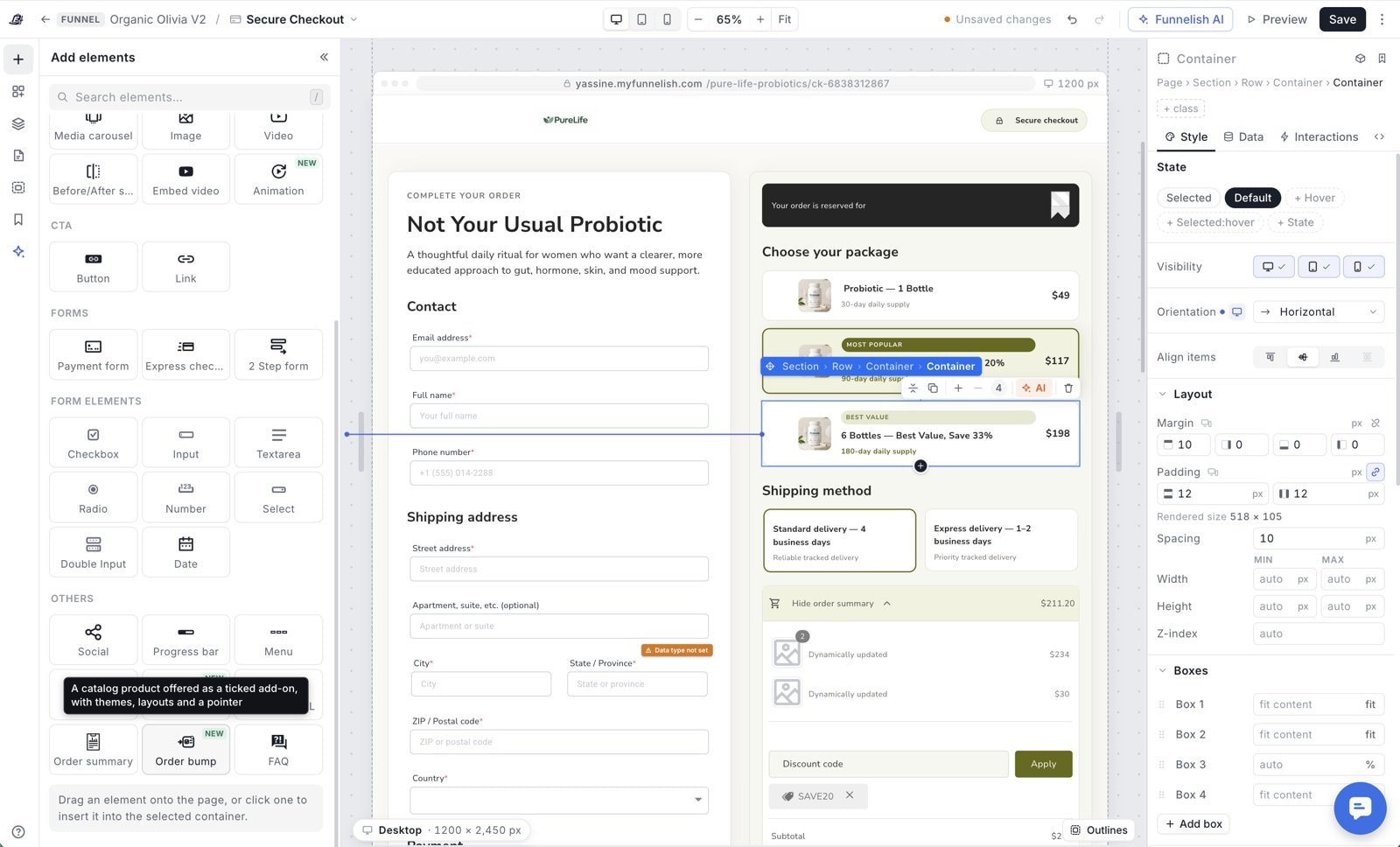
Once added, choose your product and appearance in the right panel.
Themes, layouts and attention effects
| Theme | Look and feel |
|---|---|
| Sticky | Yellow sticky-note style with handwritten headline and price |
| Classic | Light background with a dashed border, the familiar order bump look |
| Neon | Dark card with a glowing neon edge |
| Glass | Grey frosted-glass card |
| Luxe | Dark premium card with gold accents |
| Receipt | Monospace, receipt-style text with a barcode |
| Pop | Clean card with a colourful gradient border and a toggle switch |
| Marker | Bold, high-contrast card with a highlighter-style shadow |
| Ping | Minimal white card with a toggle switch |
Open Appearance > Theme to see all options in one popup. Each theme changes the whole look of the bump in one click, so you can test styles quickly.
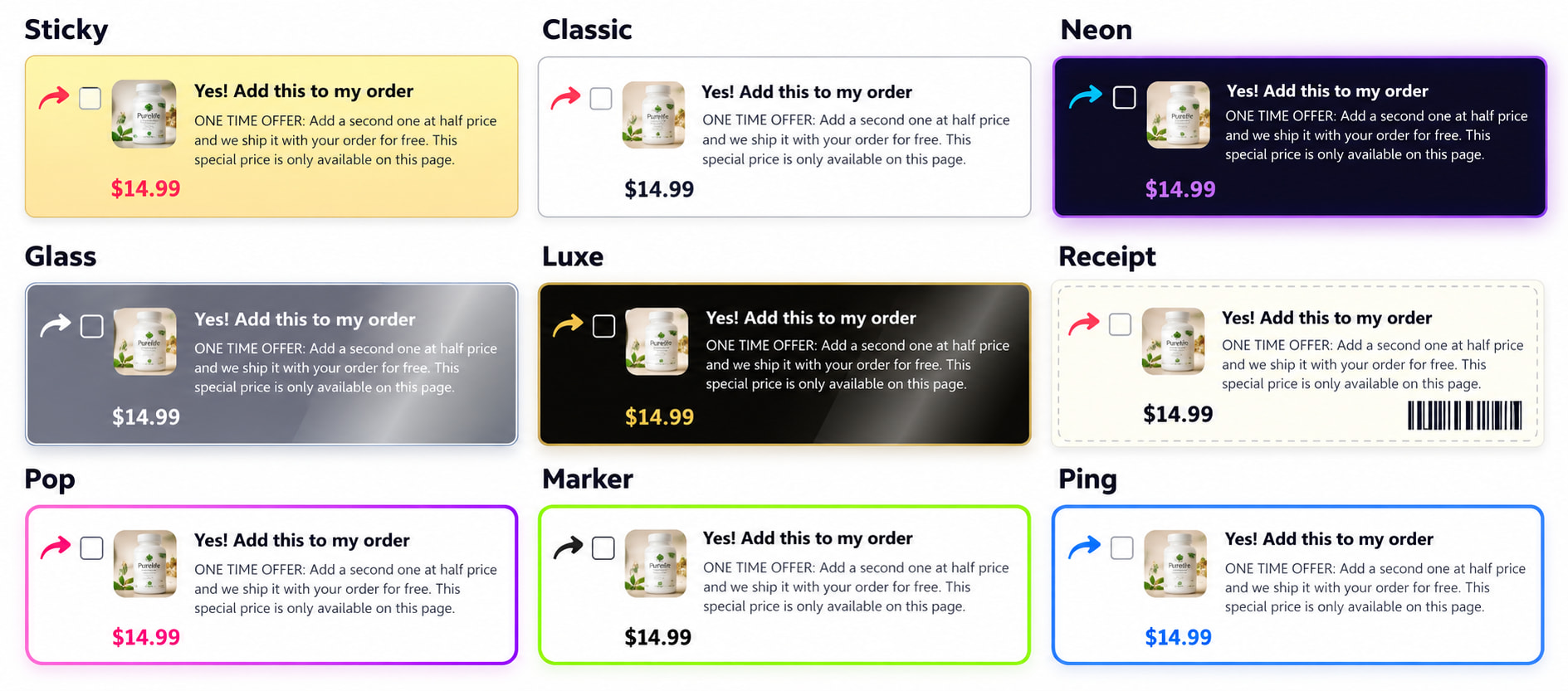
The same bump in all 9 themes.
In the same popup you can set:
- Layout: Stacked (small image next to the text), Image beside (a larger product image on the left), Banner (a slim, compact strip) or Card (a large product image across the top, text below).
- Checkbox: show the tick box on the Left or the Right.
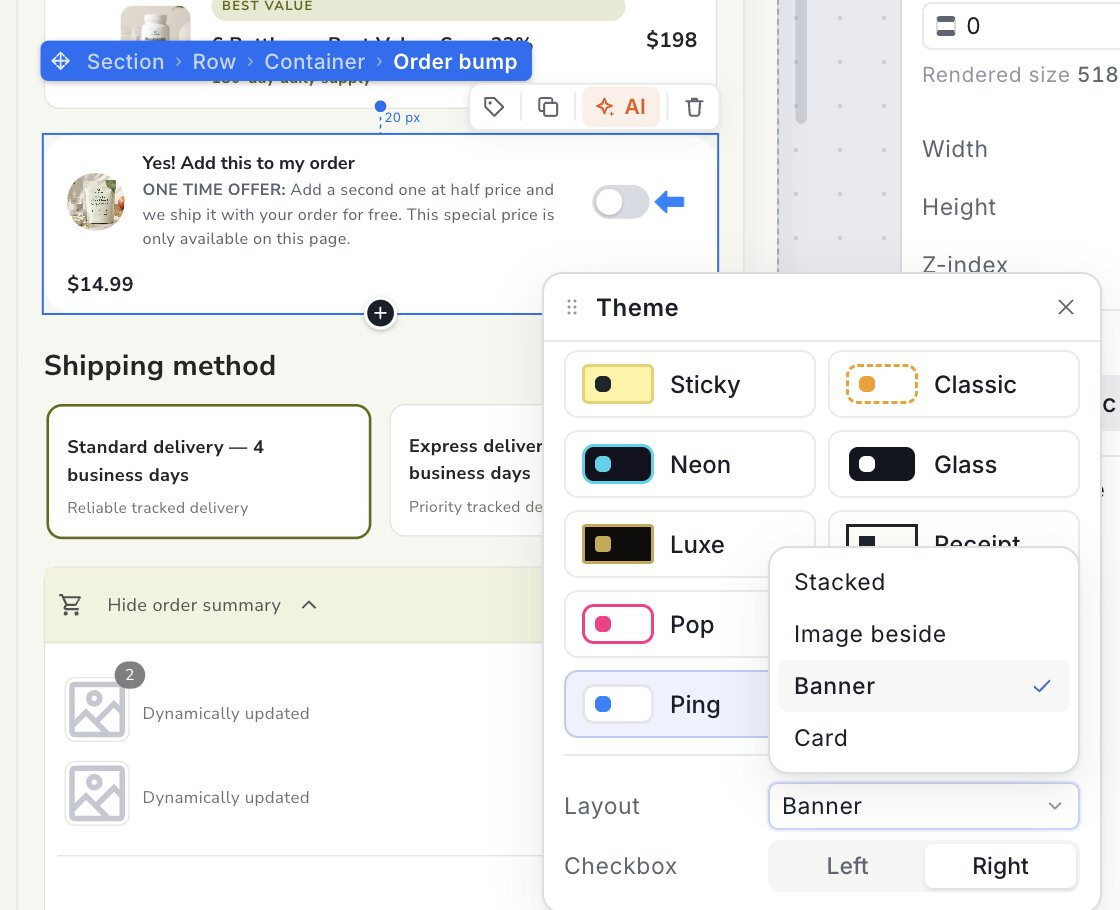
Pick a layout and checkbox position in the same popup as the theme.
Then use Attention to add a subtle animation that draws the eye:
- None: no animation
- Glow: a soft glow around the bump
- Shine: a light sweep across the card
- Shake: a short shake to grab attention
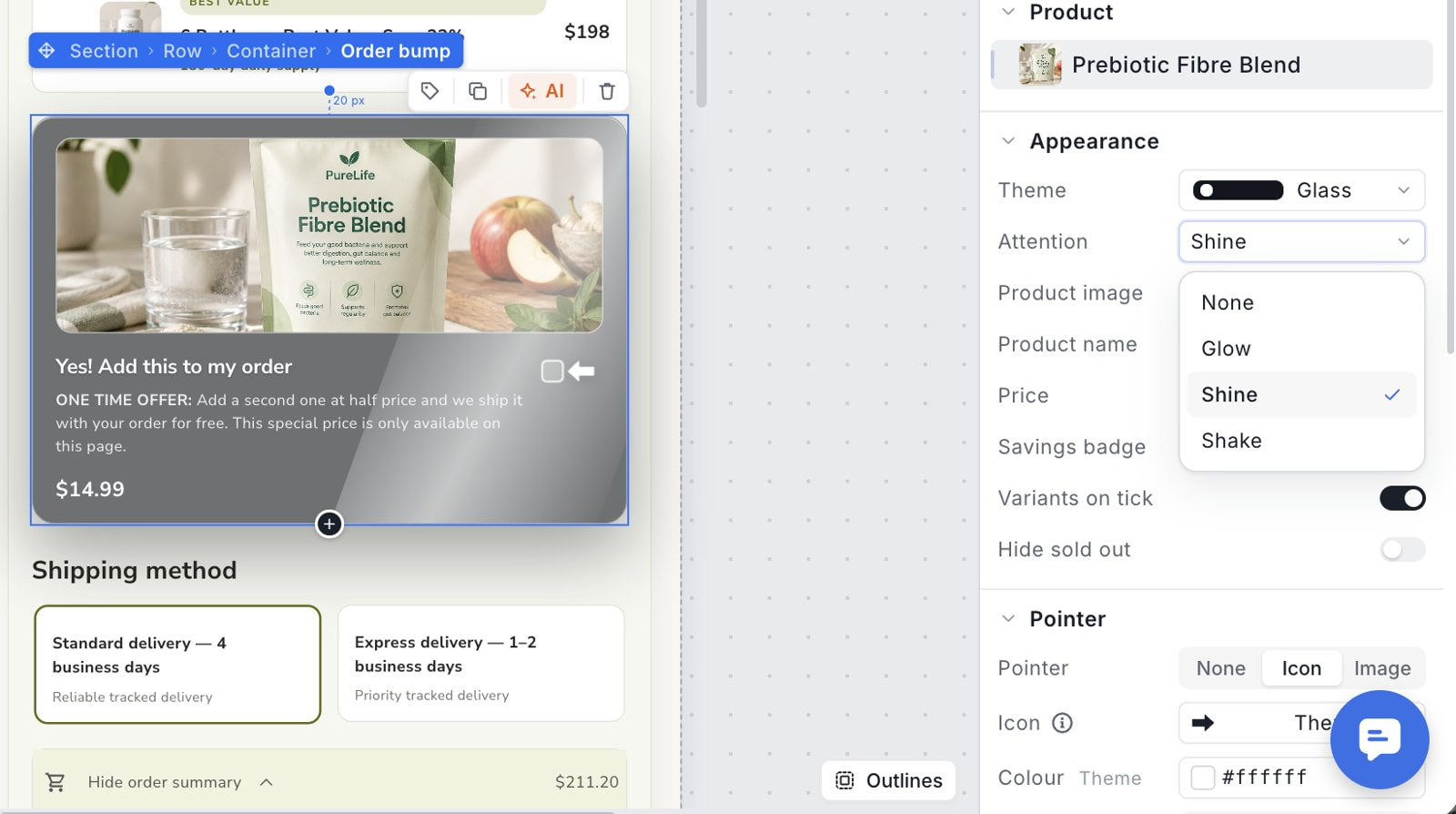
Attention effects live under Appearance, right below Theme.
Product details, variants and the pointer
Choose what to show
Under Appearance, use the toggles to show or hide each part of the bump:
- Product image
- Product name
- Price
- Savings badge
- Variants on tick
- Hide sold out
Adding Order Bump Variants in Funnelish
This is one of the most useful additions. When Variants on tick is on and the customer ticks the bump, the product’s variants appear as buttons inside the bump.
For example, a supplement brand can offer a 1-month, 2-month or 3-month supply. The price on the bump updates to match the variant the customer picks. No popup and no extra page.
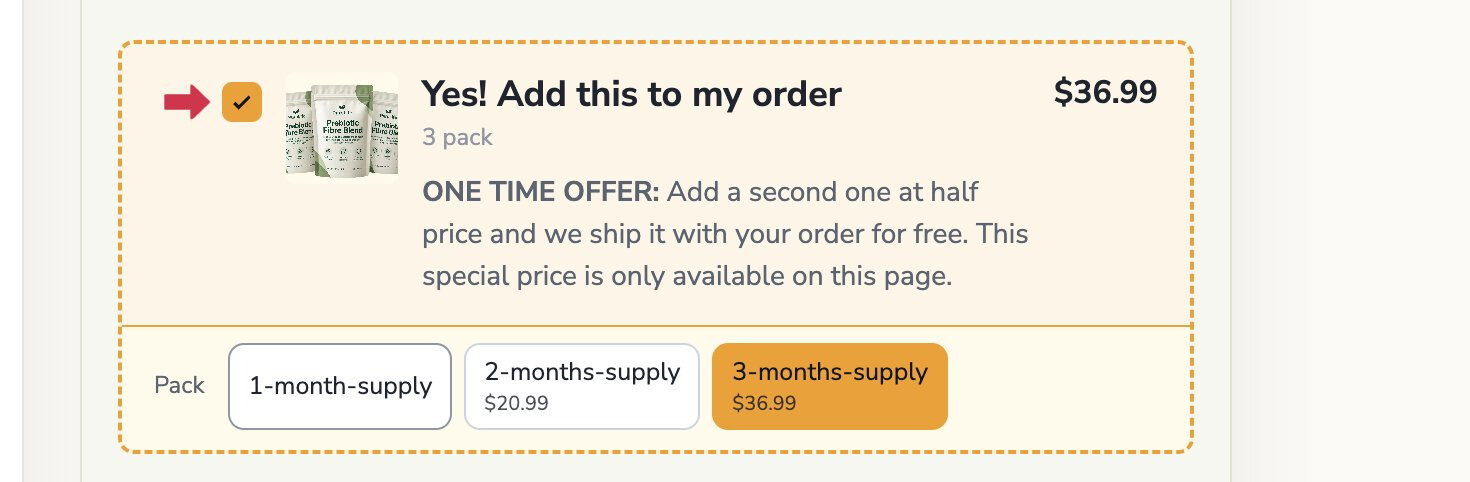
After ticking, the customer picks a pack size and the price updates.
The pointer
The pointer is the small arrow next to the checkbox. It tells shoppers exactly where to click. Under Pointer you can choose:
- None: no pointer
- Icon: pick from a built-in library of arrows and icons, then set its colour
- Image: upload your own pointer image, such as a hand-drawn arrow that matches your brand
You can also set where it points from (Side or Above), its motion (for example Slide) and its size.
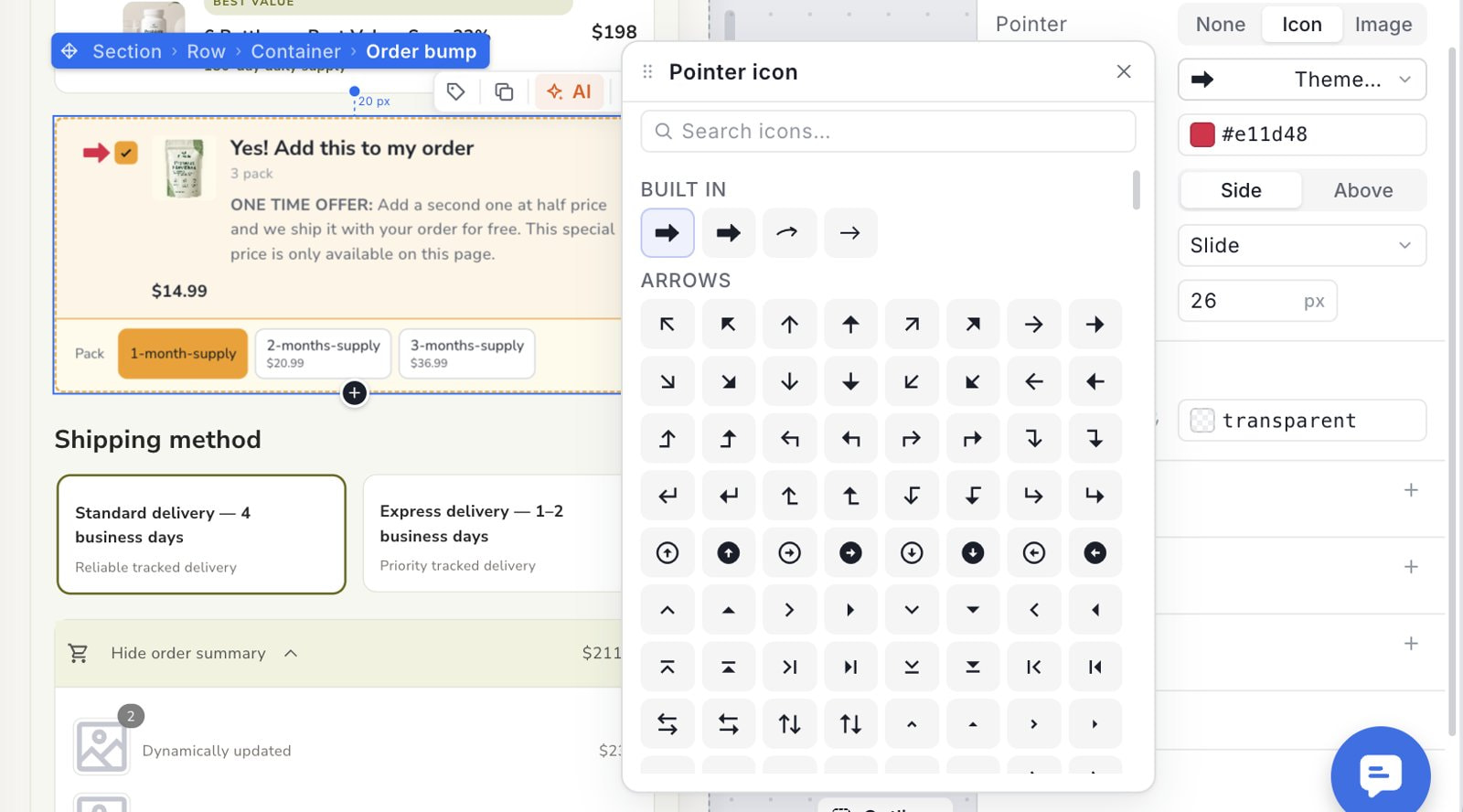
Choose a pointer from the built-in icon library, or upload your own image.
Make it match your brand
Themes are a starting point. You can fine-tune everything in the right panel:
- Background: set the bump’s background colour
- Headline and Body text: font, size and style (bold, italic, underline, strikethrough)
- Card: background colour of the card area
- Border: edges, width, style, colour and corner radius
- Shadow: add one or more shadows for depth
You can also style the bump differently when it is ticked. At the top of the Style tab, switch the state to Ticked and change colours or borders for that state only.
To change the copy, click the headline or description directly on the canvas. A text toolbar appears with formatting options, links, lists and an AI Write button to help you draft the offer.
Quick tips for better results
- Keep the offer relevant. Pick a product that complements what is in the cart.
- Lead with the benefit. Use the headline for the action (“Yes! Add this to my order”) and the body for the reason to say yes.
- Use one attention effect. Glow, Shine or Shake works best on its own. Pair it with a pointer, not with a busy design.
- Place it near the decision. Right under the package selector or just above the payment button works well.
- Preview on mobile. Check that the image, text and checkbox are easy to read and tap.
Try it now
The New Order Bump element is live in the editor today. Open any checkout page, go to Add elements > Others > Order bump, and build your first bump in a few minutes.