Your funnel is no longer tied to the checkout page. With Cart Mode, you can add a product list and an add to cart button to any page: your landing page, advertorial, listicle or quiz result page.
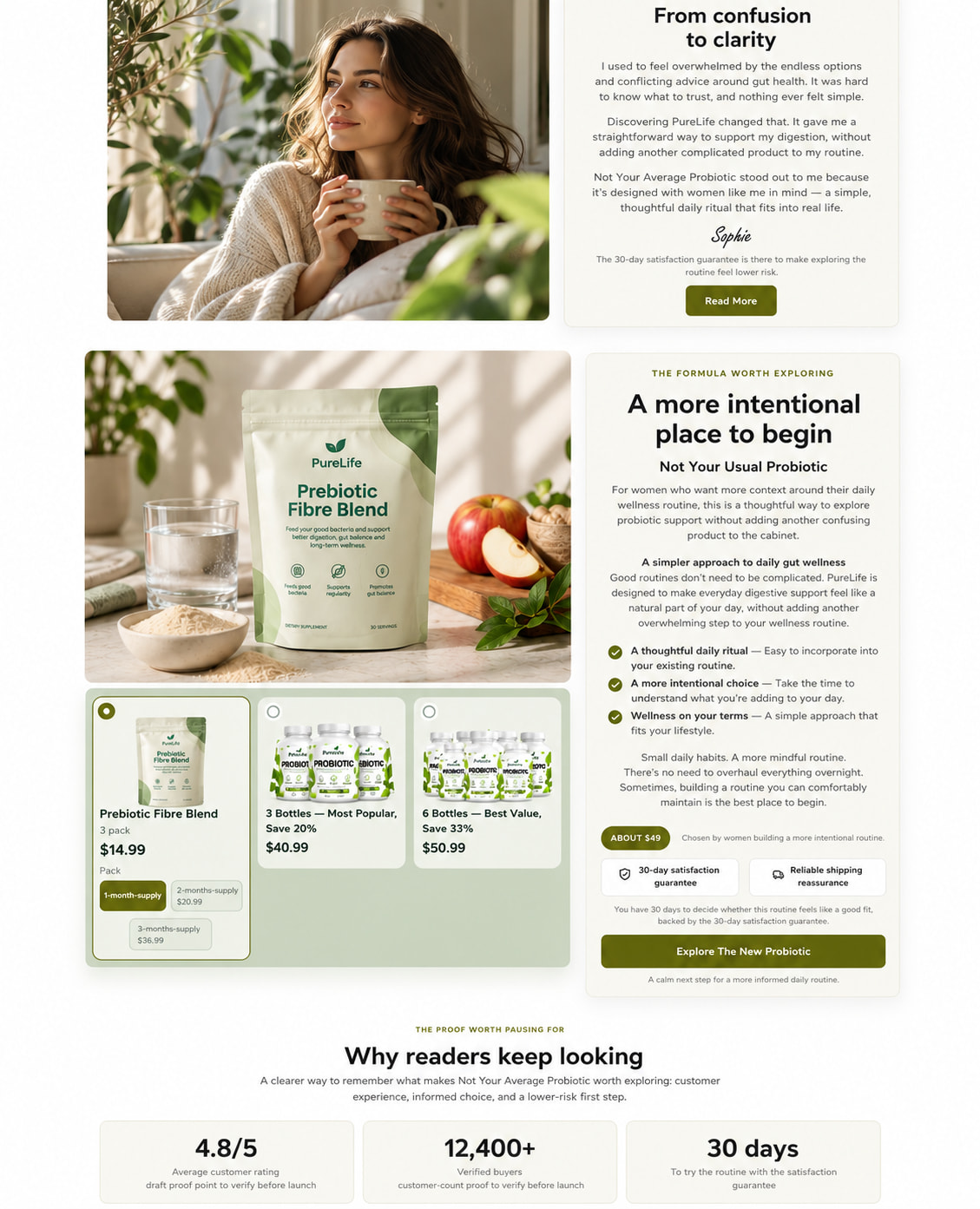
Product selection inside an advertorial page for demonstration.
Until now, customers could only pick products on the checkout page. That works well for guiding traffic through a sales funnel, but many merchants also want a cart-style experience, where shoppers can pick and add products as they browse.
Now they can choose a product right where they read about it. One click adds it to their cart and takes them to the next step, with the product already in their order summary.
What is Cart Mode?
Cart Mode turns any page in your funnel into a place where customers can shop. You add a product list to the page, connect your products, and give your button an add to cart action. Whatever the customer picks lands in their order summary on checkout.
Here is what you get:
- Product lists on any page: show your offers on landing pages, advertorials and other pre-checkout pages
- Add to cart actions: “Add to cart” or “Add to cart & go to next step” on any button
- Fixed or dynamic products: add one set product, or whatever the customer picks from the product list
- Variants on the page: customers can choose a pack size or supply right inside the product card
- Custom product lists: build your own product selection with data binding
- A connected checkout: products added earlier show up in the Order Summary, with optional controls to remove items or change quantities
How to set up Cart Mode
The setup takes three parts: a product list (use the default one or create your own custom product list with data binding), a button, and a product setting.
1. Add a product list to your page
- Open your landing page (or any pre-checkout page) in the Funnelish editor.
- In the Add elements panel, type “product list” in the search bar.
- Drag it onto the page, usually next to or below your main product image.
- Connect the catalog products you want to offer, such as single packs and bundles.
That’s it. Customers can now pick a product, and a variant if it has one, right on the landing page.
2. Give your button an add to cart action
- Select the button you want customers to click, for example your main call to action.
- In the right panel, open the Interactions tab.
- Under On click, click + and search for actions.
- Under Commerce, choose Add to cart & go to next step.
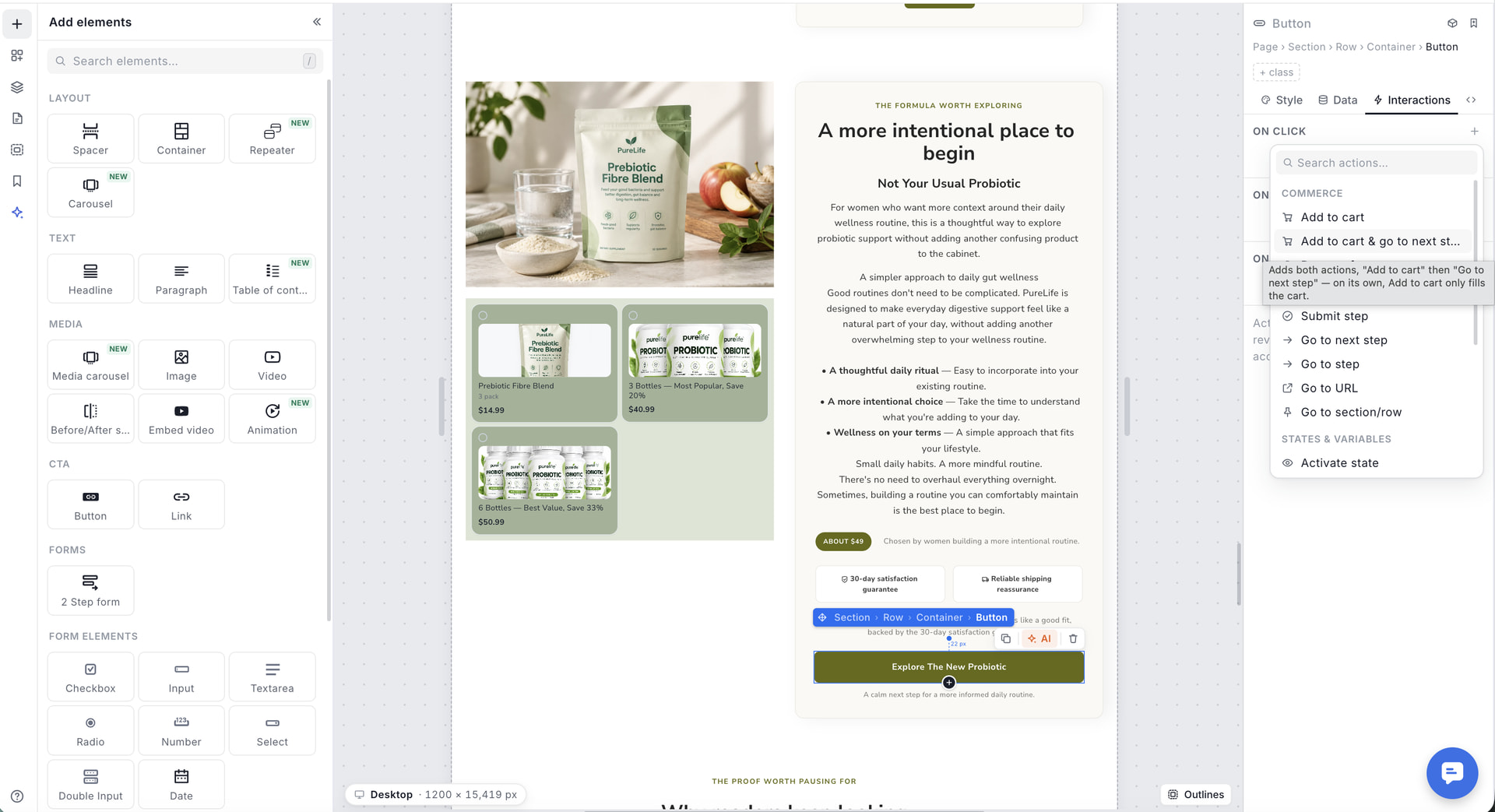
This adds two actions in order: “Add to cart”, then “Go to next step”. If you only pick “Add to cart”, the product is added but the customer stays on the page.
3. Choose which product gets added
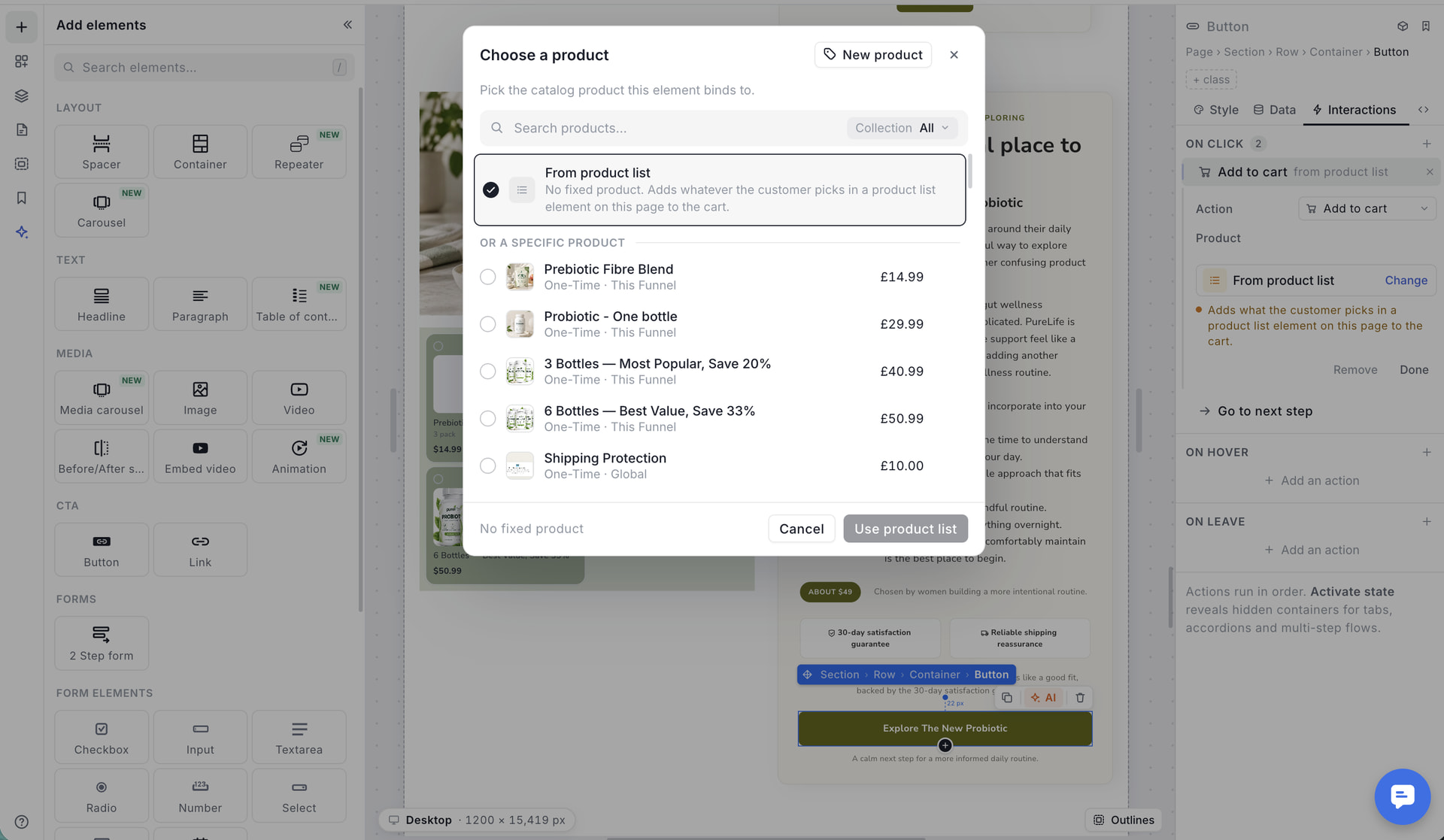
- In the Add to cart action, click Product. The Choose a product popup opens.
- Pick From product list to add whatever the customer selects on the page, or pick a specific product to always add that one.
- Click Use product list (or confirm your product), then Done.
- Preview the page, then Save.
Fixed product or From product list?
| Option | What it does | Best for |
|---|---|---|
| From product list | Adds whatever the customer picks in a product list on that page | Pages where customers choose between packs, bundles or flavours dynamically |
| A specific product | Always adds the same product, no choice needed | Single-offer pages, or a “Buy now” button for one hero product |
You can use both on the same page. For example, one button can add the customer’s pick from the product list, while a second button further down always adds your best-value bundle.
Custom product lists with data binding
Want more control over how your products look? Build a custom product list and bind it to your catalog with data binding.
This lets you design your own product cards, choose which fields to show (image, name, price, savings) and lay them out in any style. The products stay connected to your catalog, so prices and variants update on their own.
Once your custom list is in place, the same setup applies: give your button Add to cart & go to next step and choose From product list.
What customers see on checkout
Products added on earlier pages show up in the Order Summary element on your checkout page. The customer arrives with their order already filled in, so they can go straight to shipping and payment.
In the Order Summary settings, under Cart mode, you decide what customers can do with those items:
- Customers can remove items
- Customers can change quantities
Turn both off if you want a fixed, read-only summary.