The Order Summary element just got a big upgrade. You can now pick a ready-made theme, choose exactly what shoppers see, and style every part of it to match your brand.
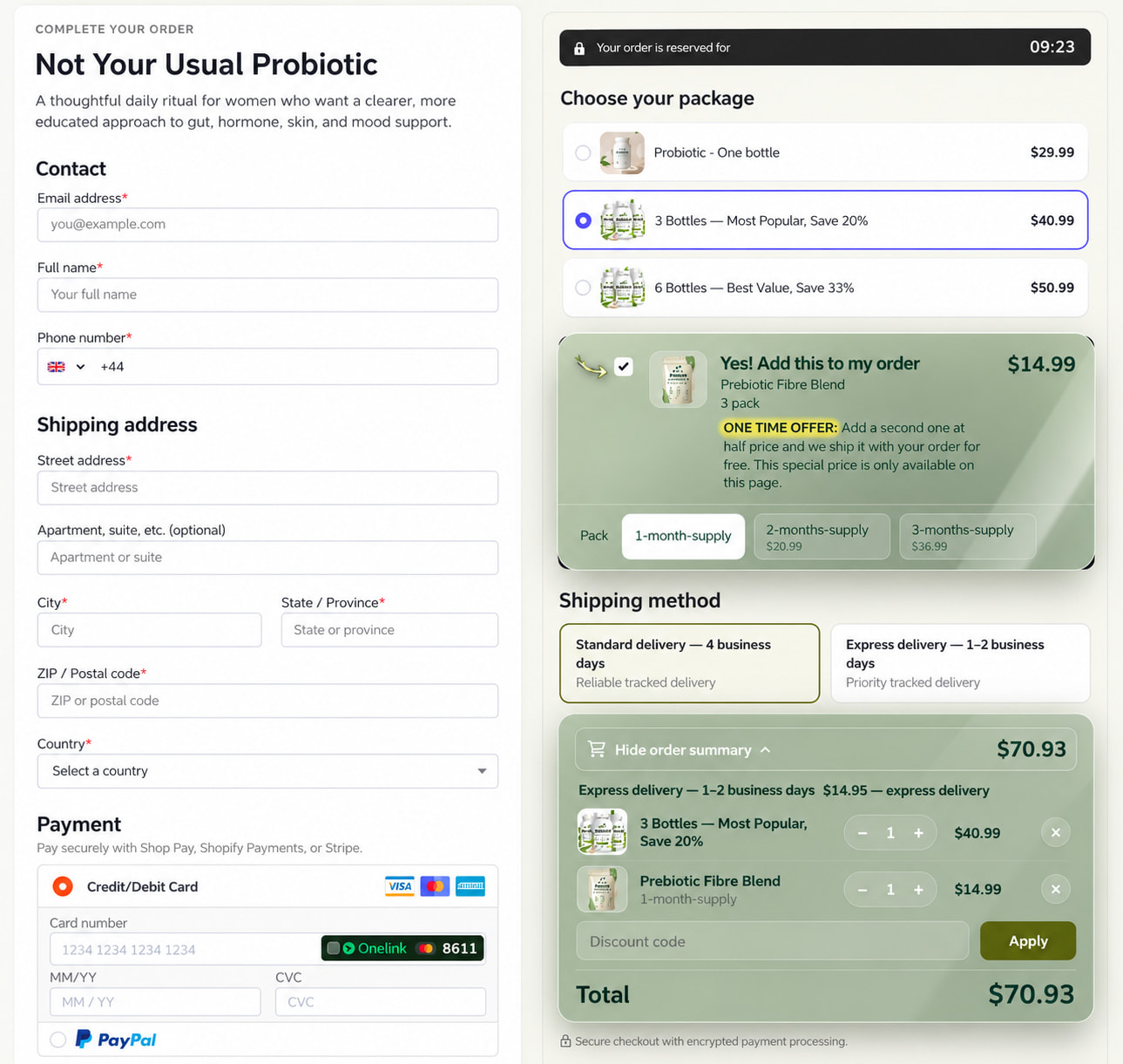
The order summary is the last thing customers look at before they pay. It shows what they are buying, what it costs, and the final total. A clear, good-looking summary builds trust right at the moment of decision.
Until now, the summary looked much the same on every funnel unless you styled it by hand. The improved element gives you 10 themes, display toggles, discount code handling and cart controls, all from one settings panel.
What is the new Order Summary element?
Here is what is new:
- 10 themes: Default, Classic, Glass, Sticky, Luxe, Receipt, Pop, Marker, Ping and Ticket
- Display toggles: show or hide product images, the header, the total and quantities
- Collapsible summary: let customers open and close it, and choose whether it starts open
- Discount codes: let customers apply a code right inside the summary
- Cart mode controls: decide if customers can remove items or change quantities
- Full styling control: colours, fonts, background, separators, discount field and button, border and spacing
How to add an Order Summary to your checkout
- Open your checkout page in the Funnelish editor.
- Select the container where you want the summary to appear. Most people place it under the shipping method, close to the payment section.
- In the Add elements panel, type “order summary” in the search bar to find the element.
- Drag it onto the page, or click it once to insert it into the selected container.
- In the right panel, open the Style tab and go to Props.
- Pick a theme from the Theme dropdown (more on themes below).
- Use the toggles to choose what to show, and set your cart mode options.
- Fine-tune colours and fonts if you want to match your brand.
- Click Preview to test it, then Save.
Themes
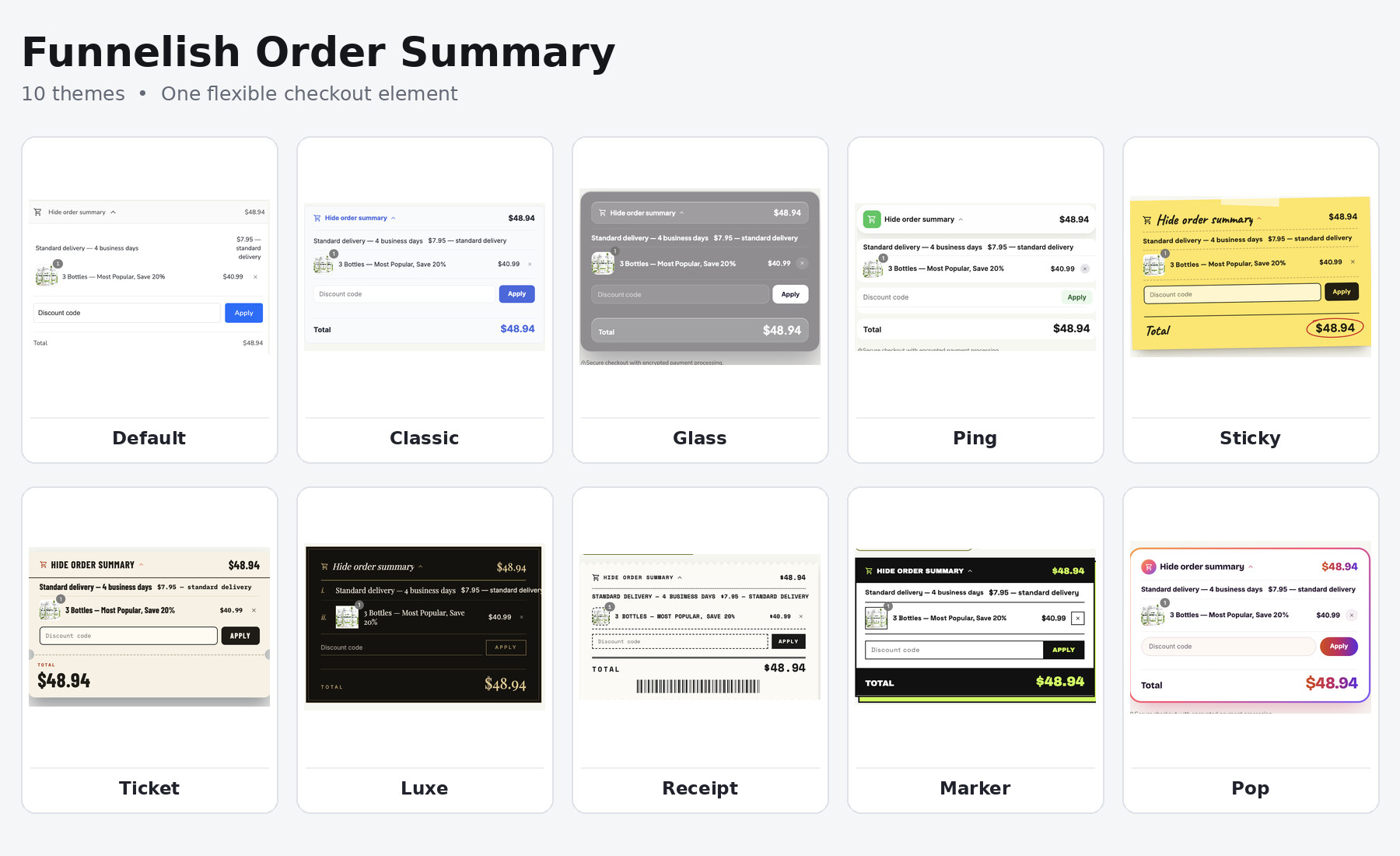
| Theme | Look and feel |
|---|---|
| Default | Clean and minimal, with a light header bar and simple text |
| Classic | Light card with blue accents on the header, Apply button and total |
| Glass | Grey frosted-glass card with soft, rounded rows |
| Sticky | Yellow sticky-note style with handwritten headings and the total circled in red |
| Luxe | Dark premium card with gold serif type and numbered line items |
| Receipt | Monospace, receipt-style text with torn edges and a barcode |
| Pop | White card with a colourful gradient border and a gradient Apply button |
| Marker | Bold black and white card with a highlighter-style shadow |
| Ping | Minimal white card with rounded rows and a green cart icon |
| Ticket | Warm cream ticket-stub style with bold condensed type and a cut-out line above the total |
Open Style > Props > Theme to switch between them. Each theme changes the whole look of the summary in one click, so you can test styles quickly.
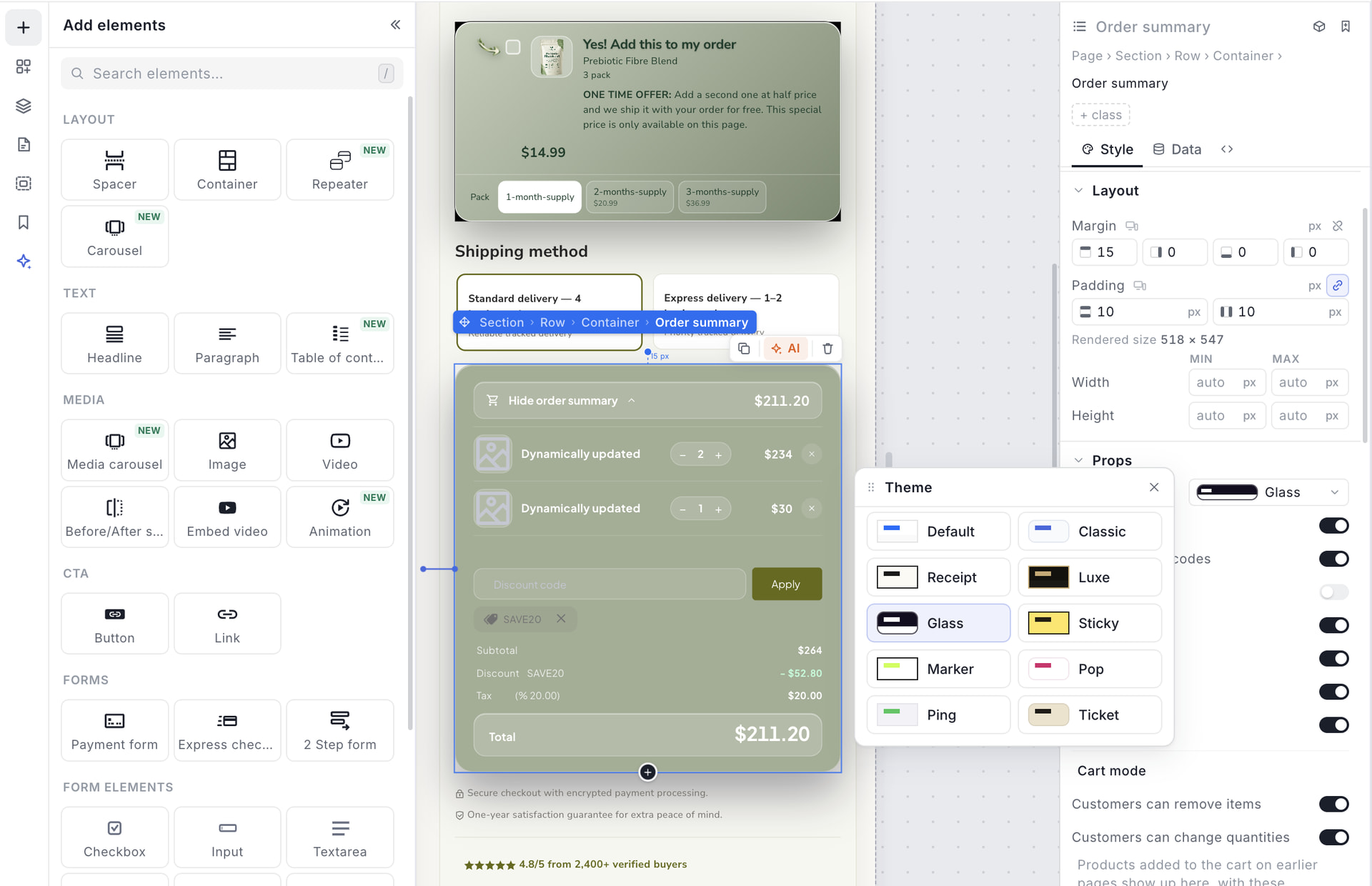
Most themes share their names with the Order Bump themes, so you can give both elements a matching look on the same page.
Display options, discount codes, and cart mode
Choose what to show
Under Props, use the toggles to show or hide each part of the summary:
- Show images: product thumbnails next to each item
- Allow discount codes: the discount code field and Apply button
- Show header: the header at the top of the summary
- Show total: the final total at the bottom
- Collapsable: lets customers expand or collapse the summary
- Is open: sets whether the summary starts open or closed
- Hide quantity: hides the quantity on each item
Discount codes
When discount codes are on, customers can enter a code and click Apply without leaving the checkout. The applied code shows as a small tag they can remove. The summary then breaks down the subtotal, discount, tax and total, so customers can see exactly what they saved.
Cart mode
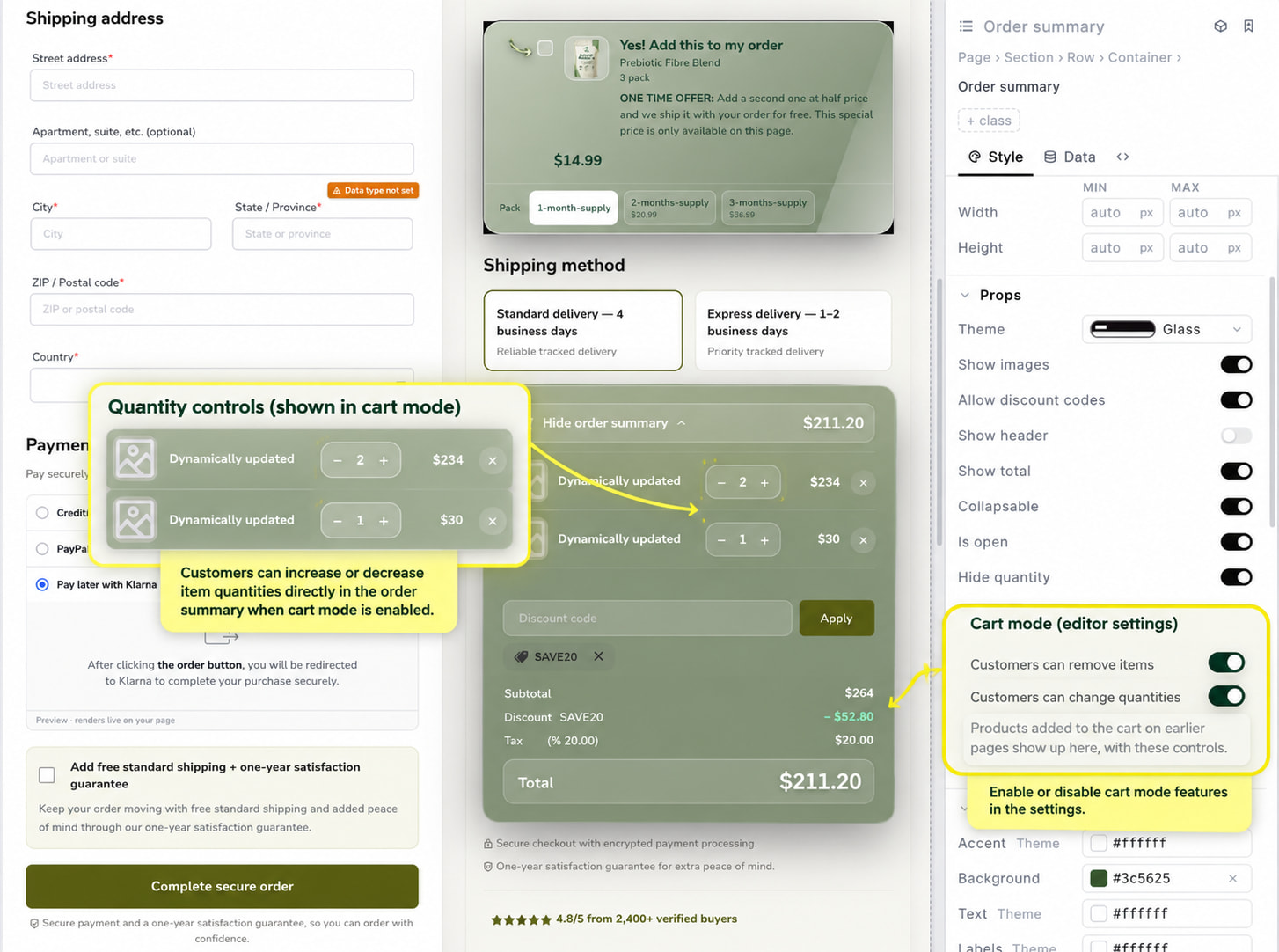
Cart mode lets products added to the cart on earlier pages of your funnel, such as your landing page, show up in the summary. In the order summary settings, you simply decide what customers can do with those items:
- Customers can remove items
- Customers can change quantities
Turn both off if you want a fixed, read-only summary.
We cover cart mode in full in a separate article: Cart Mode
Make it match your brand
Themes are a starting point. You can fine-tune everything in the Style tab:
- Colours: Accent, Background, Text, Labels, Secondary, Border, Controls and Field. Each one follows the theme by default, and you can override it with your own colour.
- Labels font and Items font: font, size, style (bold, italic, underline, strikethrough) and case (Aa, AA, aa)
- Background: colour, image (upload or paste a URL), image style and position, or a gradient
- Separator colour: the lines between rows
- Header background colour: the bar at the top of the summary
- Discount button: button colour and text colour
- Discount input: field background and text colour
- Border: edges, width, style, colour and corner radius
- Spacing and size: margin, padding, width and height
Quick tips for better results
- Match your order bump. Use the same or a complementary theme so the checkout feels like one design.
- Only show discount codes if you use them. An empty code field can send shoppers off to search for a code.
- Keep it open on short orders. If customers only buy one or two items, let them see the full order without clicking.
- Check your contrast. When you override theme colours, make sure the text is still easy to read.
- Preview on mobile. Check that images, prices and the total are clear and easy to tap.
Try it now
The improved Order Summary element is live in the editor today. Open any checkout page, add or select your order summary, and pick a theme under Style > Props.