Bancontact is Belgium’s homegrown payment method — running since 1989, partnered with more than twenty Belgian banks, and carried by almost every Belgian citizen: the Bancontact card is the country’s standard debit card, used online and in-store alike.
Why offer Bancontact
Bancontact handles roughly half of Belgian online payments, and local card schemes dominate the Belgian market over international ones by a wide margin. For a Belgian shopper, paying with Bancontact is the normal case; an international card is the workaround.
-
It’s the trust default. Belgians have used the same card and app for everything from groceries to bills — a checkout offering it reads as local, one without it reads as foreign.
-
Local methods lift conversion. Industry estimates for markets with a dominant domestic method put the lift at 10–20% over a cards-only checkout, and Belgium is exactly that kind of market.
-
Belgians shop across borders more than almost anyone — around 80% buy from foreign sites. That’s the opportunity: a non-Belgian merchant with Bancontact at checkout removes the main friction between a Belgian buyer and a foreign store.
Availability
Bancontact processes EUR only, for Belgian shoppers. It’s available through two gateways — one is enough:
| You have | Use |
|---|---|
| A Stripe gateway | Bancontact through Stripe |
| An Airwallex gateway | Bancontact through Airwallex |
Before you start
-
Funnelish Pay is enabled on the funnel — Enable Funnelish Pay.
-
A payment form element is on your checkout step — Add payment methods to your checkout.
-
Your funnel’s currency set to EUR — with any other currency, Bancontact stays hidden at checkout.
Bancontact through Stripe
-
Open your checkout step, select the payment form element, and click Edit payment options.
-
Click Connect a new gateway, then choose Bancontact → Bancontact through Stripe.
-
Name the gateway, click Connect, and complete the authorisation on Stripe’s side.
-
Select the new payment method on the list and save your changes.
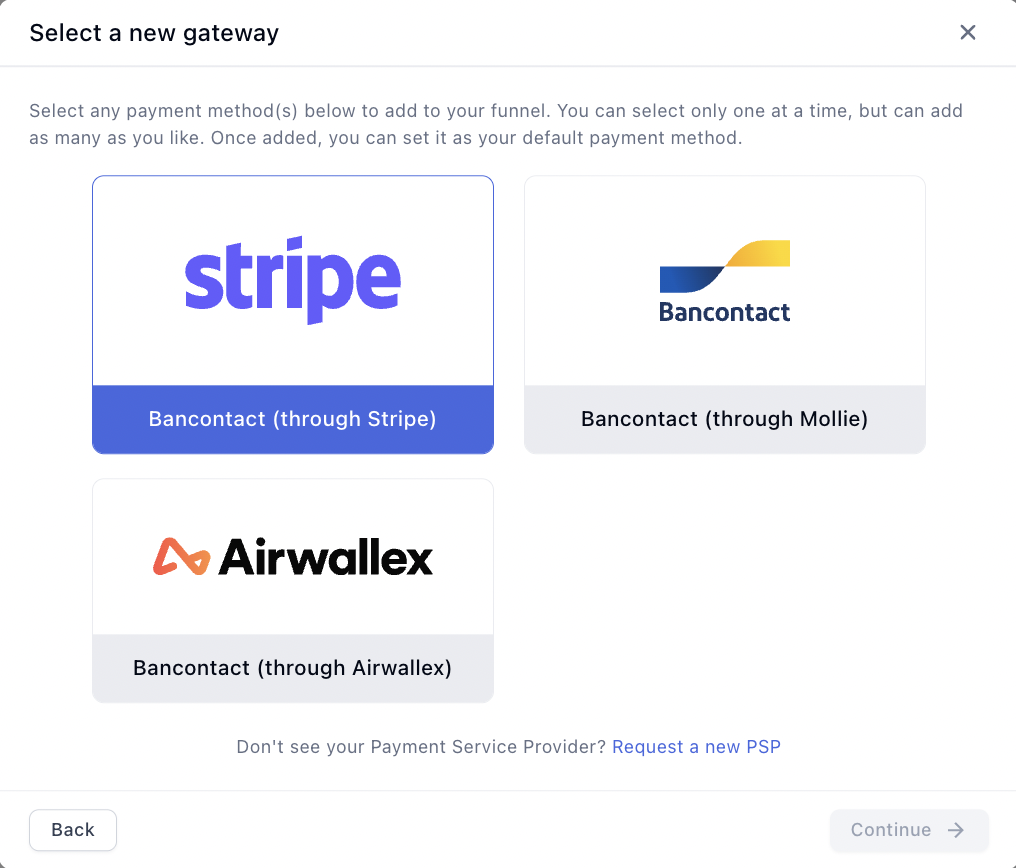
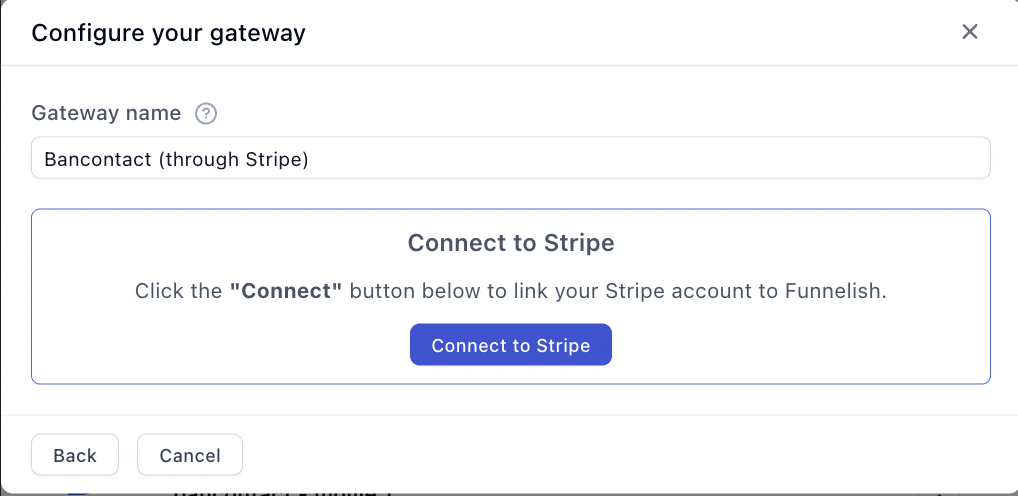
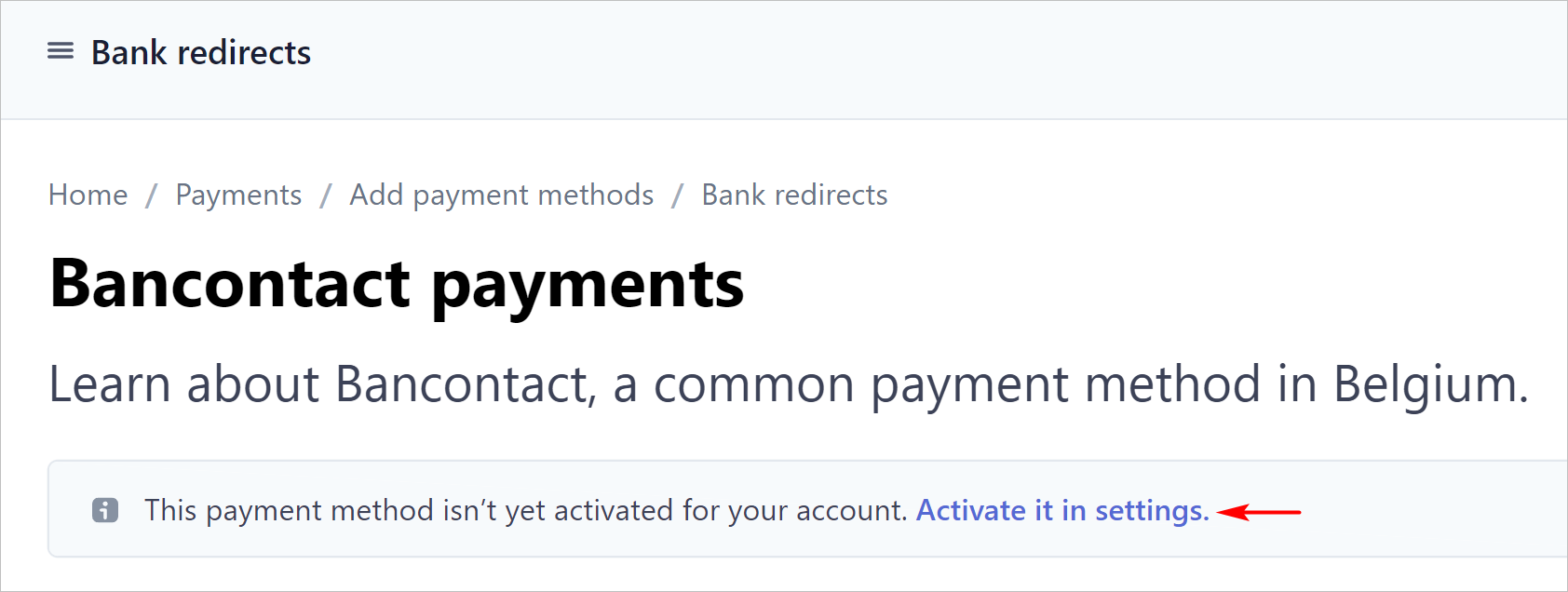
Then enable Bancontact on your Stripe account — it isn’t on by default:
-
In your Stripe Dashboard, open Settings → Payment methods.
-
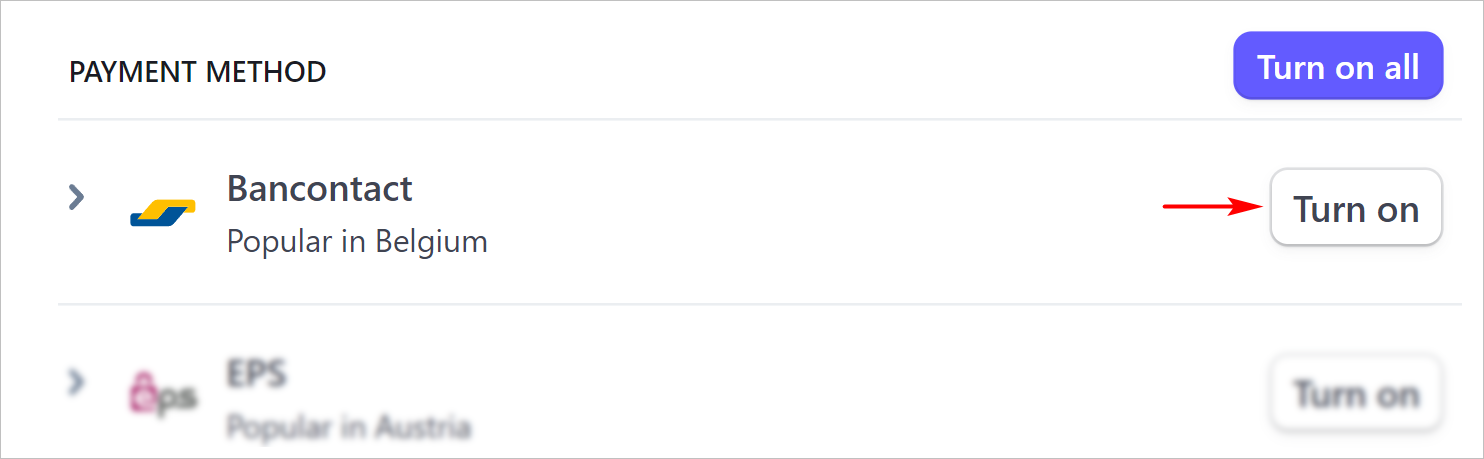
Scroll to Bancontact and click Turn on.
Bancontact through Airwallex
-
Open your checkout step, select the payment form element, and click Edit payment options.
-
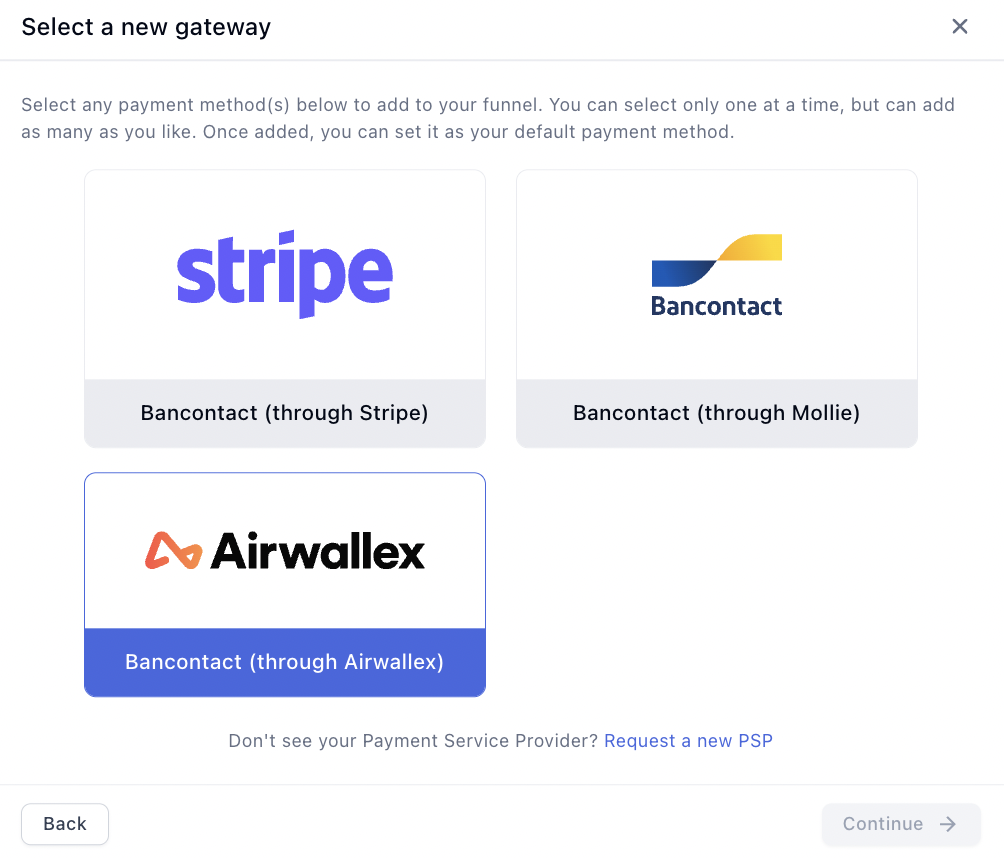
Click Connect a new gateway, then choose Bancontact → Bancontact through Airwallex.
-
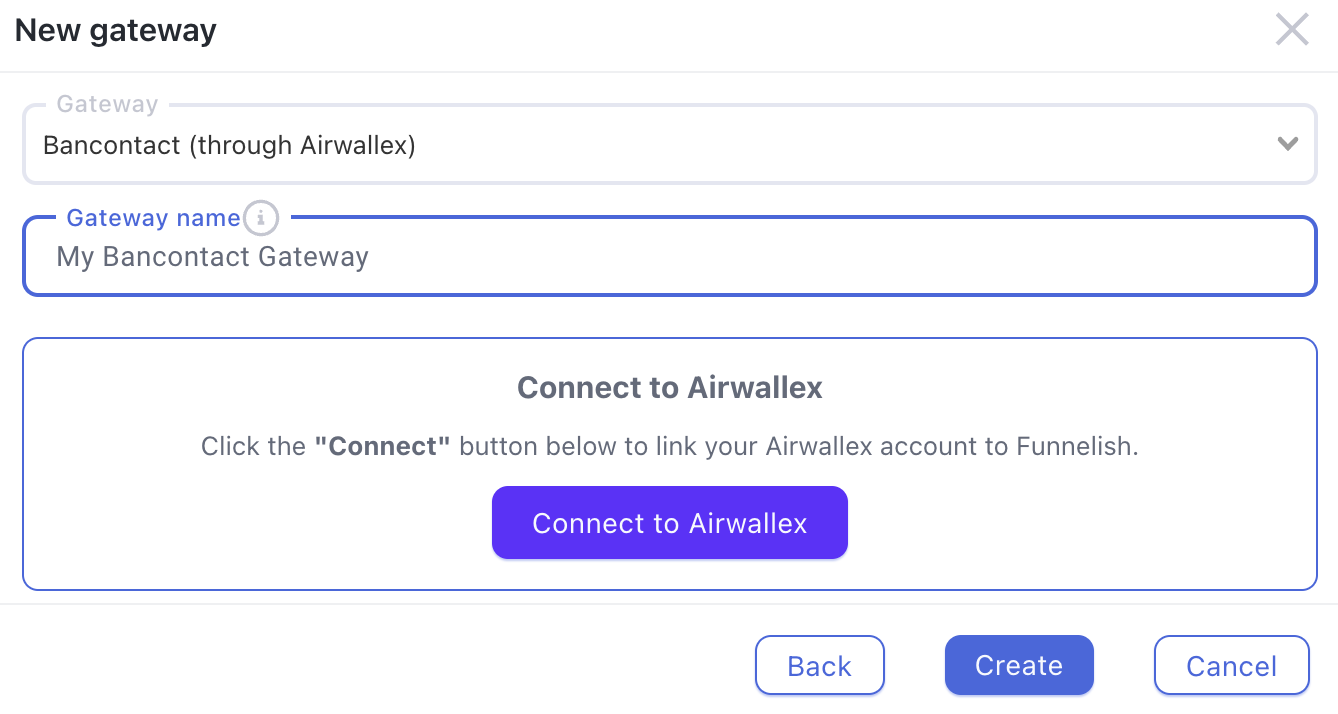
Name the gateway, click Connect, and complete the authorisation on Airwallex’s side.
-
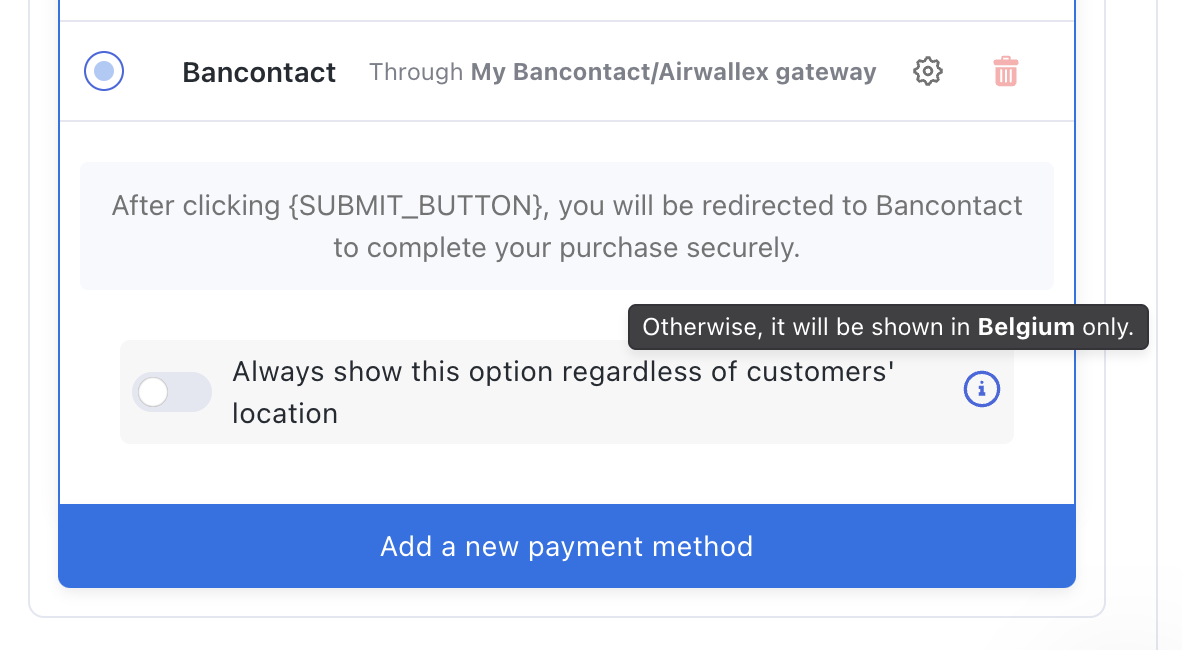
Select the new payment method on the list and save your changes.
Testing
Turn on Test Mode with the toggle in the funnel’s top bar and run through your checkout — Stripe’s test mode simulates the bank flow, so no real money moves. Then follow Test payments before launch before going live, and turn Test Mode off — it’s the first item on the funnel launch checklist.
If something isn’t working
Bancontact doesn’t appear at checkout. Check the funnel’s currency is EUR, the gateway is selected and saved on the payment form, and — on the Stripe route — that Bancontact is turned on in your Stripe dashboard.
It appears for some visitors and not others. Bancontact is for Belgian shoppers; visitors outside Belgium may not be offered it. That’s the method working as designed.
Payment processing is the fiddliest part of building a funnel. Gateway credentials, currencies, country rules, the form itself — a lot of moving parts, and the one area where a mistake costs you orders rather than just looking wrong.
If Bancontact isn’t behaving, start a topic in Ask the community. Someone will help. For anything tied to your account or a specific transaction, contact us on chat support.