Every payment in your funnels runs through Funnelish Pay, the app that connects your checkout to your payment processors (Stripe, PayPal, NMI, Airwallex and the rest) and shows them to your customer as payment options. It adds no fees of its own.
Five steps take you from an empty page to a working checkout. Each gateway’s own guide covers its credentials.
1. Add a payment form to your page
The Payment form element is where your payment options live. It loads the methods you’ve connected (card payments, PayPal, Klarna and the rest) and shows them side by side for your customer to pick. Every checkout needs one.
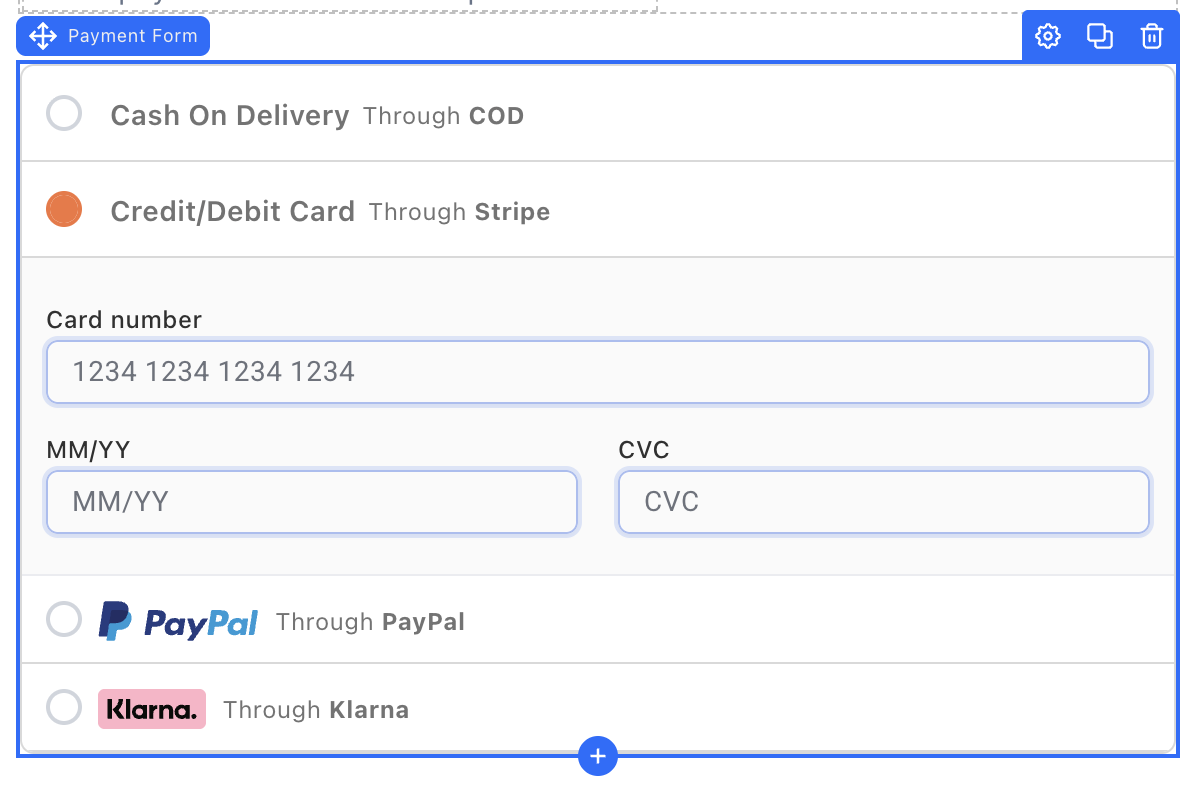
In the page builder, drag the Payment form element onto your Checkout step. It fits any layout: a one-page checkout, or a multi-step flow where earlier steps collect the customer’s details and this one takes the payment.
You can also use the 2 Step form, a two-step checkout with a payment form embedded in its second step, so the lead is captured on step 1 before payment. In practice it suits a narrow set of offers, mainly free + shipping, which are rare these days. For everything else we recommend the standard Payment form with auto-optin on your email and phone fields, which captures the lead as your customer types. Everything in this article applies to both.
One payment form per step, visible or hidden. Duplicates cause failed payments or double charges. Keep it on a Checkout step; it won’t behave correctly on a landing or upsell step.
2. Add payment methods to your funnel
Everything happens in one panel, activating Funnelish Pay included:
-
Click the payment form element to open the settings panel on the left.
- 2 Step form only: click the 2 at the top of the element first, then scroll down and click the Payment form field.
-
Click Edit payment options. A new panel opens on the right.
-
Switch the Funnelish Pay toggle on.
-
Click Add a new payment method.
-
Pick the method you want and enter its account credentials.
-
Save your changes.
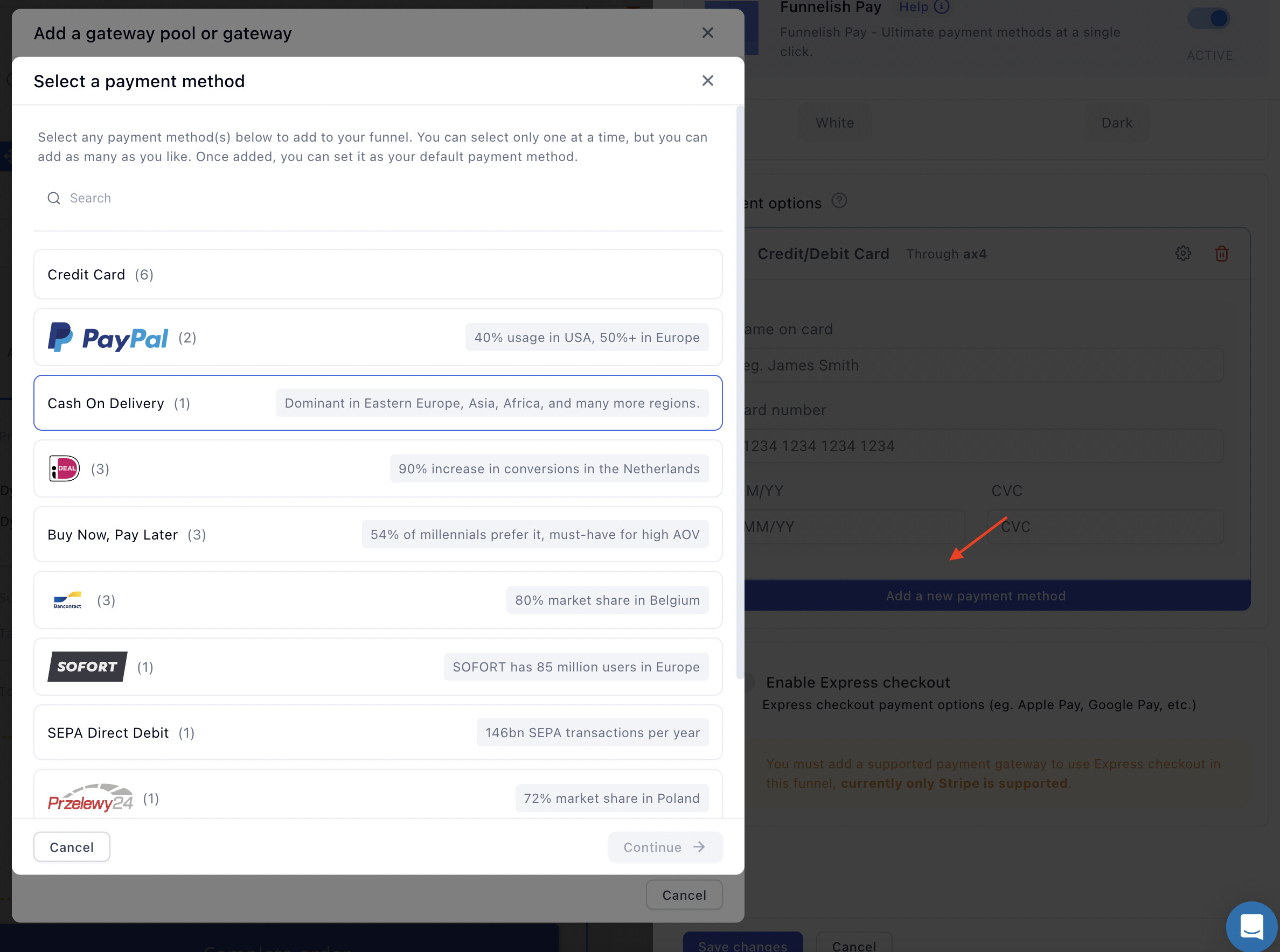
Step 5 is where the guides diverge, because each method needs different credentials: Stripe, PayPal, Klarna, Airwallex, or find every method and gateway from Collect payments in your funnel: start here.

3. Set the default payment method
When several methods are active, one is pre-selected as the page loads. Click the radio button beside a method to make it the default. Pick the one most of your customers actually use.

4. Style and translate the form
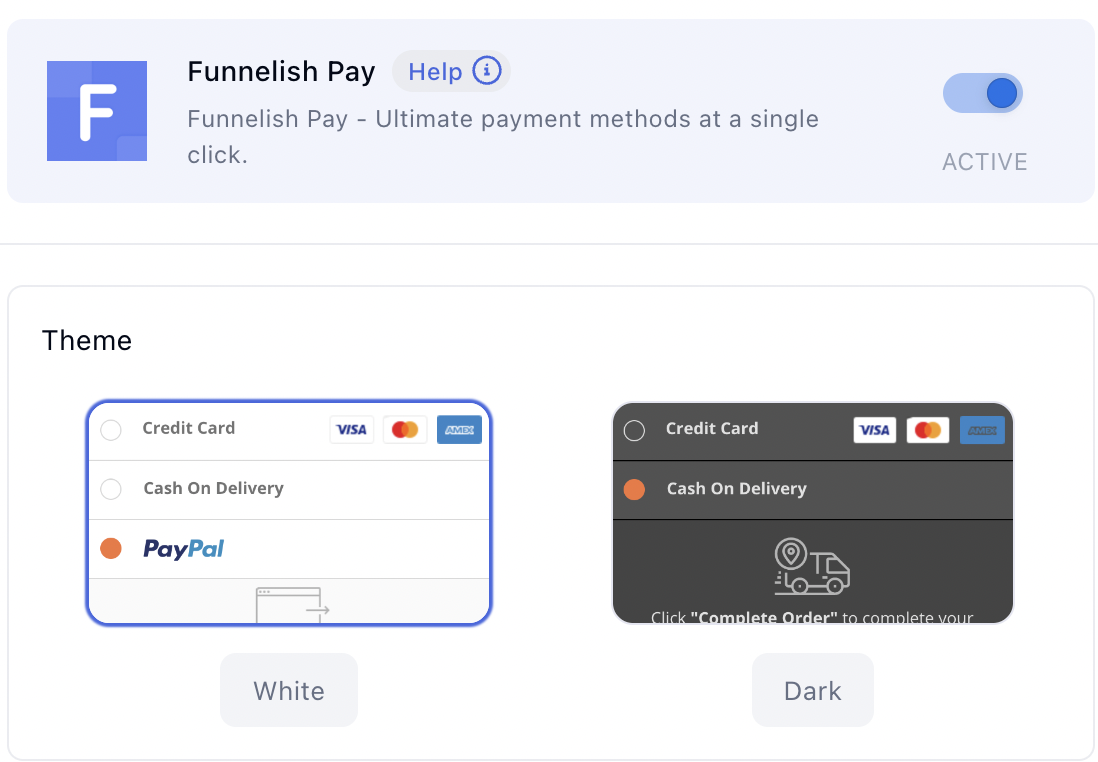
Pick White or Dark to match your page. White is the default.
The text inside the payment fields is editable, which is what you want for a non-English checkout:
-
On the Edit payment options panel, select a payment method.
-
Click the field you want to change.
-
Type your replacement text.
-
Click Save changes.
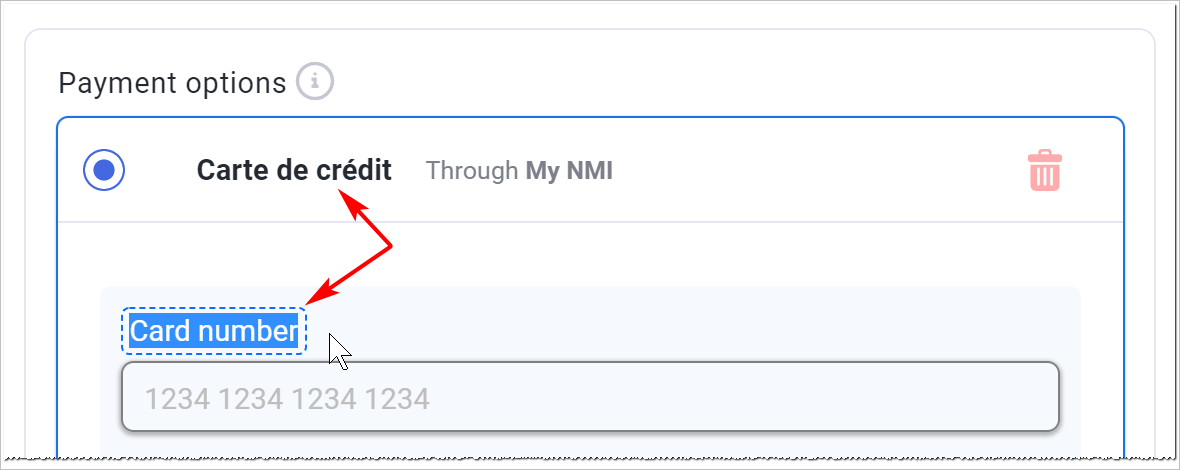
Card field labels are editable for most methods, though not all.
5. Preview your checkout
-
Click Save changes at the top right of the canvas.
-
Click Preview. Your form opens in a new tab, with the default method highlighted.
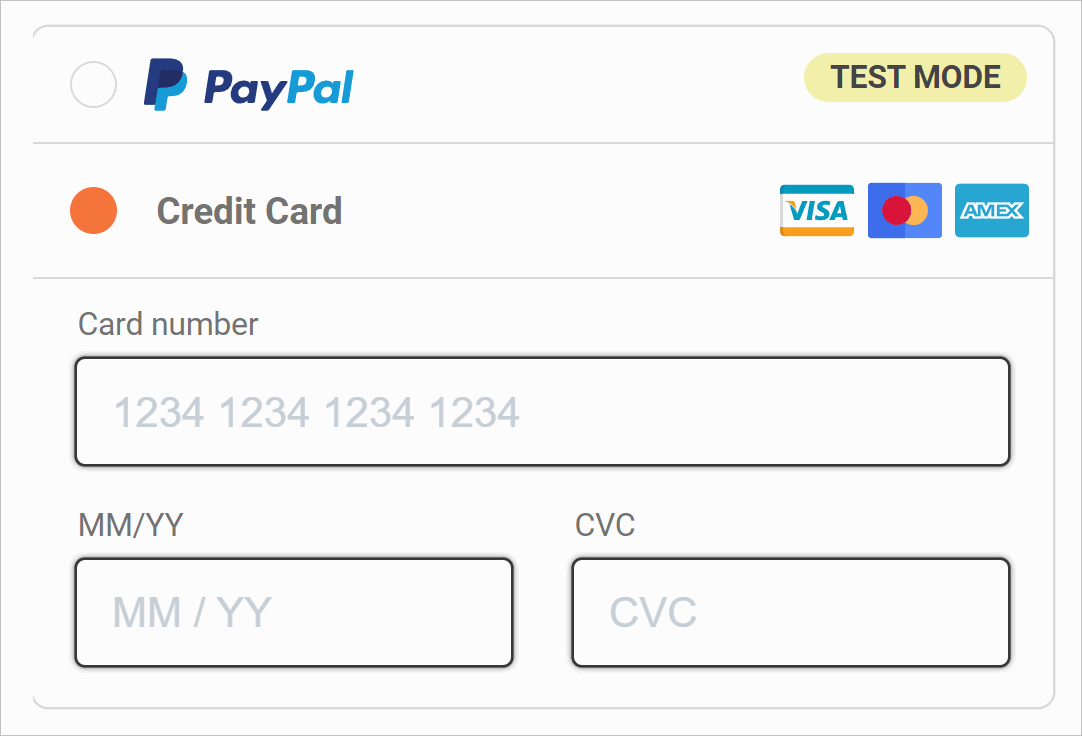
Preview confirms how the form looks, not that a charge will succeed. Before you send traffic, run a real transaction. See Test payments before launch.
If a payment method doesn’t appear
No payment options at all. Check the Funnelish Pay toggle on the Edit payment options panel is on, the payment form is on a Checkout step, and at least one gateway is set up, selected, and saved. If every funnel on your account went dark at once, check Global Apps.
One specific method is missing. Its requirements aren’t met. Several methods are EUR-only or restricted to one country, and stay hidden when your funnel’s currency or the customer’s location doesn’t match. Each method’s guide covers its requirements.
Payments failing or charging twice. Check the step for a second payment form, including hidden ones.
Payment processing is the fiddliest part of building a funnel. Gateway credentials, currencies, country rules, the form itself: a lot of moving parts, and the one area where a mistake costs you orders rather than just looking wrong.
If a method won’t appear, a charge is failing, or you’re stuck on any of the above, start a topic in Ask the community. Someone will help, often another merchant who has already solved the same thing. For anything tied to your account or a specific transaction, contact us on chat support.