Data binding connects an element’s content to live data instead of fixed text. Bind a headline to the product name and it updates when you rename the product. Bind an image to the blog post thumbnail and one template renders every post you publish. Build a page once, and it fills itself in.
This guide covers the binding UI, every dataset available, and the formatting options. For writing raw Liquid against these datasets, see the Liquid reference.
How binding works
Every page type exposes certain datasets: a blog post page has the post, a checkout page has the funnel’s products. Each dataset holds properties (title, price, image URL), and each property has a type that decides where it can go:
-
Text properties bind to headlines, paragraphs, buttons and links.
-
Image properties bind to image elements.
-
URL properties bind to link targets: buttons, links, clickable images.
To bind something, select the element, open the Data tab in the settings panel, and click the slot you want to fill. Pick the dataset property from the list, and the element shows a chip naming what it’s bound to.
Two kinds of binding exist, and the difference matters:
-
Object datasets (a single blog post, one product) bind to a single element, or to a section, row or container so everything inside inherits it.
-
Array datasets (all products, all blog posts) bind to a Repeater or Carousel, which renders its template once per item.
Funnel page datasets
Product (current product)
A single product, on checkout, upsell and downsell pages. Configure which product it points to with the productId setting.
Properties: product ID, name, title, price, displayed price, image.
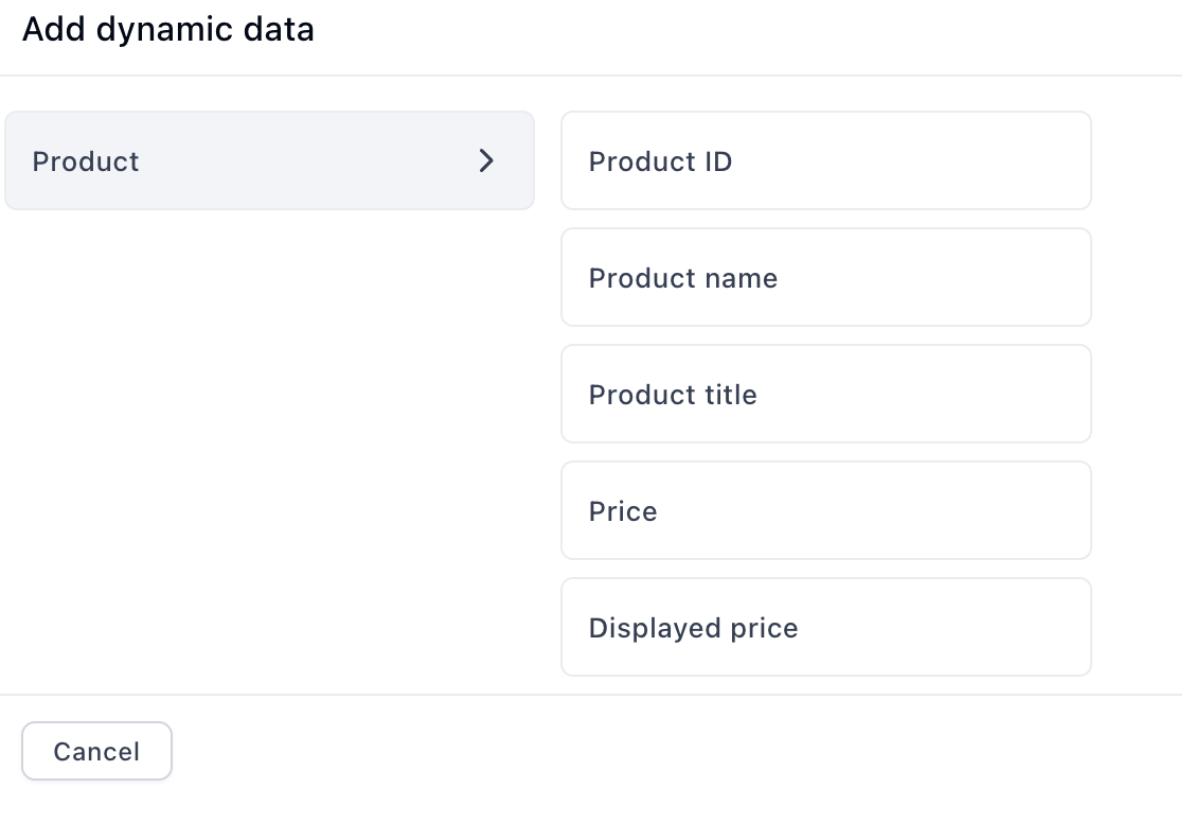
Bind it to a section or container and every element inside can pull from the same product: image to the photo, headline to the title, paragraph to the price. That’s how you build a custom product block that stays correct when the offer changes.
Products collection
Every product on the page, for use with a repeater. Two settings shape the list:
-
showAll: which product sets to include, any combination of order bumps, non-order-bump products, hidden products and subscription products.
-
max: cap how many render.
Properties per product: ID, name, title, price, displayed price, image.
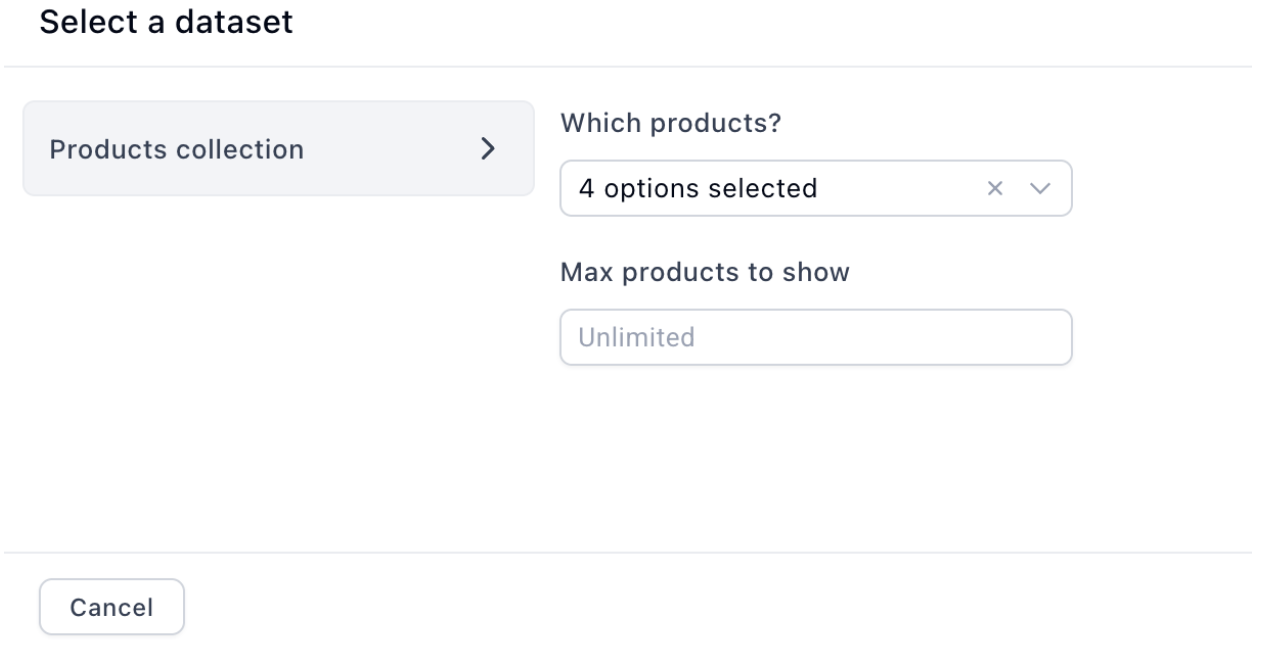
This is how you build a fully custom product list, styled exactly how you want, instead of using the built-in Product List.
Customer
The current customer’s own details, available on funnel pages: first name, last name, full name, email, phone, plus billing and shipping address fields.
Use it for personalization that reads like you know who’s on the page: “Almost done, Sarah” on an upsell step, or the shipping address echoed back on a confirmation page. The customer dataset fills in from what they’ve already submitted, so it’s empty on the first step and populated everywhere after.
Blog page datasets
Blog post
The post itself, on a blog post template. Properties: title, SEO title, SEO description, author name, published date, last updated date, reading time in minutes, word count, thumbnail, content, excerpt, URL, categories.
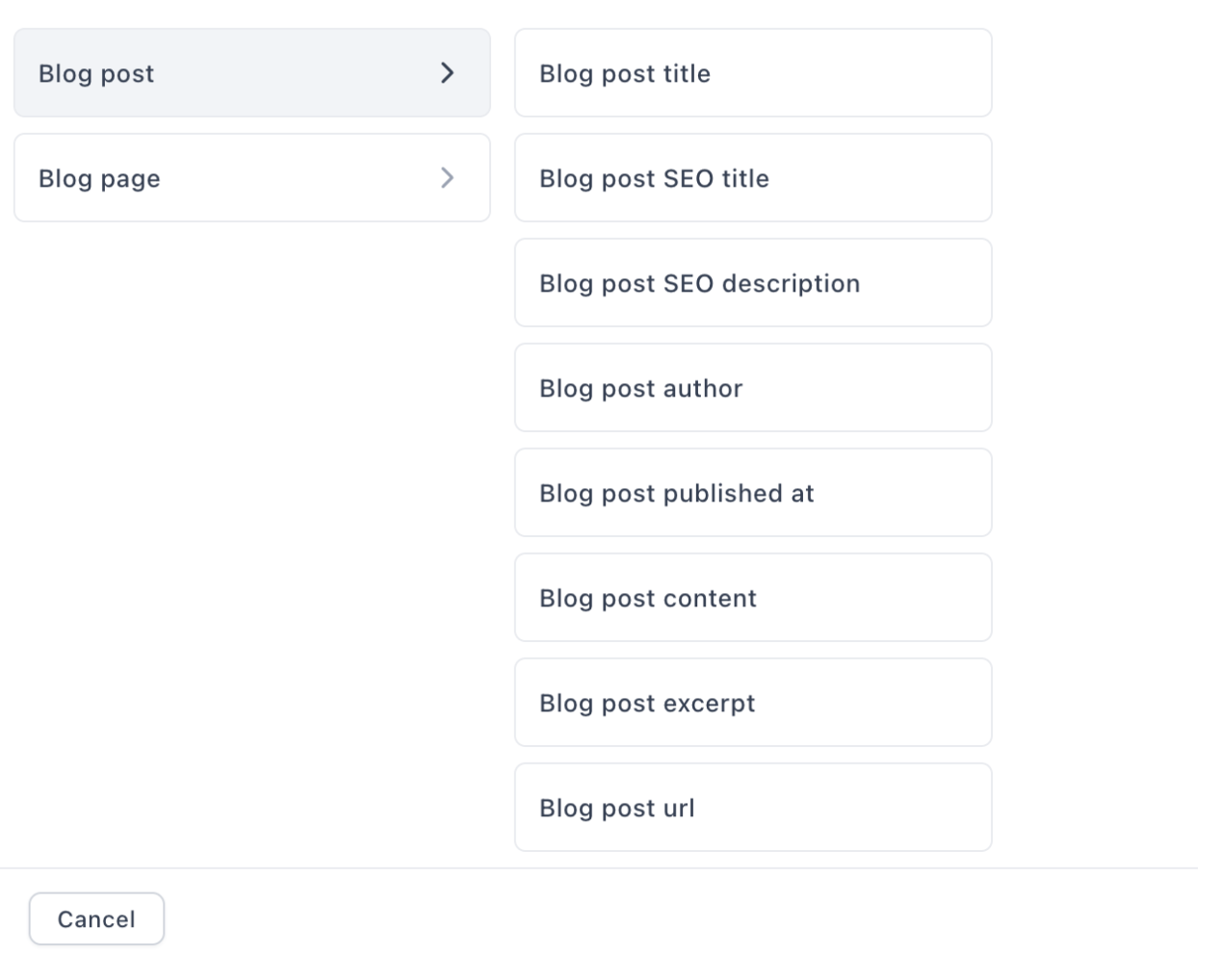
Build the post template once: title to a headline, author and date to a paragraph, thumbnail to an image, content to the body. Every post you write renders through it. Reading time and word count are there too, and a “6 min read” line under the title measurably helps people commit to reading.
Blog posts collection
Every post, for repeaters. Settings:
-
showAll: all posts, or only posts related to the current one.
-
category: limit to one or more categories.
-
max: cap the number shown.
Properties per post: title, author, published and updated dates, reading time, word count, thumbnail, excerpt, URL, categories.
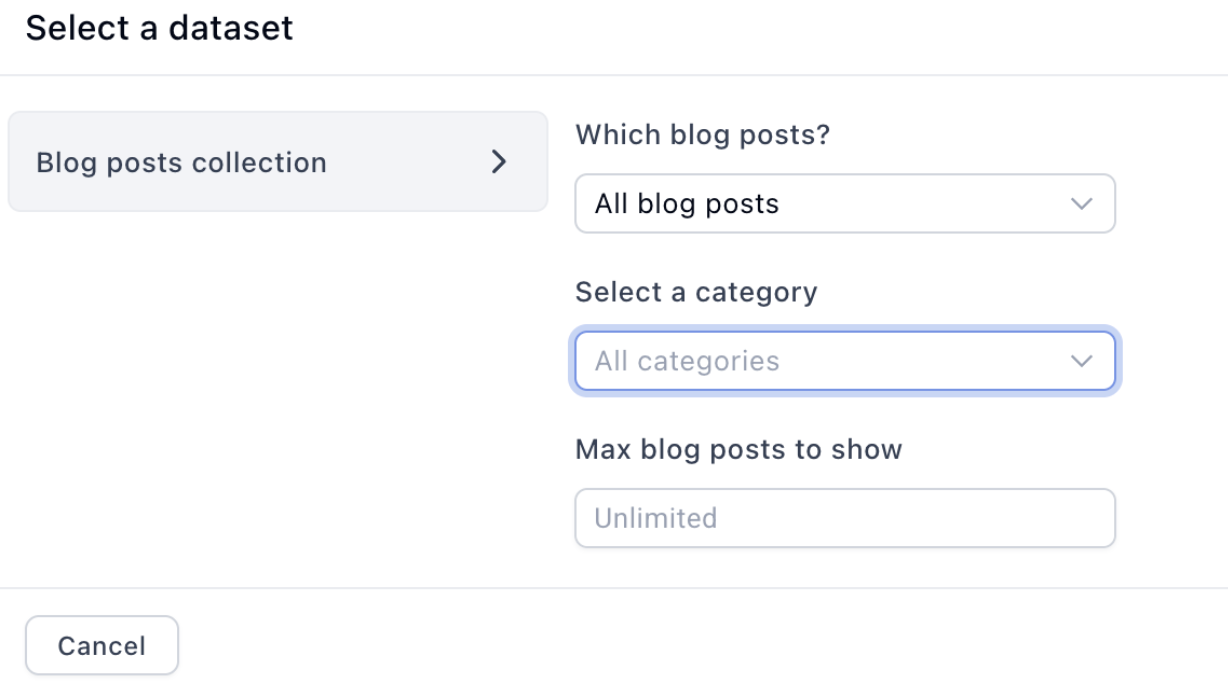
One repeater gives you a blog index, a category feed, or a “related posts” strip at the end of an article, depending on these settings.
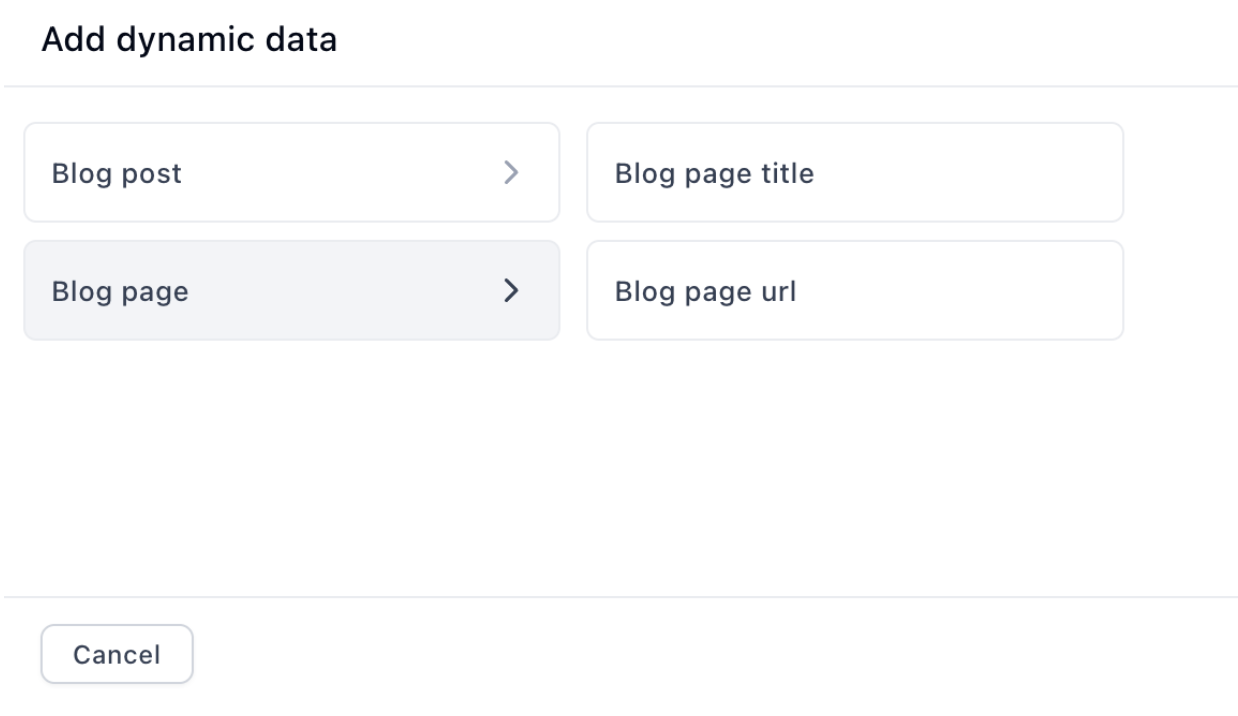
Blog page
The blog page itself: title, thumbnail, URL.
Category and current category posts
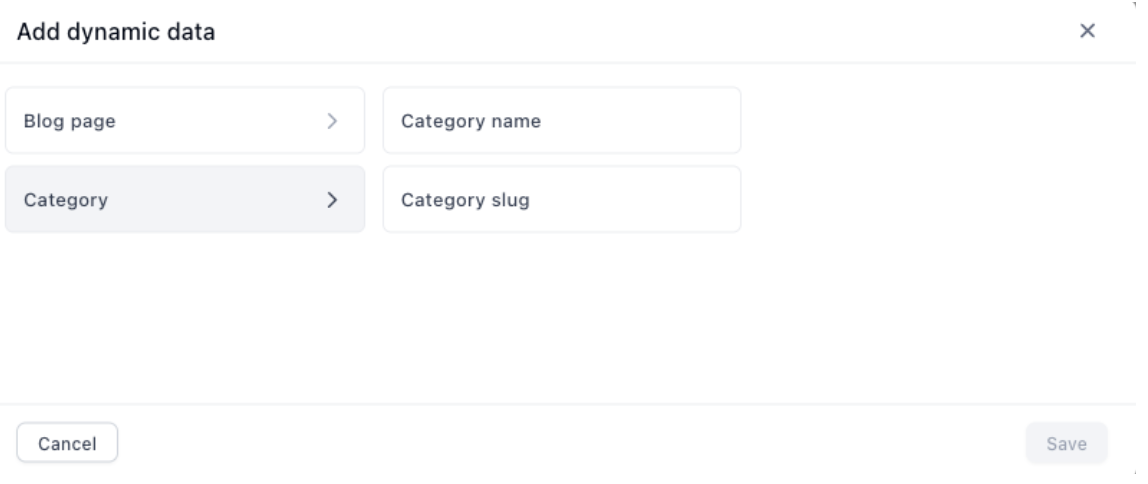
On a category template page, Category gives you the category’s name and slug, so one template serves every category with the right heading:
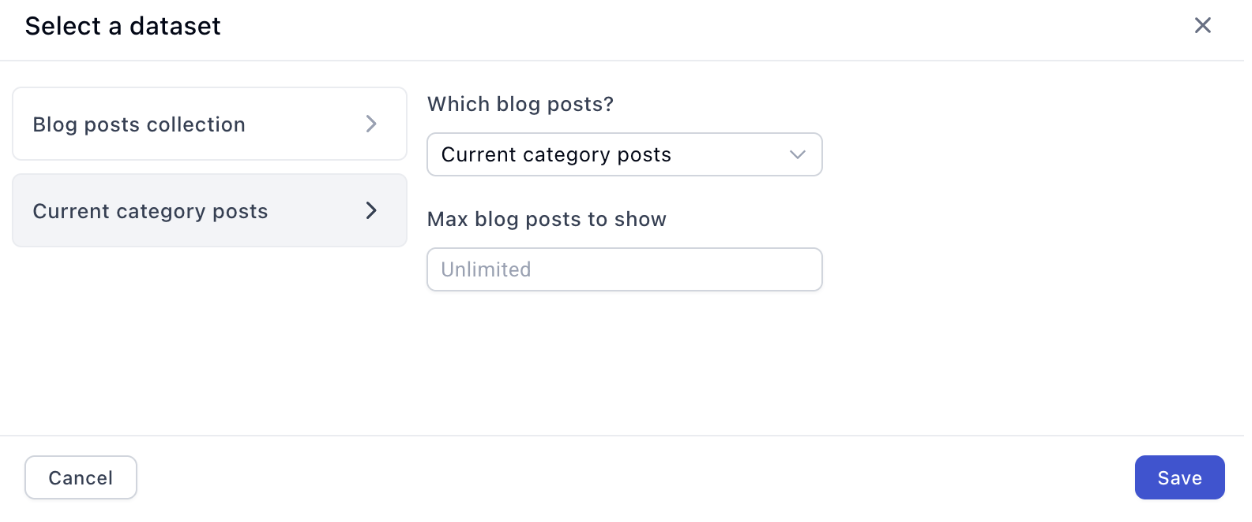
Current category posts is the matching array for the repeater below it, with a max setting:
Fallbacks: what shows when data is empty
When you bind an element, its existing static content becomes the fallback. If the bound property resolves to nothing, the fallback renders instead.
Set something sensible before binding. A headline bound to the product title with “Your product” behind it degrades quietly; the same headline with “Default headline item” behind it publishes a placeholder to a live page.
Formatting bound values
The binding picker has formatting options, so the raw value isn’t always what renders:
-
Truncate: cut long text to a length, with an ellipsis. Essential for excerpts and titles in a repeater, where one long entry otherwise breaks the grid.
-
Date format: choose how dates display, for example
%B %d, %Yfor “March 18, 2026”. -
Append text: add a suffix after the value, like a currency code or " read".
Custom code: the escape hatch
Any slot can take custom code instead of a picked property. That’s where you write Liquid directly, for anything the picker can’t express: combining two fields, conditionals, math, chained filters.
{{ product.display_price | prepend: "$" }}
Shared components always use this mode, because a component can land on any page type. If the dataset exists on the page, the expression renders; if not, it renders nothing. Full syntax, filters and worked examples are in the Liquid reference.
Related articles
Trying to bind something the picker doesn’t seem to offer? Ask in Ask the community with your page type and what you’re after, there’s often a custom-code one-liner for it.