Discount codes let customers knock an amount off their order at checkout, and they’re one of the simplest conversion levers you have: recovery emails, flash sales, influencer promos and VIP offers all run on them.
Discount codes are account-wide: create one once and it works across your funnels.
Create a discount code
-
Click the Settings icon at the top right of your dashboard.
-
Select Discounts.
-
Click Create discount:
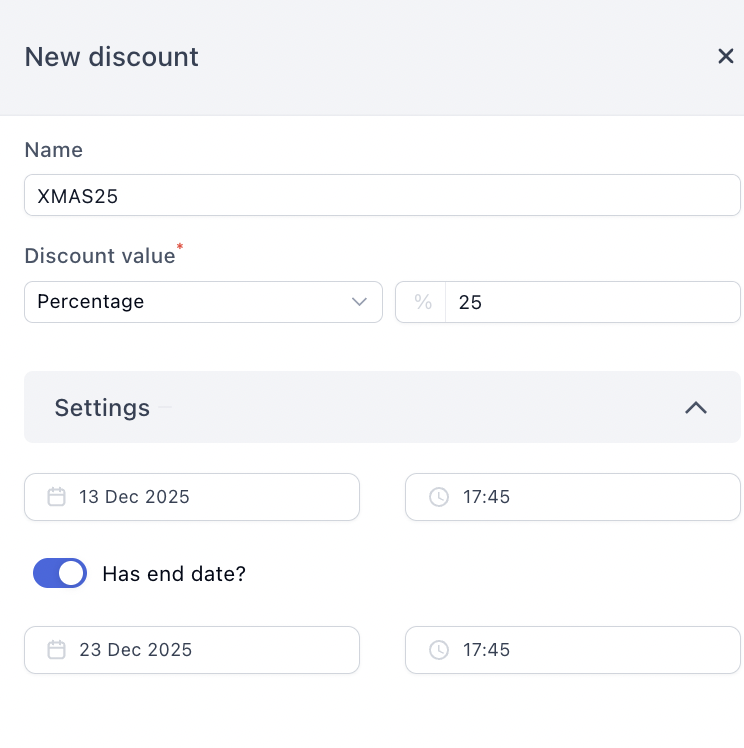
The settings:
-
Discount code: the exact text customers type at checkout, so make it short and typeable. “SAVE20” beats “SUMMER-2026-SPECIAL-V2”.
-
Type: Percentage takes a percent off the order. Fixed takes a set amount off, in your funnel’s currency automatically.
-
Value: the percent or the amount.
-
Start date and time: when the code becomes usable. Set it ahead to prepare a launch without the code leaking early.
-
Has end date?: switch on and set the end date and time for a limited-time offer. Past that moment, the code shows “expired” at checkout.
-
Minimum order amount: the code only applies when the order reaches this amount. Below it, the customer sees exactly how much more they need.
-
Maximum uses: cap the total number of redemptions, for “first 100 customers” offers. The code stops working once the cap is hit.
How customers redeem it
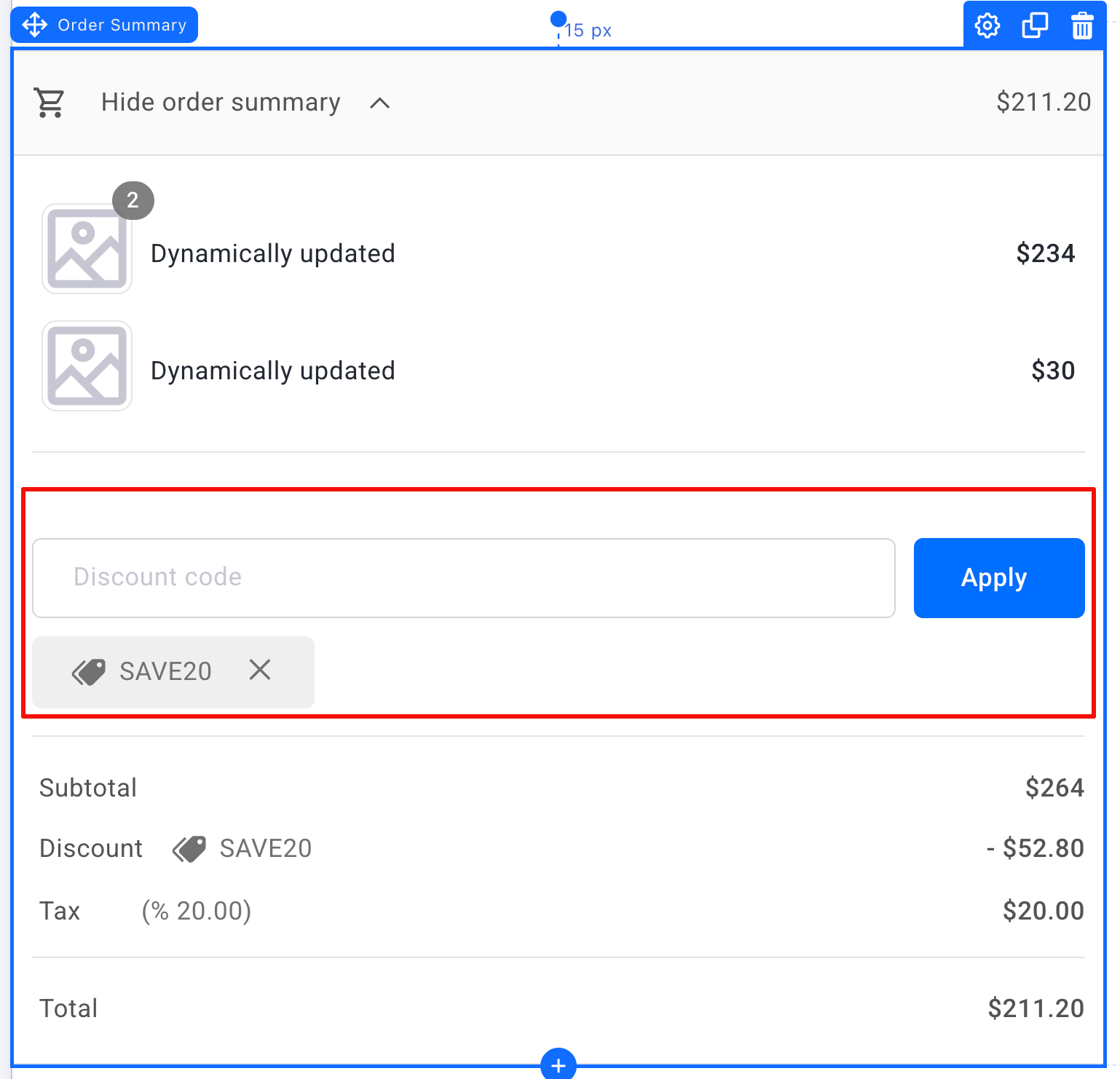
Codes are entered in the discount box of the Order Summary element on your checkout page, so make sure your checkout has one with the discount box enabled. The customer types the code, hits apply, and the summary recalculates on the spot, showing the discount as its own line:
When a code can’t be applied, the customer is told why, right in the discount box: the code doesn’t exist, it isn’t available yet, it has expired, its usage limit was reached, or the order hasn’t hit the minimum amount.
Auto-apply from a link
Any funnel URL can carry a discount code:
https://yourfunnel.com/checkout?discount=SAVE20
The code applies itself when the page loads, no typing, and the parameter is cleaned out of the address bar. If the visitor lands earlier in the funnel, the code rides along as they move from step to step and applies when they reach the checkout.
This is the version to use everywhere you can, because a pre-applied discount can’t be mistyped:
-
Recovery emails and SMS: the abandoned cart flow linking back to checkout with the discount already applied.
-
Influencer and affiliate links: each partner gets their own code in their own link.
-
Ad-specific offers: a retargeting audience gets a sweeter link than cold traffic.
Manage your codes
Every code lives in the Discounts list, with its usage count. Click the three dots next to a code to edit, deactivate or delete it:
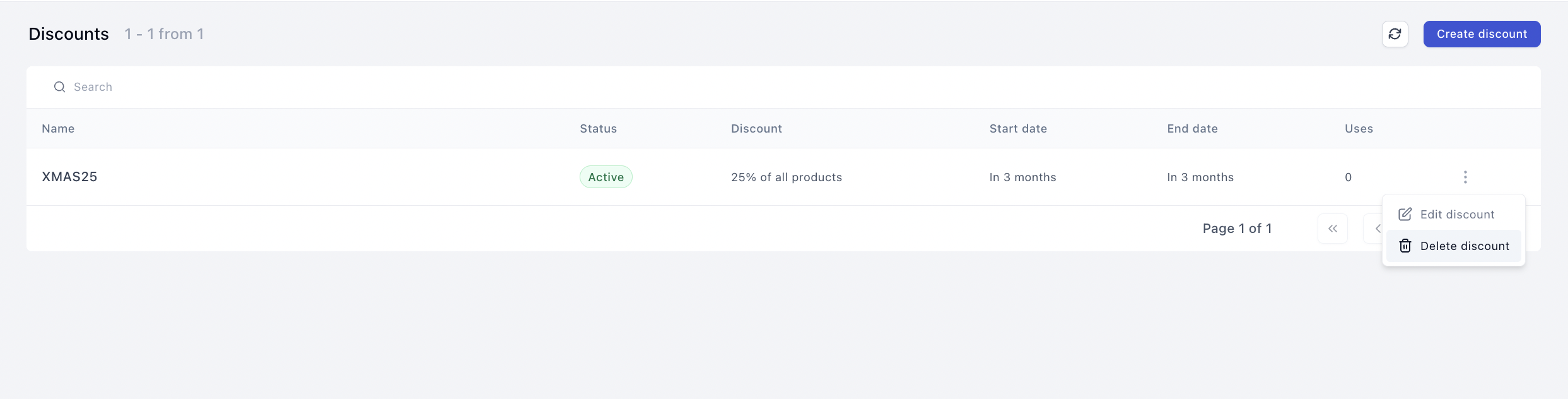
Deactivate instead of delete when a promo ends. The code stops working immediately, but you keep its usage count and can flip it back on for the next round.
Discount plays that work
-
Flash sale: percentage code with a real end date. Pair it with a countdown timer on the page ending at the same moment.
-
AOV push: “SAVE15 on orders over $75” using the minimum order amount, set just above your current average order value.
-
Scarcity: “first 100 orders” with maximum uses. Honest scarcity, enforced by the system rather than the copy.
-
Recovery sweetener: a code that only ever ships inside the second abandoned-cart email, so you’re not training every buyer to abandon on purpose.
Related articles
Running a promo and unsure how to structure the offer? Describe it in Ask the community and the community will weigh in on what’s converting right now.