Most shoppers look for social proof before buying online. They scan reviews, check what others bought, and look for signs that real people trust your brand. It’s one of the most reliable conversion rate optimization levers in ecommerce.
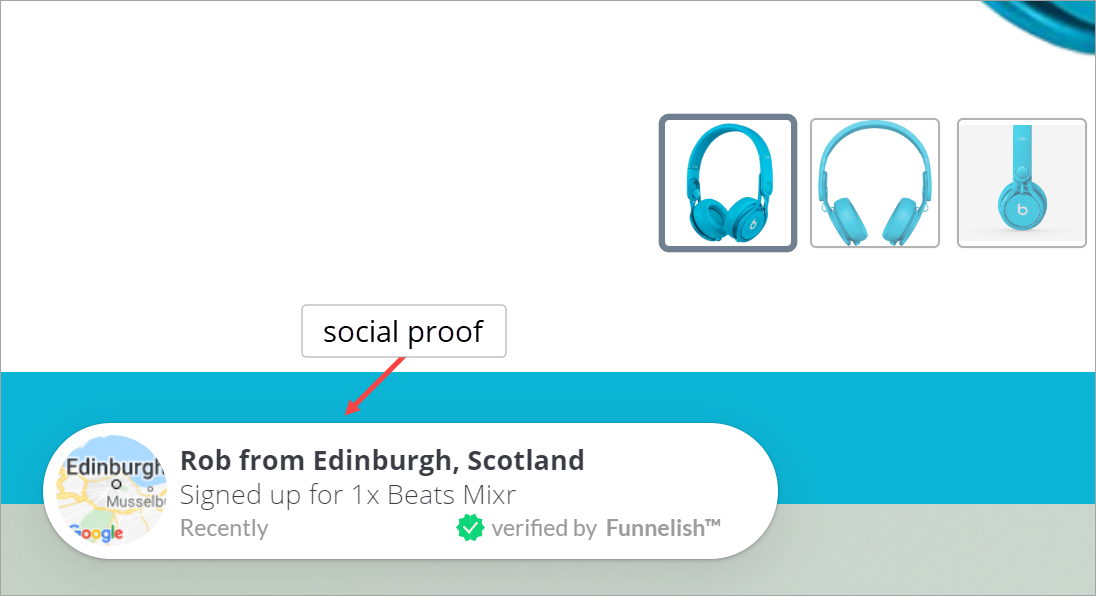
Proofy brings that social proof directly onto your pages. It displays small popup notifications of recent purchases and opt-ins from real customers, building buyer confidence and boosting conversions. It’s fully customizable and requires zero coding.
| Funnels | Blogs | Customer Portals | Stores | |
|---|---|---|---|---|
| Available on |  |
 |
|
|
 Activate Proofy
-
Open the funnel or store where you want to show social proof.
-
Go to the Apps tab and enable Proofy.
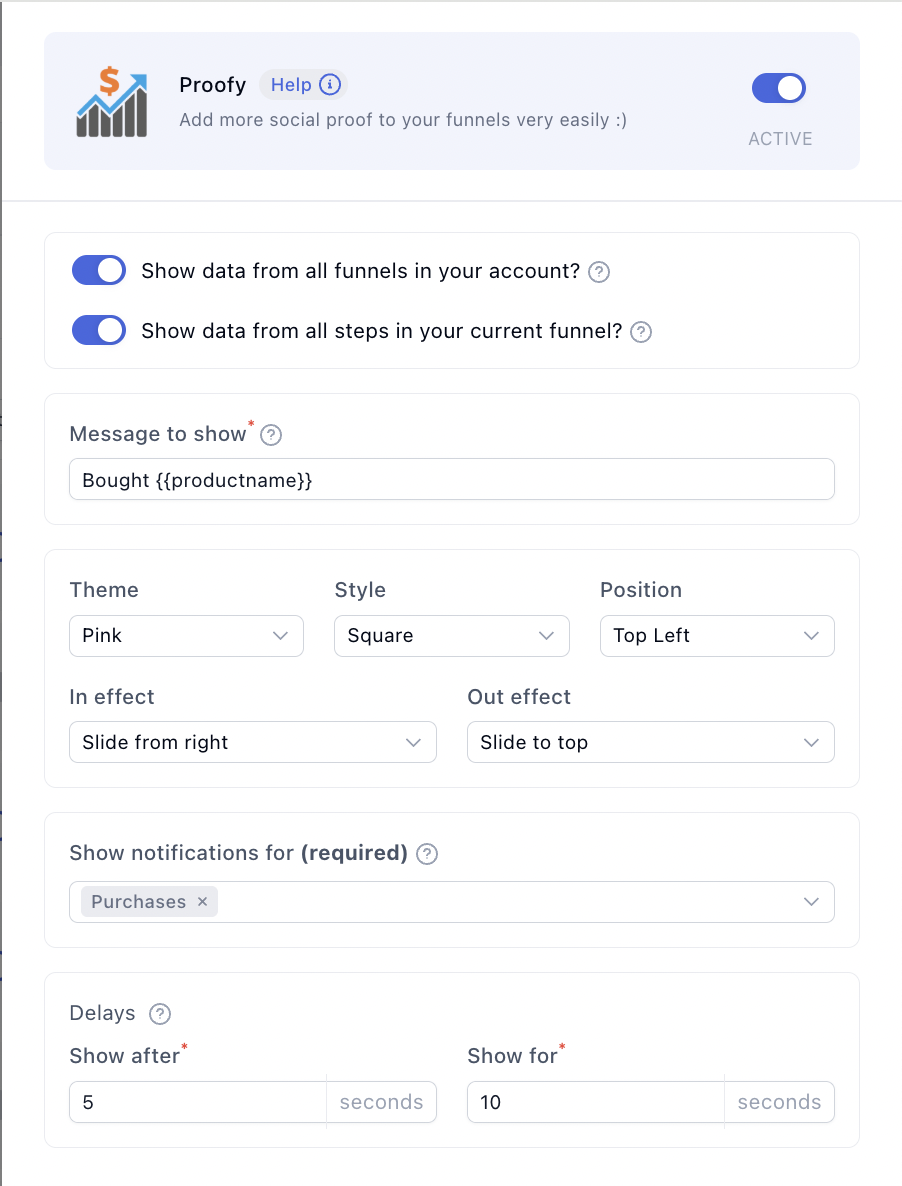
 Choose your data sources
Two toggles control which activity feeds your notifications:
-
Show activity from all your funnels — pull purchases and opt-ins from your entire account, not just this funnel. Great when a single funnel doesn’t have enough volume yet.
-
Show activity from all steps of the current funnel — include events from every step, not just the current page.
 Write your message
-
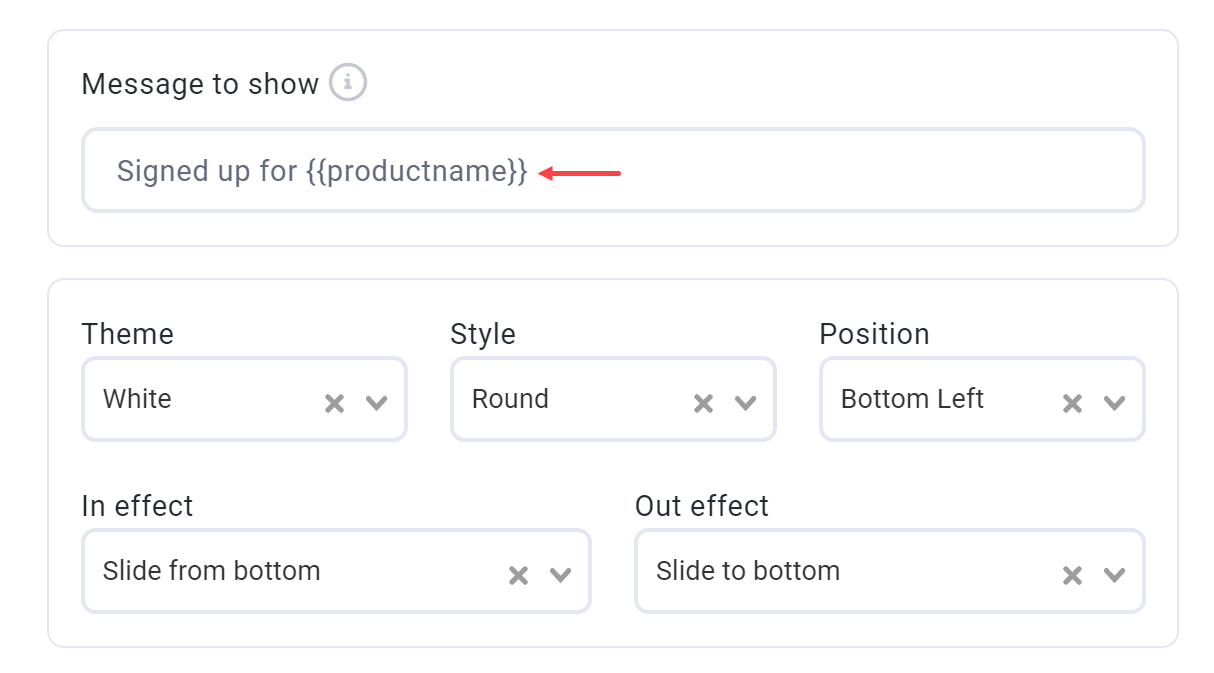
Enter a brief caption for the widget. Describe the action people took and the action you want visitors to take, for example “just bought” or “just signed up”.
-
Use the drop-down menus to choose the widget’s display style and position on the page.
Tip: You can insert dynamic content with snippets like
{{productname}}, so each notification shows the actual product that was purchased. This works especially well on one-product funnels, where every notification reinforces the exact offer on the page.
 Configure notification timing
-
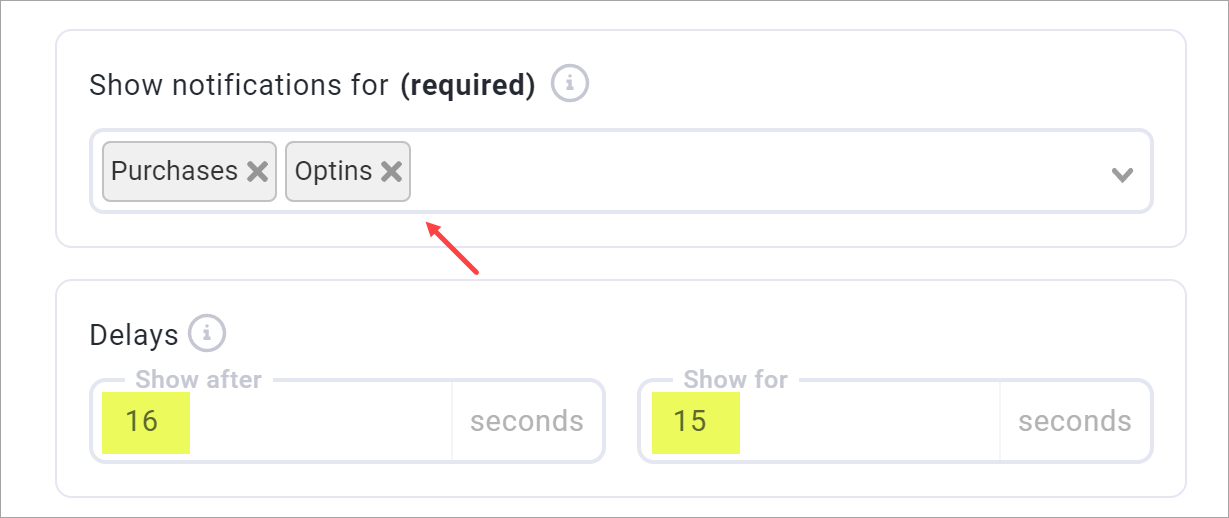
Select which notification types to show: purchases, opt-ins, or both.
-
Set the delay — the number of seconds between popups.
-
Set the Show for duration — how long each popup stays on screen.
-
Click Save changes.
 Preview your popup
Click the arrow on the side panel to open a live preview. You can tweak settings and see the result at the same time.
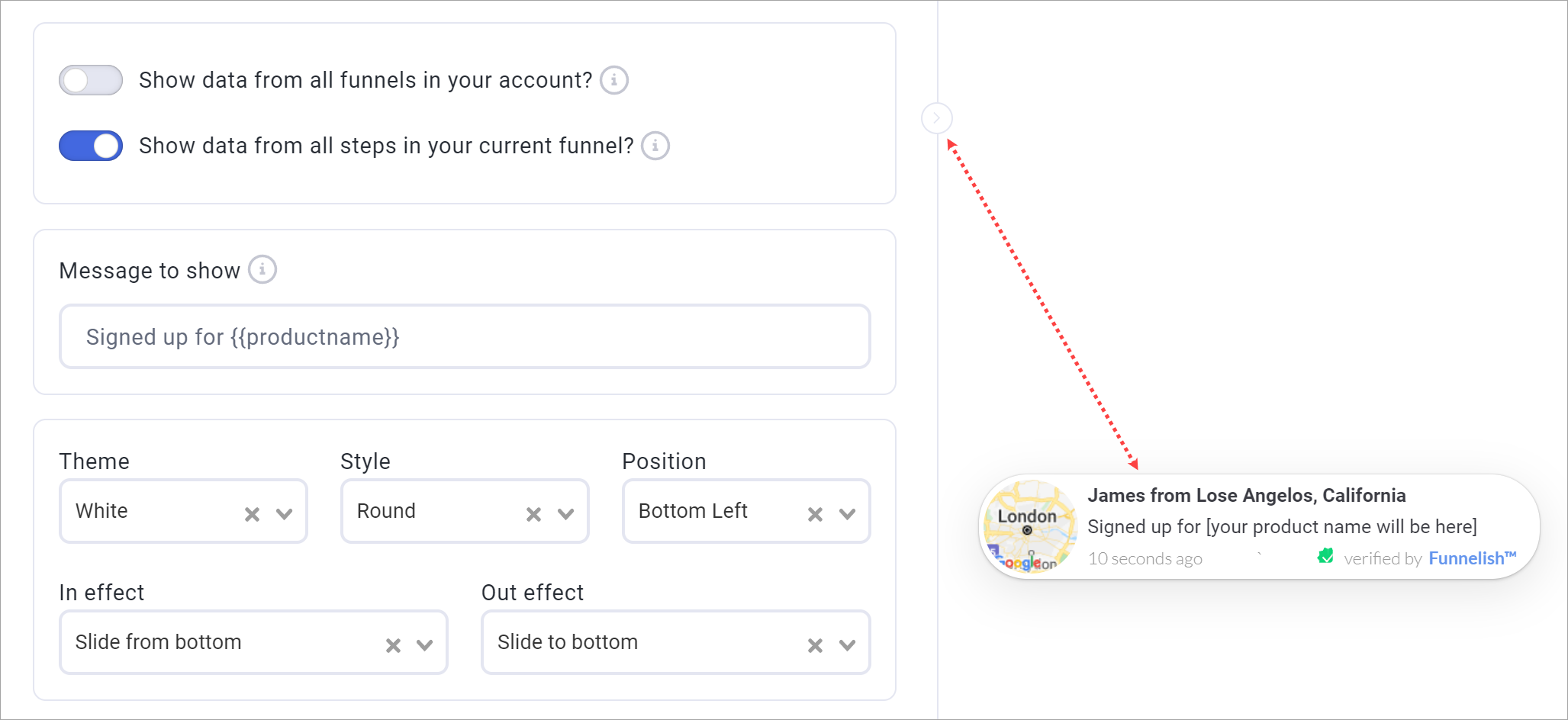
That’s it! Your visitors will now see a notification whenever somebody makes a purchase or opts in. 
 Account-wide settings
A couple of Proofy settings apply across your whole account. You’ll find them on the Global Apps page under Proofy:
-
Theme — controls the popup’s look. The default is Basic.
-
Show location — when enabled, each popup shows the customer’s location in the top line. Disable it to show the customer’s first name only.

 Keep learning
More app guides: browse the full Apps documentation category for step-by-step setup guides.
Boost conversions further:
-
One-Product Funnel: Turn Strangers into Loyal Customers — social proof works best inside a focused funnel.
-
Upselling Techniques That Protect Your Margins — once Proofy gets them to buy, upsells raise how much they spend.
-
The Complete Guide to eCommerce Funnels — where social proof fits in the bigger conversion picture.
-
Spin the Wheel: Coupon Popup & Lead Capture — gamified coupons that grow your list while Proofy builds trust.
Questions about your Proofy setup? Reply below and the community will help you out. 