The Pinterest Tag app tracks conversions from your Pinterest ads automatically. Once connected, it fires all significant events on auto-pilot: page views, leads, add-to-carts, and purchases with accurate purchase value, so your Pinterest campaigns optimize on real data.
It works just like our Meta Pixel app: paste your tag ID once and you’re tracking, no coding needed. Enhanced match support is built in for more accurate attribution.
| Funnels | Blogs | Customer Portals | Stores | |
|---|---|---|---|---|
| Available on |  |
|
|
|
 Get your Pinterest Tag ID
-
Log in to your Pinterest Ads Manager.
-
Click Ad account overview in the top-left corner.
-
In the menu, under Manage Business, click Conversions.
-
In the left-hand navigation, click Pinterest tag, then Tag manager.
-
Copy your Tag ID. If you’ve never set up tracking before, click Install the Pinterest tag first and Pinterest will generate one for you.
-
While you’re there, enable Automatic enhanced match. (optional but strongly recommended)
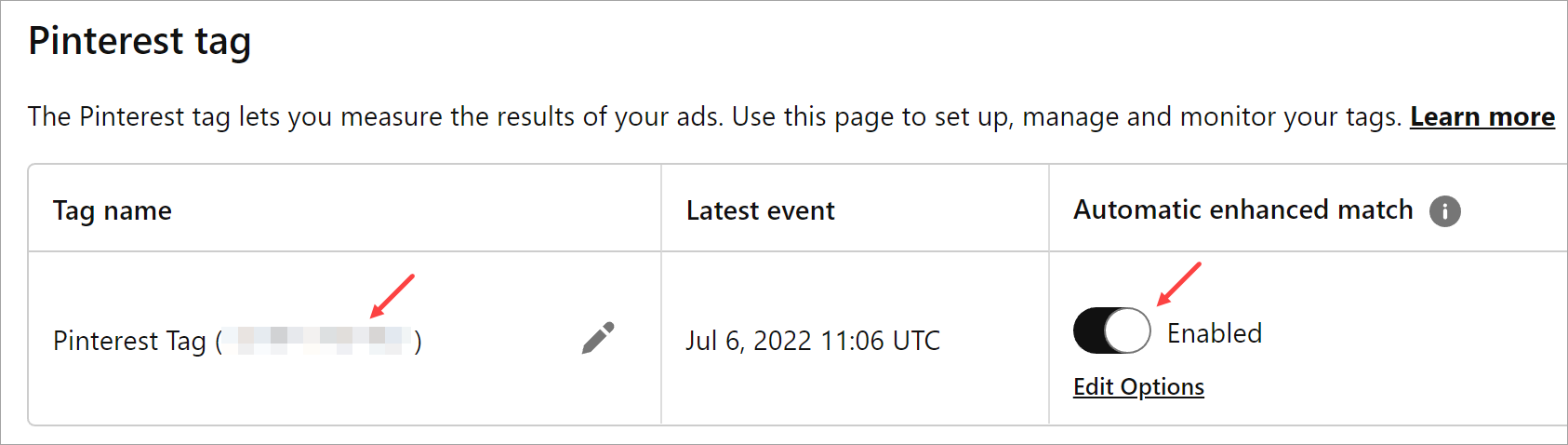
What is enhanced match? It attaches secure, hashed customer information (like email) to your conversion events, so Pinterest can attribute more of your sales to your ads, even when cookies fall short. More matched conversions means better campaign optimization and reporting.
 Activate the app and paste your Tag ID
-
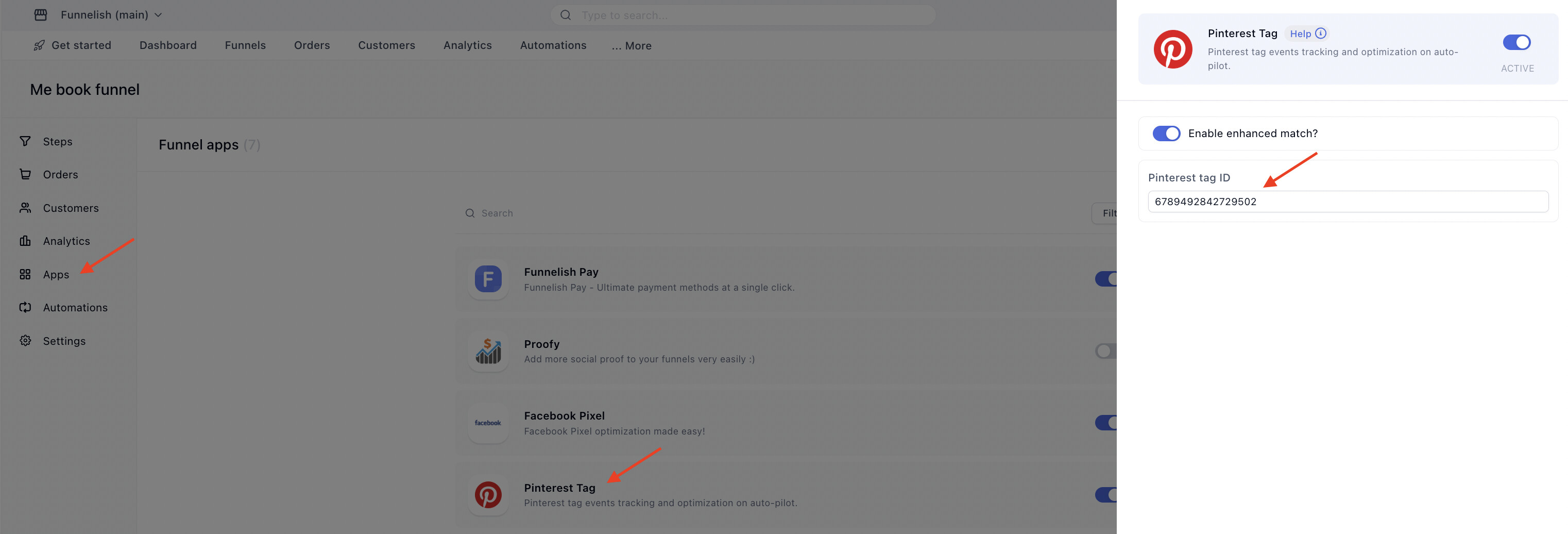
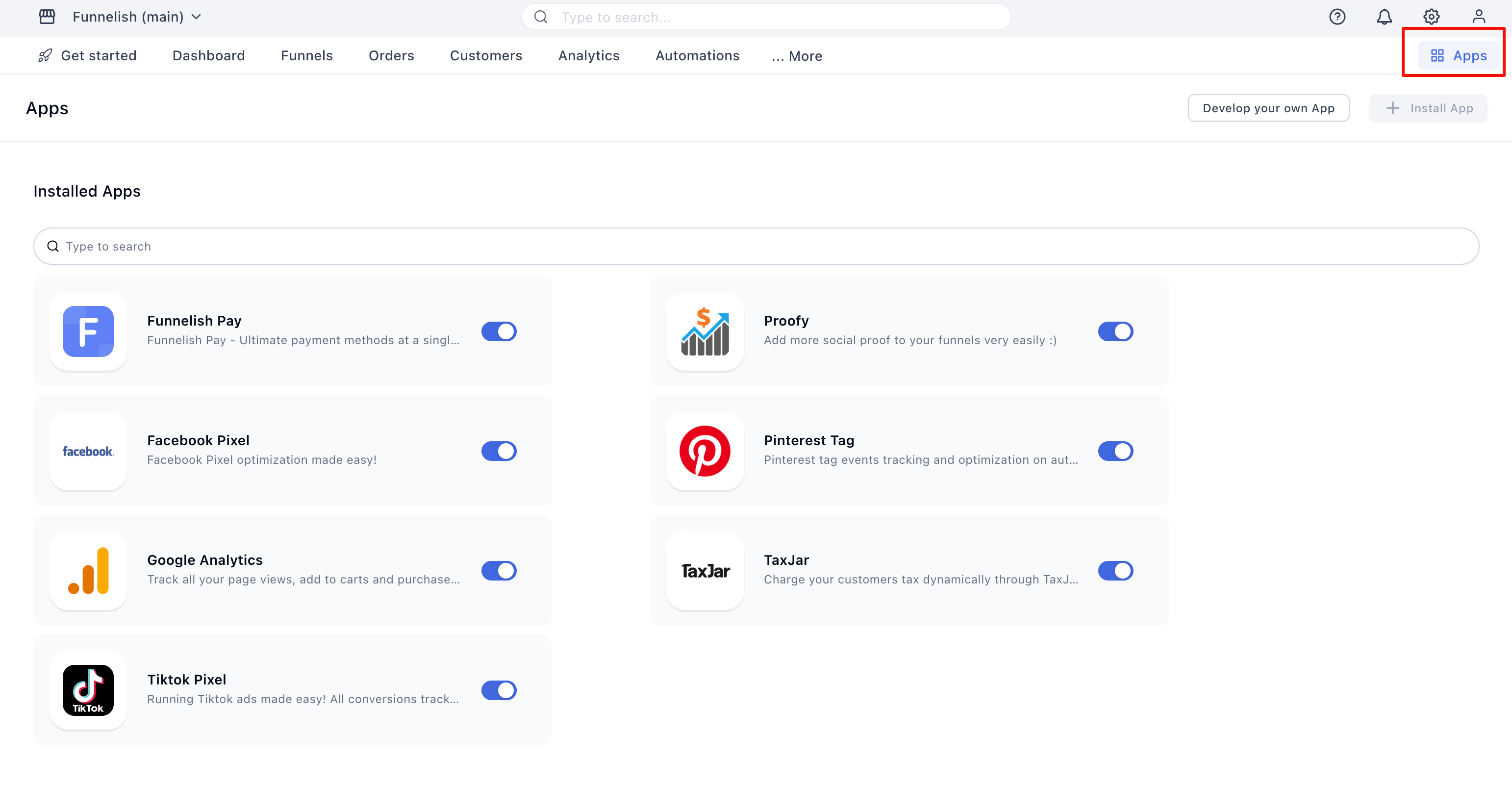
Open the funnel, blog, portal, or store you want to track and go to its Apps tab.
-
Enable Pinterest Tag.
-
Paste your Tag ID into the field.
-
Enable enhanced matching. (optional but strongly recommended)
-
Click Save changes.
That’s it! Your pages now fire Pinterest events for every page view, lead, add-to-cart, and purchase. 
 Get serious about Pinterest for ecommerce
Pinterest is not “another Facebook”. Its users behave differently, and merchants who treat it like Meta usually misread their own results. Here’s what actually matters:
Claim your website
In Pinterest: Settings → Claimed accounts → Websites, and verify your funnel’s domain. Claiming unlocks analytics for every pin pointing at your domain (including pins other people saved from your pages), puts your branding on those pins, and is a prerequisite for several ad features. It’s ten minutes of setup for permanently better data.
Understand Pinterest’s attribution before judging ROAS
Pinterest reports on click, engagement, and view attribution windows (30/30/1 by default), while GA4 only credits clicks. On top of that, Pinterest users are planners: they save now and buy days or weeks later. So two things will happen: Pinterest Ads Manager will report more conversions than GA4, and your campaigns will look weak in week one and stronger by week four. Neither is a tracking bug. Compare like with like, and give conversion campaigns a longer runway than you’d give Meta before killing them.
Plan 30 to 45 days ahead of the season
Pinterest demand peaks before the calendar does. Users search Christmas gifts in October and summer products in early spring. Launch seasonal campaigns a month or more ahead of the event, when saves are climbing but auction prices haven’t peaked yet.
Build audiences from your tag events
Your tag isn’t just for reporting, it’s an audience machine. In Ads Manager, create:
-
A retargeting audience of visitors who fired
add_to_cartbut notcheckout, and hit them with a dedicated campaign (a discount or urgency angle works well here). -
An actalike audience (Pinterest’s lookalike) seeded from your purchasers, once the tag has collected enough of them, to scale prospecting toward people who resemble your best customers.
Match campaign objective to your data volume
Conversion-optimized campaigns need enough purchase events to learn. If your tag is fresh or your volume is thin, start with consideration (clicks) campaigns to feed the tag data, then switch to conversion objectives optimizing for checkouts once purchases flow consistently. Jumping straight to conversion objectives with near-zero event history is the most common way merchants burn their first Pinterest budget.
Tag your URLs with UTMs
Add utm_source=pinterest, utm_medium=paid, and a campaign-level utm_campaign to every promoted pin’s destination URL, so GA4 can show Pinterest’s contribution next to your other channels on one neutral playing field.
Testing your tag
-
Install the Pinterest Tag Helper Chrome extension and browse your funnel to see events fire in real time.
-
In Pinterest’s Tag manager, open your tag and check the Tag Event History panel to confirm events are arriving, including how recently each event type fired.
Disable ad blockers when testing. They commonly block the Pinterest Tag and make a working setup look broken.
 Keep learning
More app guides: browse the full Apps documentation category for step-by-step setup guides.
Track and convert smarter:
-
Meta Pixel (Facebook Pixel): Conversion Tracking & Conversions API — run both tags to retarget across platforms.
-
Google Analytics (GA4): Ecommerce Event Tracking — see all your traffic sources, Pinterest included, in one place.
-
Social Commerce Just Hit $100 Billion — why social platforms like Pinterest deserve a spot in your strategy.
Questions about your Pinterest Tag setup? Reply below and the community will help you out. 