The Google Analytics app connects your Funnelish pages to GA4 and tracks your full ecommerce activity on auto-pilot, with enhanced ecommerce data included:
-
Purchases — with product names, values, and currency.
-
Upsells and downsells — including one-click upsell revenue.
-
Order bumps.
-
Leads, add-to-carts, and thank-you page visits.
-
Page views and other funnel interactions.
Once connected, you can measure your visitors, campaigns, and conversions directly in GA4, no tagging or coding needed.
| Funnels | Blogs | Customer Portals | Stores | |
|---|---|---|---|---|
| Available on |  |
|
|
|
 Copy your Measurement ID
-
Log in to your Google Analytics account.
-
In the left-hand menu, click Admin.
-
Under Property, select the property you want to use.
-
Go to Data Streams and choose your web data stream.
-
In the top-right corner, copy your Measurement ID (it looks like
G-XXXXXXXXXX).
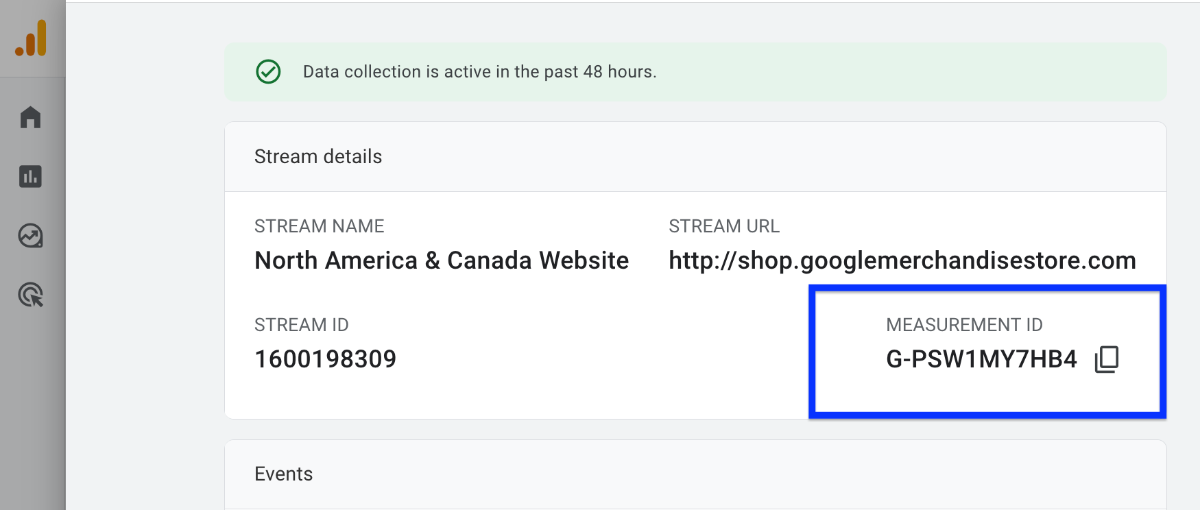
Can’t find it? Google’s official guide: Find your Measurement ID.
 Connect Funnelish to GA4
-
Open the funnel, blog, portal, or store you want to track and go to its Apps tab.
-
Enable Google Analytics.
-
Paste your Measurement ID into the field.
-
Click Save changes.
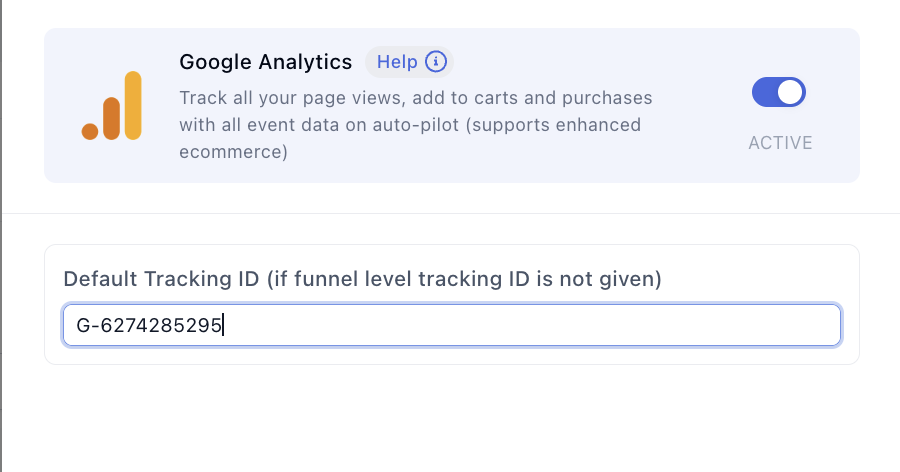
That’s it. Your pages are now sending events to GA4, and you can track visitors, marketing campaigns, conversions, top content, and more.
 Set up GA4 properly for ecommerce
Connecting the app is step one. These few GA4-side tweaks make the difference between “data exists” and “data you can act on”:
Exclude payment providers from referrals
When a buyer pays through PayPal or Klarna, they briefly leave your page and come back. Without configuration, GA4 starts a new session on their return and attributes the purchase to paypal.com instead of your actual ad campaign, wrecking your ROAS numbers.
Fix it in GA4: Admin → Data Streams → your stream → Configure tag settings → List unwanted referrals, and add paypal.com and klarna.com (plus any other payment domains you use). Google’s guide: identify unwanted referrals.
Mark your important events as key events
In GA4, go to Admin → Events and flag purchase and any other event you optimize for (e.g. generate_lead) as a key event. Key events unlock conversion reporting and can be imported into Google Ads for bidding.
Tag your campaign URLs with UTMs
GA4 can only attribute what it can see. Add UTM parameters (utm_source, utm_medium, utm_campaign) to every paid and organic campaign link pointing at your funnels, so the Traffic acquisition report tells you which campaigns actually drive purchases.
Link Google Ads
If you run Google Ads, link it under Admin → Product links → Google Ads links. You can then import your GA4 key events as conversions and build remarketing audiences (for example, everyone who fired add_to_cart but not purchase).
Extend data retention
By default GA4 keeps user-level data for only 2 months. Switch it to 14 months under Admin → Data settings → Data retention, so your Explorations can look further back.
Testing your setup
-
Open your funnel in a browser, then check Reports → Realtime in GA4. Your visit should appear within seconds.
-
For event-level detail, use Admin → DebugView while browsing your funnel with the Google Analytics Debugger extension enabled.
-
Place a test purchase and confirm it shows under Reports → Monetization → Ecommerce purchases (standard reports can take up to 24 hours; Realtime and DebugView are immediate).
Disable ad blockers when testing. Many of them block GA4 requests entirely, which can make a healthy setup look broken.
 Keep learning
More app guides: browse the full Apps documentation category for step-by-step setup guides.
Get more from your data:
-
Funnelish Analytics — your built-in dashboard for funnel-level performance, alongside GA4.
-
Google Ads for Ecommerce: Strategy Guide — put your GA4 conversion data to work in campaigns.
-
The Complete Guide to eCommerce Funnels — understand the journey your analytics is measuring.
Questions about your GA4 setup? Reply below and the community will help you out. 