Funnelish has two kinds of automations, and picking the wrong one is a common source of confusion.
Workflow automations are flows you build on a canvas: a trigger, then a chain of actions with waits, conditions and branches. They run per order or per event.
Product automations are single instant actions attached to one product. No canvas, no waits, no branching. Something happens to that product, the action fires immediately.
That’s the whole difference. Product automations are simpler on purpose, and they’re what powers most fulfillment setups.
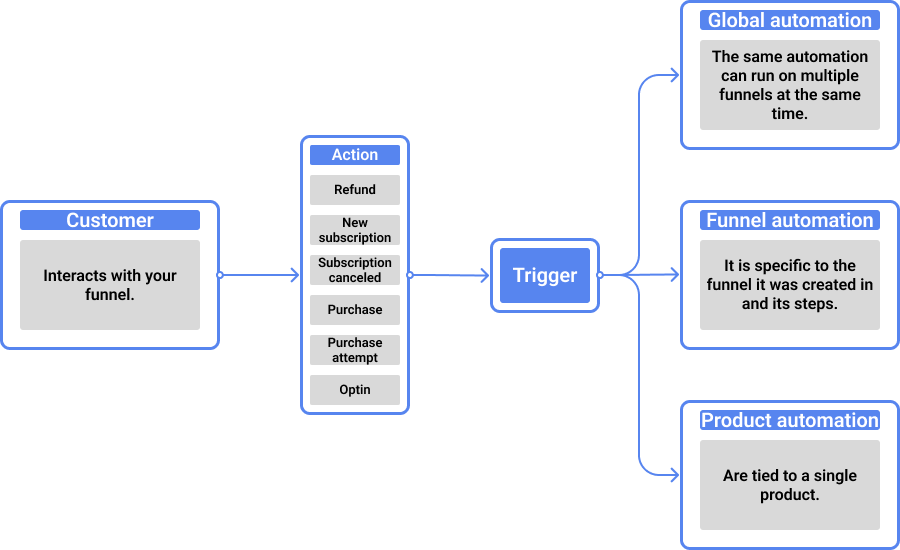
When to use which
| Product automation | Workflow automation | |
|---|---|---|
| Where it lives | On a single product, inside a funnel step | Account-wide (global) or on one funnel |
| What it does | One action, instantly | A sequence: actions, waits, conditions, jumps |
| What it knows | The product that was bought | The whole order and customer |
| Typical use | Push this product to Shopify, tag buyers of this product in Klaviyo | Abandoned cart sequence, post-purchase email flow, internal alerts |
The practical rule: if the action depends on which product was bought, use a product automation. If it depends on timing or customer behavior, use a workflow.
They coexist. A funnel commonly runs product automations to push each product into Shopify, while a workflow automation sends the follow-up emails. One order can fire both.
Fires per product, not per order
This is the part worth internalizing. A product automation only runs for the products actually in that order.
An order with the main product plus an accepted upsell fires the main product’s automations and the upsell product’s automations. An order where the customer skipped the upsell fires only the main product’s. You get per-product precision for free, without writing a single condition.
That’s why fulfillment lives here: each product knows its own SKU, its own variant, its own destination.
Create a product automation
-
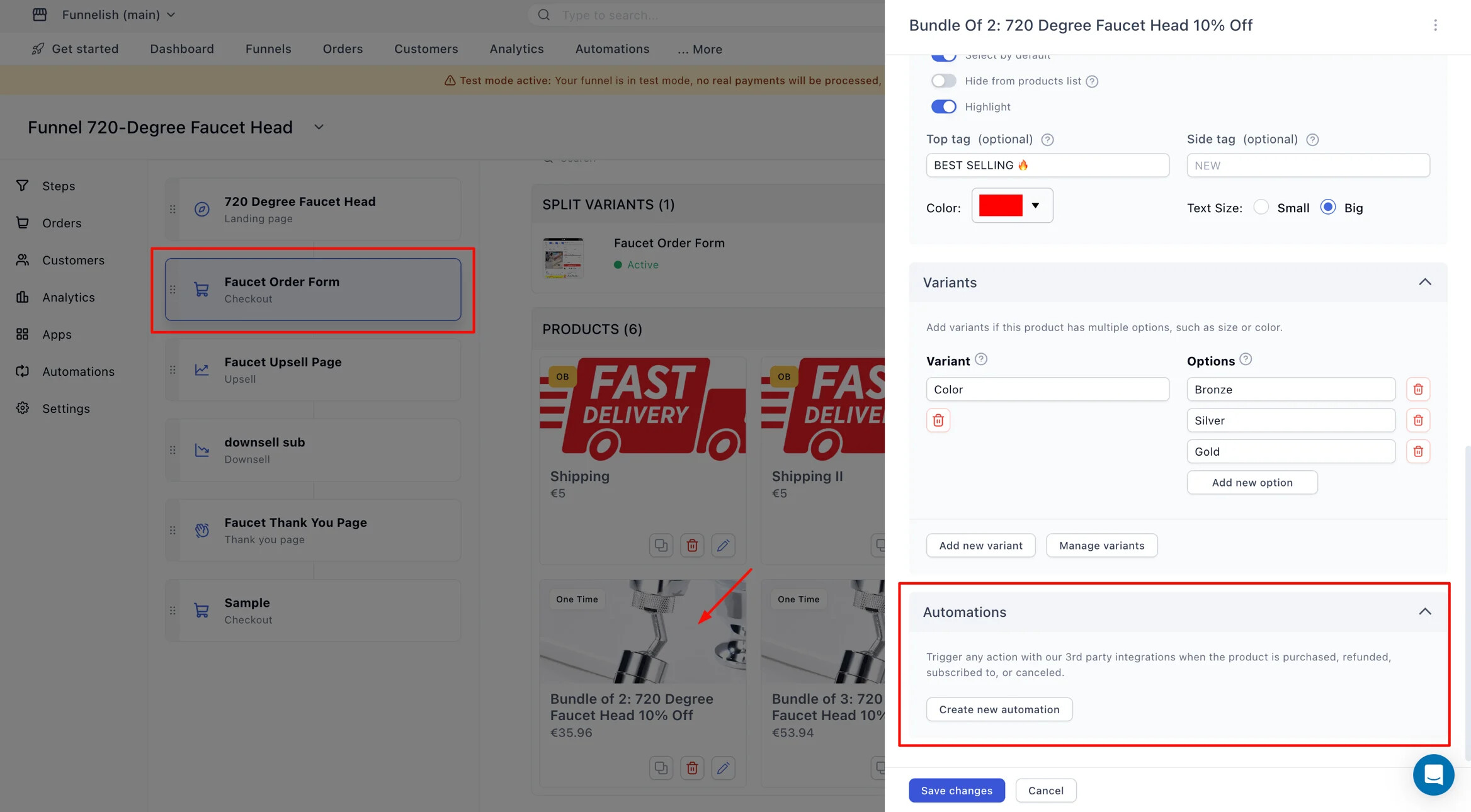
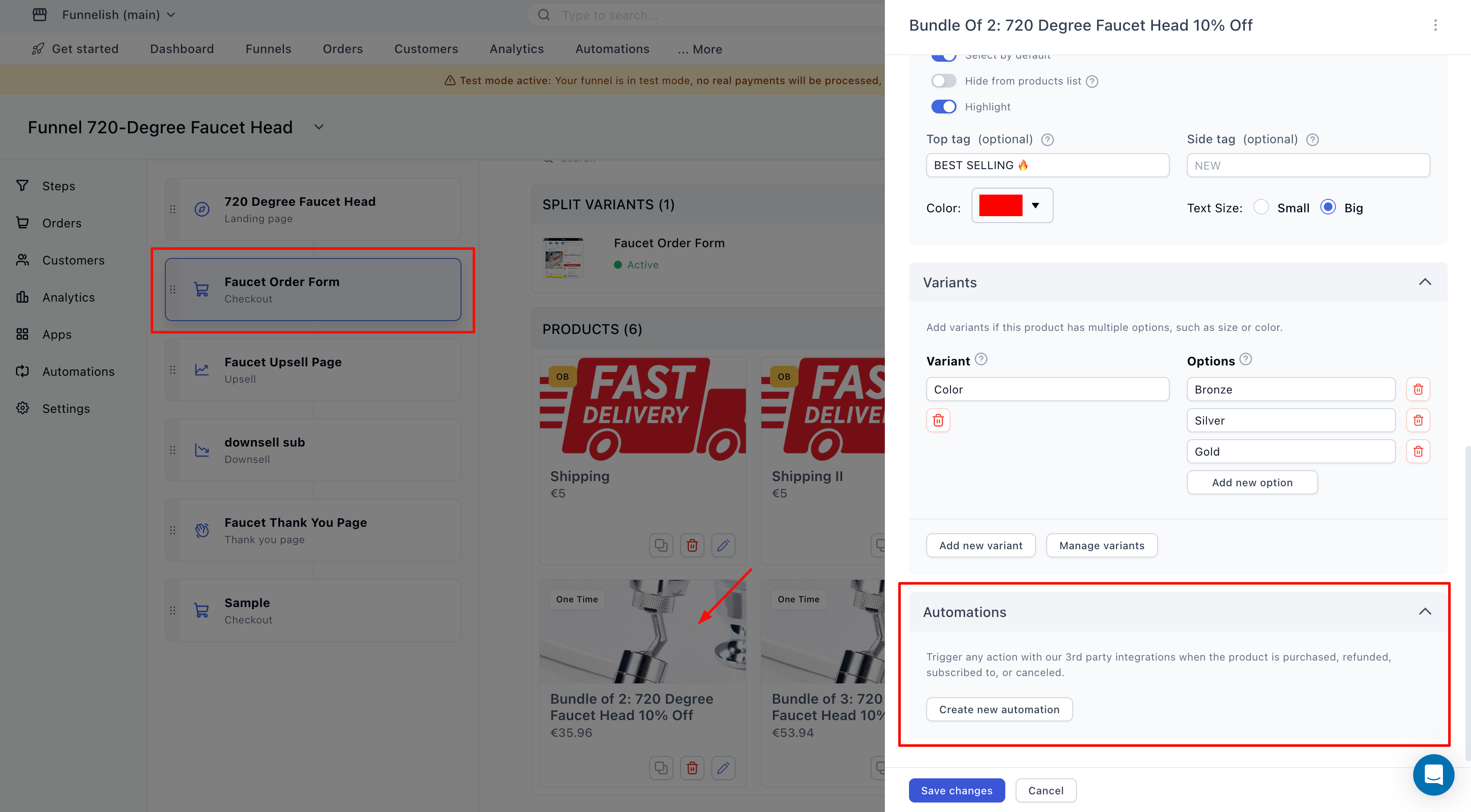
Open your funnel and click the step that holds the product (checkout, upsell, downsell).
-
Click the product to open its settings panel on the right.
-
Scroll to the bottom of the panel and click Create new automation.
-
Pick the trigger, then click Continue.
-
Pick the integration the action should run through.
-
Choose the action. The list depends on the integration you picked.
-
Click Add, then Save Changes at the bottom of the panel.
The integration has to be connected to your account first. See the integrations directory.
Triggers
The product’s own events, not the funnel’s:
-
Purchase: the product was bought. The one you’ll use most.
-
Purchase attempt: a payment was tried but didn’t complete.
-
Refund: the product was refunded.
-
Optin: the customer opted in on a step carrying this product.
-
New subscription: a subscription for this product started.
-
Recurring payment: a rebill succeeded. This is how each renewal reaches your fulfillment platform, so subscription boxes ship every month, not just the first.
-
Subscription cancelled and subscription ended or failed.
-
New dispute: a chargeback was opened.
What they’re used for
Fulfillment. The main one. Map the funnel product to its Shopify product and variant, and every purchase creates the order in Shopify automatically. Same for ShipStation. Order Bundling belongs here too, merging the main product and accepted upsells into one order instead of three. Full walkthrough: Product automations and order bundling for Shopify.
CRM segmentation. Add the buyer to a Klaviyo, ActiveCampaign or Mailchimp list, with tags naming the exact product. Buyers of your $19 tripwire and buyers of your $199 bundle land in different segments automatically, ready for different follow-up.
Tracking and data. Push the purchase to Hyros for attribution, or into Google Sheets for whatever you track by hand.
Everything else. Send the event to Zapier and connect the other 4,000 apps.
Set them up once, per product, when you build the funnel. The most common support case we see is a funnel that fulfills the front-end product perfectly and silently drops every upsell, because the upsell product never got its own automation. Adding a product to a funnel means adding its automations.
Where to find them again
Product automations live on the product, so you open them the same way you created them: funnel → step → product → the Automations section at the bottom of the panel. If you clone a funnel, the product automations come with it, but check the mapping still points at the right Shopify product before running traffic.
Related articles
Not sure whether your case needs a product automation or a workflow? Describe the flow in Ask the community and someone will point you at the right one.