SEPA Direct Debit pulls the payment straight from your customer’s bank account — the way Europeans pay rent, utilities and subscriptions. The SEPA zone covers 36 countries and hundreds of millions of bank accounts, making this the widest-reach European method you can offer: one integration, the whole Eurozone and beyond.
Why offer SEPA Direct Debit
-
It’s the subscription rail of Europe. Recurring payments by direct debit are how Europeans expect ongoing charges to work — a subscription offer with SEPA at checkout matches a habit that’s decades old.
-
No card to expire. Bank accounts don’t get reissued the way cards do, so recurring payments fail less over time — the quiet killer of subscription revenue is card churn, and SEPA sidesteps it.
-
It reaches buyers cards miss. Card penetration varies widely across Europe; nearly everyone has a bank account.
It processes EUR only, and in Funnelish it runs through Stripe.
It behaves differently from a card payment in one way you should understand before offering it:
A direct debit is not instant. The order confirms right away, but the money takes a few business days to actually clear — and a bank debit can be disputed by the account holder afterwards. That makes SEPA a natural fit for subscriptions and trusted-audience offers, and a poor fit for one-off sales to cold traffic where you’d rather have card-style finality.
Before you start
-
Funnelish Pay is enabled on the funnel — Enable Funnelish Pay.
-
A payment form element is on your checkout step — Add payment methods to your checkout.
-
A Stripe account — see Stripe if you haven’t connected one.
-
Your funnel’s currency set to EUR — with any other currency, SEPA stays hidden at checkout.
Set it up
-
Open your checkout step, select the payment form element, and click Edit payment options.
-
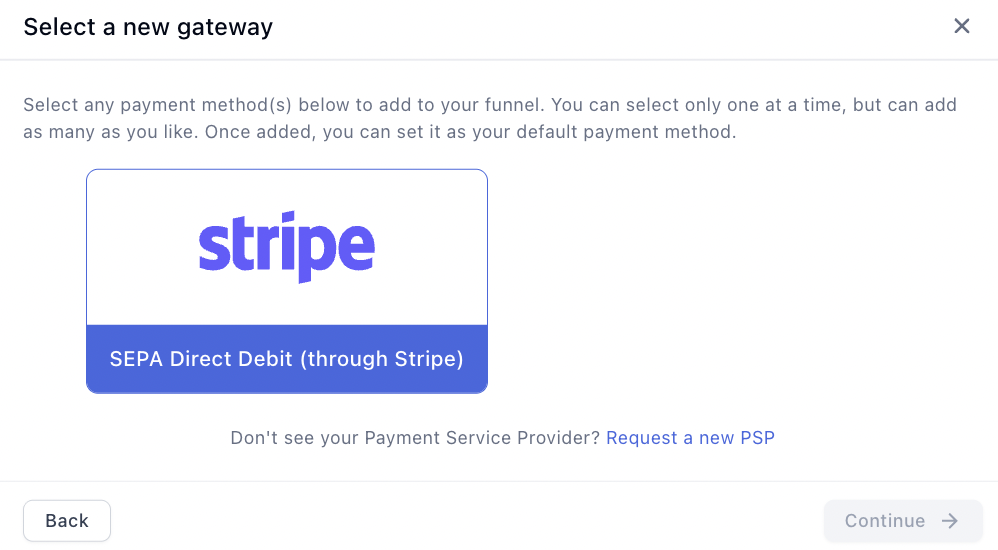
Click Connect a new gateway, then choose SEPA Direct Debit through Stripe.
-
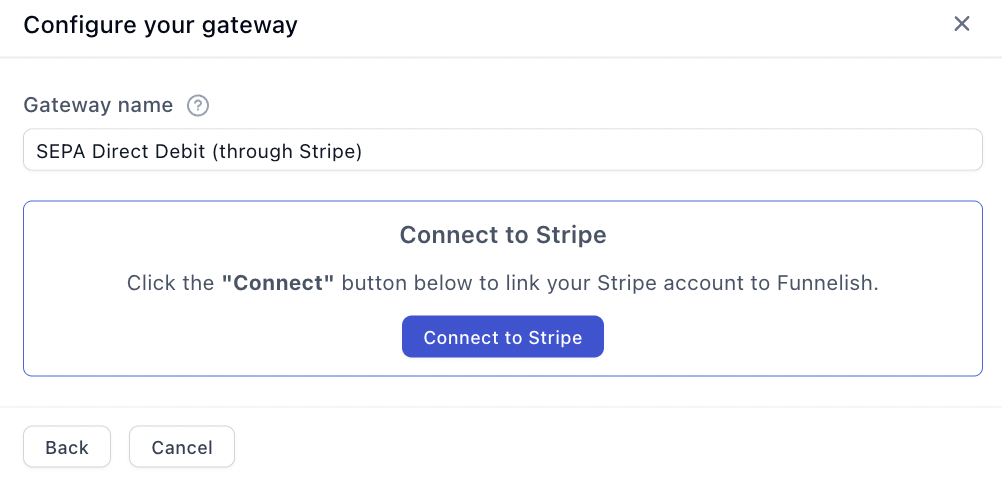
Name the gateway, click Connect, and complete the authorisation on Stripe’s side.
-
Select the new payment method on the list and save your changes.

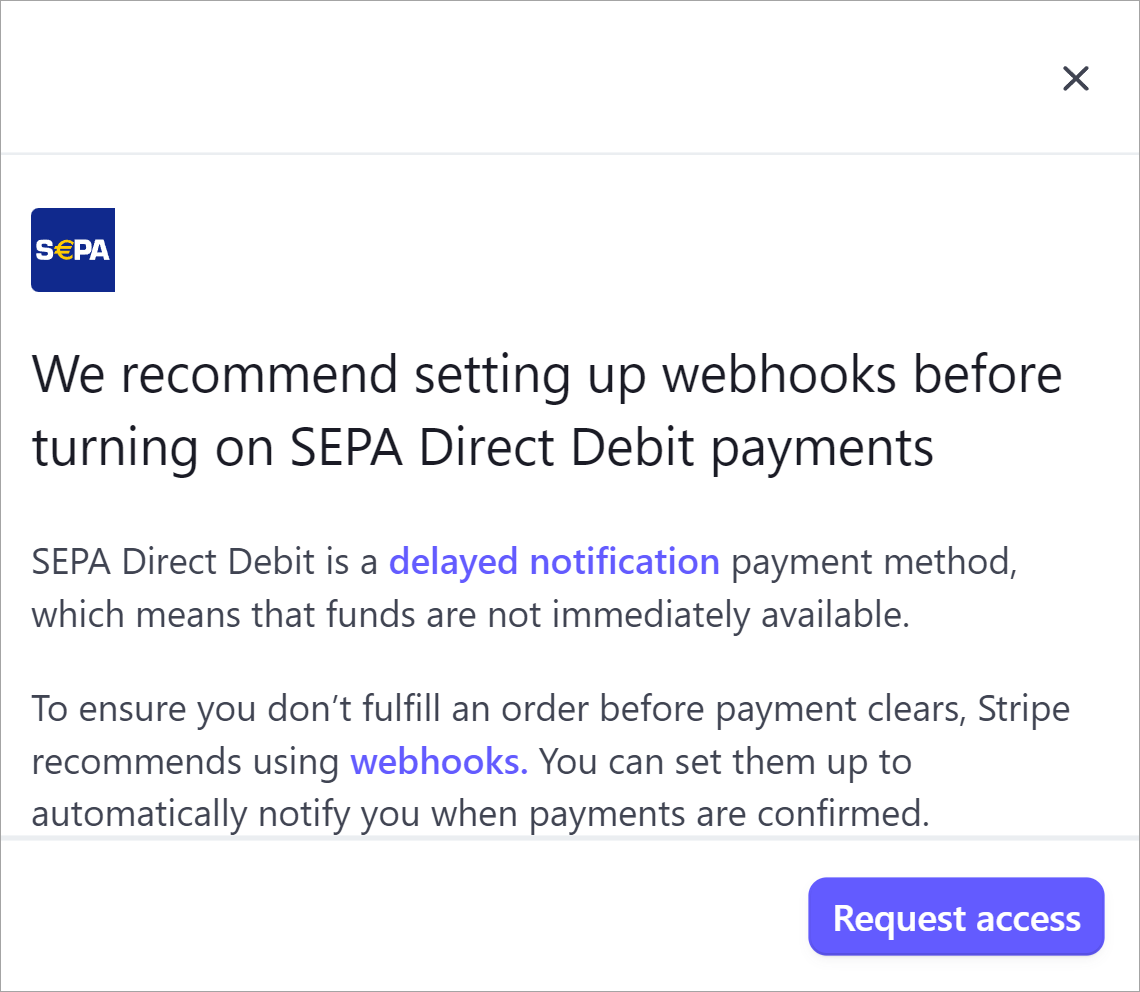
Then enable it on your Stripe account — it isn’t on by default:
-
In your Stripe Dashboard, open Settings → Payment methods.
-
Scroll to the Bank debits heading, find SEPA Direct Debit, and click Turn on.
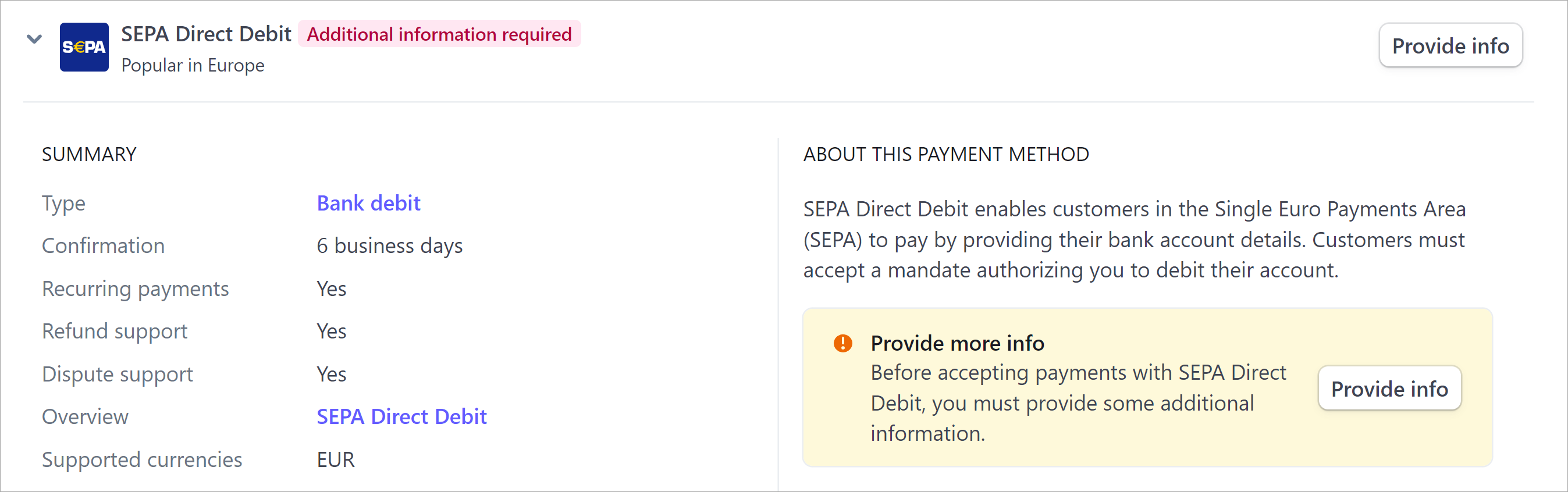
Note it lives under Bank debits, not with the wallets and cards — easy to scroll straight past.
Testing
Turn on Test Mode with the toggle in the funnel’s top bar and run through your checkout — Stripe’s test mode simulates the bank flow, so no real money moves. Then follow Test payments before launch before going live, and turn Test Mode off — it’s the first item on the funnel launch checklist.
If something isn’t working
SEPA doesn’t appear at checkout. Check the funnel’s currency is EUR, the gateway is selected and saved on the payment form, and that SEPA Direct Debit is turned on under Bank debits in your Stripe dashboard.
The order shows but the money hasn’t arrived. That’s how direct debit works — settlement takes a few business days. Check the payment’s status in Stripe rather than assuming a failure.
Payment processing is the fiddliest part of building a funnel. Gateway credentials, currencies, country rules, the form itself — a lot of moving parts, and the one area where a mistake costs you orders rather than just looking wrong.
If SEPA isn’t behaving, start a topic in Ask the community. Someone will help. For anything tied to your account or a specific transaction, contact us on chat support.