If an order appears in Funnelish but never reaches Shopify, the issue is almost always related to the Shopify Product Automation setup rather than tracking, pixels, or analytics.
Before reporting the issue, go through the checks below to identify the most common causes.
1. Check Whether the Issue Affects All Orders or Only Some Orders
This is one of the fastest ways to identify the culprit.
If ALL orders are failing to sync
The issue is usually:
-
A disconnected Shopify integration
-
A product automation issue
-
Invalid checkout address configuration
-
A Shopify outage
If ONLY SOME orders are failing to sync
The issue is usually:
-
A specific product automation
-
An order bump product (go to 3. Check Order Bump Products)
-
A bundling-related configuration issue (go to 4. Review “Enable Bundling” Settings Inside Product Automation)
-
An upsell product (go to 5. Verify Upsell/Downsell Products)
-
Invalid checkout address configuration (go to 6. Address validation requirements)
Step 1: Compare Failed Orders
You can compare a synced order and a non-synced order to identify what is different between them.
Or you can grab a few examples of orders that failed to sync and look for products they have in common.
For example:
| Order | Products |
|---|---|
| Synced Order #1 | Main Product |
| Failed Order #2 | Main Product + Expedited Shipping |
| Failed Order #3 | Main Product + Expedited Shipping |
In this case, Expedited Shipping would immediately become the primary suspect.
Step 2: Check the Product Automation
Once you’ve identified a common product, review its Shopify Product Automation and confirm:
-
The Shopify product is linked correctly
-
The Shopify variant is linked correctly
-
The Shopify product still exists in Shopify
-
No variants have been deleted from Shopify
Step 3: Run a Quick Test
Another useful troubleshooting trick is to place a test order without the suspected product.
For example:
-
Test Order #1 → Main Product + Expedited Shipping
 Does not sync
 -
Test Order #2 → Main Product only
 Syncs successfully
If the order syncs when the product is removed, you’ve likely identified the product causing the issue.
This can save a lot of time before reviewing every automation in your funnel.
2. Verify Product Automations
Check that every product in your funnel has a valid Shopify Product Automation connected.
A correctly configured automation should show a linked Shopify product and variant.
Common issues include:
-
Products not linked to Shopify
-
Deleted Shopify products that were previously connected
-
Invalid or incomplete product mappings
-
Variants that no longer exist in Shopify
If a product automation is invalid, any order containing that product may fail to sync.
3. Check Order Bump Products
If you’re selling additional products such as:
-
Expedited Shipping
-
Warranty Products
-
Priority Processing
-
Insurance Add-ons
These products must also have their own Shopify Product Automation.
A common mistake is creating an order bump but forgetting to connect it to a Shopify product.
To verify:
-
Open your Checkout Page.
-
Click the Order Bump element.
-
Confirm the correct product is assigned as shown below:
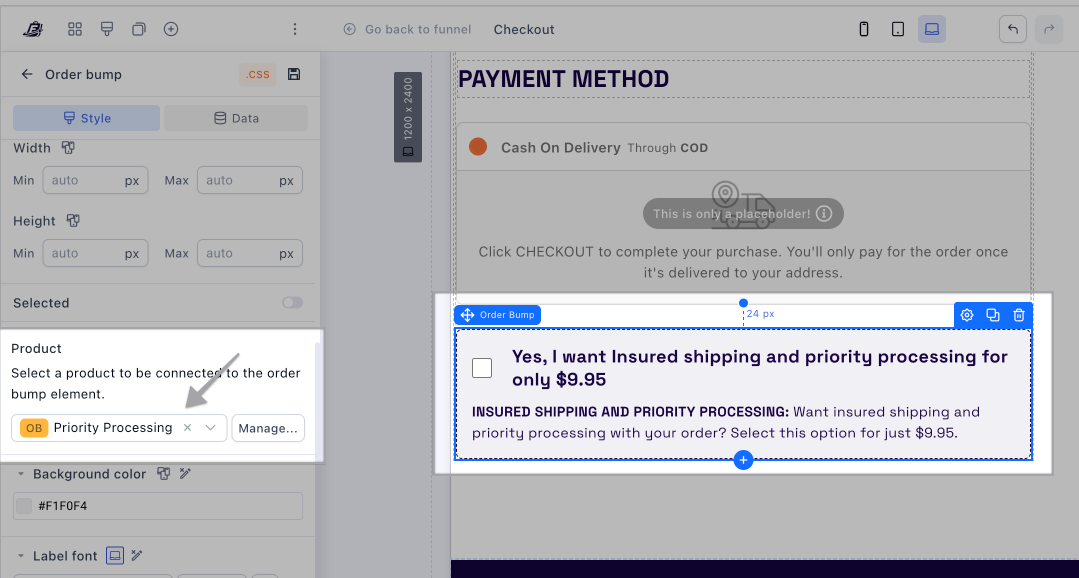
4. Review “Enable Bundling” Settings Inside Product Automation
If Enable Bundling is turned ON, Shopify receives all purchased products as a single order.
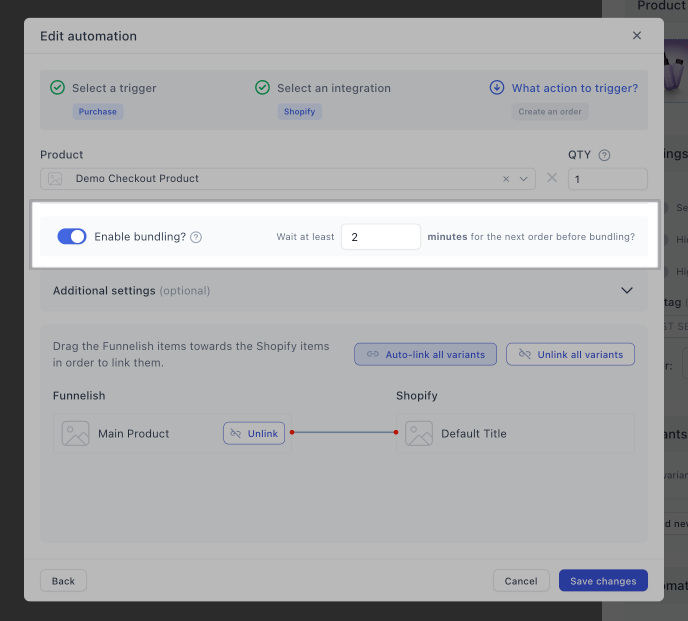
This means that if one product in the purchase has an invalid automation, the entire order can fail to sync.
To check:
-
Open the Product Automation.
-
Verify whether Enable Bundling is enabled.
-
Confirm that every product that can be purchased together has a valid Shopify automation.
This is one of the most common causes of partial syncing issues.
5. Verify Upsell/Downsell Products
If your funnel contains upsells or downsells:
-
Open the page in the Funnel Builder.
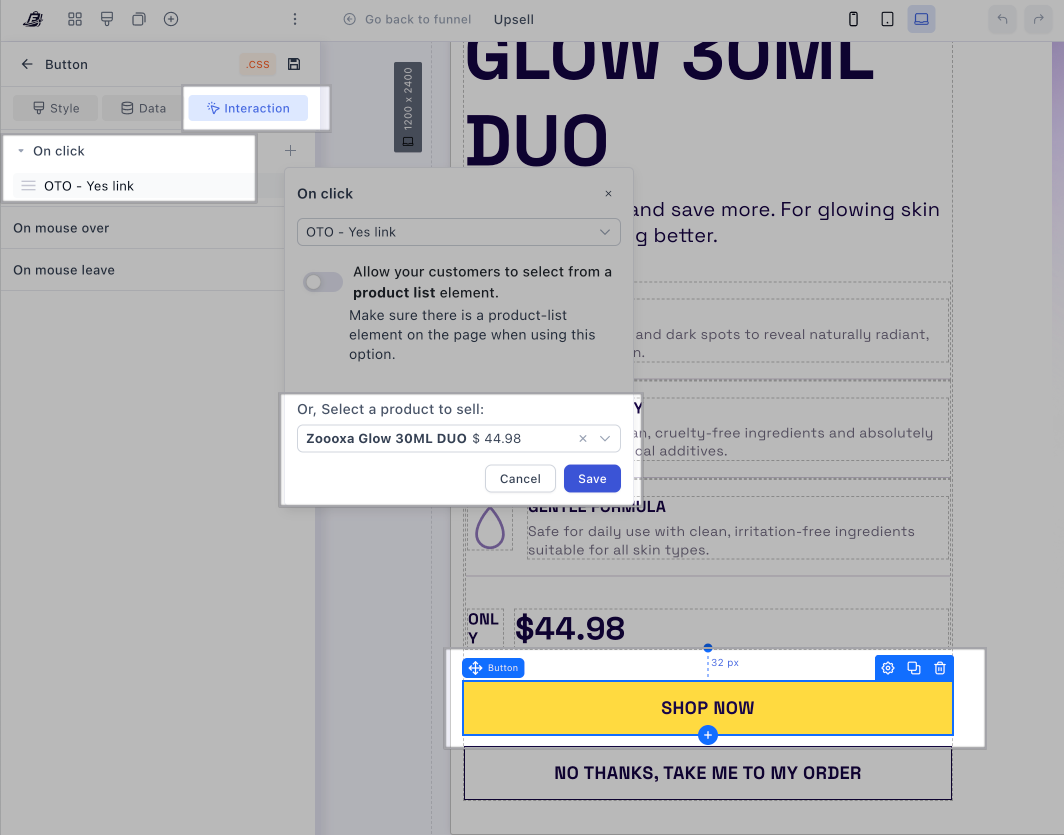
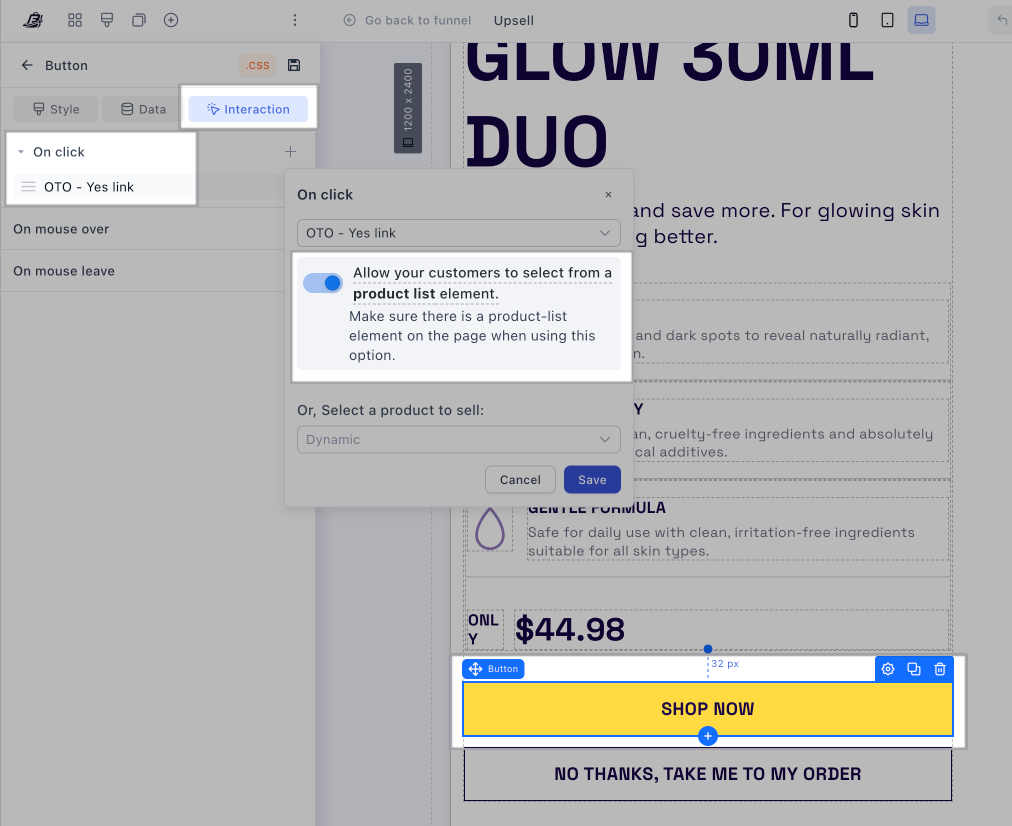
-
Click the YES / Buy button.
-
Review the assigned product.
If you’re selling only one product without any variants, the YES button should be linked to the product as shown in the example here:
If you’re selling multiple products or one product with variants, you should have a product list element and the YES button should be linked to the product as shown in the example here:
If the button shows “Undefined” or is not linked to a valid product, Shopify order creation can fail.
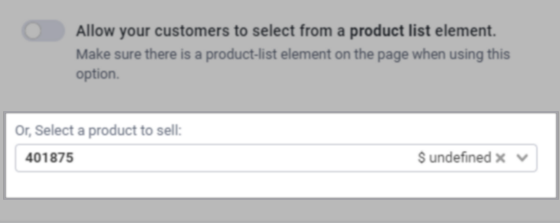
This is especially common after cloning funnels, where upsell buttons may still reference products from an older funnel.
6. Address validation - Shopify requirements
Shopify may reject orders if the State/Province field is invalid or missing.
How to prevent this
-
Set the State field to Dynamic state/province
-
Make sure to be collecting the Country Field (even if selling just to one country) To see how to do this, have a look at this post How to Customize Country Dropdown in Funnelish (Complete Guide)
-
Use “Billing same as shipping” to ensure complete address data
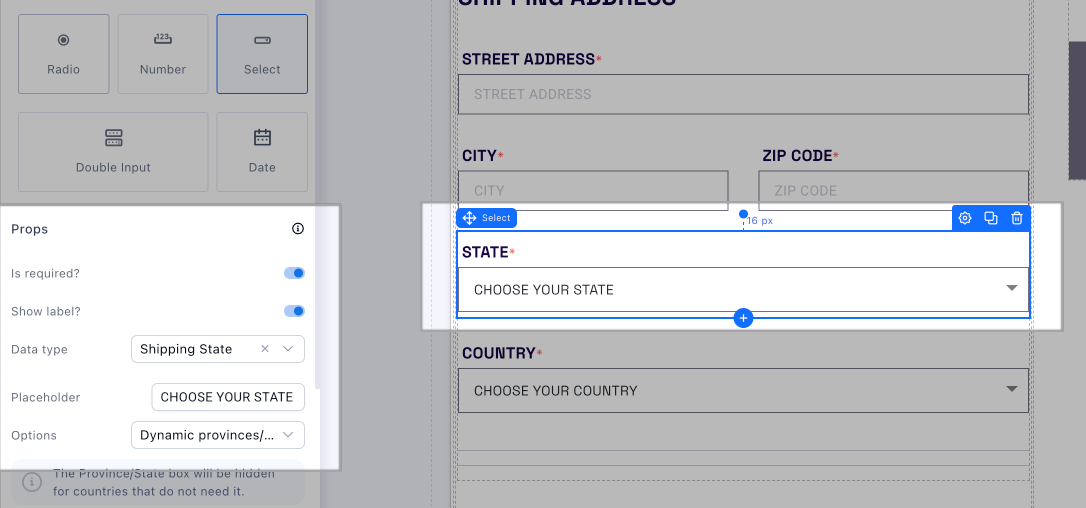
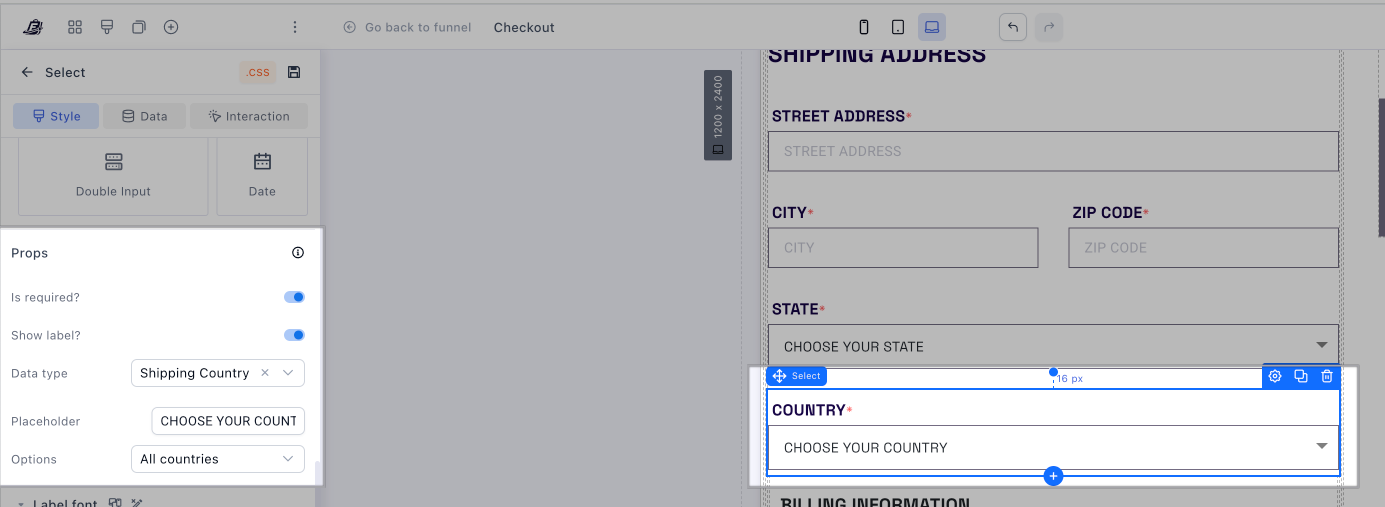
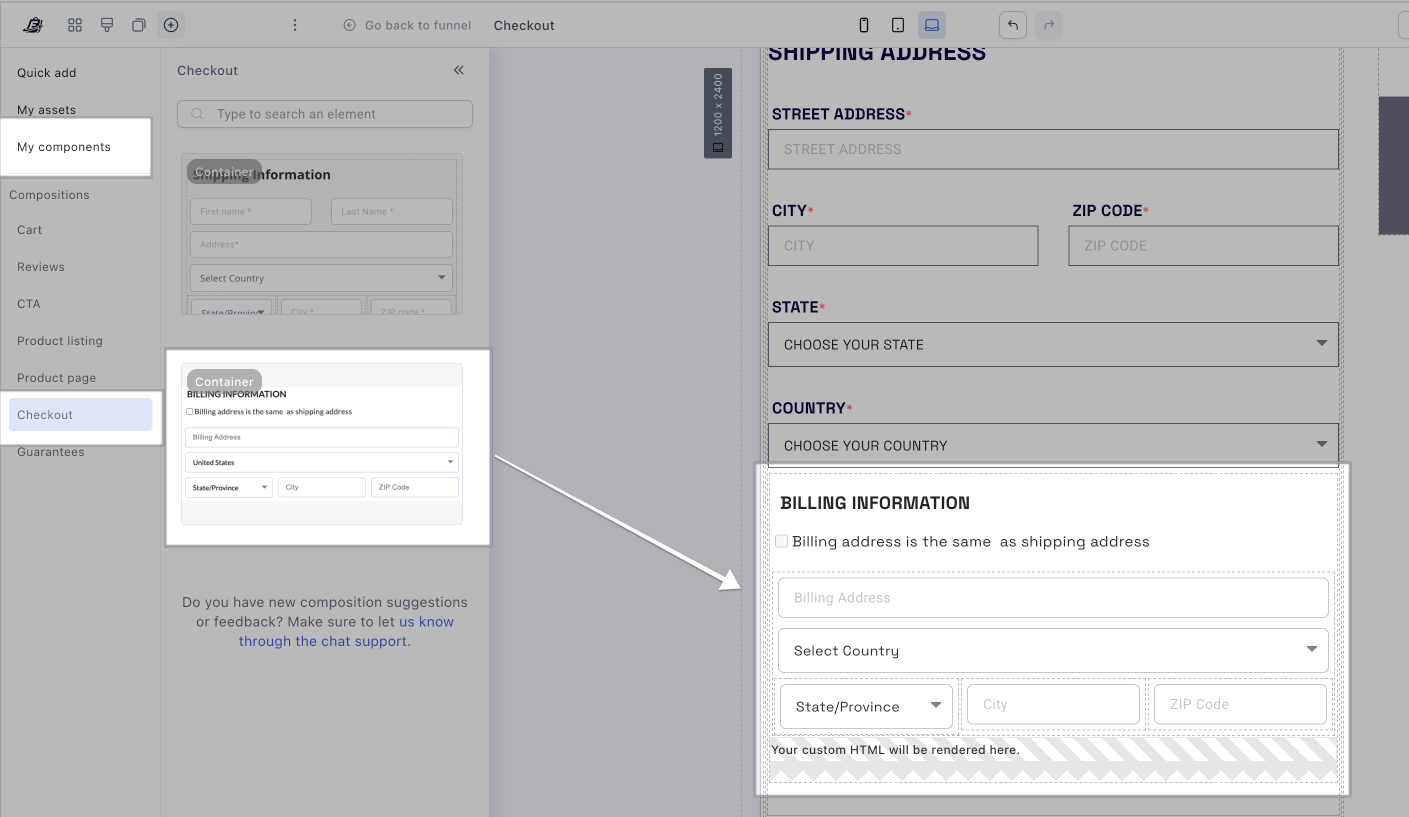
If all products are properly linked and address fields are valid, orders should sync successfully to Shopify.
7. Consider Shopify Downtime
In rare cases, Shopify may experience temporary API issues or downtime.
When this happens, orders may fail to sync even when all automations are configured correctly.
You can verify Shopify’s status here:
How to Re-Sync Failed Orders?
At the moment it’s not possible to re-sync it once the order failed to sync, however, this is something we have on our roadmap.
For now, the only way to get it into Shopify is by manually recreating the orders in Shopify.
Still Having Issues?
If you’ve completed the checks above and orders are still not syncing, send us:
-
Examples of orders that synced successfully
-
Examples of orders that failed to sync
-
Your checkout URL
-
Screenshots of your Product Automations
-
Confirmation of whether Bundling is enabled
We’ll be happy to review everything with you and help identify the exact cause.
You can reach us directly at [email protected] or simply click the chat bubble inside your Funnelish dashboard. We’re always happy to help 