If an order appears in Funnelish but never reaches Shopify, the issue is almost always related to the Shopify Product Automation setup rather than tracking, pixels, or analytics.
Before reporting the issue, go through the checks below to identify the most common causes.
1. Check Whether the Issue Affects All Orders or Only Some Orders
This is one of the fastest ways to identify the culprit.
If ALL orders are failing to sync
The issue is usually:
-
A disconnected Shopify integration
-
A product automation issue
-
Invalid checkout address configuration
-
A Shopify outage
If ONLY SOME orders are failing to sync
The issue is usually:
-
A specific product automation
-
An order bump product (go to 3. Check Order Bump Products)
-
A bundling-related configuration issue (go to 4. Review “Enable Bundling” Settings Inside Product Automation)
-
An upsell product (go to 5. Verify Upsell/Downsell Products)
-
Invalid checkout address configuration (go to 6. Address validation requirements)
Step 1: Compare Failed Orders
You can compare a synced order and a non-synced order to identify what is different between them.
Or you can grab a few examples of orders that failed to sync and look for products they have in common.
For example:
| Order | Products |
|---|---|
| Synced Order #1 | Main Product |
| Failed Order #2 | Main Product + Expedited Shipping |
| Failed Order #3 | Main Product + Expedited Shipping |
In this case, Expedited Shipping would immediately become the primary suspect.
Step 2: Check the Product Automation
Once you’ve identified a common product, review its Shopify Product Automation and confirm:
-
The Shopify product is linked correctly
-
The Shopify variant is linked correctly
-
The Shopify product still exists in Shopify
-
No variants have been deleted from Shopify
Step 3: Run a Quick Test
Another useful troubleshooting trick is to place a test order without the suspected product.
For example:
-
Test Order #1 → Main Product + Expedited Shipping
 Does not sync
 -
Test Order #2 → Main Product only
 Syncs successfully
If the order syncs when the product is removed, you’ve likely identified the product causing the issue.
This can save a lot of time before reviewing every automation in your funnel.
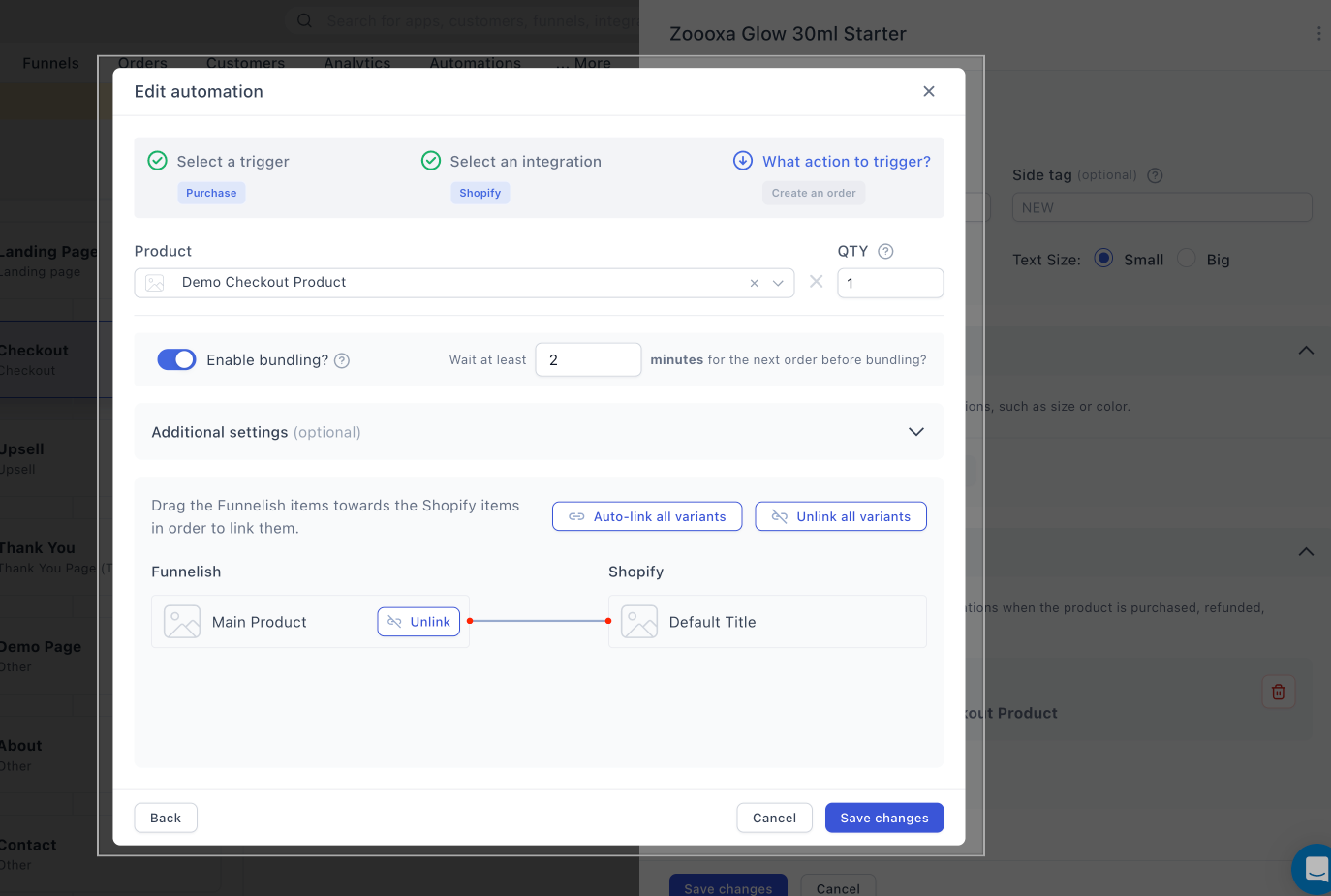
2. Verify Product Automations
If a product automation is invalid, any order containing that product may fail to sync.
Check that every product in your funnel has a valid Shopify Product Automation connected as shown in the example below:
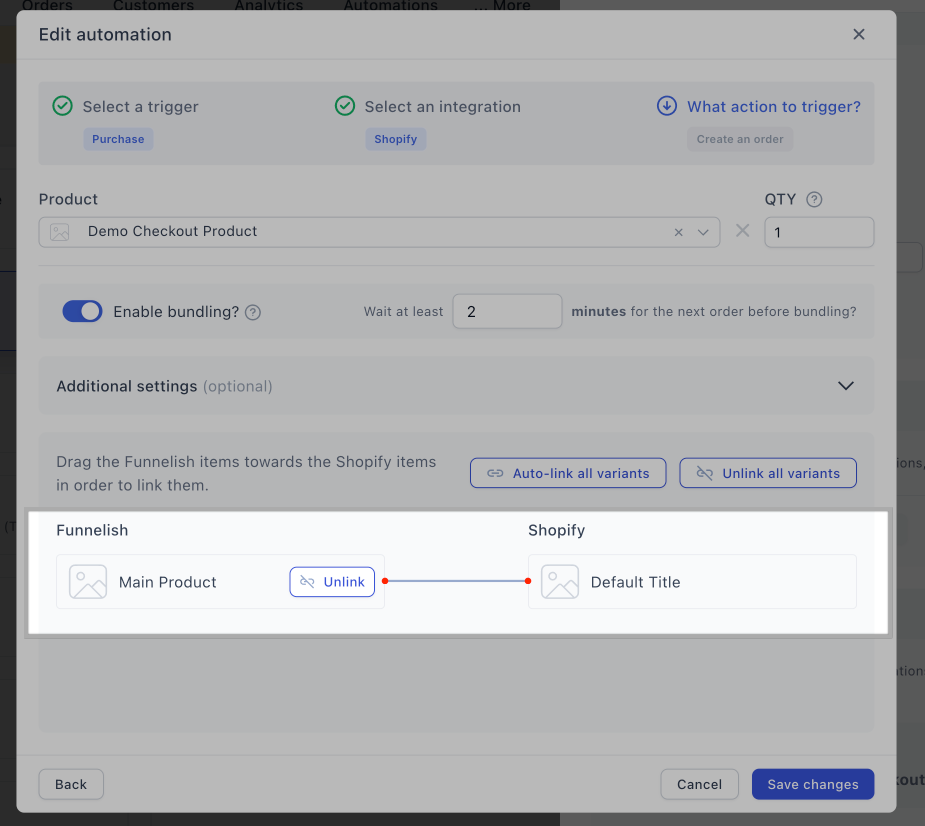
Common issues include:
-
Products not linked to Shopify
-
The automation is done correctly but the Shopify main product or variant that was connected has been deleted in Shopify.
-
Invalid or incomplete product mappings
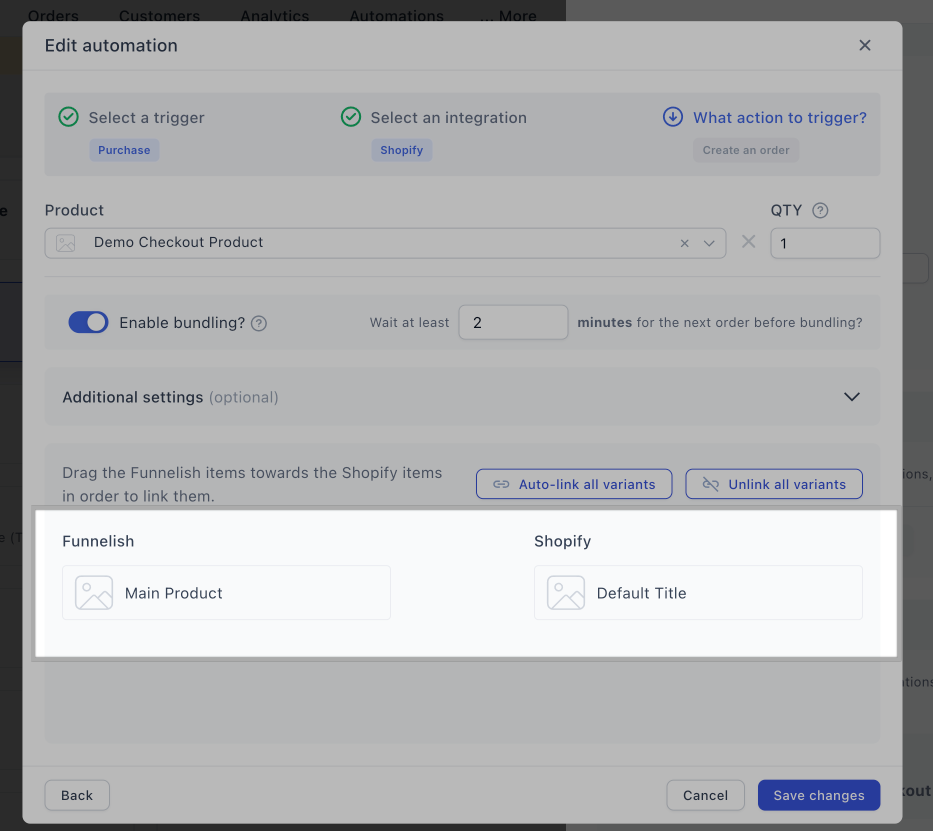
After reviewing these details and applying any needed changes, run a test purchase with the affected product to verify that the orders are now syncing as expected.
3. Check Order Bump Products
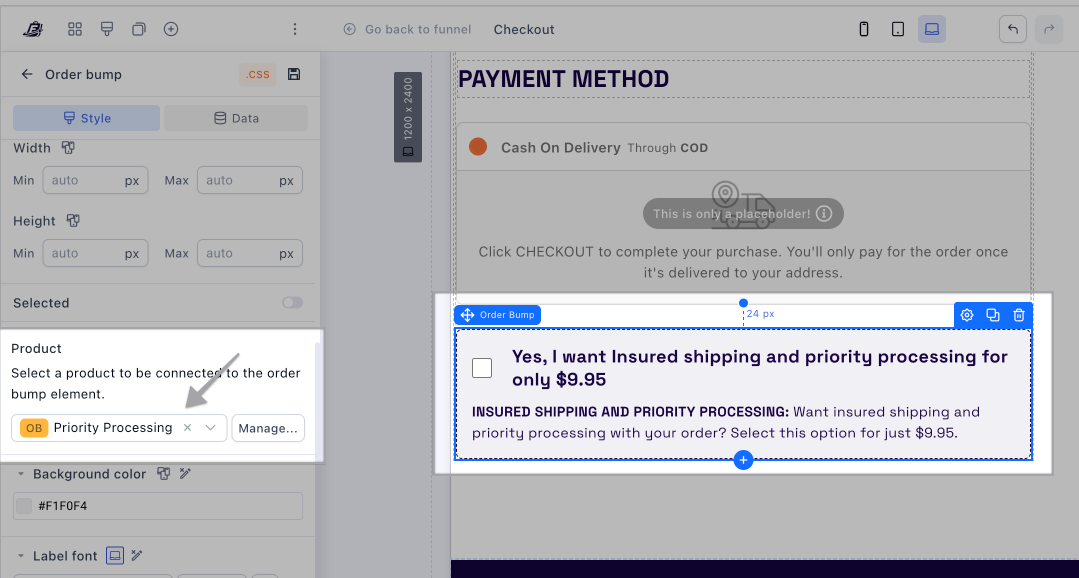
A common mistake is creating an order bump but forgetting to create the product automation and connecting it to its corresponding Shopify product.
If you’re selling additional products such as Expedited Shipping, Priority Processing, Insurance Add-ons etc., these products must also have their own Shopify Product Automation.
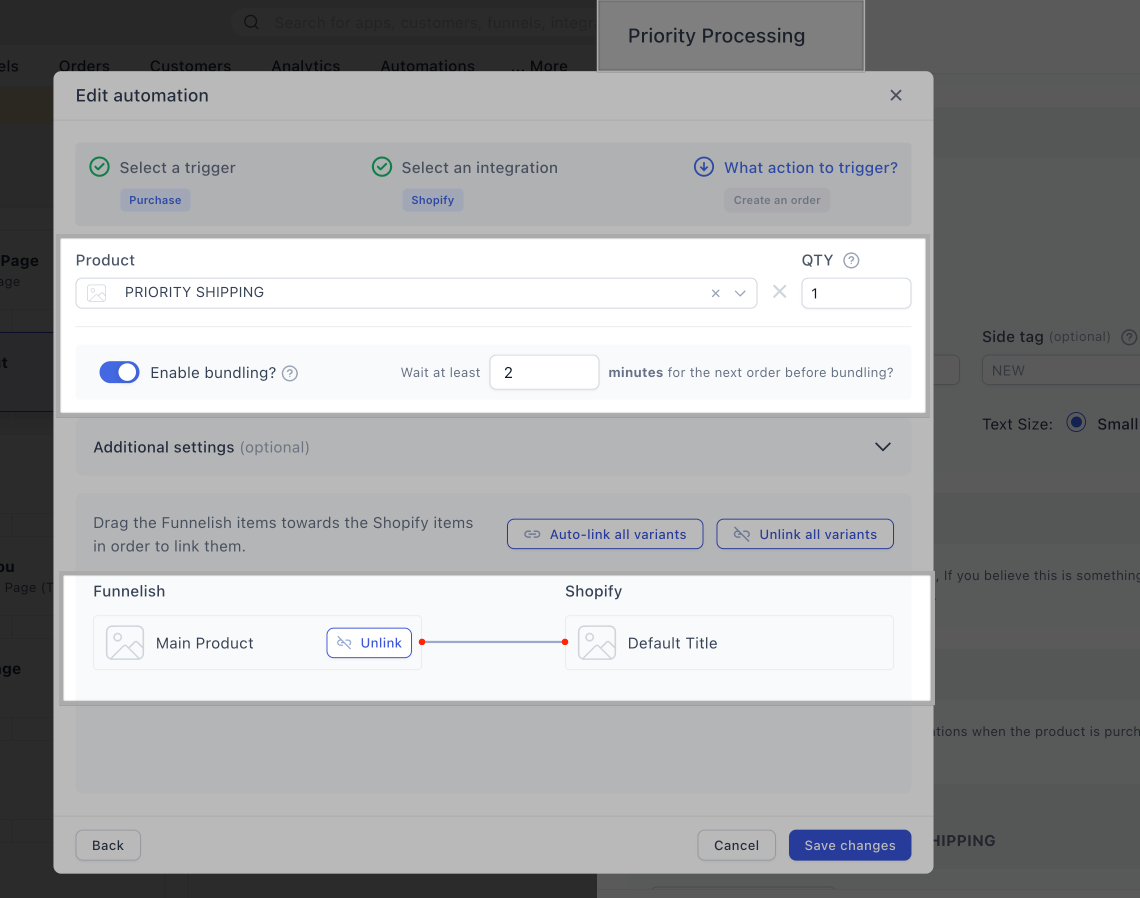
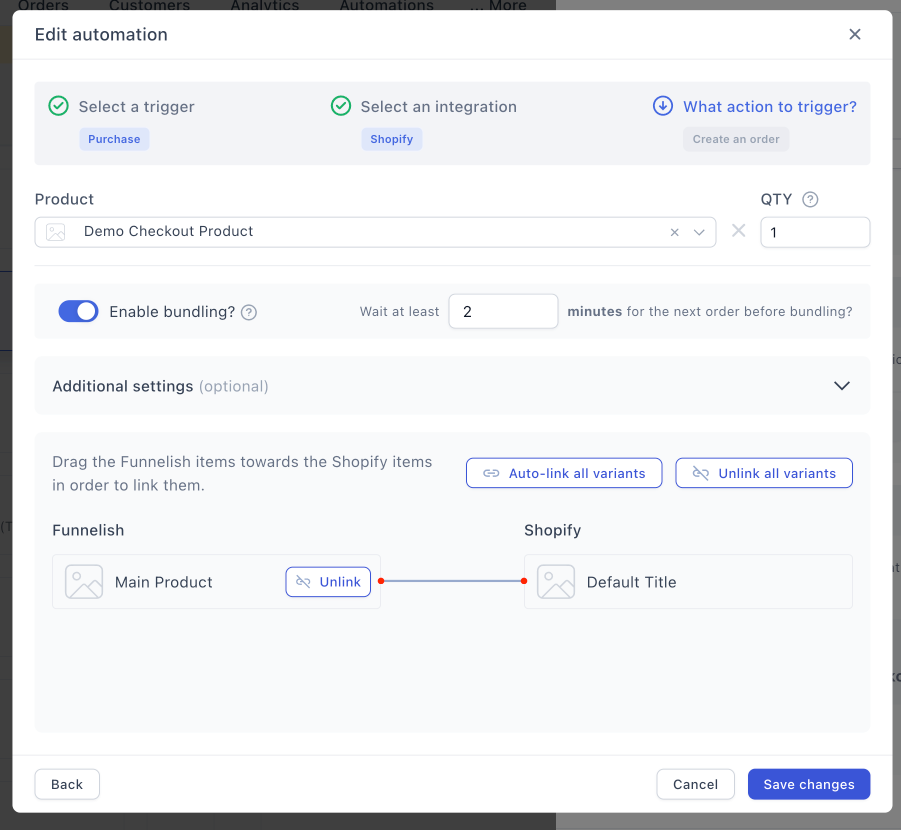
To make sure your order bumps are properly set up:
-
Edit your Checkout Page.
-
Click the Order Bump element.
-
Confirm the correct product is assigned as shown below:
-
Then click “Manage” and make sure that the linked product also has its automation
4. Review “Enable Bundling” Settings Inside Product Automation
If Enable Bundling is turned ON, Shopify receives all purchased products as a single order.
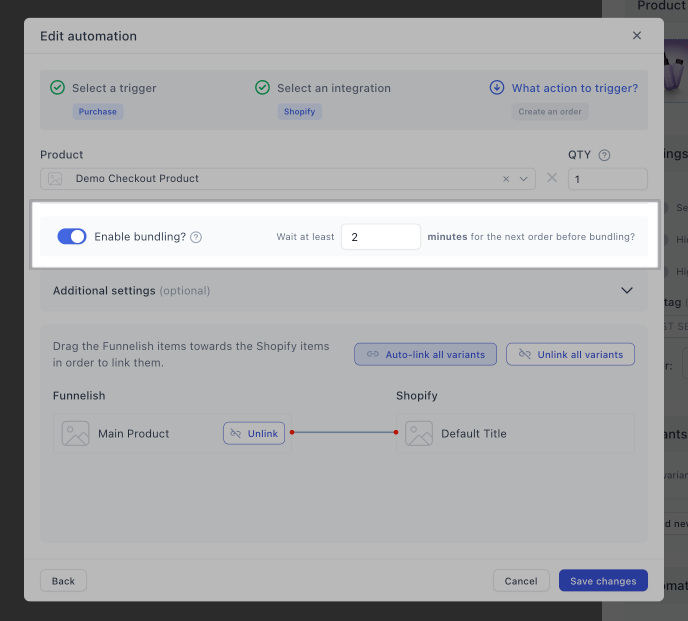
To check that all your automations are properly set up:
-
Open any product > Check the Product Automation.
-
Verify that Enable Bundling is enabled.
-
Do this with every product in your funnel.
5. Verify Upsell/Downsell Products
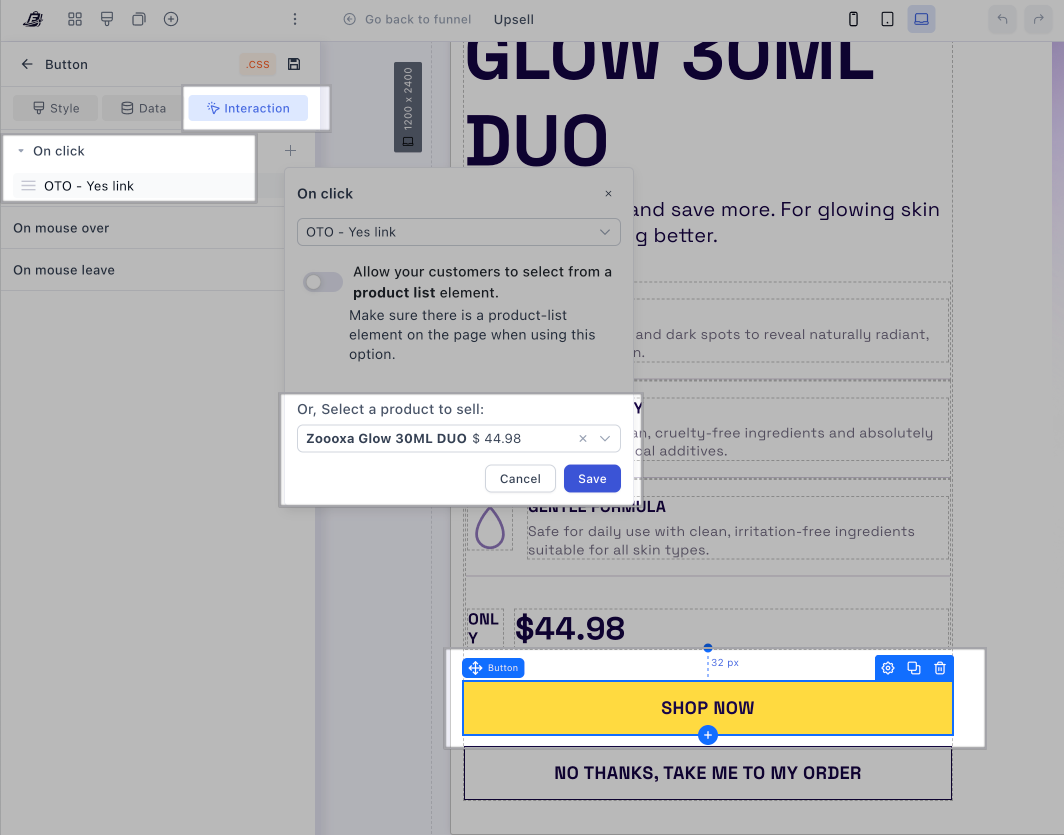
This issue is especially common after cloning funnels, where the automation was done properly but the upsell buttons may still reference products from the original funnel.
To make sure your upsells/downsells are properly set up:
-
Open the page in the Funnel Builder.
-
Click the YES / Buy button.
-
Review the assigned product.
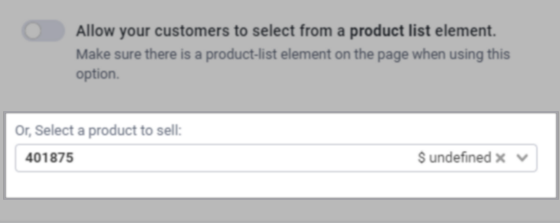
If you’re selling only one product without any variants, the YES button should be linked to the product as shown in the example here:
If you’re selling multiple products or one product with variants, you should have a product list element and the YES button should be linked to the product as shown in the example here:
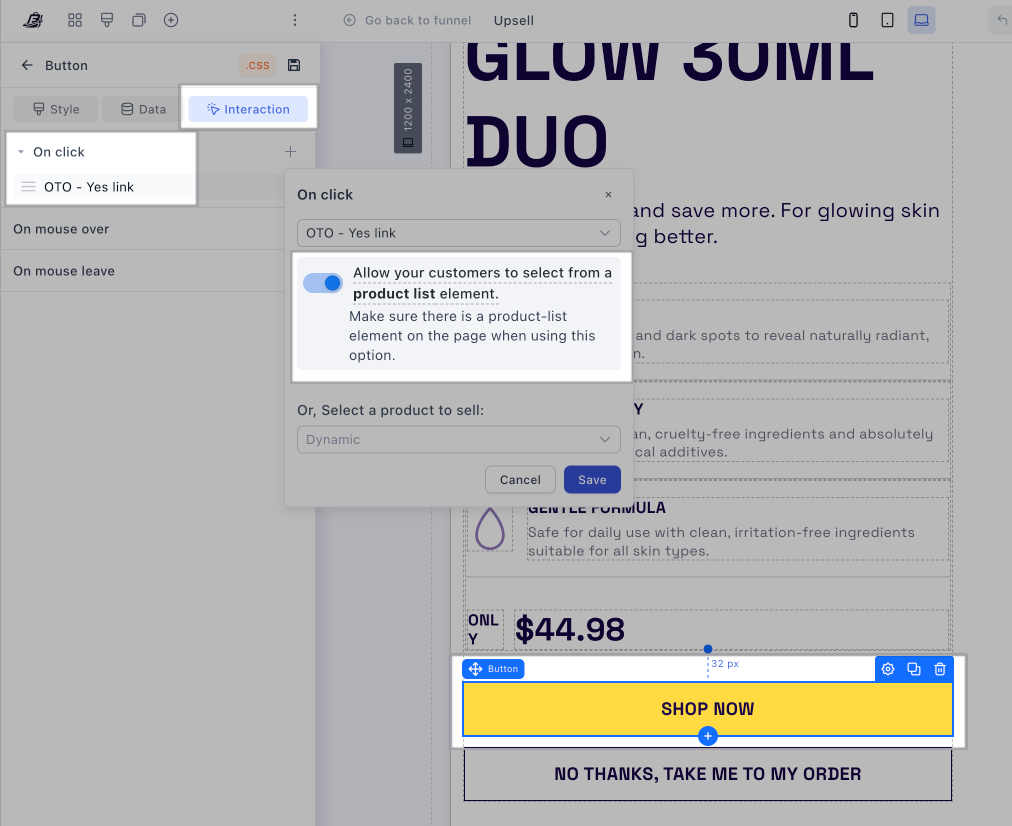
If the button shows “Undefined” or is not linked to a valid product, Shopify order creation can fail, even if the actual product has its automation.
6. Address validation - Shopify requirements
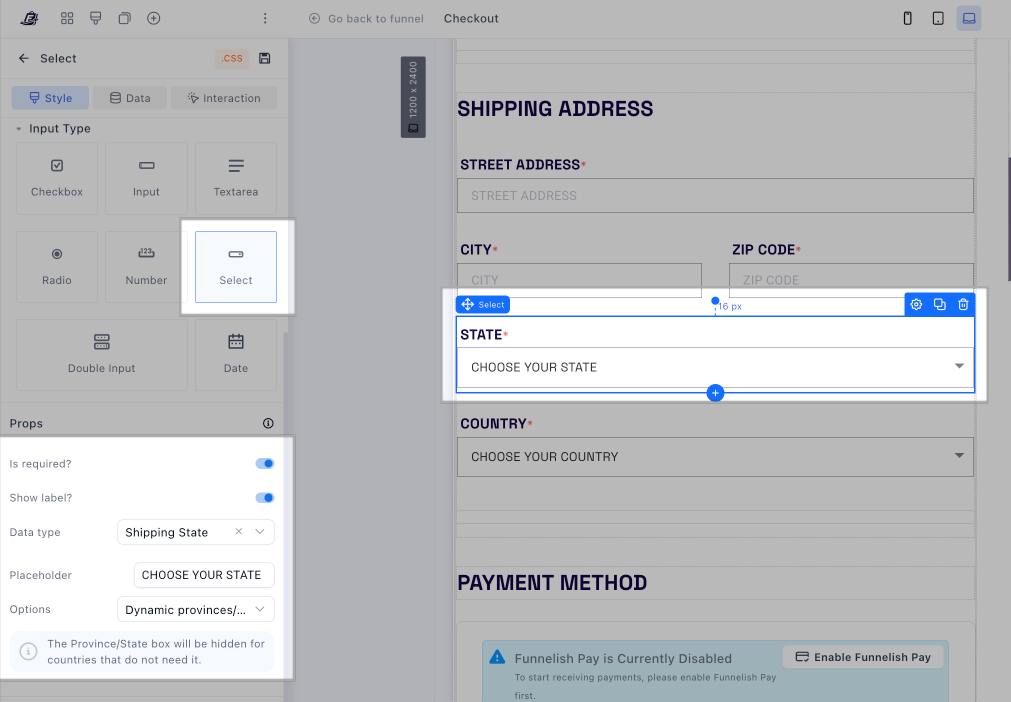
Shopify rejects orders if the State/Province field is invalid or missing.
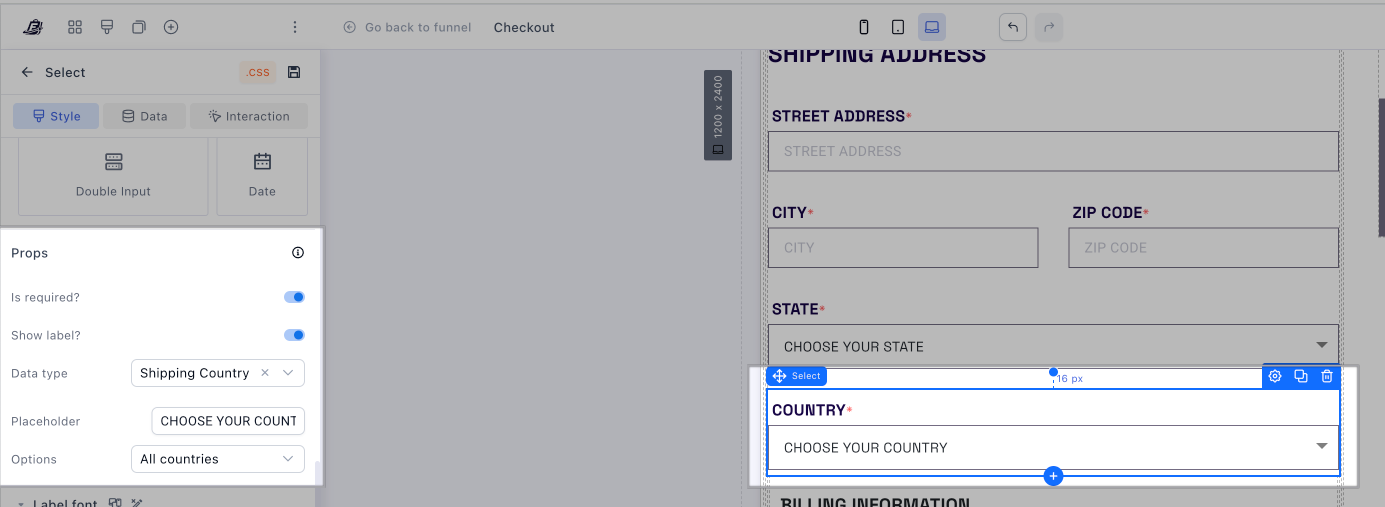
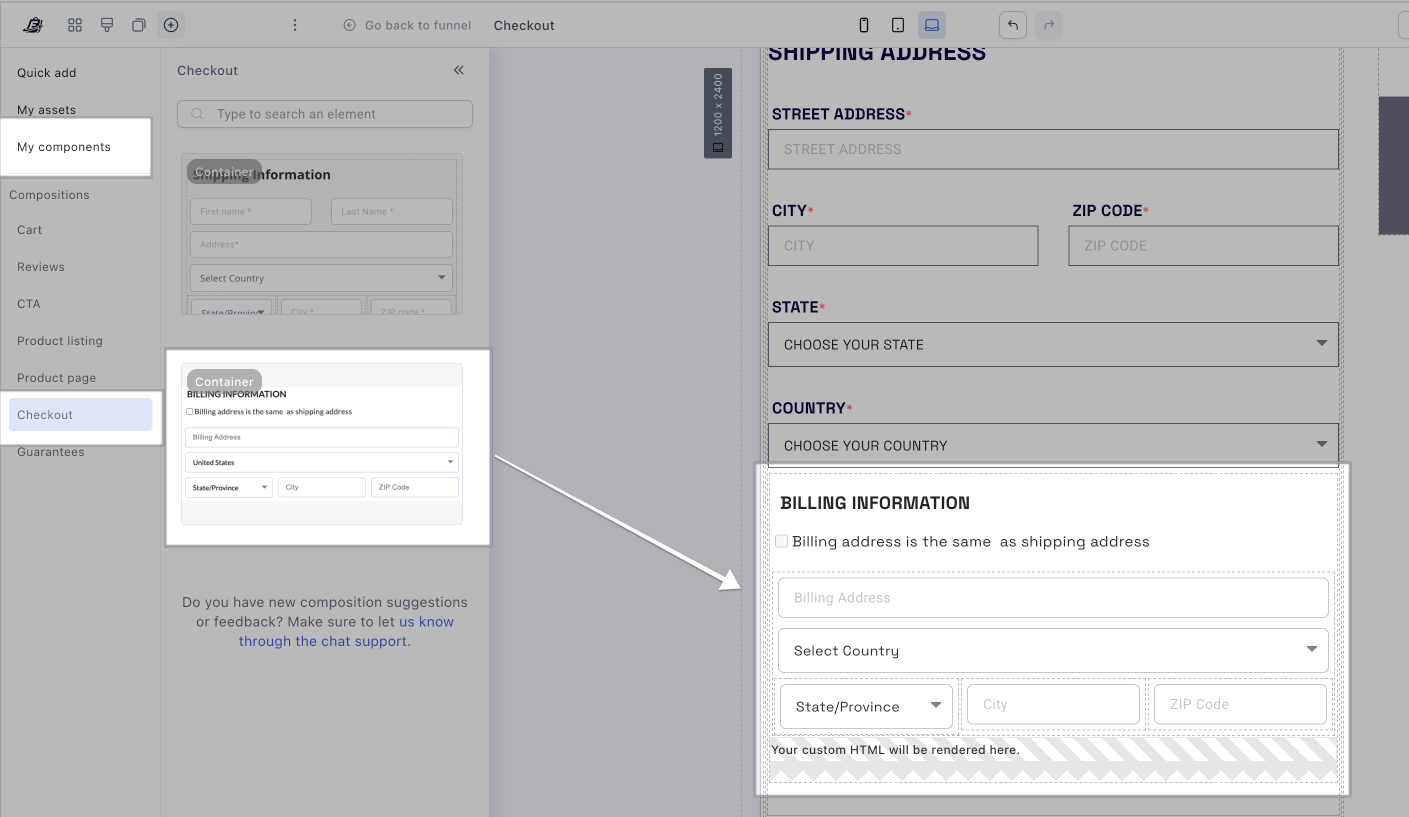
Edit your checkout page and make sure that you currently have the following settings:
-
You have a “State” field added to your checkout.
-
The State field is set to Dynamic state/province:
-
Make sure to be collecting the Country Field (even if selling just to one country). To see how to do this, have a look at this post How to Customize Country Dropdown in Funnelish (Complete Guide)
-
Use “Billing same as shipping” to ensure complete address data
7. Consider Shopify Downtime
In rare cases, Shopify may experience temporary API issues or downtime.
When this happens, orders may fail to sync even when all automations are configured correctly.
You can verify Shopify’s status here:
How to Re-Sync Failed Orders?
At the moment it’s not possible to re-sync it once the order failed to sync, however, this is something we have on our roadmap.
For now, the only way to get it into Shopify is by manually recreating the orders in Shopify.
Still Having Issues?
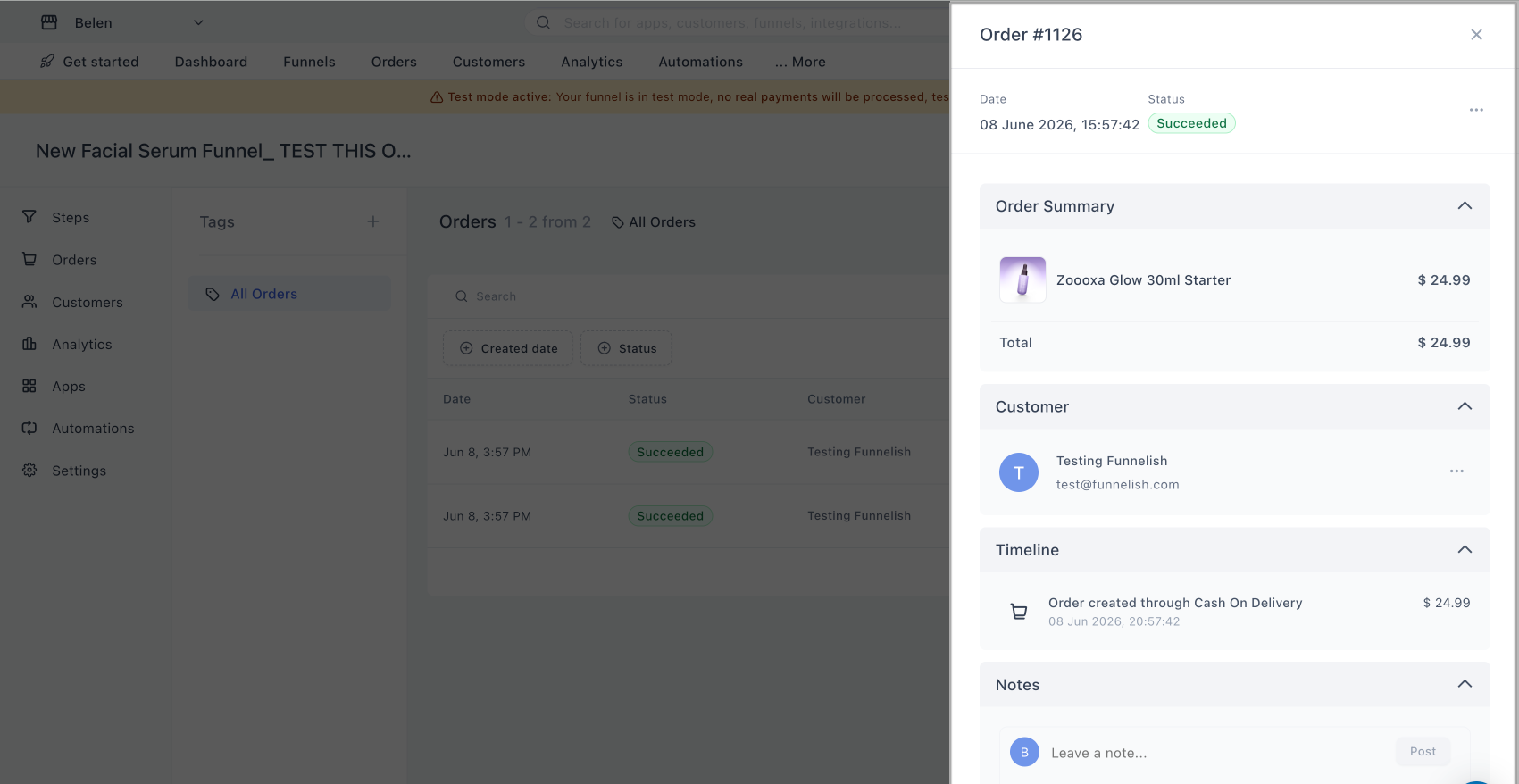
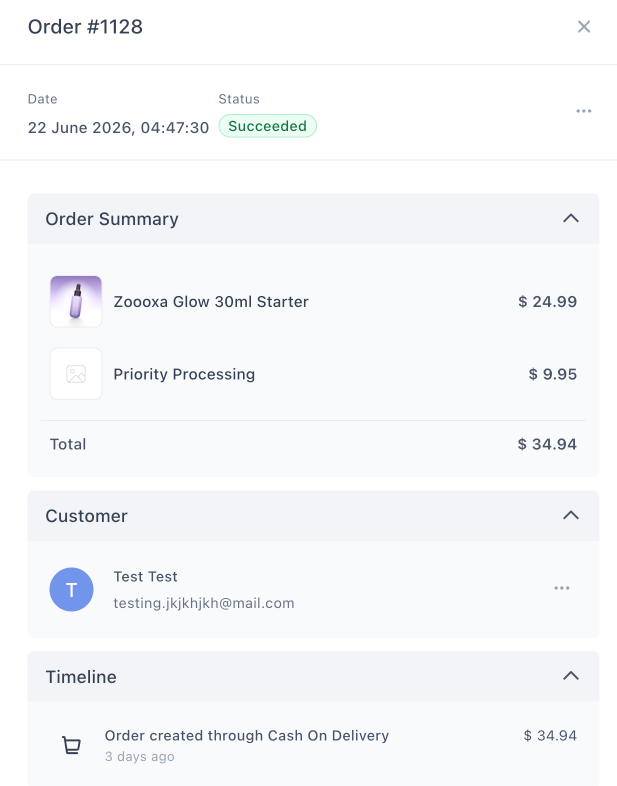
If you’ve completed the checks above and orders are still not syncing, send us:
-
2 Screenshots of orders that
synced successfully
-
2 Screenshots of orders that

failed to syncfor example:**
**
-
Your checkout URL
-
Screenshots of all your Product Automations in your funnel like this example:
-
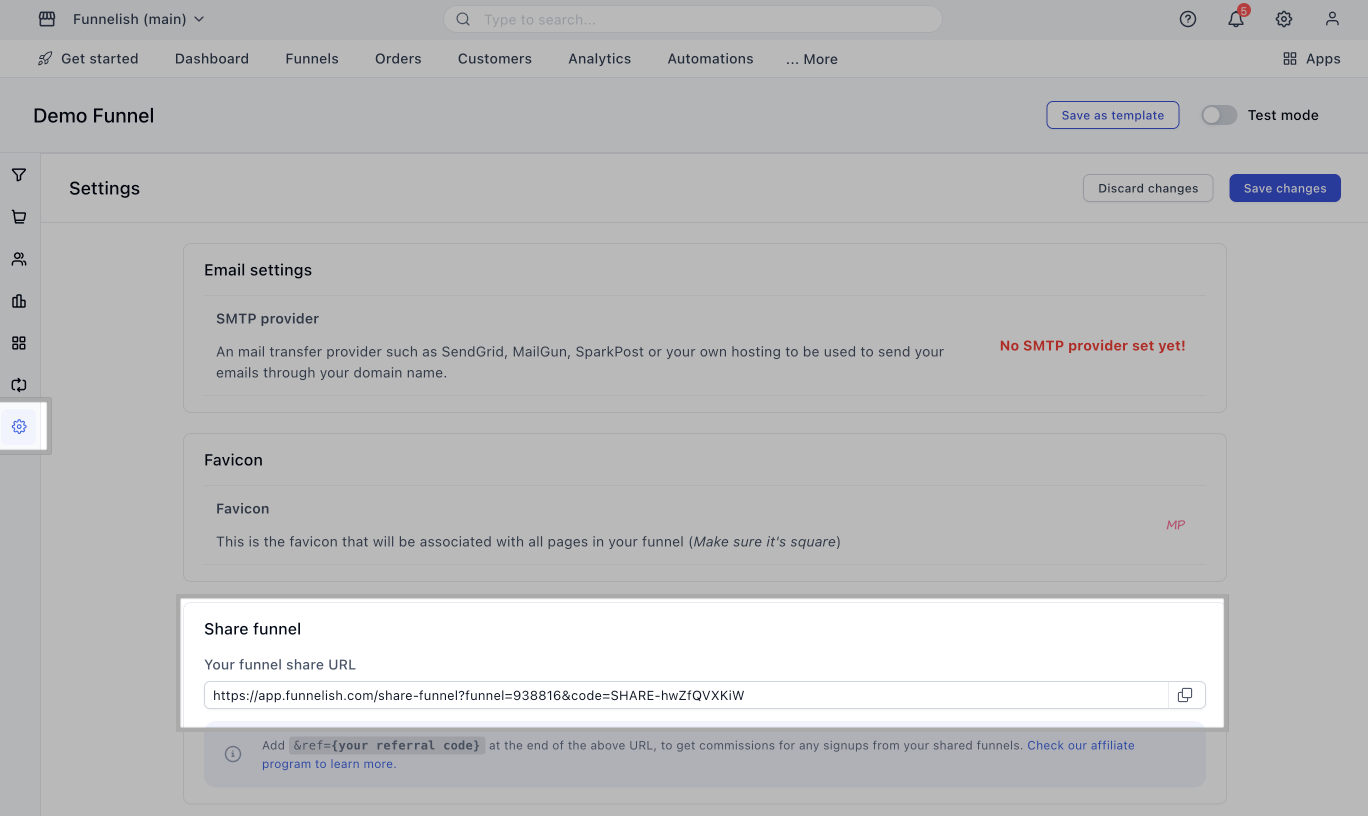
Funnel Sharelink found here:
We’ll be happy to review everything with you and help identify the exact cause.
You can reach us directly at [email protected] or simply click the chat bubble inside your Funnelish dashboard. We’re always happy to help 