This guide connects a domain managed in Shopify to your funnel. Two steps: add one DNS record in your Shopify admin, then connect the domain in Funnelish. Five minutes of work, plus DNS propagation time.
One thing before anything else: if this domain currently runs your Shopify store, use a subdomain (e.g. go.mydomain.com). Pointing the main domain at Funnelish would take it away from your store. For most Shopify users, Option 2 below is the right one. More on the difference in Connect Your Domain, and remember www. counts as a subdomain too.
Option 1: main domain (A record)
Use this only if the main domain itself (e.g. mystore.com) should open your funnel, not your store.
Pointing your main domain at Funnelish replaces whatever that domain currently serves, including your Shopify storefront.
-
In your Shopify admin, go to Settings, then Domains
-
Select the domain you want to use
-
Click Domain settings in the top corner, then Edit DNS settings
-
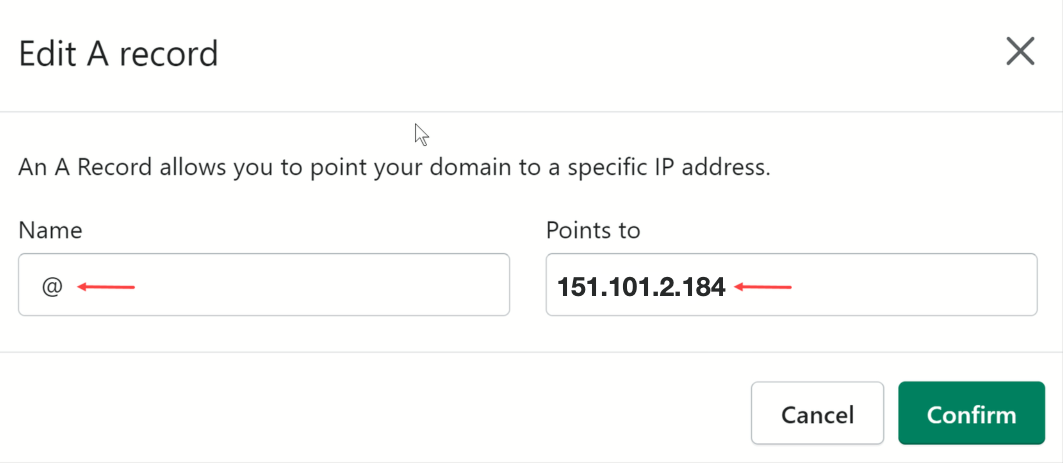
You’ll most likely find an existing A record named @, pointing to Shopify. Click Actions, then Edit next to it (if there’s no @ A record, create one)
-
Keep @ in the Name field
-
Replace the value in Points to with 151.101.2.184
-
Click Confirm
Option 2: subdomain (CNAME record)
-
In your Shopify admin, go to Settings, then Domains
-
Select the domain you want to use
-
Click Domain settings in the top corner, then Edit DNS settings
-
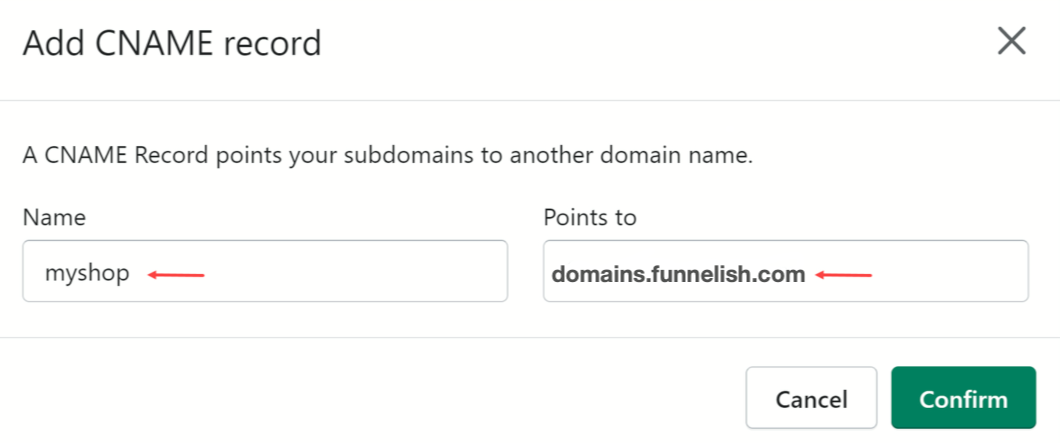
Click Add custom record and select CNAME record
-
Enter your prefix in the Name field: for
go.mystore.comenter onlygo(same rule forwww) -
Enter domains.funnelish.com in the Points to field
-
Click Confirm
Shopify DNS changes usually apply in under an hour, but can take up to 24 hours. Once they’re live, continue below.
Connect the domain in Funnelish
-
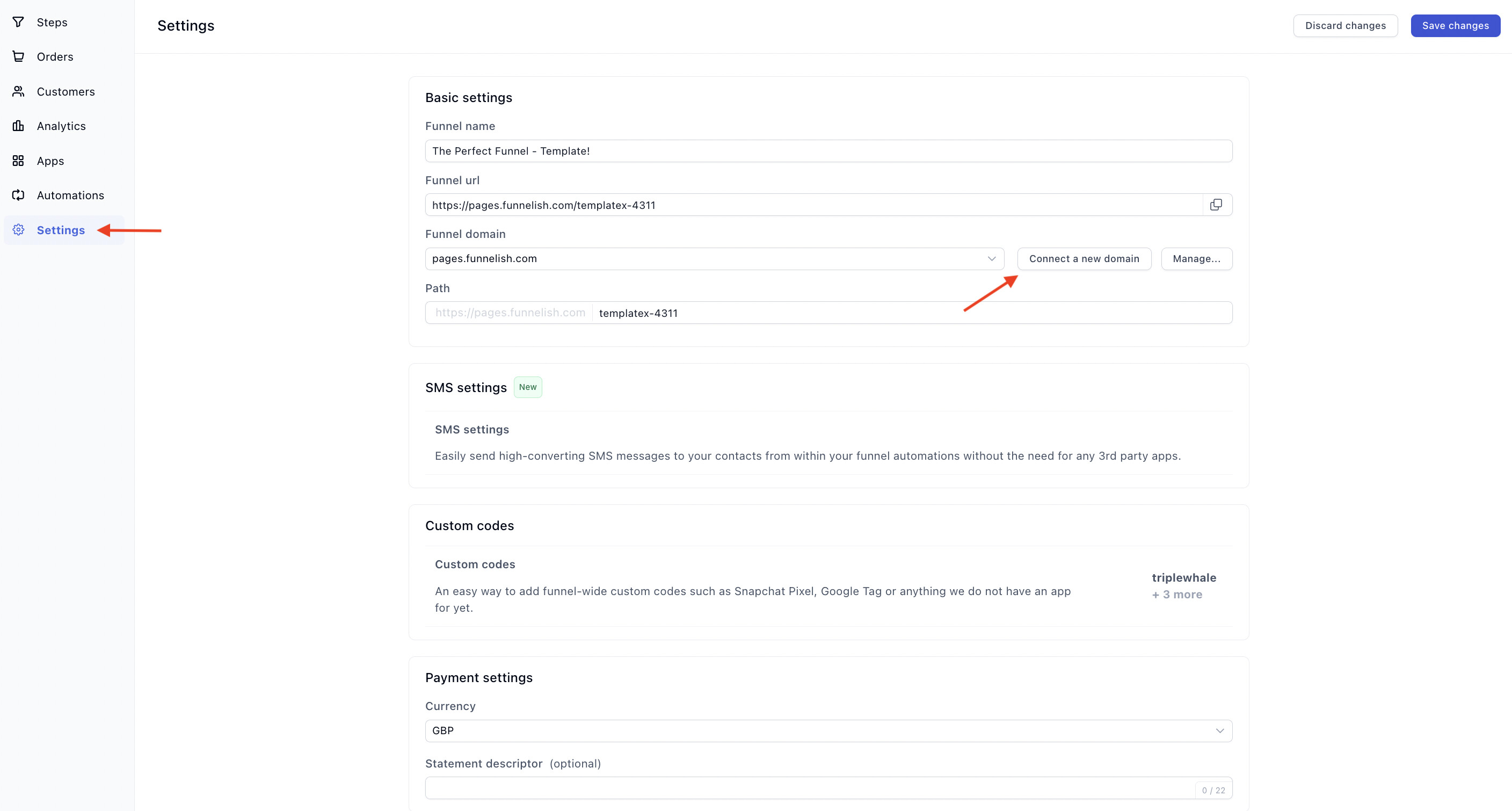
Open the funnel you’re connecting and click the Funnel Settings icon
-
Under Funnel Settings, click Connect a new domain and enter your domain
Enter it exactly as you configured it:
-
Subdomain: write it in full, e.g.
go.mydomain.com -
Main domain: write the naked domain, e.g.
mydomain.com, withoutwww
-
Click Connect, then Verify
-
Once verified, pick the new domain from the Domain dropdown and click Save changes
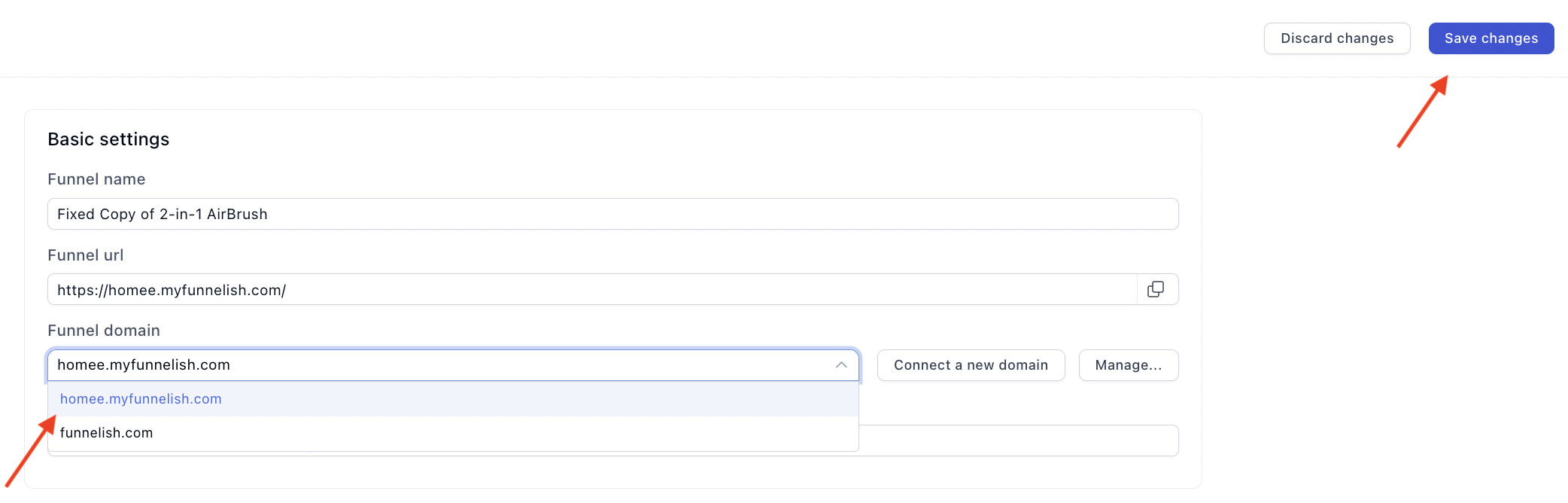
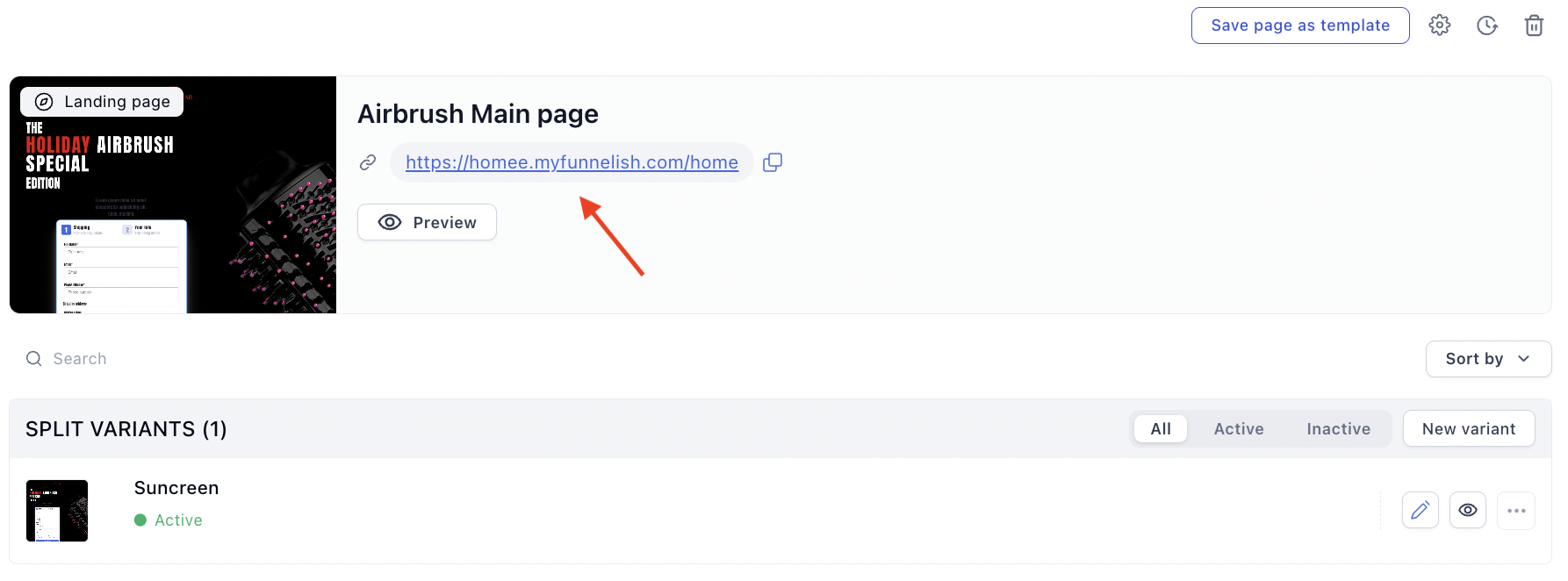
Funnelish updates the funnel’s URL automatically:
If verification fails
DNS propagation is the usual cause: wait a few minutes and click Verify again (in rare cases it takes a few hours). If it still fails after that, re-check your records against the steps above, then see Common Domain Setup Issues & How to Fix Them. All in order and still stuck? Contact support and we’ll take a look.
Selling on your funnel and fulfilling on Shopify? Set up the Shopify integration next.
Setting up a different host? See GoDaddy or Namecheap, or Connect Your Domain for Cloudflare.