If your domain isn’t connecting to Funnelish, the error shown during verification usually tells you exactly where the problem is.
Find the error you’re seeing below and work through the recommended checks.
Quick Reference
| Issue/Error | Most Likely Cause | Most Common Causes |
|---|---|---|
 No Such Host No Such Host |
DNS record missing or incorrect | DNS record not added Incorrect DNS record Wrong domain added in Funnelish |
 Invalid DNS CNAME Record Invalid DNS CNAME Record |
CNAME configuration issue | CNAME Record has typo or not pointing correctly to Funnelish Duplicate/conflicting CNAME records |
 Invalid DNS A Record Invalid DNS A Record |
A Record configuration issue | Other existing A Records AAAA Records GoDaddy root domain limitations |
 Page Shows “Not Secure” Page Shows “Not Secure” |
SSL certificate cannot be applied | Hostinger CAA Record conflict Cloudflare not proxied AAAA Records existing A Records pointing elsewhere All settings correct, just need to wait a few minutes after verification |
Error: “No Such Host”
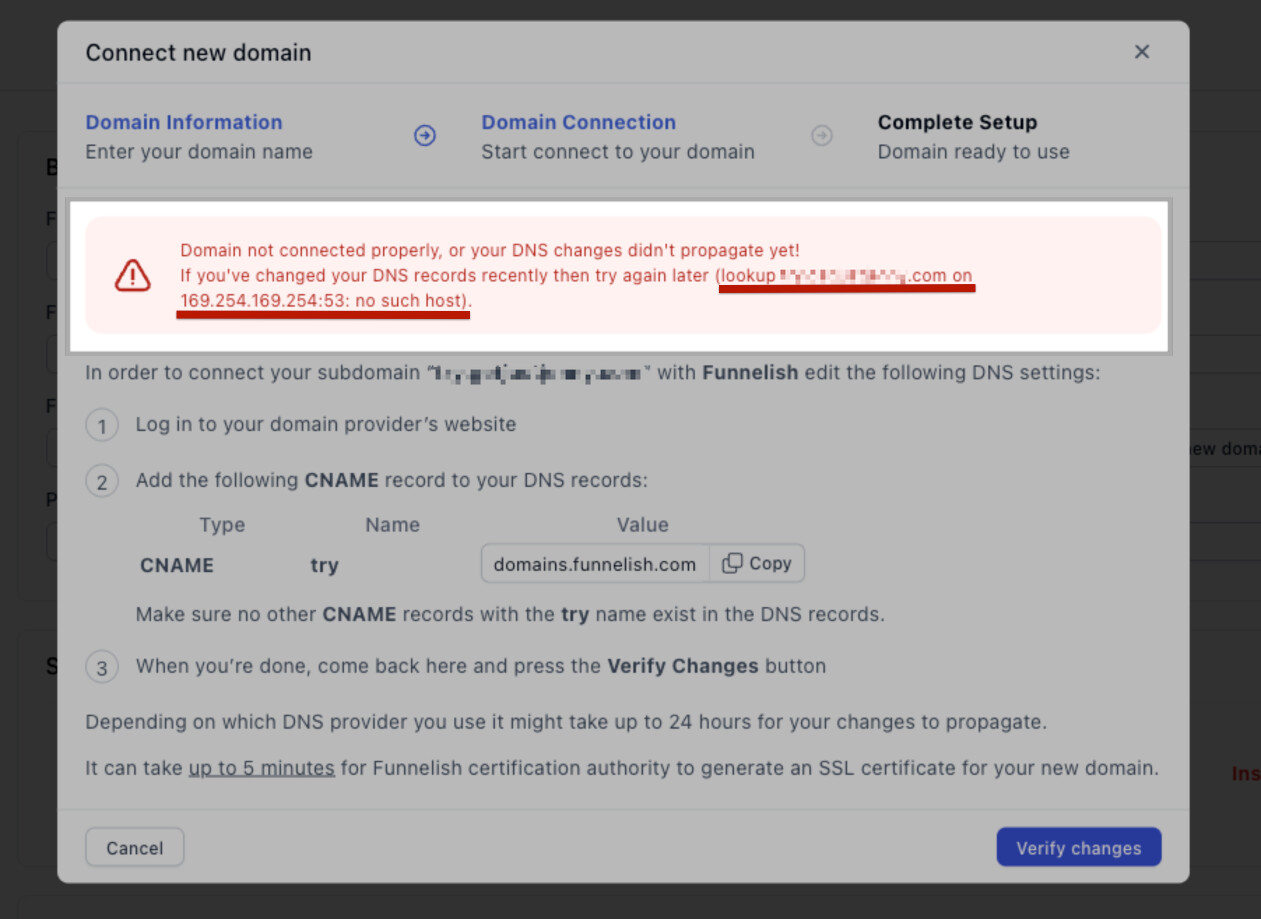
Common Causes & Fixes
1. Cause: The domain added in Funnelish doesn’t match the DNS record
Example:
- You created:
offers.yourdomain.com - But inside Funnelish you added:
yourdomain.com
Fix: The domain entered in Funnelish must exactly match the DNS record you created.
2. Cause: The DNS record was never created
3. Cause: The DNS record was created incorrectly
- Record Type
- Name
- Value
Error: “Invalid DNS CNAME Record”
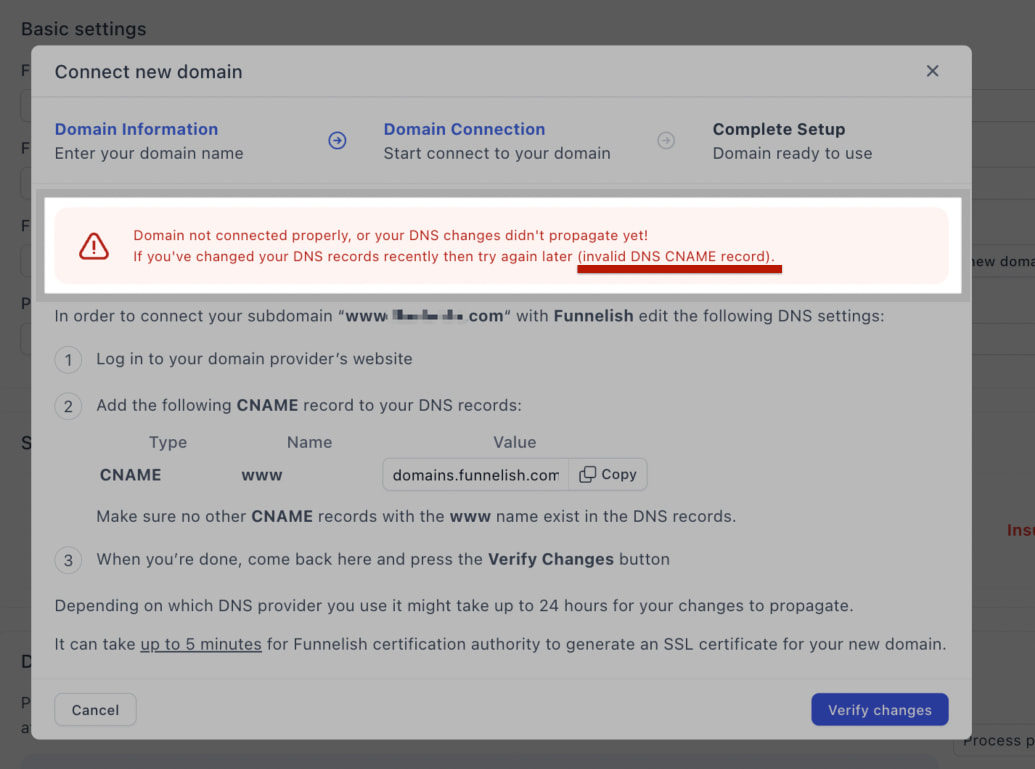
What it means
The CNAME record exists but isn’t set up correctly.
Common Causes & Fixes
1. Cause: The CNAME of your subdomain is pointing somewhere other than Funnelish
Your CNAME should point to domains.funnelish.com
2. Cause: Conflicting CNAME records exist
A hostname can only have one CNAME record.
 You cannot have multiple subdomains with the same CNAME record:
www
3. Cause: DNS propagation is still in progress
If you set up everything correctly, it could be that the DNS changes haven’t propagated yet.
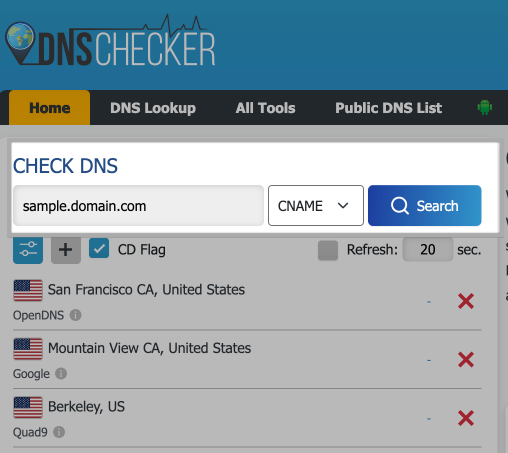
You can check by clicking here: https://dnschecker.org/
Then add your subdomain and choose CNAME record as shown in the example below
If you see a couple of
and a couple of
it means it’s still propagating.
If you see all
Error: “Invalid DNS A Record”
What it means
The root domain isn’t pointing to Funnelish correctly.
Common Causes & Fixes
1. Cause: The main domain you added is also pointing somewhere else instead of Funnelish
For example:
| Type | Name | Value |
|---|---|---|
| A | @ | 23.227.38.65 (Shopify IP) |
| A | @ | 151.101.2.184 (Funnelish IP) |
A root/main domain can only point to one destination at a time.
There are 3 ways to fix this:
- Leave the A Record for Shopify
- Delete the A Record that was pointing to Funnelish
- Create a subdomain for Funnelish instead.
Example:
offers.yourdomain.com
shop.yourdomain.com
go.yourdomain.com
- Leave the A Record for Funnelish
- Delete the A Record that was pointing to Shopify
- Then create a subdomain for Shopify instead.
- Leave the A Record for Shopify
- Delete the A Record that was pointing to Funnelish
- Buy a new domain specifically for Funnelish and use that one to connect it as a main domain.
2. Cause: AAAA records exist
AAAA records can interfere with the A Record Funnelish uses.
- Delete all AAAA records associated with the domain you’re connecting.
- Go to Funnel Settings → Domains → Manage Domains
- Remove the domain
- Add it again
3. Cause: GoDaddy root domain limitation
Some GoDaddy domains contain system-managed A Records that cannot be removed.
Example:
offers.yourdomain.com
shop.yourdomain.com
go.yourdomain.com
Error: Page Shows “Not Secure”
What it means
Your domain has been verified, but Funnelish cannot apply the SSL certificate.
Common Causes & Fixes
1. Cause: Hostinger CAA conflict
Some Hostinger accounts contain CAA records that prevent SSL certificates from being issued.
Step 1: Remove any existing CAA records.
Step 2: Create:
Setting Value Type CAA Name @ Value certainly.com Flag 0 Tag issue or issuewild
Step 3: Wait for a few minutes then check your page in an incognito window after 10’
2. Cause: AAAA records exist
AAAA records can interfere with SSL certificate issuance.
Wait for a few minutes then check your page in an incognito window after 10’
3. Cause: Existing A Record points somewhere else
If the root domain is still pointing to another service, SSL issuance will fail.
Examples:
-
Shopify
-
Other websites
Wait for a few minutes then check your page in an incognito window after 10’
4. Cause: SSL certificate is still being generated
If all these details have been checked and your domain has been, it just takes a bit more time for the SSL certificate.
Helpful Setup Guides
If you’re setting up a domain for the first time, follow the guide for your provider:
Using the correct guide from the start prevents most domain verification issues.
Still Not Working?
Drop a comment below or contact support and at [email protected] or simply click the chat bubble inside your Funnelish dashboard and include:
- Your domain or subdomain
- Screenshot of your DNS records
- Screenshot of the Funnelish verification window
These screenshots usually allow us to identify the issue quickly and help you with the next steps.
We’ll be happy to review everything with you and help identify the exact cause. 