Once your funnel is built and tested on your free Funnelish subdomain, connect your own domain. You have two options:
-
Main domain:
sampledomain.com -
Subdomain:
shop.sampledomain.comorwww.sampledomain.com
The rule of thumb: a main domain can only point to one place. If yours already serves a website (your Shopify store, your brand site), use a subdomain for Funnelish. If you bought the domain just for your funnels, either option works.
Main domain vs subdomain
Think of your domain as one building with one main entrance: the main domain is the entrance, and subdomains are the shops inside. Each shop has its own purpose, but they all belong to the same building, and the entrance can’t lead to two different buildings at once.
| Main domain | Subdomain | |
|---|---|---|
| Example | example.com |
shop.example.com |
| DNS record type | A record | CNAME record |
| Points to | An IP address | A URL (domains.funnelish.com) |
| Name field | @ |
The prefix, e.g. shop |
Connect a main domain (A record)
-
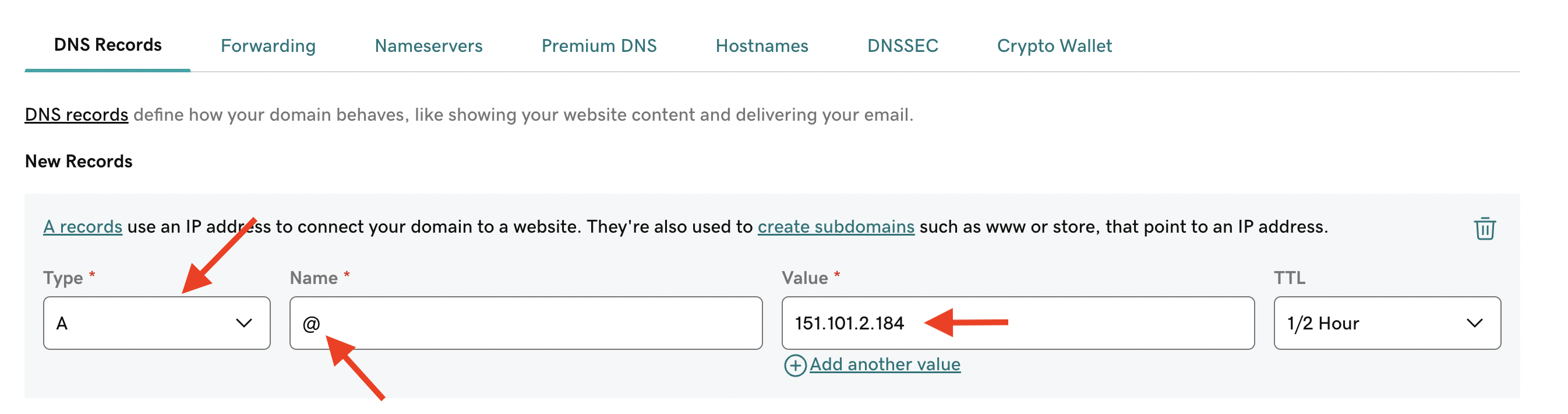
Go to your domain host and create (or edit) an A record
-
Enter @ in the Name field
-
Enter 151.101.2.184 in the Points to / Value field
Connect a subdomain (CNAME record)
-
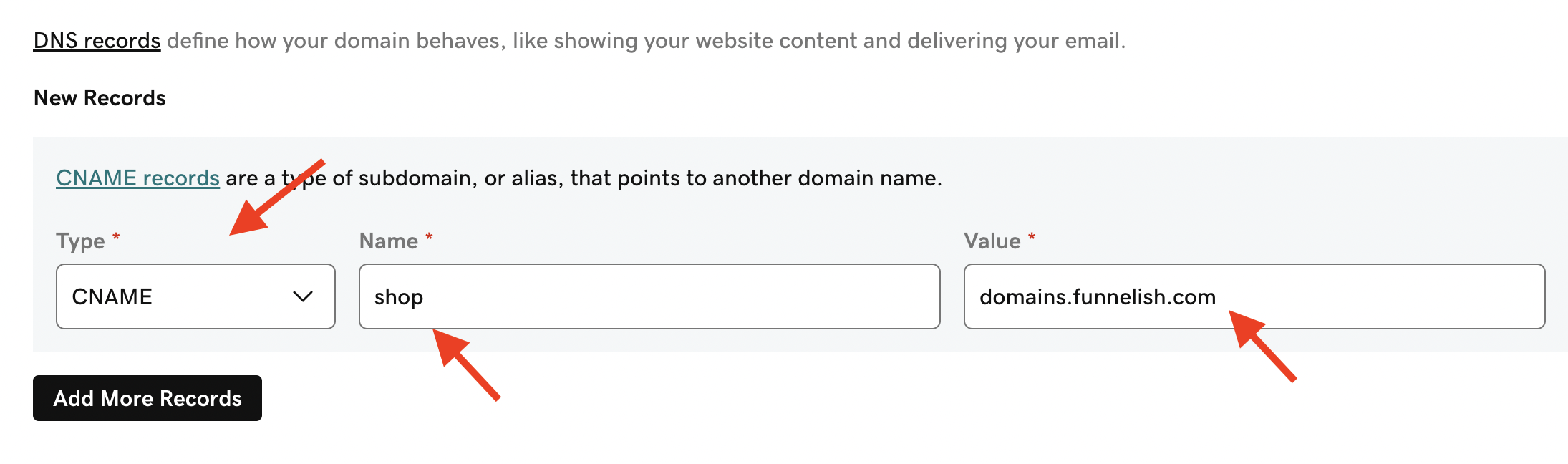
Go to your domain host and create (or edit) a CNAME record
-
Enter your subdomain prefix (e.g.
shop) in the Name field -
Enter domains.funnelish.com in the Points to / Value field
Make sure no other A, AAAA or CNAME record uses the same Name, or the connection will fail. Two A records both named
@is the most common mistake: delete or edit the old one instead of adding a second.
DNS changes usually take effect within minutes, but can take up to 24 hours to propagate worldwide.
Your free Funnelish subdomain
Every account includes a free .myfunnelish.com subdomain, so you can test and share funnels before connecting a custom domain. To change it:
-
Click the settings icon in the top right corner and open Account settings
-
Open the Funnelish Subdomain section
-
Enter a new subdomain name and click Save changes
SSL (HTTPS)
Funnelish generates an SSL certificate automatically for every domain you connect, free, usually within five minutes. There’s nothing to buy and nothing to renew: certificates are issued and renewed for you through Certainly, our certificate authority.
Still seeing an insecure connection warning after connecting? Your domain is likely blocking the certificate from being issued. Here’s why: some DNS providers add a CAA record to your domain, a record that lists which certificate authorities are allowed to issue certificates for it. If Certainly isn’t on that list, the certificate request is rejected and your domain stays on an insecure connection. This mostly happens on smaller DNS providers or on domains with older security setups; most domains have no CAA records at all and get their certificate without any extra step.
The fix is one record that authorizes Certainly for your domain:
| Type | Name | Value |
|---|---|---|
| CAA | @ |
certainly.com |
If your DNS provider shows separate CAA fields, use flag 0, tag issue, value certainly.com.
Adding it is safe: a CAA record only controls certificate issuance. It doesn’t affect your existing records, your email, or any certificates other services already issued for your domain (if you have existing CAA records for another provider, keep them and add this one alongside).
Step-by-step guides for popular hosts
The records are the same everywhere, only the screens differ. Exact walkthroughs:
Something not working? See Common Domain Setup Issues & How to Fix Them, or ask in Ask the community.