Seamlessly sync new orders from your ecommerce funnels directly to your Shopify backend!
Our Shopify integration puts your fulfillment on absolute autopilot. It natively supports product variants, adjusts your inventory levels in real-time, and completely eliminates the constant struggle of upsells and downsells being added to Shopify as separate customers or split orders.
Watch this quick video walkthrough to see how the direct integration works:
 Step 1: Connect Your Shopify Store
To automatically send your funnel orders to your fulfillment center, you need to connect Funnelish to your Shopify account. There are two ways to do this: the recommended 1-click install, or the fallback custom app method.
Method A: The 1-Click App Install (Recommended & Easiest)
For 99% of ecommerce brands, this is the fastest way to connect your store.
Part 1: Get your Shopify Domain
-
Open a new browser tab and log in to your Shopify store admin panel.
-
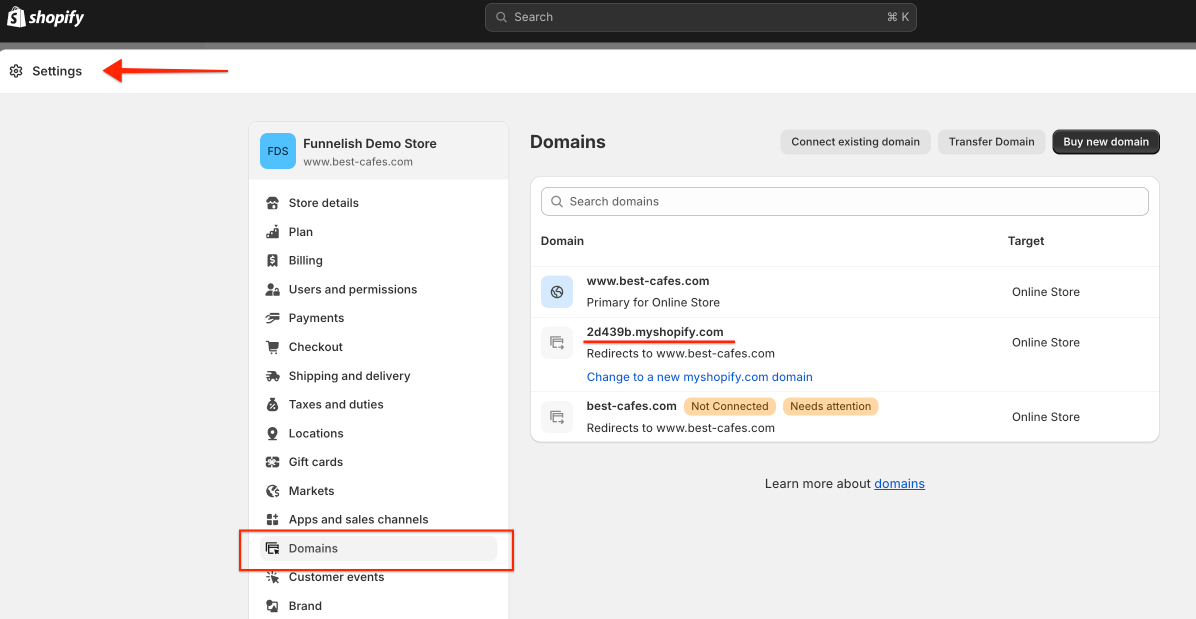
Go to Settings > Domains and copy your primary
.myshopify.comdomain name (it should look likeyourstore.myshopify.com).
Part 2: Connect in Funnelish
-
Log in to your Funnelish account.
-
Click the Settings gear icon at the top right, then select Integrations.
-
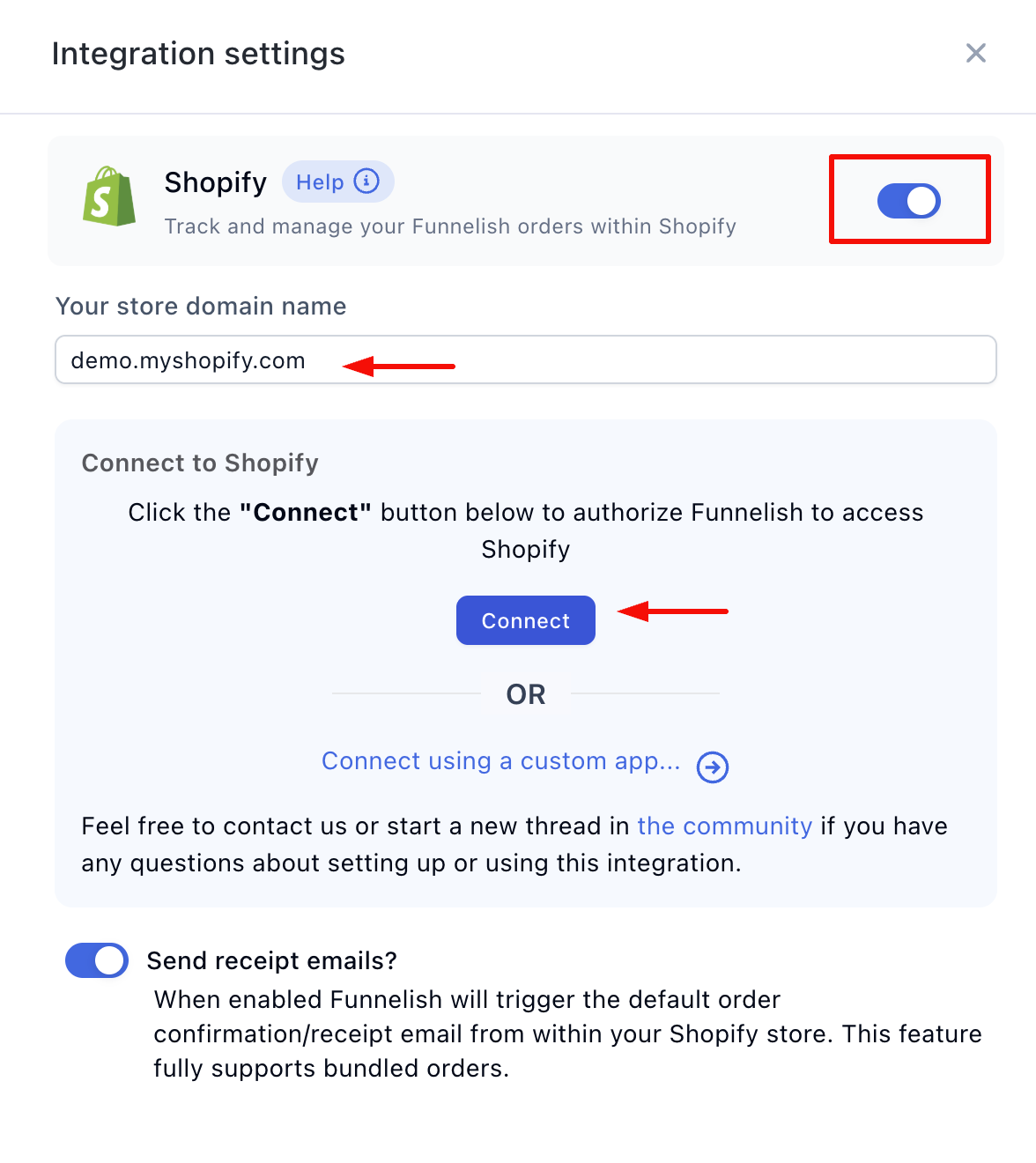
Click on Shopify to open the side panel.
-
Switch the connection toggle to the ON position.
-
Paste your copied Shopify domain into the domain field.
-
Click Connect. This will automatically open a Shopify permissions page on your screen.
-
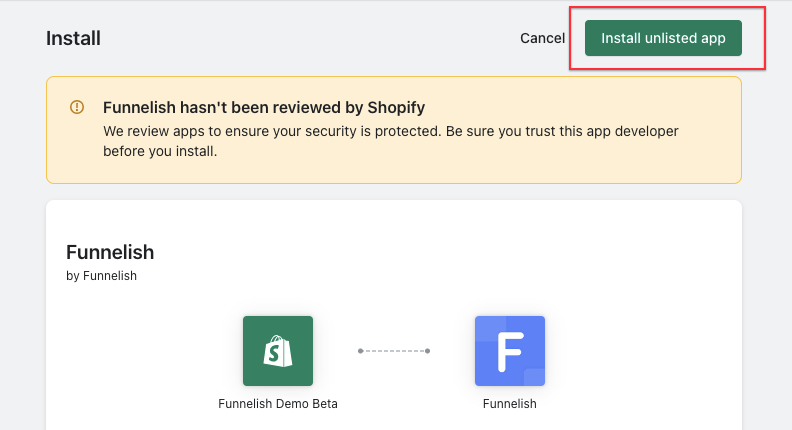
On the Shopify page, click the Install unlisted app button.
- Go back to the Funnelish side panel and click Save changes. Your Shopify store is now seamlessly connected!
Method B: Connect With Your Own Custom App (Fallback)
Only use this method if the 1-click install above does not work for your specific store setup.
Shopify changed how custom apps work. Since January 1, 2026, the old admin flow (Apps → Develop apps for your store) can no longer create new apps, and new custom apps no longer have a copyable Admin API access token. New custom apps are created in Shopify’s Dev Dashboard, and Funnelish connects with the app’s Client ID and Client Secret. Funnelish handles the access tokens for you automatically behind the scenes.
Connected with a legacy custom app in the past? It keeps working as-is. Nothing to change, this section is only for new connections.
1. Create the app in Shopify’s Dev Dashboard
-
Go to the Shopify Dev Dashboard and log in with the account that owns your store. If it’s your first visit, it sets up your free developer organization.
-
Click Apps, then Create app, and name it “Funnelish”.
2. Set the Admin API access scopes
In the app’s configuration, add these scopes:
read_products, write_products, read_orders, write_orders, read_customers, write_customers, read_fulfillments, write_fulfillments
3. Install the app on your store
-
From the app’s Home page in the Dev Dashboard, scroll down and click Install app.
-
Select your store, click Install, and approve the requested scopes.
4. Copy the credentials and link Funnelish
-
In the Dev Dashboard, open your app’s Settings page and copy the Client ID and Client Secret.
-
In Funnelish, go to Settings > Integrations > Shopify and click Connect using a custom app…
-
Enter your store’s
.myshopify.comdomain, the Client ID, and the Client Secret, then click Save Changes.
That’s it. There is no token to copy, store, or rotate: Funnelish exchanges your credentials with Shopify and keeps the connection refreshed automatically.
 Crucial Next Step: Order Bundling (99% Use Case)
Once your store is connected, you need to configure how Funnelish sends data to Shopify.
By far the most important feature to set up next is Order Bundling. If a customer buys a main product on your checkout page, adds an Order Bump, and then accepts a One-Click Upsell, you do not want those to show up as 3 separate orders in Shopify!
Our Order Bundling feature holds the initial transaction for a few minutes, waits to see if the customer accepts any post-purchase Upsells or Downsells, and then merges them all into a single, clean order for your fulfillment center.
 Learn how to set up Order Bundling here.
 Next Up: Automations & Advanced Settings
Your store is connected! Now you need to map your Funnelish products to your Shopify SKUs and configure your advanced syncing preferences so your ecommerce funnels process orders flawlessly.
Choose your next guide below to finish your Shopify integration:
-
Set up Product Automations (Required): Learn how to map your products so Shopify knows exactly what was sold.
-
Set up Dynamic Variants: Sync sizes, colors, and specific variant IDs.
-
Set up Order Notes and Attributes: Pass custom data, UTM parameters, or personalized gift messages directly to your Shopify order notes.