The editor’s toolbar is home base: it switches the left panel between your tools, changes the display mode, and holds save and preview. This guide covers all of it, plus saving whole pages as reusable templates.
New to the editor? Start with the Page Builder overview.
The left toolbar: five panels
The icons in the top left corner change what the left panel shows:
-
Add new element: the drag and drop components you build with
-
Layout: the tree of every section, row and element on the current page. The fastest way to select something buried in the structure
-
Page Properties: page-level basics (padding, background color) and advanced options (CSS IDs and classes)
-
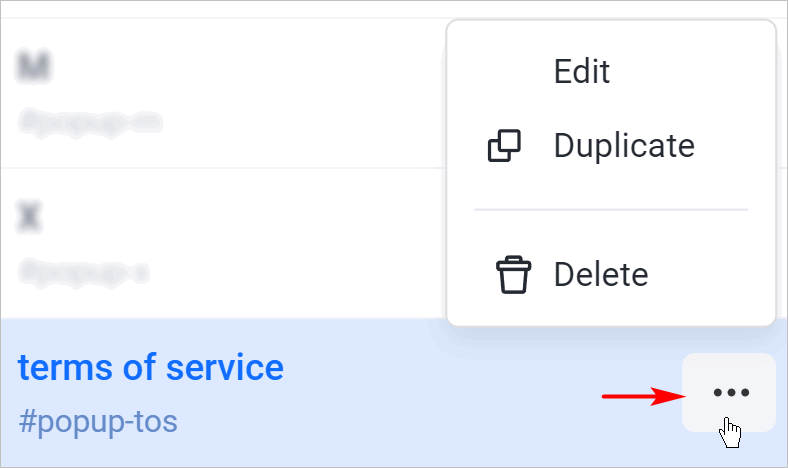
Popups: the popups on this page. Click the ellipsis on one for quick actions: edit, duplicate or delete
- More actions: opens Settings and Custom codes
Go back to funnel closes the editor. Click Save changes first, the editor doesn’t save on exit.
Display modes
The center of the toolbar switches between desktop, tablet and mobile views:
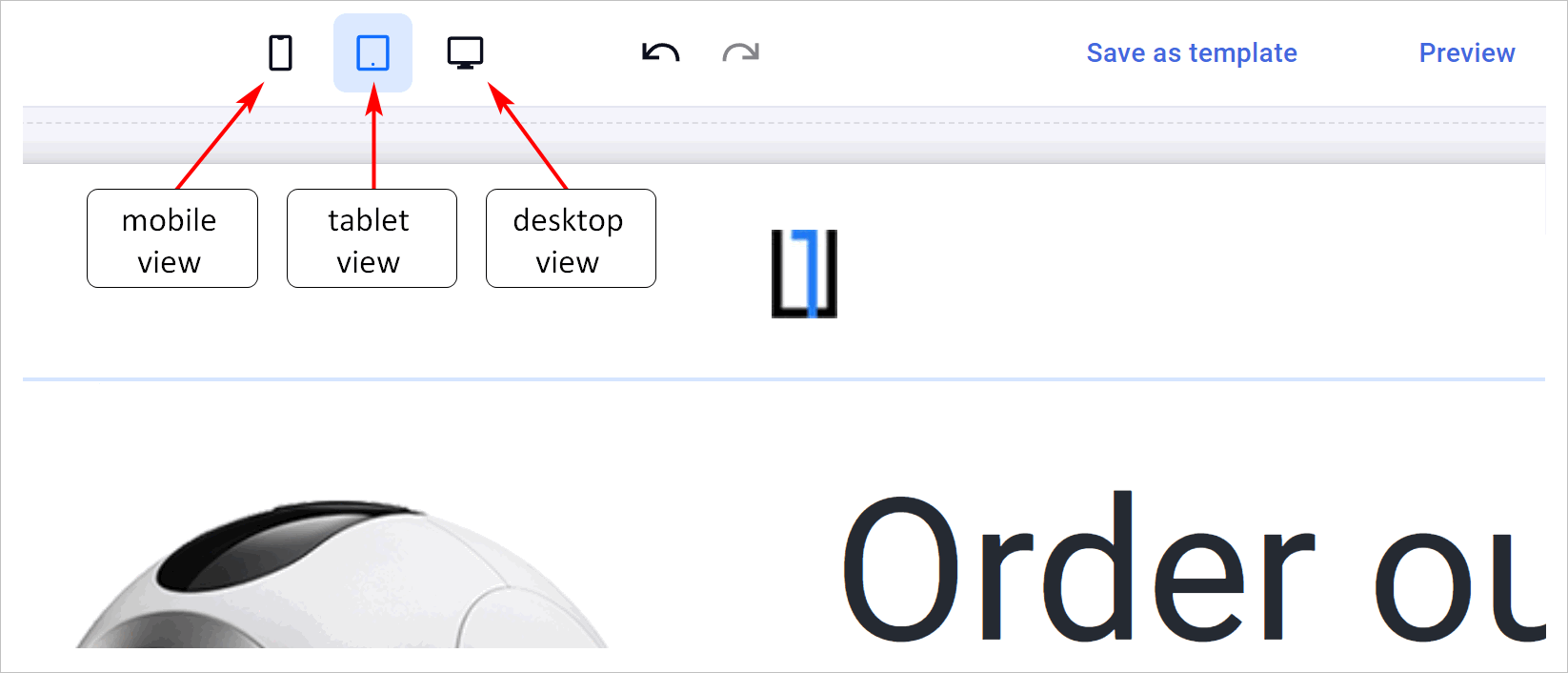
This isn’t just a preview: properties you set in a display mode apply to that mode, and you can even create elements that exist only in one mode. Tighten the padding on mobile, hide a decorative image on phones, show a compact header on small screens, all without touching the desktop design. This is the same responsive system containers use to change layout per screen size.
Before you finish any page, walk through it in mobile view. That’s where most of your buyers are.
Save and preview
The top right corner holds save and preview:

Save often, and preview in a real tab before sending traffic, the preview shows the page exactly as visitors get it.
Save a page as a template
Built a page worth repeating? Save the whole thing:
-
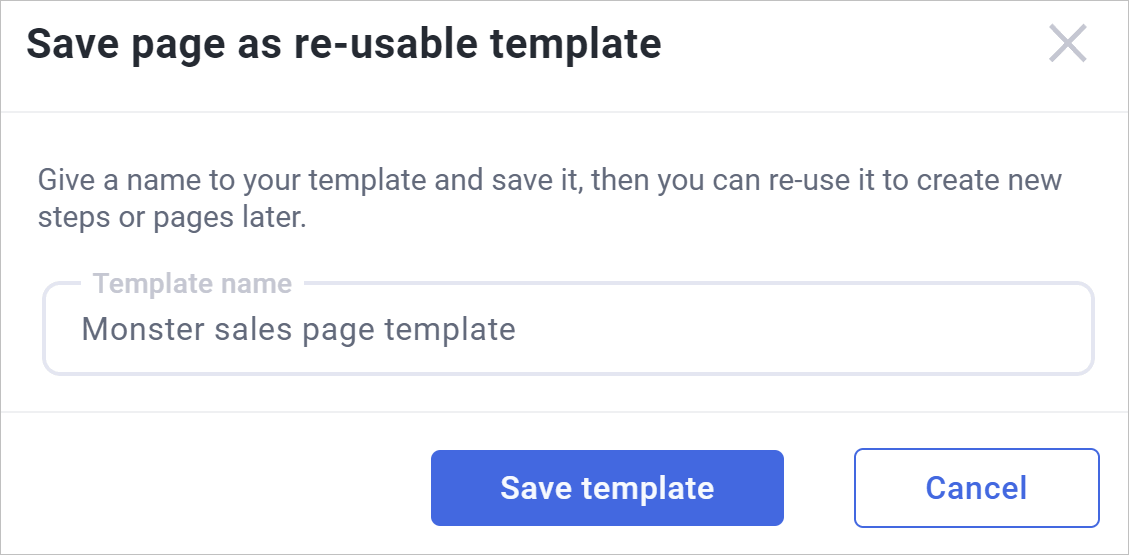
Click Save as template in the top toolbar
-
Give it a unique name
-
Click Save template
Reuse a template
-
On the funnel page, click Add step
-
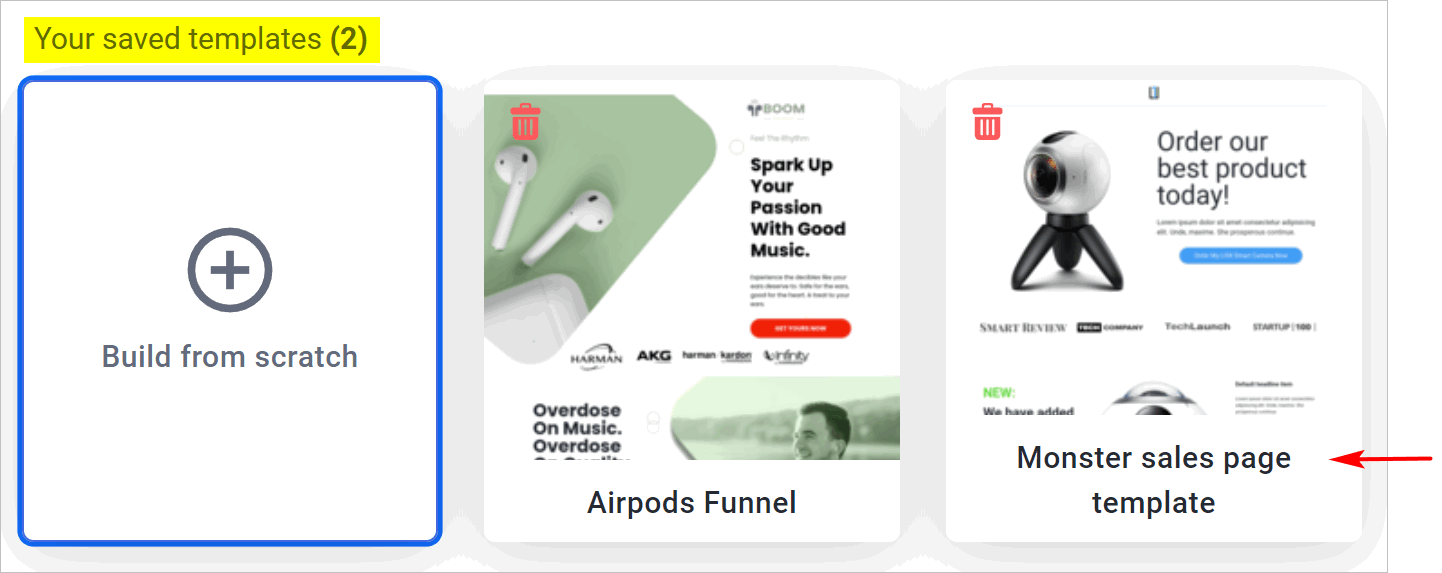
Scroll to Your saved templates
-
Click your template
Templates copy the page as it was saved. For pieces that should stay in sync everywhere (a header, a guarantee block), use a Shared Component instead, edit it once and every page updates.
Keep learning
-
Page Builder overview: the map of the whole editor and every element
-
Using the Drag-and-Drop Builder: the hands-on first-page tutorial
-
Configuring the Checkout Step: put the editor to work on the page that earns the money
-
Don’t want to start from a blank page? Clone a ready-made funnel from Templates
 Questions about the editor? Reply below or ask in Ask the community.
 Missing an editor feature? Suggest it in Feature requests — the most-voted requests shape the roadmap.