Use this feature to send extra answers from your checkout straight into your Shopify orders. Think gift messages, delivery instructions or the text to engrave.
It’s essential for print-on-demand (POD) stores, personalized DTC products, and any store that needs special instructions. Your fulfillment team and your POD apps get everything they need, without emailing the customer.
 What you can send
| In Funnelish | Where it shows in Shopify admin | Good for |
|---|---|---|
| Note | The Notes box on the order | Delivery instructions, one free-text answer |
| Attributes | Additional details on the order | Several named answers, like “Gift message” or “Left handed?” |
| Line item properties | Under the product on the order | Details for one product, like size or engraving text. Print-on-demand apps read them from here. |
Line item properties were called “dynamic variants” before. They don’t pick a Shopify variant. The variant always comes from your product-to-variant links, and the property is added next to it (for example, Size: XL).
Here’s how to set it up in three steps.
Step 1: Creating the Input Forms on your Page
First, add form fields to collect the answers from your buyer.
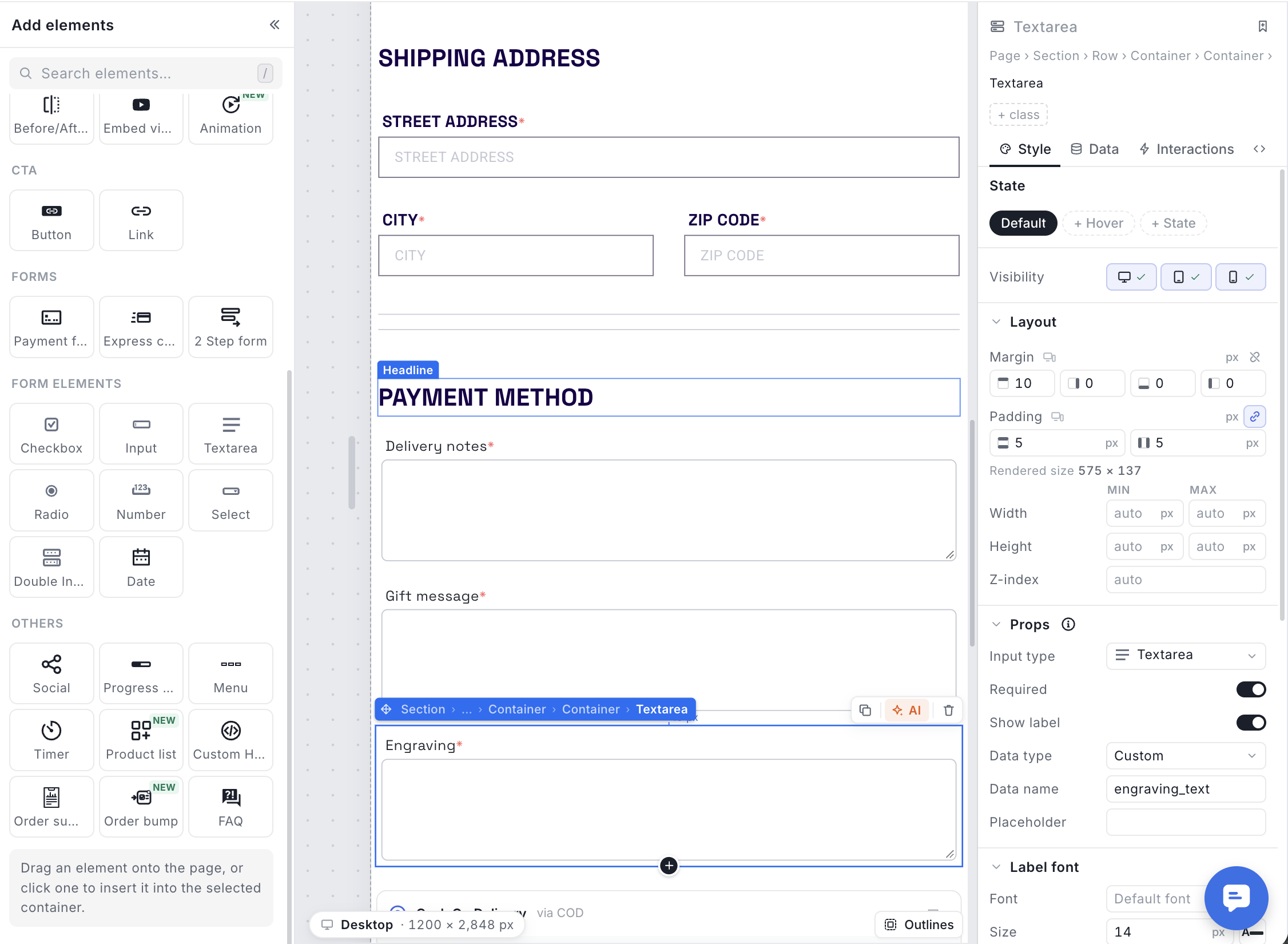
- Open the step that collects the answer (usually your checkout) in the Page Builder.
- Add an Input form, Checkbox or Radio group element.
- Open its settings and, under Props, set Data type to Custom.
- Give it a Data name, like
delivery_notesorgift_message. Buyers never see this. - Set what the buyer sees:
- Input: a Placeholder, like “Any delivery instructions?”
- Checkbox: a Label, like “I’m left handed”, and a Value, like
True. This value is what Shopify receives when the box is ticked.
- Click Save changes.
 Data name rules
- Use letters, numbers and underscores only. No spaces, brackets or other symbols.
- Names are case-sensitive.
Gift_Messageandgift_messageare two different fields.
Write down your Data names. You’ll need them in the next step.
Step 2: Map the Fields in Your Shopify Automation
Now tell your Shopify automation which answers to send, and where.
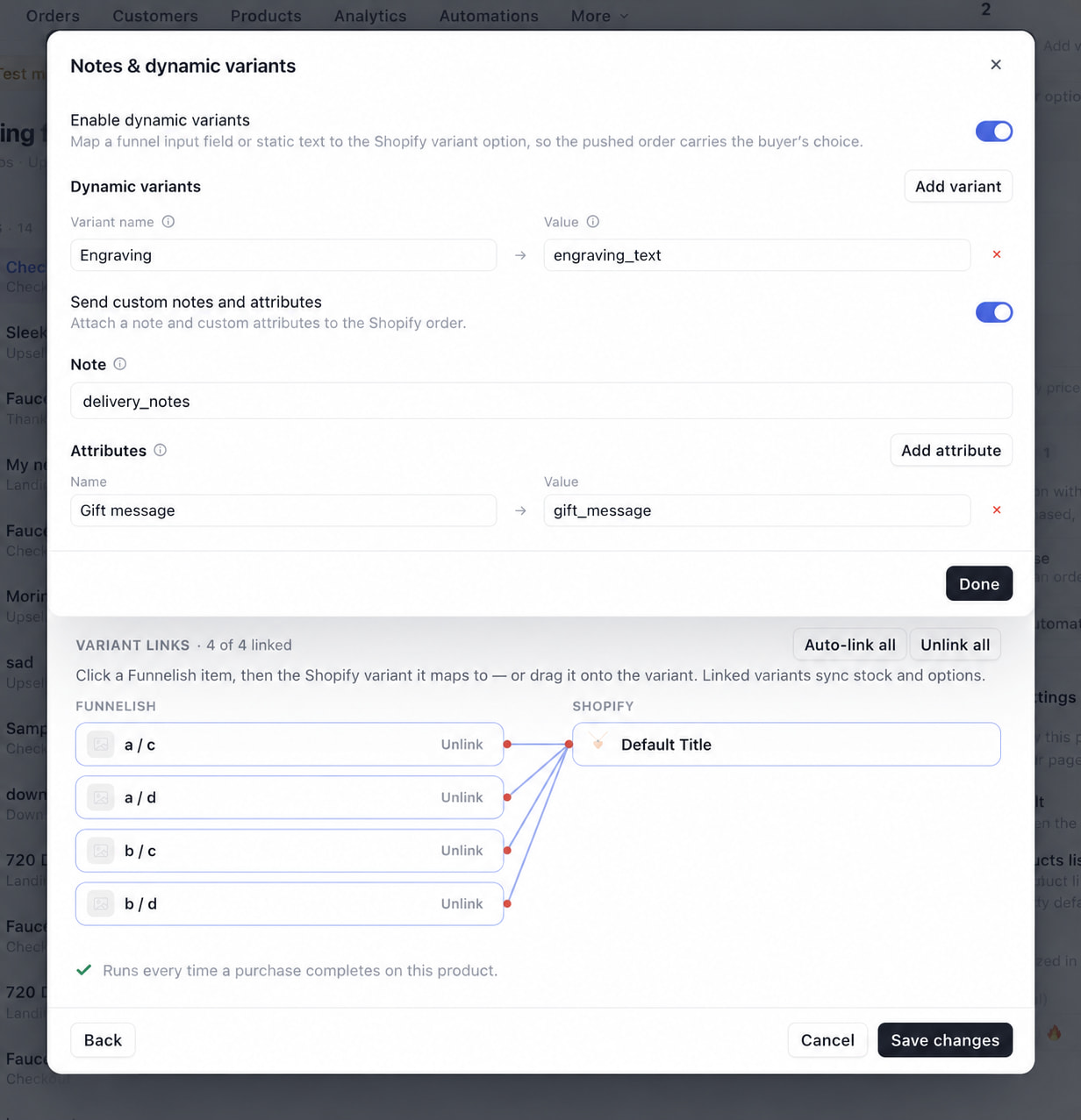
- Open the product, select its Shopify automation, and click Notes & dynamic variants.
- Turn on what you need:
- Send custom notes and attributes for the order note and attributes.
- Enable dynamic variants for line item properties.
- Fill in each row:
- Name is the label shown in Shopify, like “Gift message”.
- Value is the Data name from Step 1, typed exactly, like
gift_message.
- Click Done, then Save changes on the automation.
Here’s what a full setup looks like:
| Field | Name | Value | Shopify shows |
|---|---|---|---|
| Note | – | delivery_notes |
Notes: Leave it at the back door |
| Attribute | Gift message | gift_message |
Gift message: Happy birthday, Anna! |
| Attribute | Left handed? | left_handed |
Left handed?: True |
| Line item property | Engraving | engraving_text |
Engraving: Anna & Tom, 2026 |
Tip: send fixed values too. Any value that isn’t one of your Data names is sent as plain text. Use this for values that stay the same on every order, like an attribute Source with the value
Summer sale funnel.
Step 3: Run a Test Purchase
You are fully configured! Let’s run a test transaction to verify the custom text and attributes are showing up in Shopify correctly.
- Click Preview on your funnel and place a test order. Fill in every custom field and tick the checkbox. If your payment gateway is in test mode, use a test card.
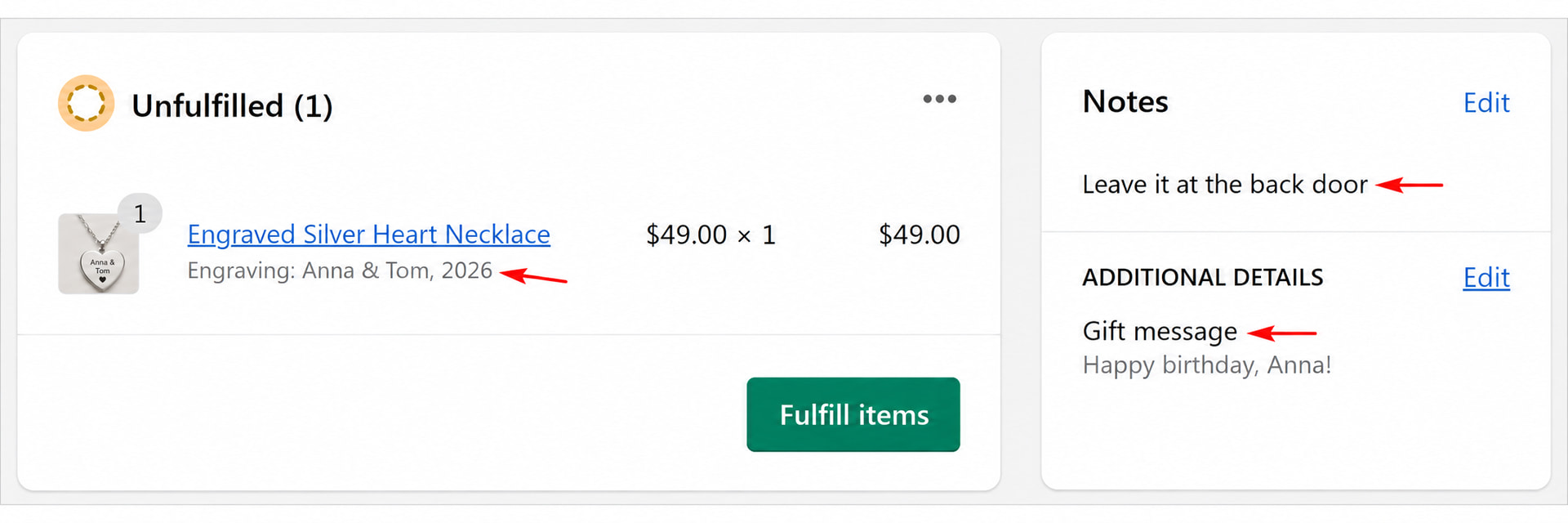
- Open the order in your Shopify admin and check:
- the note in Notes
- attributes under Additional details
- line item properties under the product
- Seeing a Data name like
gift_messageinstead of the buyer’s answer? The Value doesn’t match the field. See the first tip below.
Good to know
- A typo sends the name instead of the answer. If the Value doesn’t exactly match a Data name (case included), or the buyer skipped the field, Shopify receives the typed text, like
gift_mesage. You won’t see an error, so always test. - Standard fields aren’t available. Email, name, phone and address aren’t custom fields. Typing
emailas a value sends the word “email”. - One field per value. The Note and each Value is either one Data name or plain text. Mixing them, like
Gift: gift_message, sends that text as is. - Unticked checkboxes send nothing. The attribute or property won’t show on the order.
- Same Data name on several steps? The buyer’s latest answer is used.
- Bundled orders. When bundling merges several purchases into one Shopify order, each product keeps its own line item properties. The note and attributes come only from the first product’s automation.
- Length limit. Answers longer than 2,000 characters are cut off.
- Empty rows. Remove rows you don’t use. A row with a value but no name still reaches Shopify, with a blank label.
 Resources & Next Steps
Your Shopify orders now carry everything your team needs to fulfill them. To keep optimizing your store, check out these related resources:
Related Shopify Documentation:
-
Connect Your Shopify Store: Review the foundational steps to link Funnelish to your Shopify backend.
-
Set Up Product Automations & Order Bundling: Learn how to merge post-purchase upsells into a single Shopify order.
Helpful Links from Funnelish:
-
Funnelish.com: Discover more features designed to maximize your ecommerce profits.
-
Funnelish Blog: Read the latest Conversion Rate Optimization (CRO) strategies, dropshipping tips, and case studies.
-
Funnelish Community: Connect with other high-volume sellers, share your funnel layouts, and get expert advice from our team.